


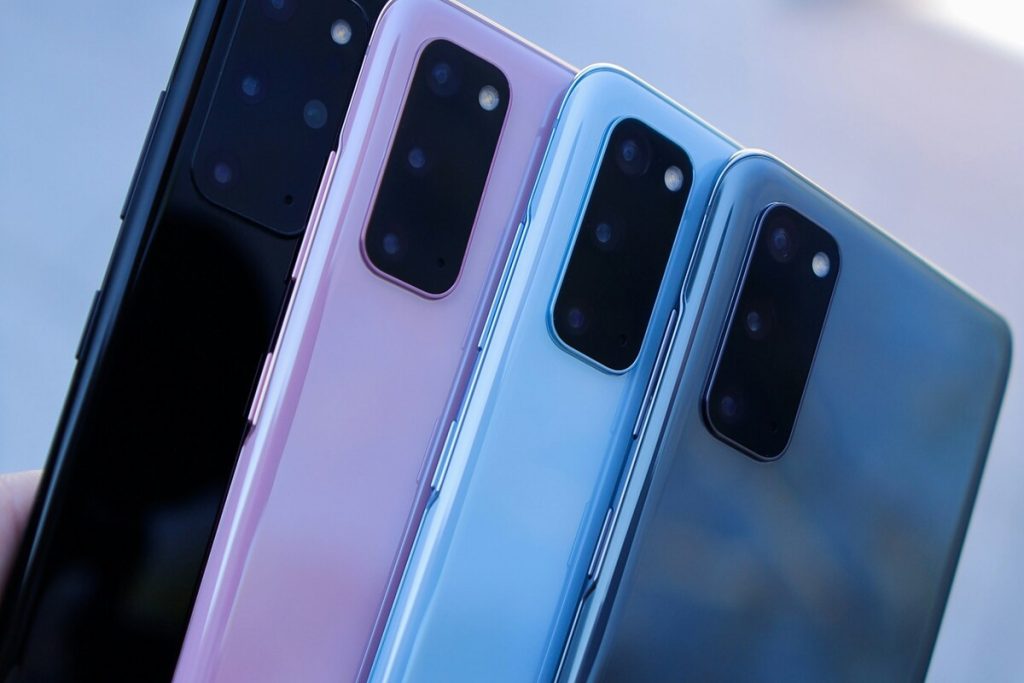
The way we connect to mobile networks is changing fast, and eSIM Samsung technology is at the center of that shift. No more tiny SIM cards, no more swapping trays, just a fully digital experience that lets you activate a mobile plan in minutes.
In this article, you’ll learn how to set up and use eSIM Samsung on your device. The following sections break down each step clearly so you can get connected without confusion.
1. What Is eSIM Samsung and How Does It Work?
At its core, eSIM Samsung is a built-in digital SIM embedded directly into your phone’s hardware. Instead of inserting a physical SIM card, you download a carrier profile onto your device.


Once installed, your phone connects to the network just like a traditional SIM, except everything is done digitally. That means faster activation, easier switching between carriers, and no risk of losing a physical card.
According to GSMA, eSIM technology allows remote SIM provisioning, making it easier for users to activate plans without visiting a store.
As more carriers adopt this technology, eSIM Samsung is becoming a standard feature rather than a premium add-on.
2. Which Samsung Phones Are eSIM Compatible?
Not every device supports eSIM, so checking compatibility is essential before trying to set it up.
Flagship Models
Samsung’s flagship devices are where eSIM Samsung is most consistently supported. These include:
- Galaxy S20, S21, S22, S23, and S24 series
- Galaxy Note20 series
- Galaxy Z Fold and Z Flip series
Mid-Range Models (Limited Support)
Some mid-range Samsung devices support eSIM Samsung, but availability depends on region and carrier. Models like certain Galaxy A series phones may include eSIM in specific markets.
Because of this variation, always verify your exact model before proceeding. This is especially important, because compatibility determines everything.
>>> Read more: Why Doesn’t My Phone Ring When I Call Someone? Frustrating Causes and Easy Fixes That Actually Work
3. How to Get an eSIM for Your Samsung
Before learning how to download eSIM on Samsung, you need to actually obtain an eSIM profile.
Option 1: From Your Carrier
The most direct way to use eSIM Samsung is through your mobile carrier. After signing up for a plan, they will typically provide:
- A QR code: You can scan this digital token using your camera to instantly download the profile.
- Manual activation details: These include the SM-DP+ Address and Activation Code for manual entry.
- Mobile App Integration: Many carriers allow you to install the eSIM directly through their official app with a single tap.
Option 2: Use a Provider Like AirTalk Wireless
If you are looking for an affordable way to stay connected, the Lifeline program is an excellent resource. This federal initiative provides a monthly service subsidy for individuals who participate in programs like SNAP, Medicaid, or SSI.
It is important to understand that the Lifeline program itself does not distribute mobile devices. However, authorized providers like AirTalk Wireless bridge this gap. They go further by offering qualifying customers a free smartphone alongside their discounted service plan.
The application process is simple:
- Apply and check your eligibility online.
- Select a device that fits your needs from their available inventory.
- Receive your phone with service included once your application is approved.
For even more convenience, you can choose an eSIM-compatible Samsung device. In these cases, the provider can activate your line digitally. You simply scan a code to install your profile, allowing you to get connected immediately without the hassle of a physical SIM card.


Note: Eligibility varies by state and program. Offers depend on availability and qualifications. AirTalk Wireless operates under the federal Lifeline Program as an Eligible Telecommunications Carrier (ETC). Service is non-transferable and limited to one service per household.
4. How to Activate eSIM on Samsung
Start by opening Settings, then go to Connections or Network settings. Look for SIM Manager or Mobile Network, and select “Add eSIM.” From there, scan your QR code or enter details manually.
Within minutes, your device should connect to your carrier’s network. Learning how to activate eSIM on Samsung properly ensures you avoid delays and setup errors.
How to Download eSIM on Samsung
Downloading an eSIM on Samsung means installing the eSIM profile onto your device. This step usually happens when you add a new mobile plan using a QR code or activation details from your carrier.
When you scan the QR code, your phone downloads the eSIM profile and prepares it for use. Make sure your device stays connected to a stable internet network during this process, as interruptions can cause the installation to fail.
How to Turn On eSIM for Samsung
After installation, you may still need to enable the eSIM manually.
Go back to SIM Manager and ensure your eSIM profile is active. You can set it as your primary line for calls, texts, and data. Once enabled, your eSIM Samsung setup is complete. The device will now function exactly like it would with a physical SIM.
Common Problems with Samsung eSIM (And Fixes)
Issues can still happen, but most are easy to resolve.
A QR code may fail because it has expired or has already been used. In this case, request a new one from your provider.
No signal after activation is another common issue. You can restart your phone or toggle Airplane Mode to force the network to reconnect.
Device compatibility can also be a limitation. Some Samsung models do not support eSIM, so checking supported devices before setup is essential.
In some cases, delays come from the carrier. When everything is set up correctly but your eSIM Samsung is still inactive, contacting support is the fastest solution.
>>> Read more: Why Does My Call Go Straight to Voicemail? Reasons and What Your Phone Is Telling You
Conclusion
By now, it’s clear that eSIM Samsung is more than just a trend; it represents a shift toward more flexible mobile connectivity.
Once you understand the basic setup process, managing eSIM becomes simple and convenient, allowing you to switch plans or devices without relying on a physical SIM card.