


A copied address, link, or message can disappear from view as soon as you close the original app. How to access clipboard on iPhone then becomes important when you need to check that content, reuse it somewhere else, or keep it from being replaced.
Unlike a saved photo or downloaded file, copied content is not displayed in an obvious folder. The methods below show where it can appear, how to preserve useful items, and what happens when you want to view something copied earlier.
1. Does iPhone Have a Built-In Clipboard?
No. The iPhone does not provide a built-in Clipboard app, folder, or menu that you can open to view copied content.
Instead, iOS temporarily stores the most recently copied or cut item in a system feature known as the clipboard or pasteboard. That item can be text, a link, an image, or another supported format. You view it by pasting it into an app that can accept that type of content.
Copying something new usually replaces the previous item. Restarting the device, waiting too long, or copying content in another app may also make the earlier item unavailable.
This design keeps copying and pasting simple, but it does not create a visible record of everything copied. To preserve an item or build a reusable history, you need to move it into Notes, a Shortcut, or another trusted app before it is replaced.
2. How to Access Clipboard on iPhone: 5 Methods to Try
The right method depends on what you want to do with the copied item. Paste is best for a quick check, while Notes and clipboard managers are more suitable when the content needs to remain available.
These options also differ in setup and privacy. Start with the built-in methods before allowing another app to handle sensitive clipboard data.

Use the Paste Option to View Copied Content
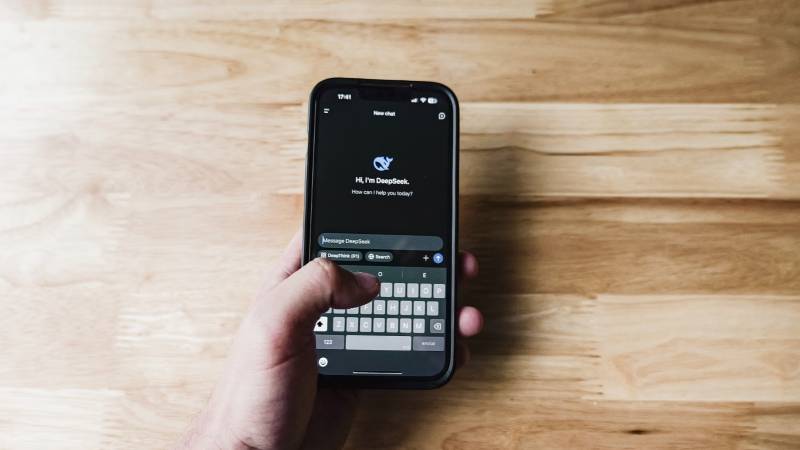
The quickest way to reveal the current clipboard item is to paste it into an app with an editable field.
To view copied content:
- Open Messages, Mail, or another app that accepts the copied format.
- Tap and hold inside a blank text field.
- Select Paste from the menu.
- Check the content that appears at the cursor.
Keep these points in mind:
- Images may need to be pasted into an app that accepts pictures.
- Some links appear as previews instead of plain text.
- If Paste is unavailable, the app may not support that content type or nothing usable remains on the clipboard.
For a one-time check, this is the most direct approach to how to access your clipboard on iPhone without changing any settings or installing another app.
Save Clipboard Content in the Notes App
Notes turns temporary clipboard content into a saved record that you can reopen later. It works well for addresses, tracking numbers, links, short messages, and research snippets.
Follow these steps:
- Open the Notes app.
- Select an existing note or tap the Compose button to create one.
- Tap and hold inside the note.
- Select Paste.
- Add a title or short label that explains what the item is.
- Tap Done or leave the note to save it automatically.
Repeat the process whenever you copy something worth keeping. You can place several items in one note or create a dedicated note called Clipboard, Links, or Saved Text.
Notes is not an automatic clipboard history. It saves only what you manually paste, but that limitation also gives you more control over which information remains stored.
Create a Clipboard Shortcut With the Shortcuts App
A custom Shortcut can display the current clipboard item or send it to a saved location with fewer taps.
To create the shortcut:
- Open Shortcuts and tap the plus button.
- Search for and add the Get Clipboard action.
- Add Show Result or Quick Look beneath it.
- Rename the shortcut, such as View Clipboard, and tap Done.
Run the shortcut after copying an item to display what is currently stored. For a more permanent record, replace or follow the preview action with Append to Note, then choose the note where new items should be saved.
Once created, you can access the shortcut in different ways:
- Add it to the Home Screen.
- Place it in a widget.
- Assign it to another available shortcut trigger.
Test it with ordinary text before using it with private information.
Save Copied Items in a Clipboard Manager
A clipboard manager can organize multiple copied items, create categories, and make frequently used text easier to retrieve. However, iOS privacy controls may prevent these apps from recording everything automatically in the background.
Before installing one, check:
- What clipboard formats it supports
- Whether saving requires opening the app or tapping a share action
- Whether content stays on the device or syncs to a server
- Whether cloud synchronization can be disabled
- Whether the free version limits saved items
- How stored clipboard data can be deleted
Do not assume that installing a manager will recover content copied before the app was set up. It can normally preserve only the items it receives after installation and permission.
Avoid storing passwords, payment-card details, recovery codes, or confidential workplace information unless you fully understand how the app protects and synchronizes its data.
Use Universal Clipboard Between Apple Devices
Universal Clipboard lets you copy compatible content on an iPhone and paste it on a nearby iPad or Mac, or perform the same action in the opposite direction.
For it to work, the devices must:
- Use the same Apple Account
- Have Wi-Fi turned on
- Have Bluetooth turned on
- Have Handoff enabled
- Remain close to each other
- Meet the relevant system requirements
To check Handoff on the iPhone, open Settings > General > AirPlay & Continuity, then turn on Handoff. Copy the item on one device, move to an editable field on the other, and select Paste.
The shared item remains available only briefly and may be replaced when new content is copied on either device. Universal Clipboard transfers the current item; it does not create a cross-device clipboard history.

>>> Also read: How to Copy and Paste on iPhone: 6 Easy Methods for Text, Photos, and Mac
3. How to Access Clipboard History on iPhone
The iPhone does not include a native list of everything copied previously. Once a new item replaces the current clipboard content, the earlier item cannot normally be restored through iOS.
For how to access clipboard history on iPhone, use one of these methods before the item disappears:
- Paste important content into a dedicated Notes page.
- Create a Shortcut that appends the current clipboard to a note.
- Save reusable phrases as Text Replacements.
- Use a trusted clipboard manager for multiple saved items.
- Check the original app where the content came from.
- Search Messages, Mail, or browser history if the item was copied from there.
Clipboard managers cannot rebuild a history that never existed. Their records begin only after the app has been installed, configured, and given the necessary access.
If you prefer not to use a separate clipboard manager, a Notes-based archive is a simpler alternative. It is less automatic, but easy to review and edit.
Add dates or short labels to separate entries, and remove outdated information regularly so the note does not become another source of exposed personal data.
4. What to Know About iPhone Clipboard Privacy
Copied content may include passwords, account numbers, private messages, addresses, or one-time verification codes. Since the general clipboard allows information to move between apps, leaving sensitive data there can create a privacy risk.
To help limit this risk, modern iOS versions display a notice or permission prompt when one app attempts to paste content copied from another. Pay attention to unexpected paste alerts, especially when you did not select Paste or interact with a clipboard feature.
This concern is also recognized in mobile security research. The National Institute of Standards and Technology (NIST) identifies clipboard access as a potential path through which privacy-invasive apps may collect sensitive information. Its Mobile Threat Catalogue entry on clipboard data explains why passwords and other private details should not be left available to apps unnecessarily.


iOS paste alerts provide one layer of protection, but they do not replace careful clipboard habits. After using how to access clipboard on iPhone, reduce unnecessary exposure by following these precautions:
- Avoid copying passwords when AutoFill is available.
- Do not save payment details in a clipboard manager.
- Reject paste requests from apps that do not need the content.
- Replace sensitive clipboard data by copying harmless text afterward.
- Review an app’s privacy policy before enabling cloud sync.
- Delete stored clipboard records that are no longer needed.
5. Why Can’t You Paste the Copied Content?
A missing Paste option does not always mean the clipboard is broken. The content may have been replaced, the destination may not support its format, or an app permission may be blocking access.
Check the following possibilities:
- Another item was copied: The iPhone normally keeps only the current clipboard item.
- The destination does not accept that format: Try pasting text into Notes or an image into an image-compatible app.
- Paste permission was denied: Open the affected app’s settings and review Paste from Other Apps if that option is available.
- The app is not responding: Close and reopen the source and destination apps.
- Universal Clipboard has stopped working: Confirm that both devices use the same Apple Account and have Wi-Fi, Bluetooth, and Handoff enabled.
- The content expired or was cleared: Return to the original app and copy it again.
- A managed device blocks transfer: Work or school policies may prevent copying data between managed and personal apps.
Restart the iPhone if Paste fails across several apps. If the problem affects only one app, update that app and review its permissions before changing broader device settings.
>>> Read more: How to Remove a Person From a Photo on iPhone?
6. FAQs
Is There a Clipboard History for iPhone?
No, iOS does not provide a built-in clipboard history showing every item copied in the past. Notes, a custom Shortcut, or a clipboard manager must save items before they are replaced.
When You Copy Something on an iPhone, Where Does It Go?
The item moves to temporary system clipboard storage rather than a visible folder or app. It remains ready to paste until it is replaced, cleared, or otherwise becomes unavailable.
Is There an iPhone Keyboard That Has a Clipboard?
Some third-party keyboards offer saved snippets or clipboard-style features, but they require additional permissions and may process what you type or paste. When considering how to access clipboard on iPhone, review the keyboard’s privacy practices before allowing full access.
Can You Recover a Copy and Paste on an iPhone?
You cannot recover an older clipboard item after it has been replaced unless it was saved somewhere else. Check Notes, Messages, Mail, browser history, the original app, or a previously configured clipboard manager for another copy.
Conclusion
Paste provides the quickest view of the current clipboard item, while Notes and Shortcuts can preserve content that needs to remain available. A clipboard manager adds more organization, and Universal Clipboard moves the current item between nearby Apple devices.
How to access clipboard on iPhone ultimately depends on whether you need one temporary item, a saved record, or cross-device transfer. Choose the simplest method that fits that need, and avoid leaving passwords, payment information, or other sensitive data exposed longer than necessary.