


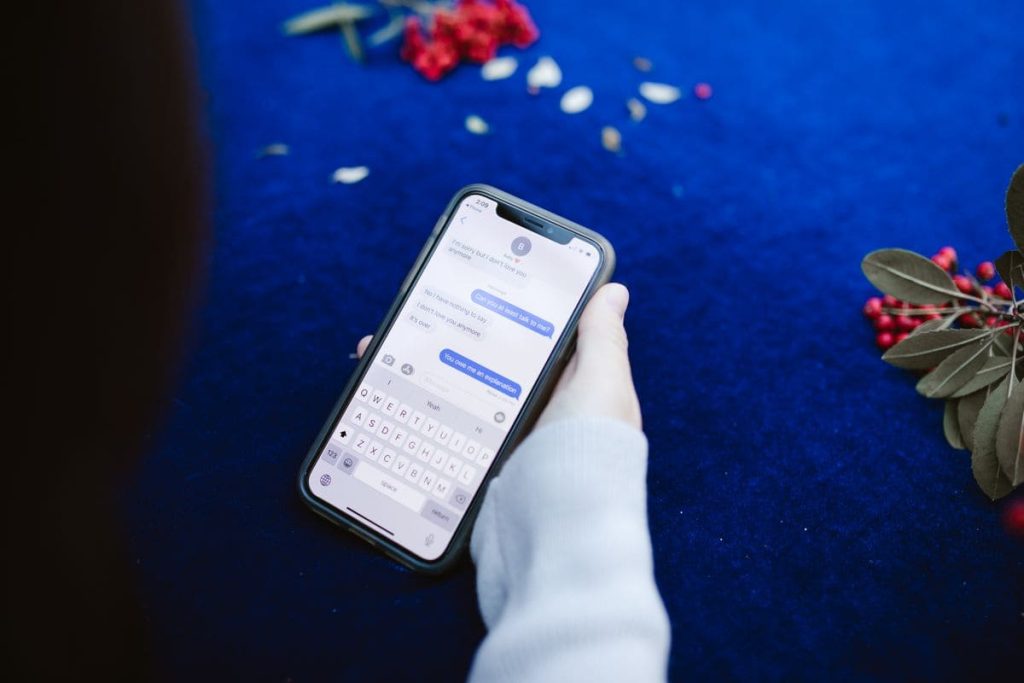
Do you enjoy a phone that buzzes with texts you never asked for? The good news is that your iPhone already has the tools to quiet them. You can block one sender or sort strangers into a separate folder.
Now, check out how to block texts on iPhone step by step, then learn how to block spam texts on iPhone. Keep it handy for the next time Messages gets noisy.
1. The Complete Answer: How to Block Texts on iPhone from Messages App
Here is how to block texts on iPhone from inside Messages, and it takes only a few taps.
Blocked messages aren’t delivered, and the sender isn’t told, which makes blocking the fastest fix for a repeat offender. The steps below follow iOS 26 and later. Labels may differ slightly on older versions.


Block Someone from an Existing Conversation
Use this route when the sender has already texted you.
- Open the Messages app and tap the conversation.
- Tap the sender’s name or icon at the top.
- Tap Info, scroll down, then tap Block Contact (you may see Block Caller on some versions).
Block a Contact Who Hasn’t Texted Recently
You can also shut the door before their next message arrives.
- Go to Settings > Privacy & Security > Blocked Contacts
- Tap Add Blocked Contact, choose the contact, and confirm.
It is a good way to shut the door before the next message arrives. Once you understand how to block texts on iPhone this way, a new nuisance takes seconds to handle.
>>> Read more: How to Send a Voice Message on iPhone? 3 Easy Steps and a Helpful Mid-Call Tip
2. 3 Ways to Manage Unwanted Text Messages
The best way to block texts on iPhone depends on who is texting you. These three options also cover how to block unwanted texts on iPhone without cutting off messages you want.
Block a Specific Sender
This method is the best for a person, number, or email address that keeps texting.
- Open the conversation and tap the sender.
- Tap Info, then scroll down.
- Tap Block Contact.
The sender gets no “blocked” notice, and they can still leave a voicemail, though you will not be alerted.
Texts from an email address follow the same steps.
Filter Messages from Unknown Senders
Best for when you don’t want to get notifications from strangers or cold texts from numbers you do not know.
Steps you can follow include:
- In Messages, tap the Filter button, and choose Manage Filters.
- Switch on Screen Unknown Senders. Their texts move to a separate folder without notifications, which is the closest thing to how to block unknown texts on iPhone without a full block.
You can still allow alerts for items like verification codes. Turn on Filter Text Messages to sort promotions and transactions, though it skips anyone you have replied to three or more times. Filtered texts are hidden (not blocked).
On older iOS versions, look under Settings for Filter Unknown Senders.

Mute or Report a Message
Reporting or muting messages is the best option when you hate noisy threads or suspicious texts.
Here’s how to start:
- Swipe left on a conversation and tap the bell icon to hide alerts.
- For junk, swipe left, tap Delete, then choose Delete and Report Junk, or tap Report Junk beneath an unknown sender’s message.
- Reporting does not stop future texts, and you cannot report after replying. Pair it with a block.
Take a look at the quick comparison of how to block texts on iPhone and the related controls:
| Method | Best for | What happens |
| Block a sender | Repeat texts from one number or email | Messages are not delivered |
| Screen unknown senders | Strangers and cold texts | Texts go to a separate folder, silently |
| Hide alerts | Chats you want to keep | Messages arrive without notifications |
| Report junk | Suspected spam or scams | Flags the message, but does not block |
>>> Read more: How to Text Without a SIM Card: Messaging Options That Still Work
3. How You Can Stop Spam That Keeps Coming from New Numbers
Spam rarely sticks to one number: block one, and another pops up. See how to block spam texts on iPhone more effectively:
- Report suspected junk: Tap Report Junk on iMessage spam. Reporting SMS or MMS depends on your carrier. You can forward those texts to 7726 (SPAM). You can also report it at ReportFraud.ftc.gov.
- Try carrier filtering for repeated spam: You can use carrier tools to filter suspected spam before it reaches you. Alongside blocking, they make blocking texts on iPhone far less of a chore.
- Be careful with suspicious texts: Never click links or reply to unexpected texts. Contact the company through a website or number you already trust. The risk is in fact: Losses to text scams hit $470 million, with fake package alerts the most common.
4. Tips to Manage Unwanted Group Texts
When you read about how to block unwanted texts on iPhone, you may find Group chats hard to stop on iPhone. You usually cannot block a group conversation like an individual sender. In fact, Apple does not let you block a whole group conversation.
What you can do is mute or leave an iMessage group.
- Open the group, scroll down, and switch on Hide Alerts to stay in the chat quietly.
- To exit, tap Leave this Conversation.
Leaving works only when at least three other people are in the thread, and everyone uses iMessage on an Apple device. If the option is unavailable, mute the conversation instead.
Blocking still works one-on-one, so if a group member also texts you privately, use the steps for how to block texts on iPhone in that separate conversation.
5. How to Check and Unblock Someone
What happens after you block a sender?
Their messages aren’t delivered, and they receive no notice. The block also applies to Phone, FaceTime, Mail, and Calendar. They can still leave a voicemail, but you will not get an alert. If you suddenly stop hearing from someone, check your blocked list first.
How to unblock a number or contact:
- Go to Settings > Privacy & Security > Blocked Contacts.
- Tap Edit, tap the minus button beside the contact, then tap Unblock. You can also swipe left on a number in the list.
- Everything you set up for how to block texts on iPhone can be reversed in seconds.
6. FAQs
How do I block a text number on my iPhone?
Open the conversation, tap the sender at the top, tap Info, then tap Block Contact. You can also add numbers under Settings > Privacy & Security > Blocked Contacts.
Can I block all texts from numbers that aren’t in my contacts?
The closest option for blocking unknown texts on iPhone is Screen Unknown Senders, which silences alerts and files those texts separately. Screen Time can limit messages to contacts, but it may also keep out legitimate senders.
Can I block someone from texting me but not calling?
Not with the built-in block, which covers Messages, Phone, and FaceTime together. To keep the calls, use Hide Alerts on that conversation instead.
Does blocking a number also block calls and FaceTime?
Yes. A block in Messages also applies to Phone, FaceTime, Mail, and Calendar. The person can still leave a voicemail, but you will not be notified.
How to block email texts on iPhone?
Open the conversation, tap the email address at the top, tap Info, then tap Block Contact. For emails in the Mail app, open the message, tap the sender, choose View Contact Card, and tap Block this Contact. No single switch blocks every email-based text. Ask your carrier about account-level options.
7. Conclusion
Now you know how to block texts on iPhone and keep Messages calm. Block repeat senders, screen strangers, and report anything shady. If you enjoyed this guide, keep up to date with our blog for more tips, and also share it with your friends.