


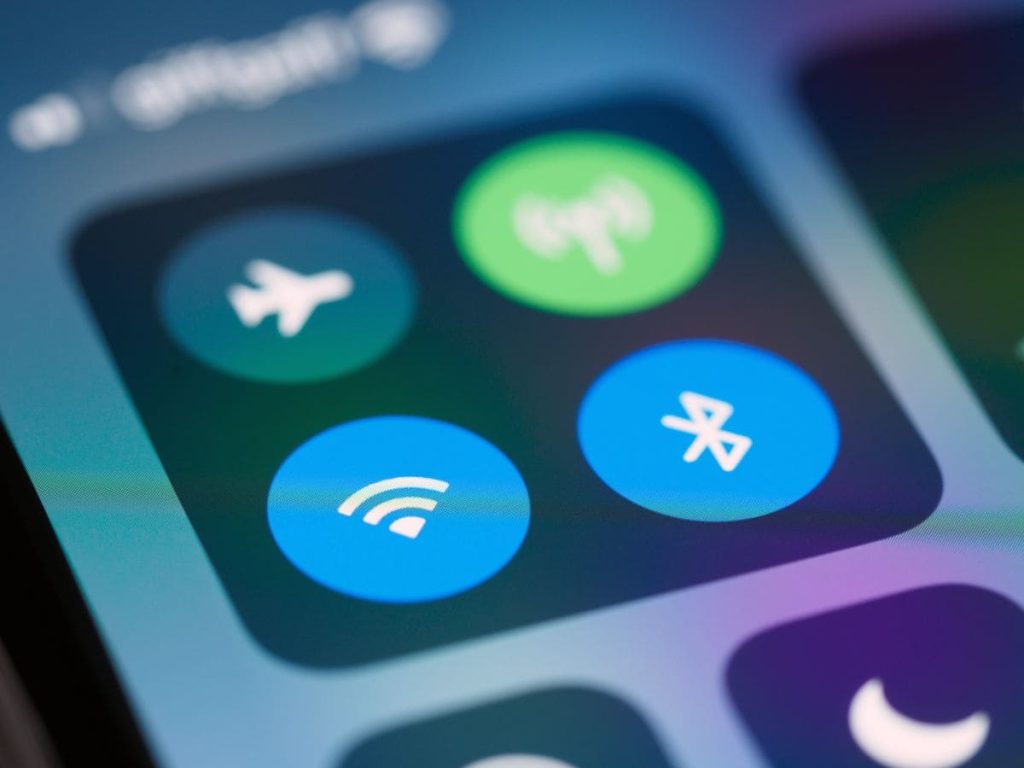
Seeing a generic label like “iPhone” or a random string of numbers in your pairing list can make connecting devices confusing. Whether you’re trying to find your phone during an AirDrop transfer, tell multiple pairs of headphones apart, or simply personalize your tech setup, learning how to change Bluetooth name on iPhone can make managing your devices much easier.
The process is simple, requires no extra apps, and takes less than a minute.
1. How to Change Your iPhone’s Bluetooth Name
Your iPhone uses its device name to identify itself to nearby devices, including Bluetooth accessories. By default, this name may include your personal name and the iPhone model, which can make your phone difficult to distinguish from others nearby.
When you want to figure out how to change your Bluetooth name on iPhone hardware, you are modifying the primary identity of the phone itself. Fortunately, you can change it directly in Settings without installing an additional app.
Here is how to change your Bluetooth name on iPhone in just 6 simple steps:
- Step 1: Open Settings.
- Step 2: Tap on General.
- Step 3: Tap on About.
- Step 4: Select Name.
- Step 5: Edit the name.
- Step 6: Tap Done.

That’s it! When you change your phone’s name, the new name will automatically update across Bluetooth device lists, AirDrop, Personal Hotspot, and the Find My app.
Changing your iPhone’s name is straightforward, but remember this setting changes the device’s general name, not a separate Bluetooth-only name. The new name may take a little time to appear on other devices. If you don’t see it right away, refresh the Bluetooth device list or reconnect.
2. How to Change Bluetooth Device Name on iPhone
Renaming your iPhone is only half the story. Changing your iPhone’s name won’t necessarily rename your wireless earbuds, headphones, or speakers. If you want to know how to change Bluetooth device name on iPhone, the process is handled directly inside your active wireless connections menu.
Follow these steps to rename a compatible Bluetooth accessory:
- Step 1: Turn on your wireless headphones, earbuds, or speaker, and make sure your iPhone is connected to the Bluetooth accessory.
- Step 2: Open Settings and tap Bluetooth.
- Step 3: Find the connected accessory in the My Devices list. Check that it shows as connected, not just as a previously paired device.
- Step 4: Tap the icon (i) next to the accessory’s name. This opens its device information and available configuration options.
- Step 5: Tap Name, if this option is available, and enter your preferred name.
- Step 6: Tap Done to save your changes.
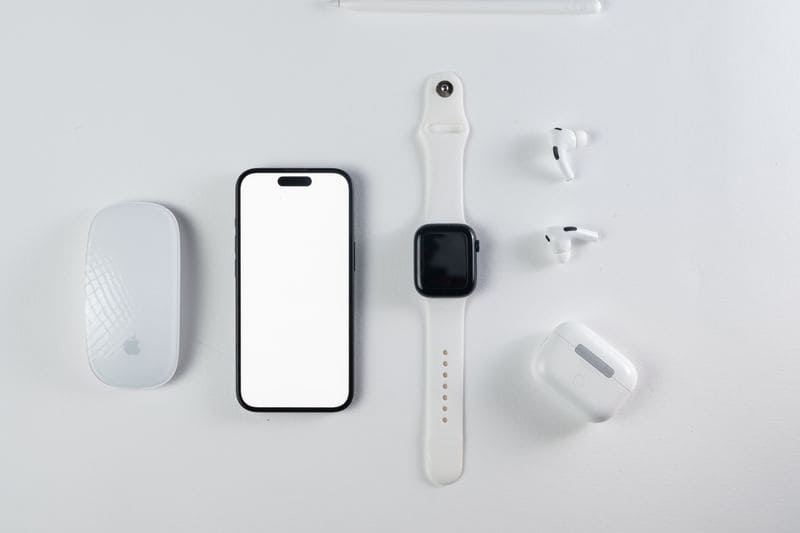
This method works with compatible accessories, including AirPods, some Beats headphones, and certain Bluetooth speakers and other devices.
For AirPods, the process works a bit differently: when you change the name, the new name is synced across other Apple devices signed in to the same Apple account, so you only need to perform this step once.
Third-party accessories, however, behave differently: a custom name will appear only on your iPhone, while other phones will continue to display the manufacturer-assigned default name.
3. 3 Reasons Why Your Bluetooth Name Won’t Change
Sometimes, changing a device name on your iPhone doesn’t work as expected. You might not see the Name option, your accessory might keep displaying its old name, or the updated name might disappear after reconnecting. If you’re having trouble updating a device name, here are three common reasons why it might not change.
The device is not connected.
iOS only allows you to edit an accessory’s name while it is actively connected. If the accessory is in sleep mode, out of range, or paired with another phone, the Name field may appear greyed out.
Power on the accessory, place it near your iPhone, wait until it shows as Connected, and then try again.
The accessory does not support renaming.
Not every Bluetooth accessory allows users to change its displayed name through iOS. Some budget headphones, in-car accessories, or fitness trackers have names hardcoded into their firmware.
In such cases, the renaming option may not display. Check the manufacturer’s companion app, which often includes a setting for renaming, or consult the user manual for instructions.
The iPhone has automatically renamed the device due to a conflict.
If your iPhone’s name changes unexpectedly or appears differently across devices, the issue may involve how a connected service or device identifies it.
However, a name conflict doesn’t automatically mean iOS has renamed your iPhone. Different devices may also cache an older name or display their own labels.
To fix it, return to Settings > General > About > Name and verify your iPhone’s current name. If necessary, enter a new, distinctive name and tap Done. Then toggle Bluetooth off and on, reconnect the accessory, and check the displayed name again.
>>> Read more: How to Check If Your iPhone Is Hacked in Settings
4. FAQs
Can I change only my iPhone’s Bluetooth name?
No. On iOS, your iPhone’s Bluetooth broadcast name is tied directly to your overall device name. Changing it will also change how your phone appears on AirDrop, Personal Hotspot, local Wi-Fi networks, and iCloud device lists. If you want to change how a particular accessory appears, rename that accessory separately if it supports the feature.
Does changing the Bluetooth name affect pairing?
No. Paired devices identify each other primarily through their underlying device identifiers, not just their display names. Your devices should remain paired, although you may need to reconnect them or refresh the device list to see the updated name.
If a connection stops working, try toggling Bluetooth off and on before removing the pairing and setting it up again.
Can I add emojis to iPhone Bluetooth name?
Yes, the iPhone keyboard allows you to include emojis in your device name, such as “My iPhone📱”. However, some older car systems, TVs, or other accessories may not be able to display emojis (they might appear as empty squares or be omitted entirely).
How to change buds name permanently?
Go to Settings > Bluetooth, tap the (i) icon next to your headphones, select Name, and enter a new name. For AirPods, the name typically syncs across Apple devices signed in to the same Apple Account.
For other types of headphones, the new name may apply only to your iPhone. You may need to use the manufacturer’s app to change the name across other devices, if supported.
Keep in mind that a factory reset may restore the headphones’ default name.
5. Conclusion
Personalizing your tech setup makes managing wireless connections easier and more organized. With just a few simple steps, you can learn how to change bluetooth name on iPhone and tidy up the names of your connected wireless accessories in less than a minute.
Give it a try today to keep your Bluetooth devices organized and easy to recognize. Besides, continue reading practical mobile and connectivity guides on the AirTalk Wireless blog.