


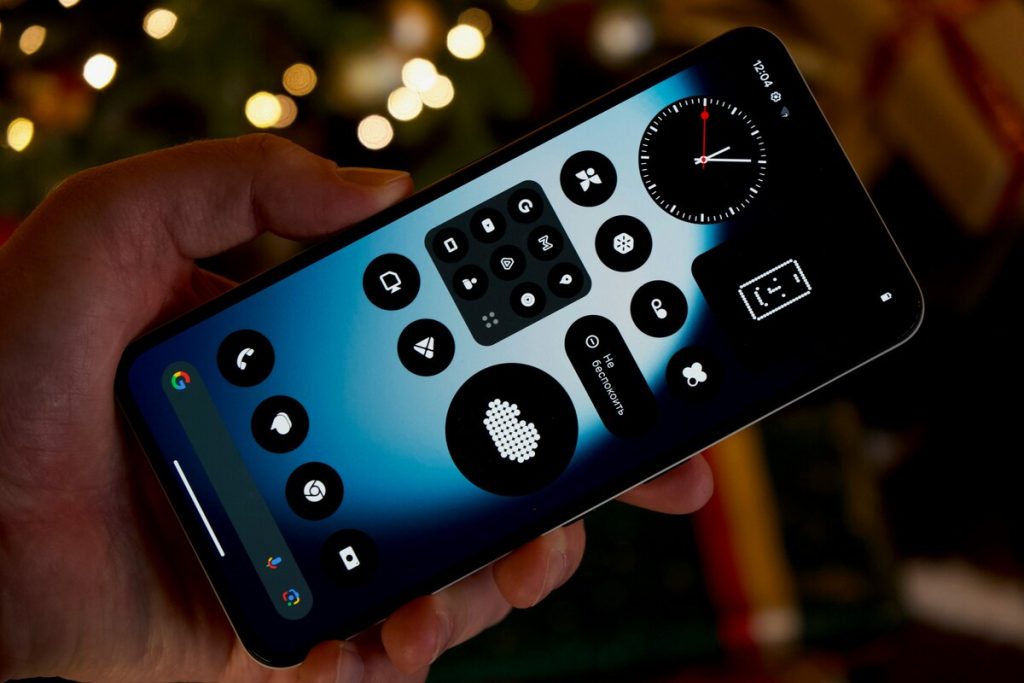
Your iPhone clock can look different depending on where it appears. The Lock Screen, Home Screen widgets, and StandBy each have their own customization options, so changing one doesn’t necessarily change the others.
If you’re wondering how to change clock face on iPhone, the first step is knowing which clock you want to customize.
1. Which Clock Face Do You Want to Change? Where Can You Customize the Clock on Your iPhone?
Four places show a clock, and how to change clock face on iPhone differs for each because they do not share settings.
Pick the one you want to change, then jump to its section:
- Lock Screen: change the clock’s font, color, and size.
- Home Screen: add a Clock widget and adjust its style and size.
- StandBy: switch between clock styles and colors while the phone charges.
- Clock app icon: the default icon has very limited customization.
The app icon is the least flexible of the four, so most of this guide covers the first three.
2. How to Change Clock Face on iPhone Lock Screen
The Lock Screen clock is what most people want to change when searching for how to change clock face on iPhone. Fortunately, you can adjust its appearance directly from the Customize screen.
There, you’ll find separate controls for the clock’s font, color, and size. The available options depend on your iOS version, with iOS 26 introducing additional customization choices.

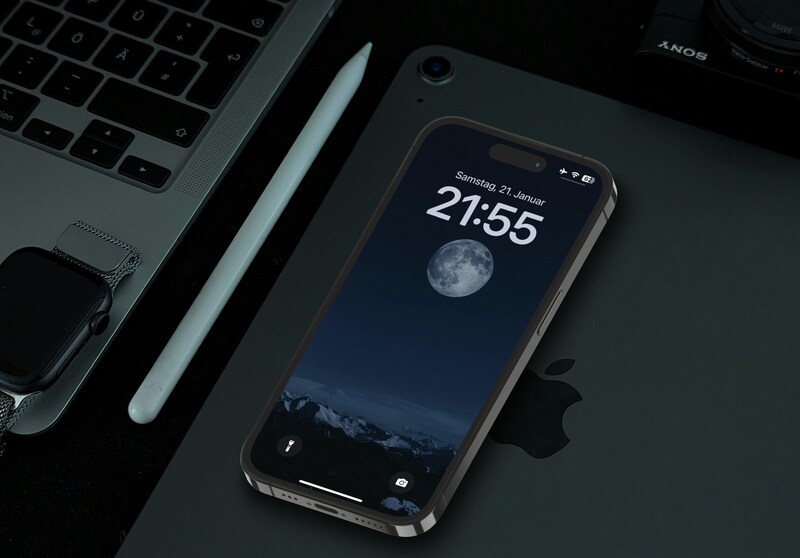
Change the Font and Color
Here is how to change the clock face on iPhone Lock Screen in iOS 26:
- Long-press the Lock Screen and tap Customize.
- Tap the time.
- Choose Glass or Solid at the bottom. Glass gives the see-through look.
- Pick a font, then use the slider to adjust thickness.
- Pick a color at the bottom, then adjust the opacity slider.
- Tap elsewhere on the Lock Screen, then tap Done.
On earlier versions, the same path is shorter: long-press, tap Customize, tap the frame around the clock, then choose a font style and color. A slider changes the hue. You can also reach this screen from Settings, then Wallpaper.
>>> Read more: How to Lock Photos on iPhone With Face ID within Just 3 Steps?
Resize the Clock
Size is controlled by dragging, not by choosing a preset. Long-press the Lock Screen, tap Customize, then press and hold the grab handle at the bottom-right of the clock. Drag it down until the time is the size you want, then tap Done.
If no handle appears, the font you picked does not support resizing. Tap the clock and choose the first font option, and the handle returns. The handle also disappears when there is no room above the subject of your wallpaper photo. Notifications can shrink a large clock to make space, so clear them to see the full size.
3. How to Change the Clock Widget on Your iPhone Home Screen
The Home Screen clock is a widget, so if you ask how to change the clock face on my iPhone, this means adding or editing one.
- Touch and hold an empty area, or a widget, until the apps jiggle.
- Tap the Edit button in the upper-left corner, then tap Add Widget.
- Search for Clock, or scroll to it in the list.
- Select a widget, choose a size, and tap Add Widget.
- Tap Done.
To move a widget, touch and hold it, tap Edit Home Screen, drag it to a new spot, and tap Done.
To remove it, touch and hold, tap Remove Widget, and tap Remove to confirm. There is no direct replace option, so remove the old widget and add a new one. Some widgets also offer Edit Widget when you touch and hold them.
4. Exploring Clock Customization Options in iPhone StandBy Mode
StandBy turns a charging iPhone into a bedside clock, and how to change clock face on iPhone here comes with the widest range of styles.
The phone must be charging and turned sideways in landscape. StandBy is usually on by default, and you can switch it on or off in Settings, then StandBy. The full-screen clock is on the third screen.
Swipe up or down on that screen to move between five clock styles:
- Digital: bold numbers in several colors.
- Analog: a classic face with accent colors.
- World: a map that highlights your location, with a fixed color.
- Solar: a standard font with a solar flare design.
- Float: large bubble-style numbers.
Some styles also show extras such as the temperature or your next alarm. Display settings depend on the model. Pro iPhones have a Display option with Automatically, After 20 Seconds, and Never, while other models have a Night Mode toggle that turns StandBy red in low light.
To change a color:
- Press and hold the clock face.
- Tap the white button in the lower-right corner.
- Choose a color swatch.
- Tap the X in the top-right corner, then tap Done.
>>> Read more: How to Remove Face ID on iPhone: 3 Ways to Disable It Fast
5. FAQs
How to Change Clock Face on iPhone 16?
The steps match the other models. Use Customize for the Lock Screen, the widget gallery for the Home Screen, and the charging screen for StandBy.
The iPhone 16 and 16 Plus show the Night Mode toggle in StandBy, while the Pro models show Display.
How Do I Get My iPhone Clock Back to Normal?
For the Lock Screen, open Customize, tap the time, and choose the first font and a white color, then drag the handle back to shrink it. In StandBy, swipe to Digital.
If the numbers look wrong, such as a 24-hour display, open Settings, then General, then Date & Time, and turn 24-Hour Time off. Turn on Set Automatically if the time itself is wrong.
Can I Change the Clock Face in the iPhone Clock App?
Not really. For questions about how to change clock face on iPhone, the app icon is Apple’s design and cannot be swapped. You can change its appearance in Home Screen Customize, where Automatic, Dark, Light, and Tinted styles are available for supported icons. A Clock widget or a Shortcut with its own icon works as a workaround.
Can I Change My Apple Watch Face Using My iPhone?
Yes. Open the Apple Watch app, tap Face Gallery, pick a face, tap Get, customize the color or complications, and tap Add to Watch. The face becomes the current one. To reorder or delete faces, tap My Watch, then Edit under My Faces.
6. Final Thoughts
Start with where you see the clock. Use Customize for the Lock Screen, the widget gallery for the Home Screen, and the charging screen for StandBy.
Once you match the place to the setting, how to change clock face on iPhone takes only a few taps, and the Apple Watch app handles your watch.