



An iPhone can display one language in its menus, use another for typing, and keep a different language in certain apps or voicemail. How to change language on iPhone therefore depends on which part of the experience you want to update.
Here, you will find the correct settings for each situation, along with practical fixes when the current interface is unreadable or some apps refuse to switch languages.
1. How to Change Language on iPhone: Follow These Steps
Changing the system language updates the text used across Settings, built-in menus, notifications, and supported apps. It does not automatically change the iPhone’s region, Apple Account country, or every third-party app.
The following process shows how to change the language on iPhone without erasing personal data or resetting the device.
Step 1: Open Settings
Open the Settings app from the Home Screen or App Library. Its gray gear icon remains the same regardless of the language currently displayed.
Step 2: Select General
Scroll down and tap General. This section contains the iPhone’s main system preferences, including language, date, keyboard, storage, and software update settings.
Step 3: Tap Language & Region
Select Language & Region. Review the current preferred language list and regional settings before making a change.
Step 4: Select Add Language
Tap Add Language to open the list of supported options. Adding another language does not immediately remove the current one.
Step 5: Choose the New Language
Search for or scroll to the language you want, then select it. If regional versions are available, choose the one that matches your preferred spelling, vocabulary, and formatting.
Step 6: Confirm It as the Primary Language
When prompted, select the option to use the new language as the iPhone’s primary language. The interface may take a moment to refresh before menus and supported apps display the change.
That is how to change language on iPhone in steps using the current system settings. Return to Language & Region later if you want to reorder the preferred languages or switch back to the previous one.

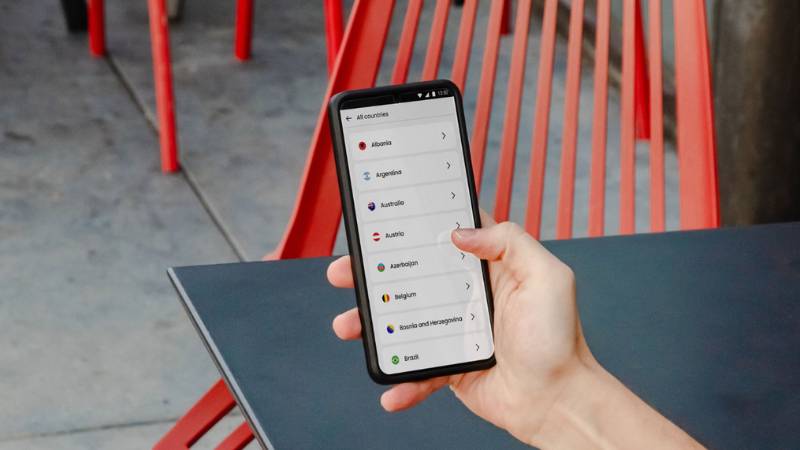
2. Can’t Read Your iPhone’s Current Language? Here’s What to Do
An unfamiliar interface can make even the correct settings path difficult to follow. Avoid selecting random options, especially those related to resetting, erasing, or transferring the device.
Use these visual and translation methods instead:
- Look for the gray gear icon to open Settings.
- Use another phone’s camera translation feature to read each menu in real time.
- Take screenshots and translate the visible text on another device.
- Compare the screen with a trusted walkthrough that uses the same iOS version.
- Follow the familiar icon for General, then look for the language and region menu.
- Ask someone who reads the current language to guide you through the menus.
The three labels you need correspond to General, Language & Region, and Add Language. Once the preferred language list appears, select a familiar language and confirm it as the primary option.
If Voice Control or Siri recognizes a language you can speak, voice commands may help open Settings. However, Siri cannot reliably complete every confirmation required to replace the system language, so visual verification may still be necessary.
>>> Read more: How to Make a Sticker on iPhone From Any Photo You’ve Got?
3. How to Change Language on iPhone Keyboard
Adding a keyboard language changes the letters, predictive text, autocorrection, and available layouts used while typing. It does not replace the language displayed across the iPhone interface.
Use the following process for how to change language on iPhone keyboard:
Step 1: Open Settings
Open Settings from the Home Screen or App Library.
Step 2: Go to General and Select Keyboard
Tap General, then select Keyboard. This page contains typing, autocorrection, dictation, and keyboard-management options.
Step 3: Tap Keyboards
Tap Keyboards at the top of the page. You will see every language and layout currently available while typing.
Step 4: Select Add New Keyboard
Tap Add New Keyboard to display the supported languages and third-party keyboards installed on the device.
Step 5: Choose a Language and Layout
Select the required language. If several layouts are available, choose the one that matches how you normally type.
Some supported language combinations can share multilingual predictions within one keyboard. Others remain separate and must be selected manually.
Step 6: Use the Globe Key to Switch While Typing
Open an app that accepts text and tap a text field. Tap the Globe key to move between keyboards, or press and hold it to select a specific language from the list.
If the Globe key does not appear, return to the keyboard settings and confirm that at least two keyboards have been added.
4. What If You Only Want to Change the Language for an App or Service?
Changing the entire iPhone interface may be unnecessary when only one app or carrier feature uses the wrong language. App language and voicemail language are controlled separately, so each requires a different approach.
Can You Change the Language for an Individual iPhone App?
Yes, if the app supports multiple languages and provides a language preference through iOS. Changing it will affect only that app, not Settings, the Home Screen, or other apps.
To check:
- Open Settings.
- Scroll down and select Apps.
- Choose the app you want to update.
- Tap Language or Preferred Language if the option appears.
- Select one of the supported languages.
- Close and reopen the app to apply the change.
If no language option appears, the app may follow the iPhone’s preferred language order or may not support the language you want. Add the desired language under Settings > General > Language & Region, then check the app settings again.
Some apps also manage language through an in-app settings menu or the user’s online account. In that case, changing the iOS preference alone may not update the interface.
Can You Change the Voicemail Language on an iPhone?
The language used by Visual Voicemail may follow the iPhone’s system language, but spoken menus, greetings, and automated prompts are often controlled by the wireless carrier. Therefore, the steps for how to change voicemail language on iPhone can vary by provider.
Try the following options:
- Change the iPhone’s primary language and reopen the Phone app.
- Call the voicemail system and listen for a language-selection option.
- Check the carrier’s account app or online portal for voicemail preferences.
- Contact the carrier and request a voicemail language change.
- Reset the voicemail greeting separately if only the recorded greeting is incorrect.
Do not reset network settings or erase the iPhone solely to change voicemail prompts. These actions generally do not alter a carrier-controlled voicemail language.
If the voicemail issue comes with unreliable calling, messaging, or mobile data, switching to a more affordable wireless plan may be worth considering. AirTalk Wireless is a Lifeline service provider that offers qualifying customers monthly phone plans with benefits such as:
- Talk and text
- Monthly high-speed data
- Built-in voicemail
- Caller ID and call waiting
- Three-way calling
- Wi-Fi calling and international calling on eligible plans
Plan benefits and data allowances vary by location and the option selected. As an added benefit, AirTalk may also have free or discounted phones available, including selected iPhone models. These phone offers come from AirTalk separately from the Lifeline benefit, and the available models depend on eligibility, location, plan choice, and inventory.
Start by reviewing the Lifeline qualification requirements. If you may qualify, visit the AirTalk application page, enter your ZIP code, and compare the plans and phone options available in your area.


IMPORTANT: The government does not subsidize devices. Lifeline programs cover basic service costs only. Free or discounted devices, upgrade plans, or top-ups are exclusive benefits provided by AirTalk Wireless as part of our promotional offers. Terms and conditions apply. Limited-time promotion—offers vary by state, stock availability, and eligibility.
5. Why Did Some iPhone Apps Stay in the Previous Language?
After following the steps for how to change language on iPhone, some apps may continue displaying the previous language. This does not always mean that the system change failed. Apps can use their own preferences, supported-language lists, stored data, or account settings.
| Common Cause | Matching Fix |
| The app has its own language selected | Open Settings > Apps > [App] > Language or check the app’s internal settings |
| The app does not support the new language | Review its App Store language information and choose another supported option |
| The previous language remains higher in the preferred list | Open Language & Region and move the desired language higher |
| The app has not refreshed its interface | Close the app completely and reopen it |
| An older app version does not recognize the change | Update the app through the App Store |
| Stored or cached data remains in the previous language | Sign out and back in, or reinstall the app after confirming that important data is backed up |
| Language is linked to the online account | Change the language through the service’s website or account profile |
| Content depends on the selected region | Review the app’s region settings without changing the Apple Account country unnecessarily |
| A school or employer manages the app | Contact the organization’s administrator |
Restart the iPhone if several supported apps remain unchanged. If the problem affects only one app, its own language support or account settings are more likely responsible than the iPhone’s system language.
6. FAQs
Does Changing the iPhone Language Also Change the Region?
No. The primary language and region are separate settings. Changing the language updates supported interface text, while the region controls formats such as dates, numbers, temperature units, and calendars.
Why Is My iPhone in Another Language?
The primary language may have been changed during setup, selected accidentally, restored from another device, or modified by someone with access to the iPhone. Return to Settings > General > Language & Region and place your preferred language first.
Why Is My iPhone Keyboard Changing Language?
Tapping the Globe key can switch between installed keyboards. A multilingual keyboard may also detect the language being typed and adjust predictions or autocorrection automatically.
Review Settings > General > Keyboard > Keyboards and remove any language you no longer use.
How Do I Turn Off the Dual-Language Keyboard on My iPhone?
Open Settings > General > Keyboard > Keyboards and select the combined keyboard. Remove the additional language if that option is available.
If the languages cannot be separated, delete the combined keyboard and add back only the single-language keyboard you want. This does not change the iPhone’s system language.
Conclusion
System menus, keyboards, individual apps, and voicemail do not always use the same language setting. Changing the correct control prevents unnecessary changes to the rest of the device and helps preserve your preferred region and typing configuration.
The steps above cover how to change language on iPhone across each of these areas. If one app or voicemail remains unchanged, check its own preferences or contact the service provider responsible for that feature.