


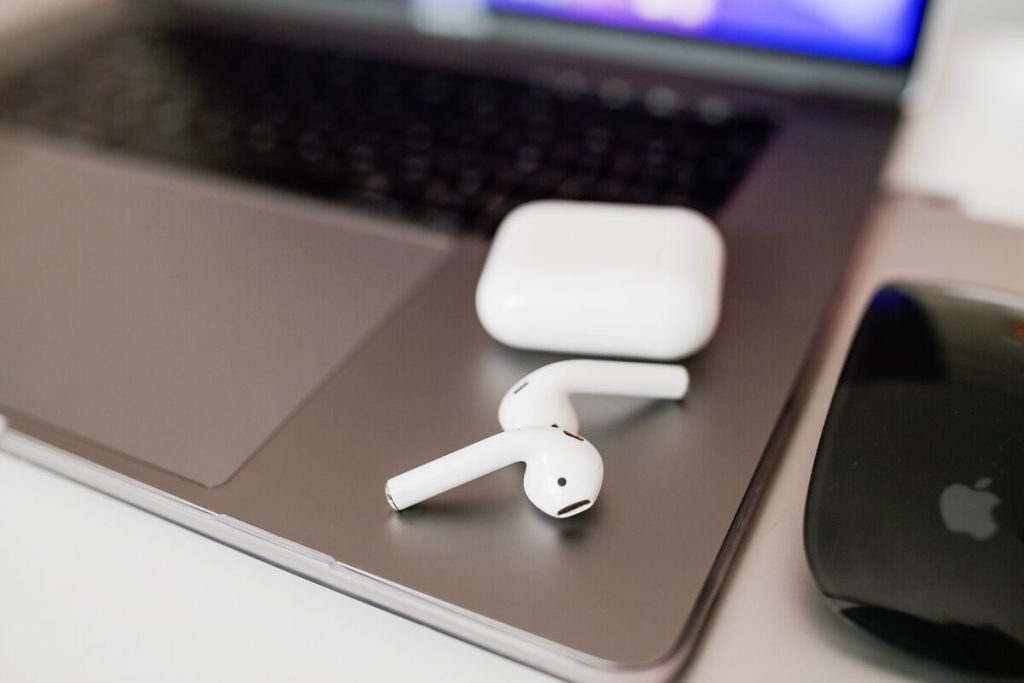
AirPods are designed to work seamlessly with Apple devices, but they can also connect to most Windows laptops through Bluetooth. Whether you’re joining a video meeting, streaming music, or watching movies, pairing AirPods with a laptop can provide a wireless audio experience similar to what you’d get on an iPhone or iPad.
The process is generally straightforward, but connection issues can sometimes occur due to Bluetooth settings, pairing conflicts, or outdated drivers. Understanding how to connect AirPods to laptop devices correctly can help ensure a smooth setup and better long-term performance.
This guide walks through the pairing process, explains how to connect AirPods to specific laptop brands, and covers common troubleshooting solutions.
1. How to Connect AirPods to a Laptop?
Most AirPods models, including AirPods, AirPods Pro, AirPods 4, and AirPods Max, follow a similar Bluetooth pairing process.


Put AirPods Into Pairing Mode
Before the laptop can detect your AirPods, they must be placed into pairing mode.
For AirPods and AirPods Pro:
- Place both AirPods inside the charging case.
- Open the case lid.
- Press and hold the setup button on the back of the case.
- Continue holding until the status light flashes white.
For AirPods 4, Apple states that pairing mode can be activated by opening the charging case and following the setup process when pairing with a new device.
Once the light flashes white, the AirPods are ready to connect. This is the first and most important step in learning how to connect AirPods to laptop systems.
Add AirPods Through Bluetooth Settings
After entering pairing mode:
- Open Settings on your laptop.
- Select Bluetooth & Devices (Windows 11) or Devices (Windows 10).
- Turn Bluetooth on if it is disabled.
- Click Add Device.
- Choose Bluetooth.
- Select your AirPods when they appear in the list.
- Click Connect.
Microsoft explains that Bluetooth accessories can be paired through the Add Device menu within Bluetooth settings.
After a few seconds, Windows should confirm that the AirPods are connected. For many users wondering how do I connect my AirPods to my laptop, this step completes the pairing process.
Set AirPods as the Default Audio Device
Sometimes AirPods connect successfully but audio continues playing through the laptop speakers.
To change the output device:
- Right-click the speaker icon in the taskbar.
- Select Sound Settings.
- Locate Output Device.
- Choose your AirPods from the list.
Microsoft’s audio settings documentation notes that Windows allows users to select different output devices for sound playback. Completing this step ensures how to connect AirPods to laptop setups results in audio being routed correctly.
>>> Read more: How to Turn Off Windows Notifications on Different Versions
2. Connecting AirPods to Different Laptop Brands
The pairing process is generally similar across manufacturers, but some users search for instructions tailored to their specific laptop model.
How to Connect AirPods to an HP Laptop?
If you’re researching “how to connect AirPods to HP laptop” devices, the process is nearly identical to other Windows laptops.
Steps:
- Verify Bluetooth is enabled.
- Open Bluetooth settings.
- Put AirPods into pairing mode.
- Select the AirPods from the available devices list.
- Complete the connection.
Some HP laptops include a dedicated wireless settings shortcut that can quickly enable Bluetooth if it has been disabled.
Most modern HP laptops running Windows 10 or Windows 11 support AirPods without requiring additional software.
How to Connect AirPods to a Dell Laptop?
Many users also search how to connect AirPods to Dell laptop systems.
The process follows the same Bluetooth pairing procedure:
- Turn Bluetooth on.
- Put AirPods into pairing mode.
- Add a new Bluetooth device.
- Select the AirPods.
If the AirPods do not appear, Dell recommends ensuring Bluetooth drivers are updated and confirming that Bluetooth hardware is enabled within Windows.
How to Connect AirPods 4 to a Laptop?
The newest AirPods models follow essentially the same pairing process.
For users researching how to connect AirPods 4 to laptop devices:
- Open the charging case.
- Activate pairing mode.
- Open Windows Bluetooth settings.
- Select the AirPods when discovered.
- Complete pairing.
Apple’s AirPods setup documentation confirms that AirPods use standard Bluetooth pairing when connecting to non-Apple devices.
Because AirPods 4 use Bluetooth like previous generations, the setup process remains familiar for most users.
3. Why Won’t My AirPods Connect to My Laptop?
If pairing fails, several common issues may be responsible.
Bluetooth Is Disabled
Verify Bluetooth is enabled before attempting to connect.
AirPods Are Connected to Another Device
AirPods may automatically reconnect to a nearby iPhone, iPad, or Mac. Disconnect them from other devices before pairing.
AirPods Are Not in Pairing Mode
The status light should flash white. If it does not, restart the pairing process.
Outdated Bluetooth Drivers
Windows laptops occasionally experience connection issues due to outdated drivers.
Updating Bluetooth drivers through Device Manager or your laptop manufacturer’s support page may help.
Low Battery
Apple notes that AirPods require sufficient battery power for pairing and operation. If pairing repeatedly fails, place them in the charging case and recharge before trying again.
Understanding these troubleshooting steps can resolve many problems related to how to connect AirPods to laptop devices.
4. 5 Tips for Better AirPods Performance on a Laptop
Even after pairing successfully, a few adjustments can improve your experience.
Keep Bluetooth Drivers Updated
Updated drivers often improve compatibility and connection stability.
Stay Within Bluetooth Range
Bluetooth performance can degrade when moving too far from the laptop.
Disconnect Unused Bluetooth Devices
Multiple connected devices may sometimes create interference.
Keep AirPods Charged
Low battery levels can affect connection reliability and audio quality.
Select the Correct Audio Profile
Some laptops may switch between headset and stereo modes. If audio quality seems poor, verify the stereo output profile is selected. These small adjustments can help maximize the benefits of how to connect AirPods to laptop setups for work, entertainment, and everyday use.
>>> Read more: How to Clean Laptop Screen Safely: The Streak-Free Method That Won’t Damage It (2026)
Already Pairing One Device? Why Not Simplify the Rest of Your Setup Too
If you have just spent the last ten minutes troubleshooting a Bluetooth connection, you already know how much smoother life feels when your devices actually work together. The same logic applies to your phone plan and the device it runs on.
If your household qualifies through SNAP, Medicaid, SSI, or income at or below 135% of the federal poverty guidelines, you may be eligible for the federal Lifeline program.
Lifeline helps eligible households access free monthly wireless service through certified providers. AirTalk Wireless is one such certified Lifeline provider, who helps remove a recurring bill that many households are already paying more for than necessary.
Qualifying users may receive:
- Free monthly talk, text, and data on a nationwide network
- A free smartphone or tablet from recognized brands
- Accessories such as headsets, chargers, and cases included during the application process
- No credit checks, no contracts, and no hidden costs
- A straightforward online application that takes only a few minutes
Getting your AirPods to finally connect is a small win. Getting your phone bill down to zero is a bigger one.


>>> Read more: AirTalk Wireless Accessories: How to Get Discounted Add-Ons for Your Device
Final Thoughts
Learning how to connect AirPods to laptop devices is usually a simple process that takes only a few minutes. Once pairing mode is activated, Windows can typically detect and connect the AirPods through standard Bluetooth settings.
Whether you’re using an HP laptop, a Dell laptop, or the latest AirPods 4, the pairing process is generally the same and can be completed through your device’s Bluetooth settings.
If connection problems occur, checking Bluetooth settings, updating drivers, and confirming that the AirPods are in pairing mode will often resolve the issue quickly.