


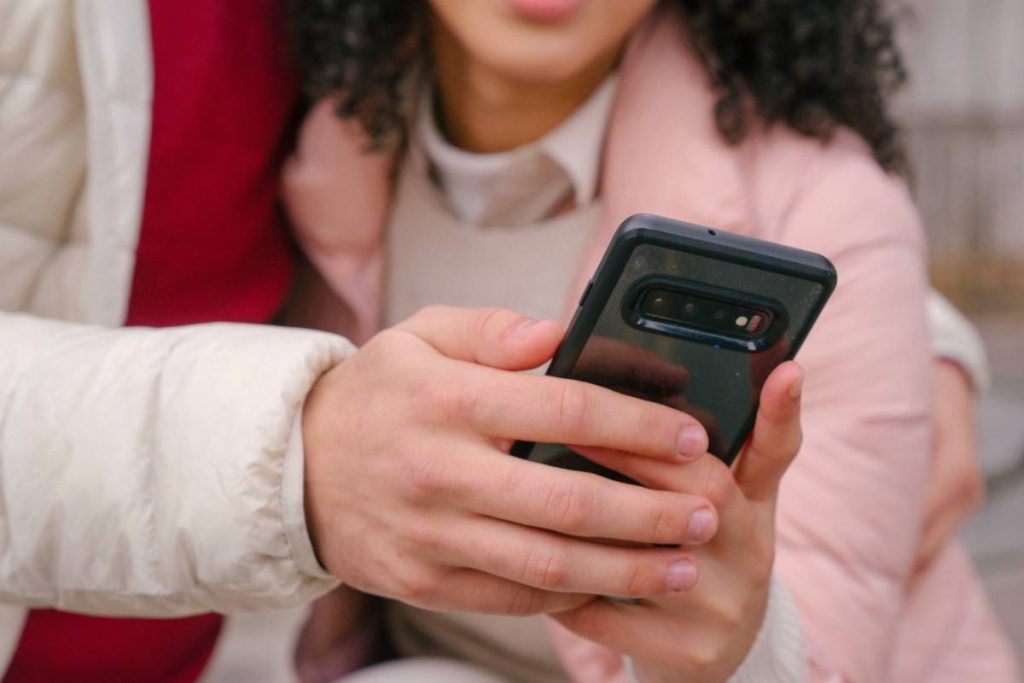
A mobile hotspot is one of the quickest ways to get your laptop online when home, office, or public Wi-Fi isn’t available. Whether you’re working remotely, attending online classes, or traveling, connecting your laptop to your phone’s hotspot can keep you connected almost anywhere with cellular coverage.
If you’re wondering how to connect hotspot to laptop, the process is usually straightforward. This article walks you through the steps for Windows laptops and MacBooks, explains why your laptop may not connect, and shares practical tips to help you get a faster and more reliable hotspot connection.
1. What You Need Before Connecting a Hotspot to Your Laptop
Before connecting your laptop to a mobile hotspot, make sure you have everything needed for a stable connection. Most hotspot issues occur because one of these basic requirements is missing.
You’ll need:
- A smartphone or dedicated hotspot device with Personal Hotspot or Mobile Hotspot enabled.
- An active cellular data plan that supports hotspot usage.
- A laptop with Wi-Fi turned on.
- The hotspot network name (SSID) and password.
- Sufficient cellular signal for a reliable internet connection.
Once these requirements are in place, connecting your laptop usually takes only a few minutes.
2. How to Connect Hotspot to Laptop (Windows OS)
If you’re looking for how to connect laptop to hotspot, Windows makes the process similar to joining any Wi-Fi network. After enabling your phone’s hotspot, your laptop simply connects to it as it would to a home or public wireless network.
Turn On the Mobile Hotspot
Start by enabling the hotspot on your phone.
- On iPhone: Go to Settings > Personal Hotspot, then turn on Allow Others to Join.
- On Android: Open Settings > Hotspot & Tethering or Mobile Hotspot, then turn on the hotspot.
Leave the hotspot screen open if your phone recommends doing so while connecting another device.


Connect Through Wi-Fi
On your Windows laptop:
- Select the Wi-Fi icon in the taskbar.
- Wait for available wireless networks to appear.
- Select your phone’s hotspot name.
- Click Connect.
- Enter the hotspot password.
- Select Next or Connect to join the network.
After a few seconds, your laptop should connect using your phone’s mobile data.
Verify the Internet Connection
Open a web browser and visit a website to confirm the connection is working.
If the laptop connects but doesn’t have internet access, make sure your phone’s cellular data is working and that your mobile plan includes hotspot service. Restarting both devices can also resolve temporary connection issues.
3. How to Connect Your Hotspot to a MacBook
If you’re learning how to connect hotspot to laptop and use a MacBook, the process is very similar to connecting to any Wi-Fi network.
You can join your phone’s hotspot manually or, if you’re using an iPhone signed in with the same Apple Account, take advantage of Instant Hotspot for an even faster connection.
Join the Hotspot Network
To connect manually:
- Turn on Personal Hotspot or Mobile Hotspot on your phone.
- On your MacBook, click the Wi-Fi icon in the menu bar.
- Select your phone’s hotspot from the list of available networks.
- Enter the hotspot password if prompted.
- Wait for the connection to be established.
Once connected, your MacBook will begin using your phone’s cellular data.
Connect Using Instant Hotspot
If both your iPhone and MacBook are signed in with the same Apple Account and have Wi-Fi and Bluetooth enabled, Instant Hotspot makes the process even easier.
Simply:
- Click the Wi-Fi icon on your MacBook.
- Look for your iPhone under Personal Hotspots.
- Select your iPhone.
- Wait for the connection to establish automatically.
In most cases, you won’t need to enter the hotspot password.
Confirm the Connection Is Working
After connecting, open Safari or another web browser and load a website.
If pages don’t load, verify that your phone has an active cellular data connection, Personal Hotspot is still enabled, and your MacBook remains connected to the correct hotspot network.


4. Why Your Laptop Won’t Connect to a Hotspot
If you’re following how to connect hotspot from iPhone to laptop or using an Android device and the connection still isn’t working, the problem is usually related to your network settings, laptop configuration, or mobile service rather than the hotspot feature itself.
Incorrect Password or Network Settings
A simple typo in the hotspot password is one of the most common reasons a laptop can’t connect.
Double-check that you’re selecting the correct hotspot network and entering the current password. If you’ve recently changed the password, forget the saved network on your laptop and reconnect using the updated credentials.
Wi-Fi or Driver Issues
Sometimes the issue is with the laptop rather than the phone.
Turn your laptop’s Wi-Fi off and back on, restart both devices, and check for updates to your wireless network driver if you’re using Windows. On a MacBook, installing the latest version of macOS may resolve temporary wireless connectivity problems.
Mobile Data or Carrier Restrictions
Your hotspot won’t provide internet access unless your phone has a working cellular data connection.
Try opening a website directly on your phone using mobile data. If it doesn’t load, the issue may be your carrier’s network or your mobile plan. Some carriers also limit hotspot access or reduce speeds after you reach your monthly hotspot allowance.
5. Tips for Using a Hotspot on Your Laptop
After learning how to connect iPhone hotspot to laptop or set up a hotspot from another smartphone, a few simple habits can help you improve performance and avoid using more battery or mobile data than necessary.
Reduce Data Usage
Laptops often consume much more data than phones because they automatically download software updates, synchronize cloud files, and stream higher-quality content.
To reduce hotspot usage:
- Pause large downloads and operating system updates.
- Lower video streaming quality when possible.
- Delay cloud backups until you’re connected to regular Wi-Fi.
- Close apps and browser tabs that continue using data in the background.
Save Battery on Your Phone
Your phone works harder while providing a hotspot connection because it’s maintaining both a cellular connection and a Wi-Fi network at the same time.
For longer hotspot sessions:
- Connect your phone to a charger whenever possible.
- Turn off the hotspot when you’re finished using it.
- Disconnect devices that no longer need internet access.
- Enable Low Power Mode if you’re away from a power source.
Keep Your Connection Secure
Your hotspot is a private wireless network, so it’s important to protect it from unauthorized access.
Choose a strong password, share it only with people you trust, and change it periodically if multiple users have connected in the past. A secure hotspot not only protects your data but also prevents unknown devices from consuming your mobile data in the background.
6. Need More Data for Working or Studying on Your Laptop?
Once you’ve learned how to connect hotspot to laptop, the next challenge is making sure your mobile plan can keep up with the way you use it.
Activities like joining Zoom classes, working on shared documents, or downloading course materials can use up data much faster than you expect. And if your plan isn’t built for that, hotspot quickly becomes unreliable.
That’s why having access to a plan with enough data can make a big difference, especially if you don’t always have stable Wi-Fi.
For eligible users, AirTalk Wireless offers Lifeline-supported plans that include mobile data, making it easier to stay connected on your laptop when you need it. Depending on availability, you may also have the option to get a smartphone that supports hotspot, so you can connect your laptop on the go.


Popular hotspot-capable devices offered through AirTalk may include models from brands such as:
- Apple iPhone
- Samsung Galaxy
- Motorola
- Google Pixel
- TCL
- Nokia
Available devices vary by state, eligibility, and inventory.
You may qualify if your household participates in programs such as Medicaid, SNAP, SSI, Federal Public Housing Assistance, or Veterans Pension and Survivors Benefit. Eligibility may also be based on your household income.
Once you’ve confirmed your eligibility, you can apply online by entering your ZIP code, selecting an available plan, choosing a device if your plan includes one, and uploading any required documentation before submitting your application.
>>> Read more: How to Switch SIM Cards: A Simple Guide for Any Phone
IMPORTANT: The government does not subsidize devices. Lifeline programs cover basic service costs only. Free or discounted devices, upgrade plans, or top-ups are exclusive benefits provided by AirTalk Wireless as part of our promotional offers. Terms and conditions apply. Limited-time promotion—offers vary by state, stock availability, and eligibility.
Conclusion
Knowing how to connect hotspot to laptop allows you to stay productive almost anywhere with cellular coverage. Whether you’re using a Windows laptop or a MacBook, following the correct setup steps and understanding how to troubleshoot common connection issues can help you get online quickly.
Pairing your laptop with a mobile plan that includes sufficient hotspot data also makes it easier to work, study, and browse confidently whenever Wi-Fi isn’t available.