


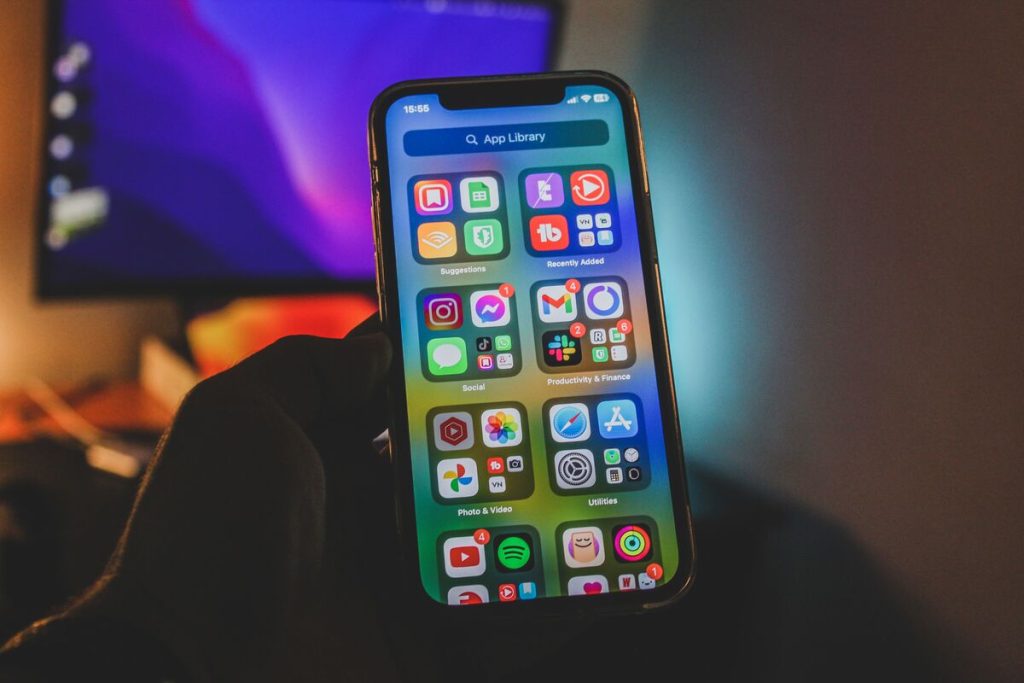
Deleting unused apps can clear storage quickly, but iPhone gives you several similar-looking options that do very different things. Removing an icon from the Home Screen does not uninstall the app, while offloading keeps its documents and data so you can reinstall it later.
The right approach to how to delete apps on iPhone depends on whether you want the app completely gone, only removed from view, or temporarily offloaded to save space. Apple currently separates all three actions, so choosing the correct one matters if your goal is permanent removal.
1. Delete, Remove, or Offload: What Each Option Does to an App and Its Data
These three options are easy to confuse, especially when an app disappears from the Home Screen.
| Option | What Happens to the App | What Happens to Its Data | Best For |
| Remove from Home Screen | App stays installed and moves to App Library | Data stays on the iPhone | Cleaning up the Home Screen |
| Offload App | App itself is removed | Documents and app data stay | Freeing space temporarily |
| Delete App | App is removed from the iPhone | Related local app data is removed | Permanent removal |
Removing an app from the Home Screen simply moves it to App Library, where it can still be used. Offloading frees the storage occupied by the app but preserves documents and data. Deleting removes both the app and its related local data.
One exception matters when learning how to delete apps on iPhone permanently: information that the app already stored in iCloud may remain there even after the app itself is deleted from the device.
2. How to Delete Apps on iPhone Step by Step
You can delete an app directly from the Home Screen or App Library, or use iPhone Storage when you want to see how much space each app is using first.


From the Home Screen or App Library
For the fastest method of how to delete apps on iPhone:
- Touch and hold the app.
- Tap Remove App.
- Tap Delete App.
- Tap Delete to confirm.
Apple allows the same process from either the Home Screen or App Library.
Be careful not to choose Remove from Home Screen if you want the app gone completely. That option only hides the icon from the Home Screen while leaving the app installed.
From Settings, Where You Can See How Much Space Each App Takes
When storage is the reason you are cleaning up apps, use: Settings > General > iPhone Storage
iOS shows a list of installed apps along with how much storage they use. Tap an app to see more details and choose Delete App or Offload App where available.
This approach is useful because a rarely used 5GB game deserves more attention than an app using only a few megabytes.
For how to delete apps on iPhone efficiently, storage settings can therefore help you decide what is actually worth removing rather than deleting apps at random.
>>> Read more: How to Unhide Apps on iPhone and Get Them Back
3. Tips to Delete Multiple Apps on iPhone Faster
If you are researching how to delete multiple apps on iPhone, there is one limitation to know first: iPhone does not currently provide a universal Select All Apps > Delete command for installed apps.
That also means how to mass delete apps on iPhone is mostly about making the individual deletion process faster.
A practical workflow is:
- Open Settings > General > iPhone Storage.
- Review the largest apps first.
- Identify apps you no longer use.
- Return to the Home Screen or App Library.
- Delete those apps one by one.
Apple’s storage screen can also show recommendations and app usage, making it easier to identify where space is being consumed.
If you do not need permanent deletion, another option is:
Settings > Apps > App Store > Offload Unused Apps
When enabled, iPhone can automatically remove unused app binaries while retaining their data so the apps can be reinstalled later.
That is useful for storage management, but it is not the same as deleting multiple apps permanently.
4. How to Find Hidden or Forgotten Apps on iPhone
An app can still be installed even when you cannot see it on the Home Screen.
For how to delete hidden apps on iPhone, first check these places.
App Library and Search: Swipe left beyond your final Home Screen page to open App Library. You can browse the categories or use Search to locate the app.
Hidden Apps folder: On newer iOS versions, apps hidden with Face ID, Touch ID, or passcode protection move to the Hidden folder at the bottom of App Library. Authenticate to open it. Apple also lets you see hidden apps through Settings > Apps > Hidden Apps.
iPhone Storage: Go to Settings > General > iPhone Storage to see installed apps and their storage use, including apps that may be easy to forget.
Once you identify an app you no longer want, delete it rather than simply unhiding or removing its Home Screen icon.
Keep in mind that Apple’s hidden-app feature is not available for every app. Built-in apps generally cannot be hidden through the iOS hidden-app feature, while downloaded apps can be hidden when supported.
5. Reasons Why Your iPhone Storage Is Still Full After Deleting Apps
Deleting apps does not guarantee that a large amount of storage will suddenly become free.
Several other categories can be responsible.
| Possible Cause | Why Storage Can Stay High |
| App-related data elsewhere | Some app content may remain in iCloud or in separately stored files |
| Photos and videos | High-resolution media can consume much more space than many apps |
| Messages and attachments | Videos, photos, voice messages, and long conversation histories can add up |
| Downloads | Offline movies, music, podcasts, and Files downloads may remain |
| Cached and temporary files | iOS and apps can create temporary data during normal use |
| System storage | iOS needs space for system resources, settings, and temporary data |
Apple recommends reviewing Photos, Messages, downloaded videos, Files, and unused apps when storage remains low.
Another reason is that offloading and deleting are not interchangeable. If you selected Offload App, the app’s documents and data are intentionally preserved, so the space recovered can be much smaller than deleting the app entirely.
For how to delete apps on iPhone specifically to free storage, check the storage amount before and after deletion rather than assuming every app removal will make a noticeable difference.
If Photos or videos are the largest category, deleting several small apps may barely change total storage.
6. Final Thoughts
The most important part of how to delete apps on iPhone is choosing Delete App, not simply Remove from Home Screen or Offload App.
There is currently no true one-tap option for how to mass delete apps on iPhone, so the fastest strategy is to review storage usage, identify the largest unused apps, and delete them individually.
>>> Read more: What Happens If I Delete eSIM? The Truth Before You Tap “Remove”