


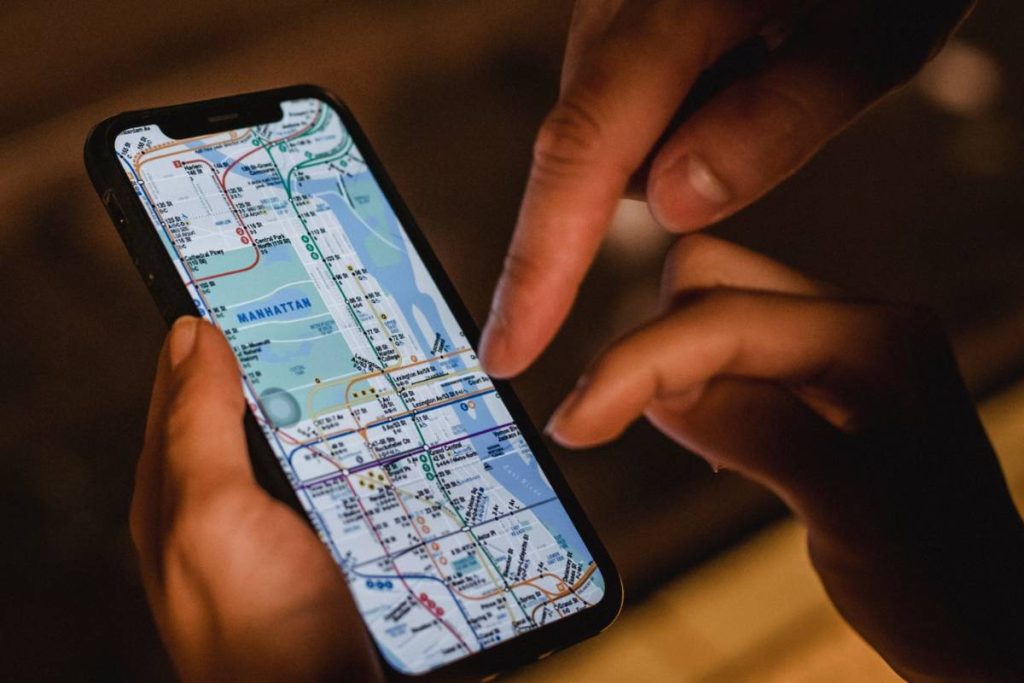
Ever tried explaining a meeting spot that has no clear address or recognizable landmark? Knowing how to drop a pin on iPhone gives you a precise point to work with instead of a long written explanation. This guide will show you how to do that.
1. What Does Dropping a Pin on an iPhone Do?
A dropped pin attaches map coordinates to a point you select, including places without a searchable business name or complete street address. From that point, you can:
- Mark an entrance, parking space, trailhead, meeting area, or roadside location
- View the coordinates and any address information available for that spot
- Start directions to or from the pinned location
- Send the map point to another person
- Add the place to a saved collection for later
- Label an unnamed location when the map app supports it
- Check nearby businesses, roads, or landmarks
- Use one fixed point without sharing your movement afterward
A pin represents the chosen map position. It will not continue following you if you leave that place.
2. How to Drop a Pin on iPhone in Apple Maps
Apple Maps lets you mark almost any visible point, even when tapping the map does not reveal a named place.
Here’s how to drop pin on iPhone with Apple’s built-in mapping app:
- Launch Maps on the iPhone.
- Enter a nearby address in the search field, or drag the map until the required area is on screen.
- Zoom in until roads, buildings, or other reference points are easy to distinguish.
- Press and hold the precise spot you want to mark.
- Release your finger when the pin and location card appear.
- If the marker landed slightly off target, use the available move or refine-location control, or place a new pin more carefully.
- Pull up the location card to view the address, request directions, save the place, add a label, or send it to someone.
That is the basic process for dropping a pin on an iPhone when a normal place search isn’t accurate enough. Before sharing it, compare the marker with nearby roads or building outlines to confirm that it points to the intended side of the property.


3. How to Drop a Pin in Google Maps on iPhone
Google Maps also accepts manually selected points, but its actions appear in a card along the bottom of the screen. Use this method when you prefer Google’s saved places, navigation, or map data:
- Open the Google Maps app and sign in if you want the location connected to your Google account.
- Find the general area through search, then zoom toward the target.
- Choose an unlabelled part of the map and keep your finger there until a red marker appears.
- Tap or raise the bottom information card to see more actions.
- Select Directions to travel there, Save to keep it in a list, or Share to send the point through another app.
- Check the displayed coordinates or nearby address before leaving the screen.
If Google Maps selects a nearby business instead of the intended ground position, zoom closer and place the marker away from the business label.
>>> Read more: How to Set Up Google Authenticator on New Phone Without Losing Access
4. Apple Maps vs. Google Maps for Dropping Location Pins
Both apps can mark and share a fixed point, but they connect with different accounts, saved-place systems, and navigation tools. The better choice often depends on which app you and the recipient already use.
| Comparison Factor | Apple Maps | Google Maps |
| Availability on iPhone | Installed with iOS | Separate download from the App Store |
| Account connection | Works closely with the Apple Account and iCloud | Uses a Google account for synchronized saved places |
| Pin appearance | Displays an Apple Maps marker and location card | Displays a red marker with a bottom information card |
| Saving locations | Can add locations to the Library, Favorites, Guides, or other available collections | Can place locations in lists such as Favorites, Starred places, or custom lists |
| Adding a private label | Available for supported places and marked locations | Available through Google account features |
| Sharing | Uses the iPhone Share Sheet | Uses Google Maps sharing controls and the iPhone Share Sheet |
| Apple ecosystem connection | Closely connected with Siri, Contacts, Calendar, and other Apple functions | Less closely connected with Apple’s native services |
| Cross-platform use | Recipients can open shared links, but Apple Maps is centered on Apple devices | Familiar to recipients using iPhone, Android, or a web browser |
| Best suited for | People who rely on Apple apps across their devices | People who save locations in Google or share with mixed-device groups |
Apple Maps is convenient when your daily tools already sit inside Apple’s ecosystem. Google Maps may be easier when saved places need to follow a Google account or the location will be shared with people using several device types.
5. How to Drop a Pin on iPhone Through a Text Message
Messages does not require you to describe the location manually. Create the point in a map app first, then place its link directly into the conversation.

How to drop pin on iPhone text:
- Open Apple Maps and mark the place you want the recipient to see.
- Raise the location card from the bottom of the map.
- Tap the Share button.
- Choose Messages from the Share Sheet.
- Enter the recipient’s name or open an existing conversation.
- Add a short note explaining what the pin represents.
- Tap the Send button.
The recipient receives a fixed map point. It continues to represent the same place even if you walk or drive away.
Live Location works differently because it updates your position for a selected period. Use a fixed pin for a meeting entrance, parked car, building, or destination; choose live sharing when the other person needs to follow your movement.
6. How to Edit, Move, or Remove a Dropped Pin
A misplaced or outdated marker does not have to remain on the map. The available controls depend on the app and whether the place has already been saved.
- Correct a slightly misplaced Apple Maps marker: Open its card and use Move or the available refine-location tool. Drag the map beneath the marker until it rests over the intended point.
- Replace a pin when no Move option appears: Tap another area of the map or clear the current marker, then press and hold the correct spot.
- Change a personal label: Open the saved place, locate its label controls, and replace the existing name with one that will make sense later.
- Remove a temporary Apple Maps pin: Tap elsewhere, close its location card, or choose the removal option shown for the marked location.
- Remove a Google Maps marker: Close the bottom card, clear the search field, or select a different point.
- Delete a saved place: Open the relevant Library, Guide, or Google list and remove the location from that collection.
- Check before sending a corrected pin: Compare the marker with the road, entrance, building outline, or landmark you intended to identify.
Moving a temporary marker does not necessarily update a copy that has already been sent. Share the corrected location again so the recipient does not follow the older point.
7. Tips for Different Types of Location Pins
Once you know how to drop a pin on iPhone, small adjustments can make that pin much more useful. The tips below focus on accuracy, context, and future access rather than repeating the basic map instructions.
Mark a Specific Place That Has No Street Address
To drop a location pin on iPhone in a park, field, beach, or rural area, zoom in until the terrain and nearby paths are easy to distinguish. Satellite imagery can be more helpful than the standard map when roads and building numbers are missing.
Add a short description before sharing, such as “north trail entrance” or “gate beside the lake.” Coordinates identify the position, but a visual clue helps the recipient recognize it on arrival.
Pin Your Current Location
Wait until the blue location indicator stops moving before marking your position. This gives the phone more time to refine its estimate, especially after leaving a building or underground area.
Do not assume the blue circle points to the exact parking space or entrance. A wide circle means the estimate is less precise, so compare it with nearby roads and structures before saving the pin.
Save a Pin for Later
Give the saved point a name connected to its purpose rather than relying on an unfamiliar address. Labels such as “Concert parking,” “Hotel side entrance,” or “Saturday meeting spot” are easier to recognize weeks later.
Place related locations in one Guide or list when planning a trip or event. This keeps restaurants, parking areas, accommodations, and meeting points from becoming mixed with unrelated favorites.
Share a Pin With Another Person
Include one sentence explaining where the marker sits and why you sent it. A map link without context can look like a destination when it actually marks parking, an entrance, or a pickup point.
Consider which map app the recipient normally uses. Google Maps may be more convenient for a mixed iPhone-and-Android group, while Apple Maps fits people who already rely on Apple devices.
The gap is worth keeping in mind: Google Maps serves over two billion monthly users across Android, iOS, and the web, while Apple Maps is limited to Apple’s own devices. So for a group chat with any Android users in it, a Google Maps link is generally the safer bet.
>>> Read more: How to Unpair Apple Watch: The Right Way Before Resetting, Selling, or Switching Phones
8. Why a Dropped Pin May Show the Wrong Location
A marker can land in the wrong place even when the map looks correct at first glance. Common reasons include:
- The map was not zoomed in far enough: A small finger movement can shift the marker across a road or onto a neighboring property.
- The iPhone has a weak GPS reading: Tall buildings, indoor spaces, tunnels, and dense trees can reduce location accuracy.
- WiFi or cellular assistance is limited: The phone may take longer to refine its position when fewer location signals are available.
- Precise Location is disabled: Check the Maps app under Settings > Privacy & Security > Location Services and review its access.
- The map data is outdated: A new road, business, or entrance may not appear correctly yet.
- A nearby business label was selected: The app may attach the pin to that business instead of the empty point beside it.
- The recipient opened the link in another map app: Different services may interpret an address or coordinate slightly differently.
- A temporary Maps service issue occurred: Check Apple’s System Status page if searches and directions are also failing.
Move outdoors when possible, wait for the blue location circle to shrink, and zoom closer before placing the marker again. Always inspect the destination from the recipient’s perspective before sending it.
9. Conclusion
A location pin is most helpful when it identifies the exact entrance, pickup point, parking area, or destination the other person needs. After mastering how to drop a pin on iPhone, check the marker against visible landmarks, add a brief explanation, and choose between a fixed point and live sharing based on the situation.