


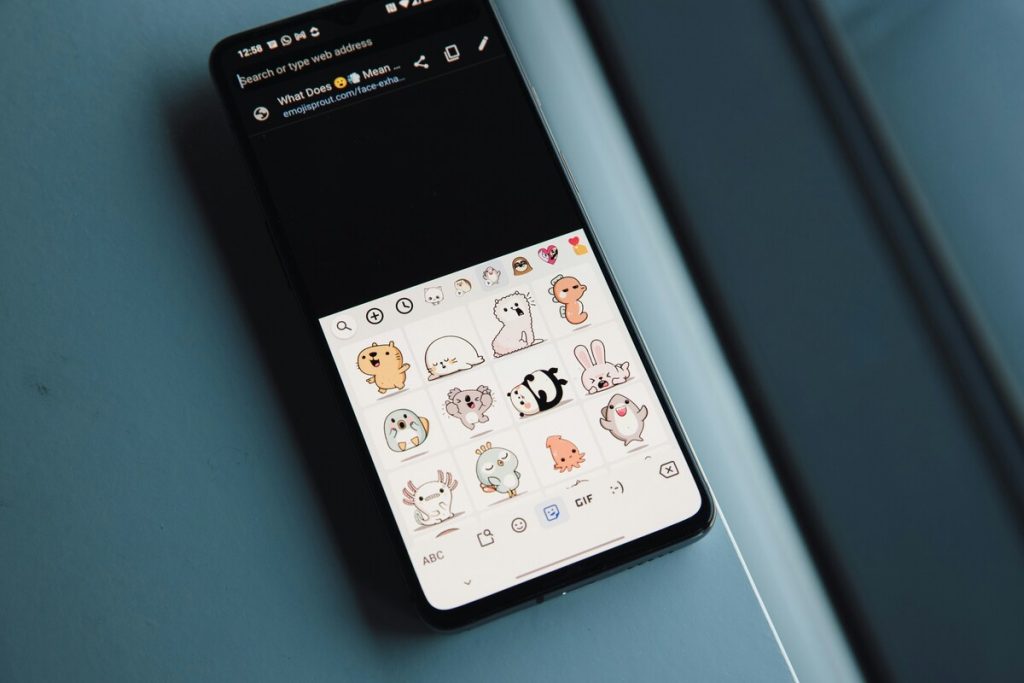
A sticker made from a photo rarely looks perfect the first time. The outline may be too plain, the effect too busy, or the cutout simply not the one you wanted. The good news is that how to edit stickers on iPhone takes only a few taps, as long as you know which changes the phone allows.
1. What You Can & Cannot Change on an iPhone Sticker?
An iPhone sticker is a cutout of a photo’s subject, and the editing tools focus on how that cutout looks, not on redrawing it. Effects include Original, Outline, Comic, Puffy, and Shiny, and some of them react when you tilt the phone.
You can also delete a sticker, rearrange the drawer, and choose whether a Live Photo sticker moves or stays still. What you cannot do is crop or reshape the cutout itself.
Apple’s tools do not show a manual crop for saved stickers, so a different cutout means making a new sticker from the photo. That split decides most of the sticker editing process: the effect is open to change, the shape is not.

2. How to Edit Stickers on iPhone, New or Already Saved
Edits happen at two moments: while the sticker is being made, and later from the drawer. The first is faster, but the second lets you change your mind.
Edit and Make Stickers on iPhone in One Go
If you wonder how to edit and make stickers on iPhone in a single pass, start in Photos:
- Open a photo, and press and hold the subject until it shines.
- Tap Add Sticker. For a Live Photo, the sticker is animated unless you turn off Live at the top left.
- Tap Add Effect and choose Original, Outline, Comic, Puffy, or Shiny.
- Tap Done.
Another way to create and customize a new sticker is to do it directly on Messages. Here’s how to edit stickers on iPhone Messages:
- Tap the Plus button
- Choose Stickers, then New Sticker.
- Select a photo and tap Add Sticker to bring up the Add Effect option above the new sticker.
Edit Your Stickers After Saving Them
Saved stickers remain in your sticker library and can sync across devices using the same Apple Account.
If you’re looking for how to edit your stickers on iPhone after saving them:
- Open the Stickers drawer in Messages
- Touch and hold the sticker you want to change
- Select Edit Effect, choose a new effect
- Tap Done.
The updated effect applies to the saved sticker going forward. Stickers that were already sent in previous conversations remain unchanged, and you can update the effect again whenever you want.
3. 2 Methods to Delete Stickers You No Longer Like
Cleaning up uses the same drawer as editing, which is why how to edit and delete stickers on iPhone usually starts in one place. The two methods differ in speed.
Delete Stickers From Your Sticker Drawer
Open the Stickers drawer, touch and hold the sticker, and choose Delete. This is the quickest option for a single sticker you no longer want.
Remove Stickers From Within Your Sticker App
For several at once, open the plus menu in Messages and touch and hold a sticker. Choose Rearrange, and the stickers start to jiggle.
Tap the minus button on each one you want to remove, then tap Done. A tidy drawer also makes “how to edit stickers on iPhone” faster, since fewer thumbnails sit in the way.
>>> Read more: How To Delete Stickers On iPhone: 4 Simple & Effective Ways
4. Missing Edit or Delete Options? 3 Issues & How You Can Troubleshoot
When a menu shows fewer choices than expected, how to edit stickers on iPhone usually runs into one of three snags. Each has a quick check.

Edit Option Doesn’t Appear on Saved Stickers
Search for how to edit my stickers on iPhone and the answer assumes a sticker you made yourself.
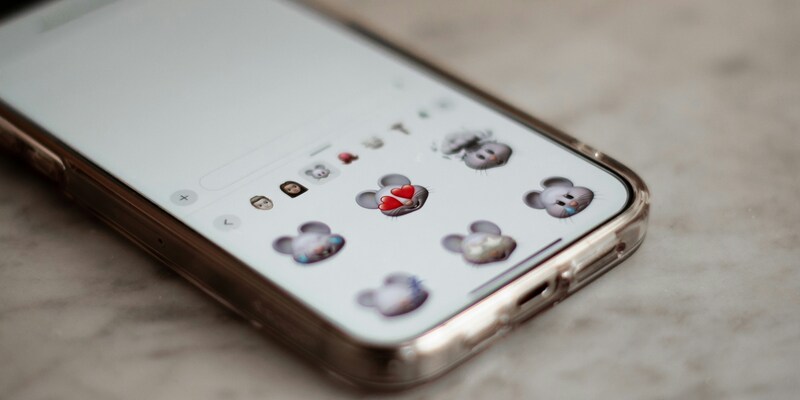
Emoji, Memoji, and stickers from other apps do not carry the same effect options, and they follow their own app’s rules, not the steps above. The label can also read Add Effect instead of Edit Effect, so look for either one after you touch and hold.
Delete Button Doesn’t Show When Long-Pressing
A quick tap does not open the menu. Press and hold until the options appear, and if Delete is still missing, use Rearrange instead. If neither shows, update iOS in Settings, because older versions lack some of these tools.
Stickers Are Locked or Managed by an Organization
On a phone set up by a work or school, an administrator can restrict features that change how Messages or the drawer behaves. If the options are missing only on that device, ask the person who manages it before trying other fixes.
5. FAQs
How to custom cut out stickers on iPhone?
Open a photo, press and hold the subject until it shines, then tap Add Sticker. The phone finds the edges for you, so a clear photo with a plain background gives a cleaner cutout.
Can I manually crop a sticker on my iPhone?
You can’t manually crop a sticker after it has been created, so the cropping step comes first. To adjust the shape of the stickers on iPhone, crop the original photo in Photos, then create the sticker from the cropped image. The new sticker will use the updated crop.
How do I create my own stickers on WhatsApp?
On iOS 16 or later, open a photo, press and hold the subject, and drag it into a WhatsApp chat. WhatsApp asks whether to turn it into a sticker, and it is saved to your WhatsApp collection once you confirm.
Does Android have custom stickers like iPhone?
Yes, on many phones. On a Samsung Galaxy, open Gallery, touch and hold a subject, and tap Save as sticker. The Samsung keyboard also offers custom and AI stickers, though features vary by device and software.
>>> Read more: How to Recover Deleted Photos From iPhone, Even After the 30-Day Window
Final Thoughts
An effect swap, a delete, or a fresh cutout covers almost every sticker fix. Once how to edit stickers on iPhone becomes routine, a sticker you only half like stops being a problem, because the next version is a few taps away.
Explore more helpful guides and mobile tips on the AirTalk Wireless blog.