


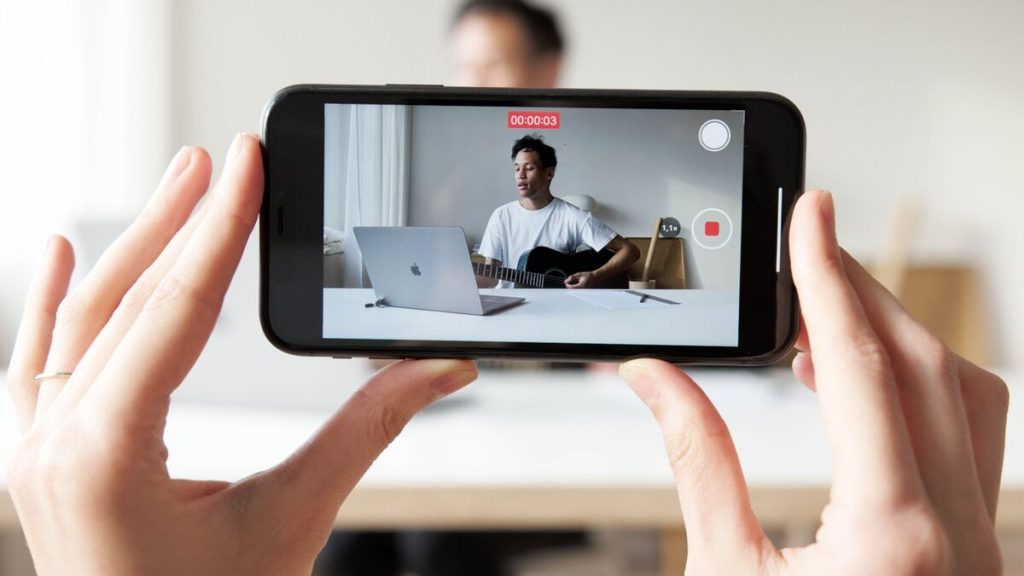
A Camera Roll full of raw clips can become difficult to manage quickly. Some videos only need a cleaner start and ending, while others need multiple clips, music, titles, transitions, or a format that is ready for YouTube.
Before diving into how to edit videos on iPhone, it helps to know what kind of final result you want and how much control the project actually needs.
1. Which iPhone Video Editor Fits What You Want to Make?
You do not need the most advanced editor for every recording. Start by deciding whether you are fixing one clip or building a complete video.
Built-In Photos App for Quick Trims and Fixes
Photos is already installed on the iPhone and handles many common edits without creating a separate project.
Apple’s current Photos tools support video trimming, playback-speed adjustment for supported formats, image adjustments, filters, cropping, and Audio Mix for compatible Spatial Audio recordings.
For simple how to edit videos on iPhone tasks, Photos is usually the fastest place to begin because there is no need to import the footage into another app.
iMovie and Free Third-Party Apps for Full Projects
Once you need several clips on a timeline, Photos becomes limiting.
Apple’s iMovie is free on the App Store and lets you arrange multiple video clips, add music, transitions, filters, titles, voiceovers, and effects. It can also export finished videos at resolutions up to 4K at 60 fps on supported devices.


This makes iMovie a strong starting point for how to edit videos on iPhone free when you need a complete project without paying for another editor.
Free third-party options can go further. CapCut offers tools such as multi-clip editing, speed controls, captions, chroma key, and background removal, while VN includes a multi-track timeline, auto captions, transitions, LUTs, and 4K export. Both are free to download with optional in-app purchases.
For how to edit YouTube videos on iPhone, iMovie is enough for straightforward long-form videos, while apps such as VN, CapCut, or Adobe Premiere mobile are better suited to projects needing subtitles, layered graphics, keyframes, or a more complex timeline.
>>> Read more: How to Rotate a Photo on iPhone: 2026 Guide for All Models
2. How to Edit Videos on iPhone Using the Photos App
For a single clip, open Photos, select the video, and tap Edit.
The controls available depend partly on the video format and the iPhone model used to record it.
Trimming and Adjusting Length, Speed, and Audio
To shorten a video, open the Edit screen and drag the beginning or ending handles on the timeline until only the section you want remains.
Apple lets you save trimming changes while preserving the ability to revert the video later. Be careful with Save Video as New Clip, as a new clip cannot recover the removed original length through Revert.
Playback speed can also be adjusted on supported videos. In Photos: Edit > Video > Playback Speed
The available speeds depend on the format and frame rate of the original recording.
Audio editing depends more heavily on your iPhone and how the video was recorded. Videos captured with Spatial Audio on supported recent iPhones can use Audio Mix to reduce off-screen sounds, lower background noise, or emphasize voices.
This makes the Photos app surprisingly capable for basic how to edit videos on iPhone work without building a timeline.
Color, Crop, and Filters
Tap Adjust to change settings such as Exposure, Brilliance, Highlights, and other image properties. Each control has a slider, so you can make subtle changes instead of applying an all-or-nothing effect.
For a faster look, tap Filters and select a preset. You can reduce or increase the intensity instead of accepting the default strength.
Use Crop when the frame includes unnecessary space or needs a different aspect ratio. Apple supports manual cropping as well as preset formats such as Square and 9:16. You can also rotate, flip, straighten, or adjust perspective.
For social content, cropping is especially important because a vertical Short or Reel may need a different frame from a horizontal YouTube video.
3. How to Edit Videos Together on iPhone Into One Clip
Photos is useful for individual videos, but combining several clips into one finished file is easier in iMovie.
For how to edit videos together on iPhone:
- Open iMovie.
- Tap Start New Project.
- Choose Movie.
- Tap Media > Video > All.
- Select the clips you want.
- Tap Create Movie.
iMovie adds the clips in the order selected, but you can drag them into a different sequence afterward.
From the timeline, you can trim each clip, split unwanted sections, rearrange shots, change transitions, add music, place titles, and record narration.
For how to edit videos on iPhone for YouTube, this approach also gives you better control over pacing. Remove pauses, repeated takes, accidental camera movement, and sections that do not add anything to the final video.
4. What to Do When Your Edited Video Won’t Save or Export
An edit that looks finished but refuses to save can usually be traced to storage, export settings, or a temporary app problem.

Start with available iPhone storage. Video export creates a new file, so the phone may need considerably more free space than the final video size alone suggests.
In iMovie, you can also reduce the output resolution before exporting.
Apple currently lets users choose lower resolutions such as 720p, 540p, or 360p, which reduces the final file size. Apple also estimates a one-minute video at roughly 70–105 MB at 1080p, compared with about 19–27 MB at 720p.
To export normally, open the project, tap Share, then choose Save or Share Video or another available destination. iMovie can save to Photos, Files, AirDrop, Mail, Messages, and supported online destinations.
For YouTube or another social platform, Apple currently recommends exporting the video first, then opening the platform’s app and uploading the finished file. You can choose resolution and HDR options before saving.
>>> Read more: How to Combine Videos on iPhone? 2 Easy Methods That Work
5. FAQs
Do iPhones have a built-in video editor?
Yes. The Photos app includes built-in video editing tools for trimming, color adjustments, filters, cropping, rotation, supported speed changes, and certain audio adjustments.
What is the best way to edit videos together on iPhone?
For most users, iMovie is the easiest free option.
Create a Movie project, select multiple videos, and iMovie places them into one timeline. You can then reorder, trim, split, and add transitions before exporting the final video.
Can I edit a video on iPhone without losing quality?
Yes, especially when using the Photos app for nondestructive edits.
Photos allows saved edits to be reverted to the original later.
When exporting from iMovie, choose a resolution appropriate for the original footage. Exporting at a lower resolution reduces file size but can also reduce image quality.
Is iMovie completely free on iPhone?
Yes. Apple’s iMovie app is currently listed as Free in the App Store.
It includes timeline editing, titles, music, filters, effects, and video export without requiring a paid subscription.
How do I undo edits on a video in the Photos app?
While editing, use the Undo button to reverse recent changes.
After saving, open the video and choose Revert to Original to remove saved Photos edits.
Can I edit a video I’ve already edited before?
Yes. Photos lets you reopen an edited video and continue adjusting it. Because Photos edits are generally nondestructive, you can also revert to the original and start again.
6. Final Thoughts
The most efficient way to edit videos on iPhone is to avoid using one editor for every task.
For more advanced methods of how to edit videos on iPhone for YouTube projects, free editors such as VN, CapCut, or Adobe Premiere mobile add tools such as multi-track timelines, auto captions, keyframes, and more detailed effects.