


A factory reset can be useful before selling an iPhone, after persistent software problems, or when the device is locked behind a forgotten passcode. The important part is choosing the right reset path before anything is erased.
The process for how to factory reset iPhone changes depending on whether you can still unlock the device, whether Find My is enabled, and whether a usable backup already exists. Those details also determine how much of your data can return afterward.
1. What Happens to Your Data When You Factory Reset an iPhone
A factory reset is very different from options such as Reset Network Settings or Reset All Settings.
Using Erase All Content and Settings securely removes personal information, apps, settings, local files, privacy settings, and network configurations from the iPhone, then returns the device to its factory setup state.
Your Apple Account itself is not deleted. Content already stored in iCloud is not erased from iCloud simply because the iPhone is wiped.
This distinction matters before following how to factory reset iPhone, because a reset can remove the local copy of your data without necessarily deleting separately synced iCloud content.
2. How to Factory Reset iPhone With a Passcode
If the iPhone still unlocks normally, Settings is the most straightforward reset path.


Back Up Your iPhone Before Resetting
A backup needs to exist before the erase begins if you want to restore local information afterward.
For an iCloud backup, go to: Settings > [your name] > iCloud > iCloud Backup > Back Up Now
iCloud Backup can preserve device settings, Home Screen organization, app data, messages when Messages in iCloud is not enabled, and photos when iCloud Photos is not enabled. Data already syncing through iCloud is handled separately.
You can also back up to a computer through:
- Finder on a Mac
- Apple Devices on Windows
- iTunes on older supported systems
A computer backup is especially useful when you want a local copy before learning how to factory reset iPhone.
The timing is critical. Once the device is erased, a backup created afterward cannot recover information that existed only before the reset.
Erase All Content and Settings From Settings
For how to reset iPhone to factory settings when you know the passcode:
- Open Settings.
- Tap General.
- Tap Transfer or Reset iPhone.
- Tap Erase All Content and Settings.
- Enter the iPhone passcode if requested.
- Enter the Apple Account password if requested.
- Choose whether to keep or erase the eSIM if that option appears.
- Confirm the erase.
Apple identifies this as the standard way to return an iPhone to factory settings when you still have access to the device.
When the process finishes, the iPhone returns to the Hello screen.
3. How to Factory Reset iPhone Without a Passcode
If the passcode is forgotten, the normal Settings route is unavailable.
The best option depends on whether you can use Apple’s Lock Screen reset tools, Find My, or a computer.
Use Recovery Mode With a Computer
Recovery mode is the main fallback for how to factory reset iPhone without password when the device cannot be unlocked normally.
This method is appropriate when:
- You forgot the passcode
- The iPhone is unavailable after repeated failed attempts
- The Lock Screen reset option is unavailable
- Find My cannot be used for remote erase
The basic process is:
- Turn off the iPhone.
- Connect it to a Mac or Windows PC.
- Put the iPhone into recovery mode using the correct button for that model.
- Open Finder on Mac or Apple Devices on Windows.
- Select the iPhone.
- Choose Restore.
- Allow the computer to erase the iPhone and reinstall iOS.
- Set the device up again when the Hello screen appears.
For Face ID iPhones, Apple currently instructs users to connect the phone to the computer while holding the Side button until the recovery-mode screen appears. iPhone 7 models use Volume Down, while older Home-button models use the Home button.
This is one of the most reliable approaches to how to factory reset iPhone when you cannot get past the Lock Screen.
Erase iPhone Through Find My
Find My provides another route when the iPhone is associated with your Apple Account and Find My was already enabled.
You can use Find Devices on iCloud.com or Find My on another Apple device to select the iPhone and send an erase request. If the device is offline, the erase begins when it next connects to Wi-Fi or cellular service.
There is also a more direct answer to how to factory reset iPhone without password or computer on supported iOS versions.
If the iPhone shows Forgot Passcode? on the Security Lockout screen, you may be able to erase it directly from the device when:
- Find My was previously enabled
- The iPhone has Wi-Fi or cellular access
- You know the Apple Account and password
Apple supports this reset method on iOS 15.2 and later, with the current Forgot Passcode? workflow on iOS 17 and later.
4. How to Factory Reset iPhone With Buttons
The phrase how to factory reset iPhone with buttons can be misleading.
There is no universal button combination that instantly wipes an iPhone. The physical buttons are used to put a locked device into recovery mode, and the actual erase is then performed by Finder or Apple Devices on a computer.
For newer iPhones with Face ID:
- Turn the iPhone off.
- Connect the cable to the computer.
- Connect the cable to the iPhone while holding the Side button.
- Keep holding until the computer-and-cable recovery screen appears.
- Open Finder or Apple Devices.
- Choose Restore.
For iPhone 7 and 7 Plus, recovery mode uses the Volume Down button. For iPhone 6s and earlier or the first-generation iPhone SE, it uses the Home button.
That distinction is important for how to factory reset iPhone safely: use buttons only to enter recovery mode when necessary, not as a substitute for the erase process itself.
>>> Read more: How to Restart iPhone: 4 Safe Methods for Every Model
5. What Happens to Your Data When You Factory Reset an iPhone
A factory reset removes the personal content and settings stored on the iPhone and returns the device to the setup screen.
After the reset:
- Photos and videos stored only on the iPhone are erased.
- Apps and local app data are removed.
- Messages stored only on the device may be lost.
- Saved Wi-Fi, VPN, privacy, and device settings return to default.
- Face ID, Touch ID, and the device passcode are removed.
- Apple Pay cards are removed from the device.
- Your Apple Account itself is not deleted.
- Data already synced to iCloud can return after you sign in again.
This is why how to factory reset iPhone should always start with checking whether important data is backed up or already syncing to iCloud.
6. FAQs
Will factory resetting my iPhone remove my Apple ID completely?
No. Factory resetting removes the account information from that iPhone, but it does not delete the Apple Account itself.
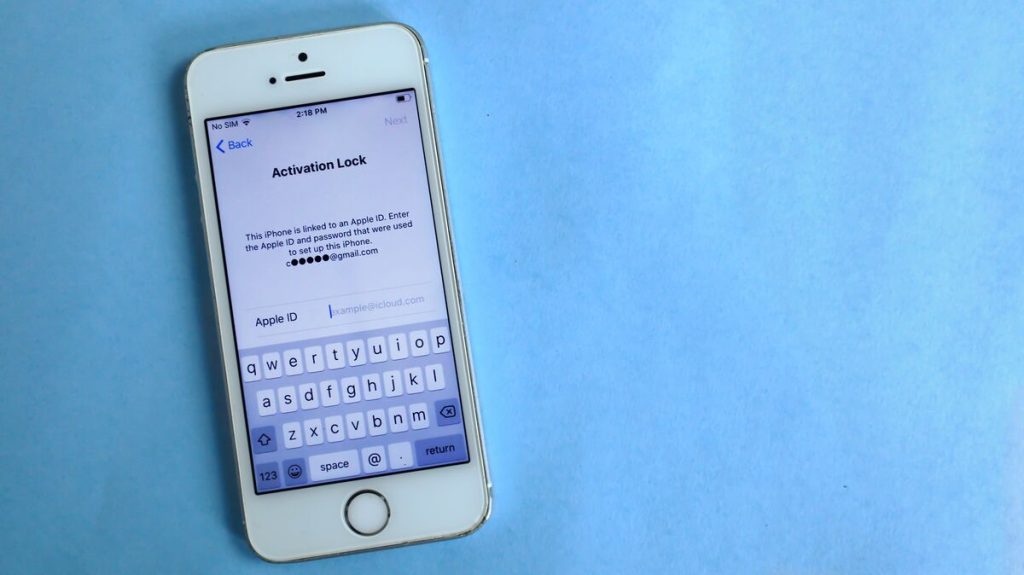
If Find My remains active through a remote erase, Activation Lock can still require the Apple Account password before the device is activated again.
Can I still receive my data if I forgot to back up before resetting?
Possibly, but only if the data was already syncing somewhere else.
Information stored in iCloud Photos, iCloud Drive, Notes, Contacts, or another cloud service may return after you sign in again.
Local-only information that was never backed up or synced may not be recoverable.
Is factory reset the same as erasing all content and settings?
Yes, on iPhone, Erase All Content and Settings is the standard Settings command used to return the device to factory state.
Do not confuse it with Reset All Settings, which resets system preferences while keeping photos, messages, apps, and documents intact.
Does factory resetting an iPhone remove the SIM or eSIM plan?
A physical SIM card is not erased by the reset.
For eSIM, Apple may let you choose whether to keep or delete it during Erase All Content and Settings. A computer factory restore also does not automatically delete the eSIM.
If you delete the eSIM, carrier assistance may be required to reactivate service.
>>> Read more: How to Restore eSIM After Factory Reset iPhone?
7. Final Thoughts
A factory reset is simple to start but difficult to undo once local data is erased. Check your backup first, confirm the reset method matches your situation, and make sure important iCloud-synced information is available before proceeding.
That preparation makes how to factory reset iPhone much safer and reduces the risk of losing data you still need.