


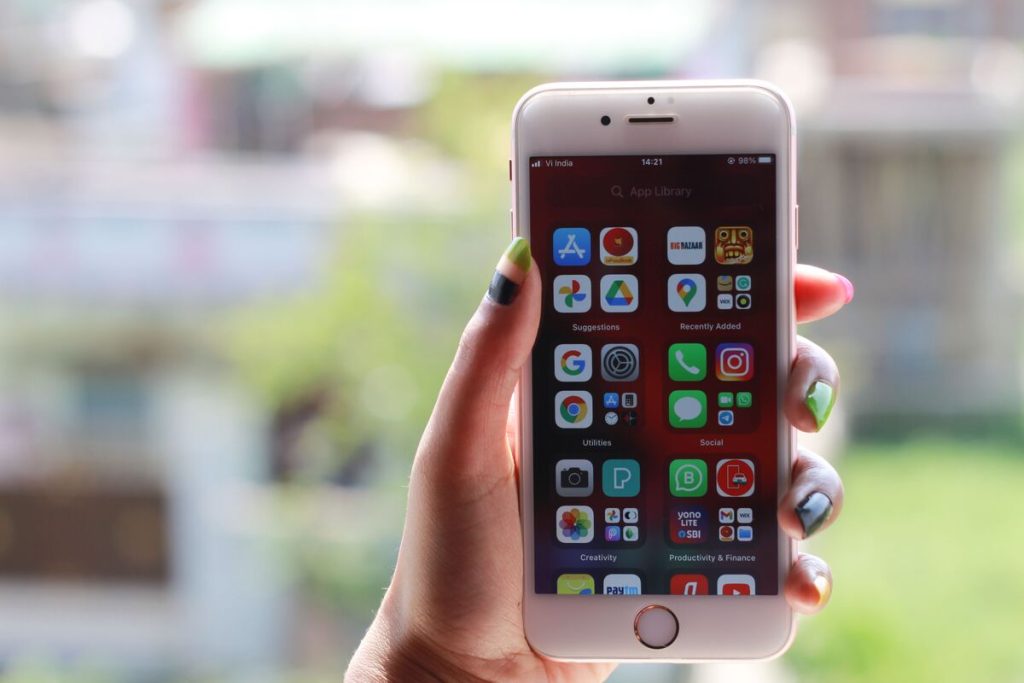
Hiding an app on iPhone can mean several different things. You may only want to remove its icon from the Home Screen, keep it out of Search, hide an entire page of apps, or place the app behind Face ID so other people cannot easily see or open it.
The best method for how to hide apps on iPhone therefore depends on how private you want the app to be. Older iOS versions mainly let you hide apps from view, while iOS 18 and later added a dedicated Hidden folder protected by Face ID, Touch ID, or the device passcode.
1. What “Hiding” an App Really Means on iPhone
Before choosing a method, it helps to separate simple Home Screen cleanup from actual privacy protection.
Hiding an App vs. Deleting It
Removing an app from the Home Screen does not uninstall it.
When you touch and hold an app and choose Remove App > Remove from Home Screen, the app stays installed and moves to App Library. Its data remains on the iPhone, and you can continue opening it from App Library or Search.
Deleting is different. Choosing Delete App removes the app itself and its locally stored data from the device, although information already stored in iCloud may remain there.
That distinction is important for anyone researching how to hide apps on iPhone without deleting it. If you only want the icon out of sight, Home Screen removal is enough.


Hidden From View vs. Locked Behind Face ID
On iOS 18 and later, Apple added a stronger privacy option.
A downloaded app can be locked with Face ID, Touch ID, or a passcode, or hidden completely inside a protected Hidden folder in App Library. A truly hidden app disappears from the Home Screen, regular App Library view, and Search results.
Not every app can be hidden. Apple notes that built-in apps cannot use the iOS 18 hidden-app feature; only separately downloaded apps can be hidden this way.
2. How to Hide Apps on iPhone: Home Screen Removal Method
For users who simply want a cleaner Home Screen, this is the easiest approach to how to hide apps on iPhone.
Remove an App From the Home Screen but Keep It in App Library
To remove one app from view:
- Touch and hold the app on the Home Screen.
- Tap Remove App.
- Tap Remove from Home Screen.
The app remains installed and moves to App Library.
Hide Entire Home Screen Pages at Once
If several apps are grouped on one Home Screen page, you can hide the whole page instead of moving apps individually.
Touch and hold an empty area of the Home Screen until the icons jiggle. Then tap the page dots near the bottom, deselect the page you want to hide, and tap Done.
Apple has supported hiding Home Screen pages since iOS 14. Apps on the hidden page remain installed and continue appearing in App Library.
This is useful when learning how to hide apps on your iPhone for organization rather than privacy. A work page, travel page, or game page can disappear from the Home Screen without affecting the apps themselves.
>>> Read more: How to Stop Apps from Crashing: Have You Tried These 8 Easy Fixes?
3. Hide Apps on iPhone: Settings Control Method
If you want fewer traces of an app outside the Home Screen, Settings gives you more control over Search, Siri suggestions, and certain built-in features.


Keep Apps Out of Search and Siri Suggestions
To stop an app from appearing in Search, one useful option is changing setup in Settings. Here’s how to hide apps on iPhone in Settings:
- Go to Settings > Search > [App]
- Then turn off Show App in Search.
Depending on the app and iOS version, you may also see controls for showing app content in Search, Home Screen suggestions, suggested apps, or suggestion notifications.
Siri suggestions can also be adjusted through Siri settings. Apple allows users to control whether Siri learns from an app and where suggestions appear, including Home Screen, Search, App Library, or notifications.
Use Screen Time to Hide Built-In Apps
Screen Time is useful for built-in Apple apps that cannot use the newer Hidden folder.
Go to: Settings > Screen Time > Content & Privacy Restrictions
From there, you can allow or block certain built-in apps and features such as Camera, AirDrop, and other system functions. Apple describes this as blocking or allowing built-in apps and features rather than deleting them.
This method is particularly useful when you want to restrict access for a child or temporarily remove access to specific system features.
4. App Hiding on Different iOS Versions
The options available for how to hide apps on iPhone depend heavily on the iOS version.
On iOS 14 through iOS 17, the main techniques were removing apps from the Home Screen, hiding Home Screen pages, adjusting Search and Siri visibility, or using Screen Time restrictions.
For anyone searching for how to hide apps on iPhone iOS 16, there is no dedicated Face ID-protected Hidden folder. You can remove an app from the Home Screen and leave it in App Library, hide entire Home Screen pages, and reduce its visibility through Search settings. Apple also lets iOS 16 users start Search directly from the Home Screen.
The major change arrived with iOS 18.
Apple introduced built-in app locking and hiding, allowing downloaded apps to move into a locked Hidden folder in App Library. These apps disappear from the regular Home Screen and Search visibility and require authentication to access.
5. What Happens After You Hide an App on iPhone?
The answer depends on which hiding method you used.
If you only remove the app from the Home Screen, the app remains fully installed. It can still appear in App Library, Search, Settings, storage reports, and notifications unless you separately change those settings.
If you hide an app using the iOS 18+ Hide and Require Face ID feature, the behavior is different. Hidden apps disappear from the Home Screen, regular App Library view, and Search results and move into the protected Hidden folder.
Notifications are also treated differently. Information from locked or hidden apps does not appear in notification previews, Search, Siri suggestions, or similar system locations.
Settings > Apps > Hidden Apps
Authentication is required to view that list.
Storage usage also remains. Hiding is not the same as uninstalling, so the app and its data continue occupying device storage.
>>> Read more: How to Transfer Apple Cash to Bank: 5 Simple Step-by-Step Guide
6. FAQs
Does hiding an app on iPhone stop it from running in the background?
No.
Removing or hiding an app does not automatically uninstall it or disable all background activity. Whether the app can update in the background depends on its permissions, Background App Refresh settings, notifications, location access, and other system controls.
Will hidden apps still show up in my storage list or Screen Time report?
Yes, hiding does not remove the app from the device.
The app can still occupy storage, and Apple notes that for Family Sharing users aged 13–17, parents or guardians may still be able to see that a hidden app was downloaded and how much time was spent using it.
Can someone find a hidden app by searching for it?
It depends on the hiding method.
An app merely removed from the Home Screen can still be found through Search or App Library.
A downloaded app hidden using the iOS 18+ Hide and Require Face ID feature does not appear in ordinary Search results and is placed inside the authenticated Hidden folder.
Do hidden apps still send notifications?
A normal app removed only from the Home Screen can still send notifications.
For apps hidden using the newer iOS privacy feature, information from hidden apps does not appear in notification previews or several other system surfaces.
Can I hide apps on an older iPhone that can’t update to the latest iOS?
Yes, but the options are more limited.
Older iPhones can still remove apps from the Home Screen, hide entire Home Screen pages on supported iOS versions, adjust Search visibility, and use Screen Time restrictions.
7. Final Thoughts
The right approach to how to hide apps on iPhone depends on whether your goal is organization or privacy.
Removing an app from the Home Screen keeps it installed and accessible through App Library. Hiding an entire page is useful when you want to clean up several apps at once. Search and Siri controls make apps less visible through system suggestions, while Screen Time can restrict certain built-in apps and features.