


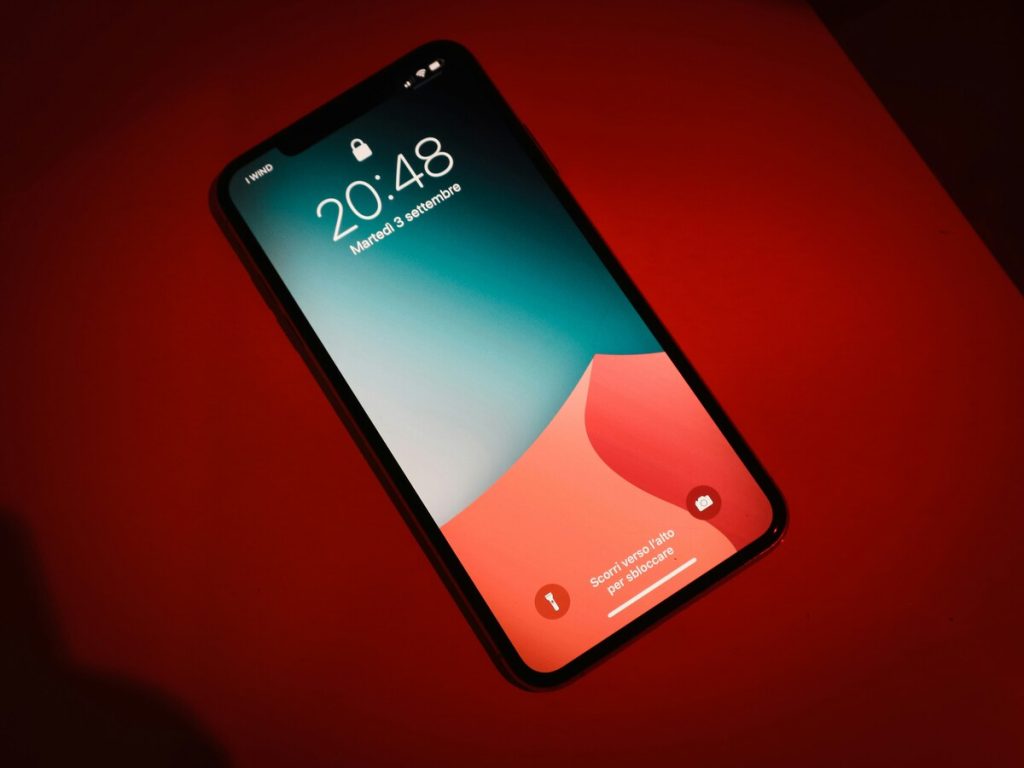
Press the side button and the display goes dark, but that is only one meaning of the phrase.
Depending on who is asking, how to lock screen on iPhone could mean locking the phone, changing what shows on it, or keeping a child inside one app. This guide covers all three, with the steps and fixes for each.
1. What “Lock Screen” Means on an iPhone?
The phrase covers three different things, and mixing them up is why searches so often lead to the wrong steps.
Locking the phone means turning the display off so that Face ID, Touch ID, or a passcode is needed to get back in. You do it with a button press, or you let the phone do it on a timer.
The Lock Screen is the page you see before unlocking: the wallpaper, the clock, and any widgets. Customizing it changes how the phone looks, not how it is protected.
Locking for kids means limiting what a child can reach on a phone that is already unlocked, such as keeping them in a single app.
Once you pick the meaning that fits, how to lock screen on iPhone is easy to sort out, and the sections below follow the same order.
2. How to Lock Your Screen on iPhone Manually or Automatically?
There are two ways to turn the display off. The process differs only in who does it: you press a button, or the phone locks itself after a pause.

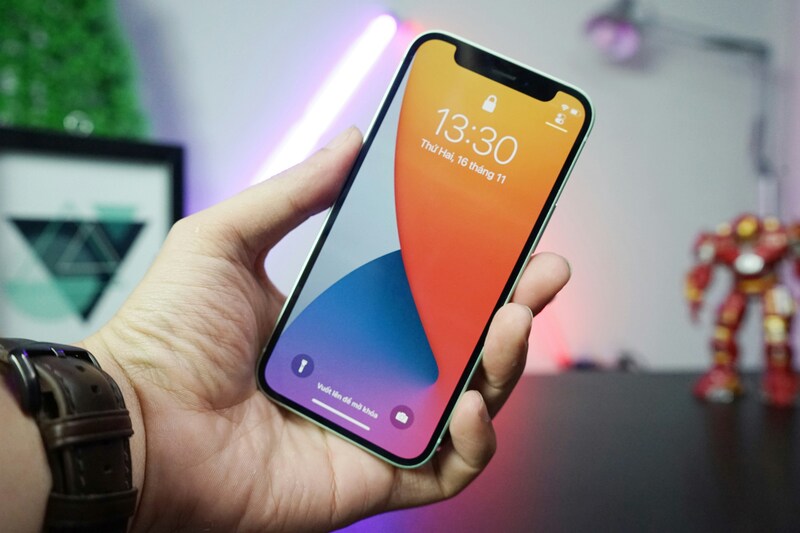
Press the Side Button
Press the side button once, the single button on the right edge of the phone, and the display goes dark right away. With a passcode set, the next person needs Face ID, Touch ID, or the passcode to get in.
Press the button again to wake the screen. It works from any app, which makes it the quickest answer to how to lock screen on iPhone when you put the phone down in a public place.
Let Auto-Lock Do It for You
Auto-Lock does the same job on a timer.
Open Settings, tap Display & Brightness, tap Auto-Lock, and choose how long the screen stays on before it locks.
A shorter time protects the phone if you forget the button, while Never keeps the screen on until you lock it yourself. Low Power Mode is a common catch: it sets Auto-Lock to 30 Seconds and the choice cannot be changed until Low Power Mode is off.
This timer is the hands-free half of how to lock screen on iPhone.
>>> Read more: How To Change iPhone Wallpaper: A Simple Guide To Customizing Your Home And Lock Screens
3. How to Change Lock Screen on iPhone Without Starting Over?
Changing the Lock Screen does not mean rebuilding it. How to change lock screen on iPhone works from two places, and both let you edit what you have or add something new.
From Settings
- Open Settings and tap Wallpaper.
- The Lock Screen preview appears with a Customize button, and tapping it lets you edit the current look and add widgets.
To start fresh instead, use the option to add a new wallpaper. This route is calmer than the touch-and-hold method, because there is no timing to get right and you can take your time with each choice.
From the Lock Screen Itself
Wake the phone and touch and hold the Lock Screen until the wallpaper gallery opens.
Tap Customize on the wallpaper you want to edit, or tap the plus button to add a new one.
If Face ID has not opened the gallery, touch and hold the Lock Screen again and enter your passcode when asked. Tap Done when you are happy with the result.
4. How to Lock Screen on iPhone for Kids?
For a child, the goal is to keep them in one app, so a game or video cannot turn into texts, settings, or the App Store.
That is you can lock screen on iPhone for kids with Guided Access, a built-in Accessibility feature. The same method covers how to lock the screen on iPhone for baby, with Touch turned off so random taps do nothing.
Set it up once:
- Open Settings and tap Accessibility.
- Tap Guided Access and turn it on.
- Tap Passcode Settings and set a Guided Access passcode. You can also let Face ID end a session.
Then start a session:
- Open the app your child should stay in.
- Triple-click the side button. If the Accessibility Shortcuts panel appears, tap Guided Access.
- Circle any area of the screen that should ignore touches, or open Options and turn Touch off.
- Tap Start.
5. When the Screen Won’t Lock or Won’t Customize?
If how to lock screen on iPhone is not working as expected, one of these four is usually the reason:
- Auto-Lock is set to Never, so the screen stays on: Open Settings, tap Display & Brightness, tap Auto-Lock, and pick a time. If it is stuck at 30 Seconds, turn off Low Power Mode first.
- The Customize button is missing: Touch and hold the Lock Screen again and enter your passcode. That usually brings the gallery and the button back.
- Triple-click opens the Accessibility Shortcut panel instead of Guided Access: Tap Guided Access in that panel. It appears there when more than one shortcut is set.
- Your child changes Screen Time settings: Set a Screen Time passcode. In Settings, tap Screen Time, then Lock Screen Time Settings, and enter a four-digit code.
>>> Read more: How to Lock Screen on iPhone for Kids: Keep Them in One App With Guided Access
6. FAQs
What is the quickest way to lock my iPhone?
The shortest version of how to lock screen on iPhone is one press of the side button. The display turns off at once, and the phone asks for Face ID, Touch ID, or the passcode the next time it wakes.
How do I stop my iPhone from locking too fast?
Go to Settings, tap Display & Brightness, then Auto-Lock, and choose a longer time. If the choices are greyed out, Low Power Mode may be on and holding the setting at 30 Seconds.
Can I lock screen rotation?
Yes. Open Control Center and tap the Portrait Orientation Lock button, and the screen stays upright when you tilt the phone. Tap it again to turn rotation back on.
How do I end Guided Access?
Triple-click the side button, enter your Guided Access passcode or use Face ID, then tap End. On iOS 18 and earlier, Apple lists a double-click instead.
Final Thoughts
Knowing which lock setting to use makes managing your iPhone simpler, whether you want to secure the screen or customize how it behaves.
Apart from how to lock screen on iPhone, explore the AirTalk Wireless blog for more practical iPhone tips and everyday tech guides!