


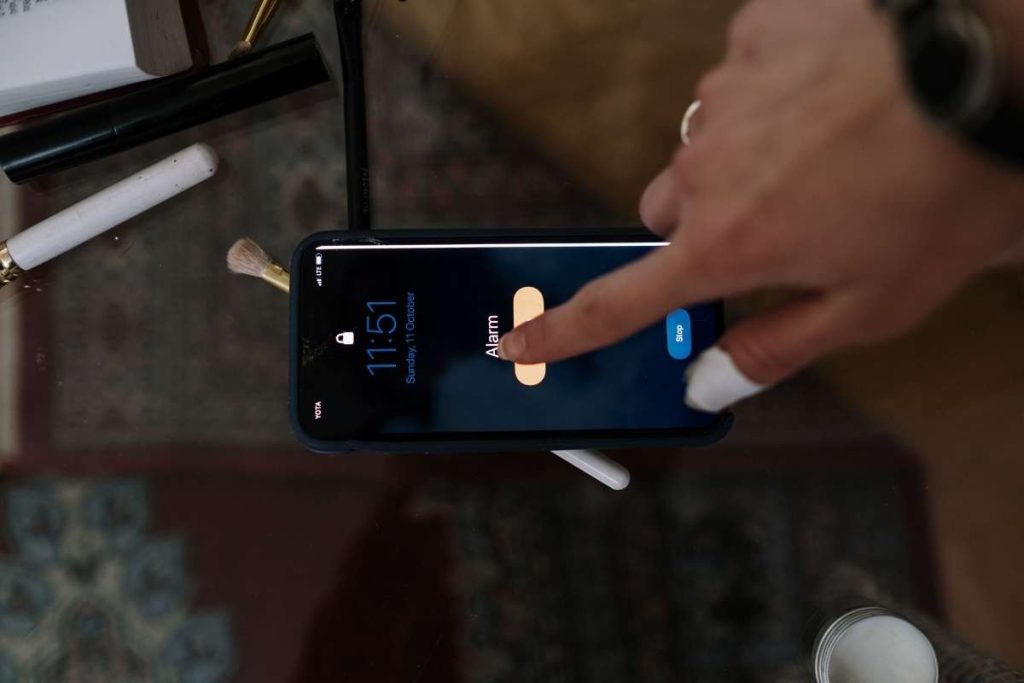
Have you ever missed an important meeting or woken up late because your alarm didn’t ring loudly enough? That’s an age-old issue on the iPhone that many people encounter.
If you are wondering how to make alarm louder on iPhone so you never sleep through your morning wake-up call again, you’re in the right place.
1. The Easiest Way To Make Alarm Louder On iPhone
The quickest fix is to increase the alarm volume directly in Settings. The exact steps depend on your iOS version, but this is the simplest way to raise alarm volume on an iPhone.
How to Make Alarm Louder on iPhone on iOS 27
With the release of iOS 27, Apple has slightly updated how volume settings are managed.
If you are trying to figure out how to make alarm louder iPhone devices running the newest software, follow these straightforward steps:
- Step 1: Open Settings.
- Step 2: Tap Sounds & Haptics.
- Step 3: Find Alarms and Timers section.
- Step 4: Turn off Match Ringtone Volume.
- Step 5: Drag the alarm volume slider higher to your desired loudness.
Turning off Match Ringtone Volume allows you to adjust the alarm volume independently of your ringtone volume.
After adjusting the slider, set a test alarm for a few minutes later. Listen to the sound at your usual sleeping distance to confirm that it is loud enough for you.
On iOS 26 and earlier
If you haven’t updated your device yet, making iPhone alarms louder on older versions is just as simple:
- Step 1: Open Settings.
- Step 2: Tap on Sounds & Haptics.
- Step 3: Under Ringtone and Alerts, move the slider all the way to the right to maximize the sound.
- Step 4: Turn on Change with Buttons if you want to use the physical side buttons to easily adjust the volume of your alerts.
On these versions, the volume setting is shared between ringtones and notifications. When the “Change with Buttons” feature is enabled, you can adjust this volume using the buttons on the side of your phone.
Just note that these buttons only affect the volume when you are on the Home Screen or Lock Screen; they won’t apply when you are playing videos or games.
2. More Ways to Make Your iPhone Alarm Louder
If the volume is already set high but the sound still seems too quiet, try these extra tricks to improve it. These approaches are also useful if you want to know how to make iPhone alarm louder without touching the volume slider at all.
Choose High-Impact Alarm Tones
Not every tone is equally effective. Soft, melodic sounds easily blend into the background, making it harder for you to wake up. In contrast, sharp and repeating tones like “Radar”, “Beacon”, or “Signal” cut through sleep much better.
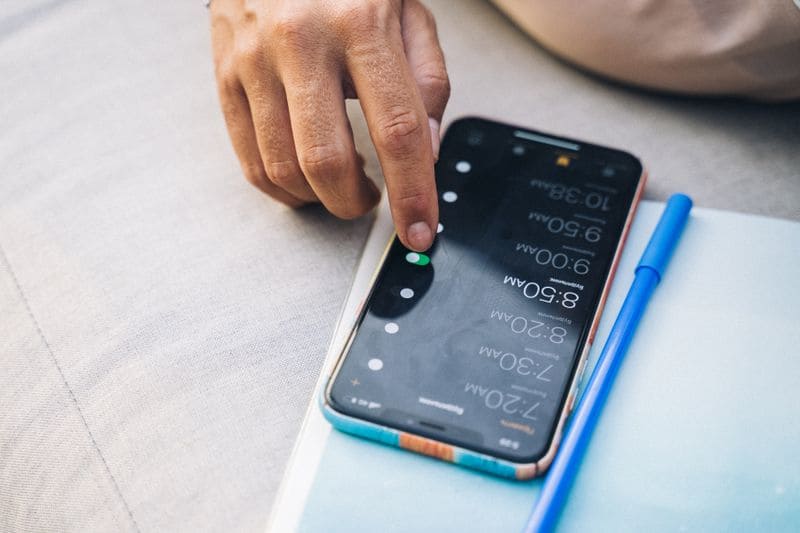
Open the Clock app, tap Alarm, select Edit, and then tap Sound to check each alert sound at maximum volume.

Disable Attention Aware Features
When the “Attention Awareness” feature is enabled, your iPhone will lower the volume of alerts if it detects that you are looking at the screen.
Although this is useful during the day, it may cause your morning alarm to sound quieter than you expect. To stop this, go to Settings, then Face ID & Passcode, and turn off the “Attention Awareness” feature.
Add Vibration, Apple Watch, or an External Speaker
Pair your loud alarm with a strong vibration pattern. Alternatively, wearing an Apple Watch to bed will provide a physical tap on your wrist, or you can route your audio through a loud Bluetooth speaker.
Note that iPhone alarm sounds will still play through the phone’s own speakers even when headphones are connected.
Therefore, if you wish to use an external speaker, you must set that device up as a separate accessory or as a different alarm output source.
Physical Trick: Place Your iPhone Where the Speaker is Uncovered
Sometimes the simplest solution is physical. Place your phone inside an empty glass or ceramic bowl on your nightstand to amplify the sound naturally, and ensure the bottom speakers aren’t muffled by a thick blanket or pillow.
3. Troubleshooting: Why Is My iPhone Alarm Still Quiet?
If you followed every step and the sound is still weak, check these common causes:
Issue 1: Alarm is Set to “None”
If the alarm sound is set to None, your iPhone only vibrates, or does nothing if vibration is also off. Open the Clock app, edit your alarm, tap Sound, and then select an actual sound from the list.
Issue 2: Sleep Focus Conflicts
If you use the Sleep Schedule feature in the Health app, it might override your regular alarms with softer, gradual wake-up sounds.
Also, check your Focus modes to ensure they aren’t suppressing your notifications.
Issue 3: Speaker Obstruction
Dust, fabric fibers, or debris at the bottom of the phone can significantly reduce performance. Take a moment to gently clean the area using a soft, dry brush.
Do not use sharp objects or compressed air at close range.
4. FAQs about How to Make Alarm Louder on iPhone
Why does my alarm start quiet and get louder?
If you use the Sleep/Wake Up alarm feature via the Health app, Apple designed it to gradually increase in volume. This is meant to wake you up gently rather than startling you. For instant maximum volume, use a standard alarm in the Clock app.
Does Silent Mode or Do Not Disturb make iPhone alarms quiet?
No, the physical Silent switch and standard Do Not Disturb modes do not affect your alarms. Your alarm will still sound even if your phone is completely silenced for calls and text messages.
Does alarm volume depend on ringtone volume on iPhone?
On iOS 26 and older, yes. The alarm volume shares the same slider as your Ringtone and Alerts. However, starting with iOS 27, you can separate them by toggling off the “Match Ringtone Volume” setting.
Can I make my iPhone alarm louder than the maximum volume?
Not through software. The built-in speaker has a fixed limit, and no setting can push it past maximum. To get extra volume, use these tricks mentioned earlier or connect your device to an external speaker.
5. Conclusion
Now you know how to make alarm louder on iPhone, whether you use iOS 27 or an earlier version. Apply these simple tweaks tonight, and you’ll never have to worry about oversleeping a crucial morning meeting again.
Follow our blog for more helpful iPhone tips and easy-to-follow guides that cover everyday connectivity, government assistance, and more.