


Small text turns a quick glance into squinting, but the right fix depends on what is small. How to make font bigger on iPhone comes down to matching the problem to the right control.
If everything feels small, the Text Size slider fixes the whole phone at once. If only one app is hard to read, Control Center or Per-App Settings can enlarge that app alone. A tiny website has its own answer in Safari’s page controls, and when buttons and icons look small too, Display Zoom makes them larger.
1. How to Make Font Bigger on iPhone for Everything at Once?
The system-wide setting is the base of how to make font bigger on iPhone, and it changes text in Settings, Mail, Messages, Notes, and any other app that follows your preferred size. Start with the slider, then add the extras only if the text still feels small.

Start With the Text Size Slider
- Open Settings, tap Display & Brightness, and tap Text Size.
- Drag the slider at the bottom to the right to enlarge the text, and watch the sample text change as you go.
This is the quickest steps to take if you are searching for how to make font size bigger on iPhone across the whole phone. Pick the smallest size you can read comfortably, because larger text means more scrolling.
Go Past the Limit With Larger Accessibility Sizes
If the far end of the slider is still too small, open Settings, tap Accessibility, then Display & Text Size, and tap Larger Text.
Turn on Larger Accessibility Sizes, then drag the slider again to unlock bigger options. Only apps that support Dynamic Type follow it, so a few will look the same. For many readers, this is the step where how to make text font bigger on iPhone finally works.
Add Bold Text for Contrast
Bigger letters can still look faint, so contrast matters as much as size when you decide how to make your font bigger on iPhone.
In Settings, Accessibility, and Display & Text Size, switch on Bold Text to thicken every letter.
Button Shapes, in the same menu, underlines tappable text so controls are easier to find. Together, the three settings make the screen easier on the eyes.
>>> Read more: How to Make Keyboard Bigger on iPhone: 5 Practical Ways to Type More Easily
2. How to Make the Font Bigger on iPhone in One App Only?
Sometimes only one place needs help, such as a news site in Safari or the labels under your Home Screen icons.
How to make the font bigger on iPhone in a single app takes either the Control Center control or a saved Per-App Settings entry.
Use the Control Center Text Size Control
What to do is to add the control first then navigate in Safari:
- Open Settings
- Tap Control Center
- Add Text Size
- Open Safari > open Control Center > tap the Text Size control, the one with two A letters.
- Choose the option named for the open app rather than All Apps, and drag the slider.
For the Home Screen, open it, pull down Control Center, and choose Home Screen Only to enlarge the icon labels. The change may not show until you tap back into the app, and this is the version of how to make font bigger on iPhone that leaves the rest of the phone alone.
For a single website, Safari also has its own control. Tap the Page Menu to the left of the address bar, then tap the large A to enlarge that page’s text.
Save It With Per-App Settings
Per-App settings keeps the choice in place.
- Open Settings, tap Accessibility, scroll to the bottom, and tap Per-App Settings.
- Tap Add App, choose the app, then tap it and tap Larger Text to set the size.
Apps you changed through Control Center appear here too, so you can adjust or remove them later. This is the better route when how to make font bigger on iPhone has to stay fixed for just one app.
3. Solutions for When the Size Won’t Change
When the text refuses to grow, how to make font bigger on iPhone usually runs into one of three limits:
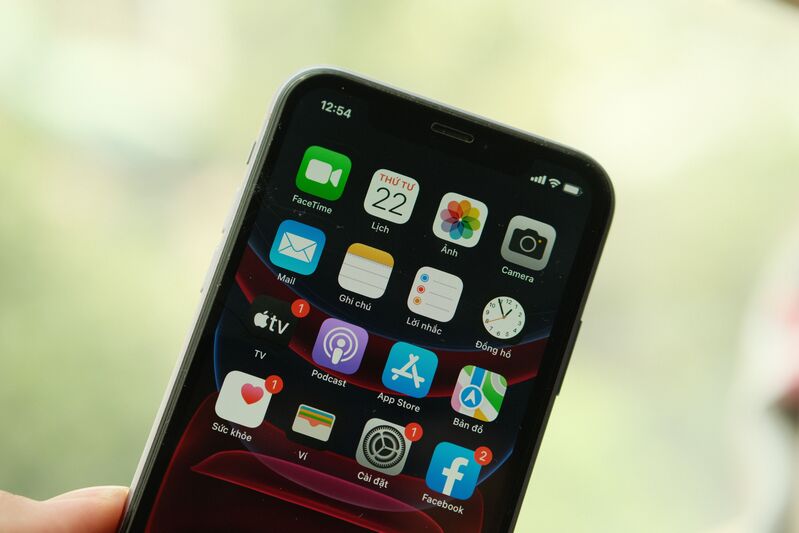
- The app doesn’t support the system text setting: Only apps that support Dynamic Type follow the slider, such as Mail, Messages, Notes, Calendar, and Contacts. Others ignore it, so look for the app’s own text settings. To enlarge icons and labels instead, open Settings, tap Display & Brightness, tap View under Display Zoom, choose Zoomed, and tap Set.
- The Control Center slider is missing, so add it with Add a Control: Open Control Center, touch and hold a blank spot, tap Add a Control, choose Text Size, and tap a blank area to finish.
- Very large sizes can break layouts in some apps: Overlapping or cut-off text means the size is larger than the app expects. Step the slider down one notch, or keep the very large size for the apps that need it through Per-App Settings.
4. FAQs
How to make font smaller on iPhone?
Use the same controls in reverse. Open Settings, tap Display & Brightness, tap Text Size, and drag the slider to the left. For one app, open the Text Size control in Control Center and drag its slider down.
If Larger Accessibility Sizes is on, turn it off to return to the standard range. It is simply the opposite of how to make font bigger on iPhone, so you can move back and forth until the size feels right.
What is the font of the iPhone?
The iPhone system font is San Francisco, designed by Apple for its devices. It adjusts its spacing as the size changes, so text stays readable at small and large settings. You will see it in Settings, Messages, Mail, and most other built-in apps.
Can I change my iPhone font style?
Not the system font. iOS has no setting to replace San Francisco with another typeface. Bold Text makes the existing letters heavier, and some apps, such as Notes or Pages, let you pick fonts inside a document.
What is the normal font size on an iPhone?
The default sits near the middle of the Text Size slider, and apps that support Dynamic Type treat it as the standard size. Everything to the right is larger and everything to the left is smaller. If you ever lose track of where you started, drag the slider back toward the middle, and the text returns to a familiar size.
>>> Read more: How to Add Signature in Outlook for New Emails and Replies?
Final Thoughts
The right text size should make your iPhone comfortable to read without unnecessary squinting or constant adjustments. Hopefully our instruction on how to make font bigger on iPhone can help you navigate your phone more easily.
For more practical iPhone tips and easy-to-follow tech guides, explore the AirTalk Wireless blog.