


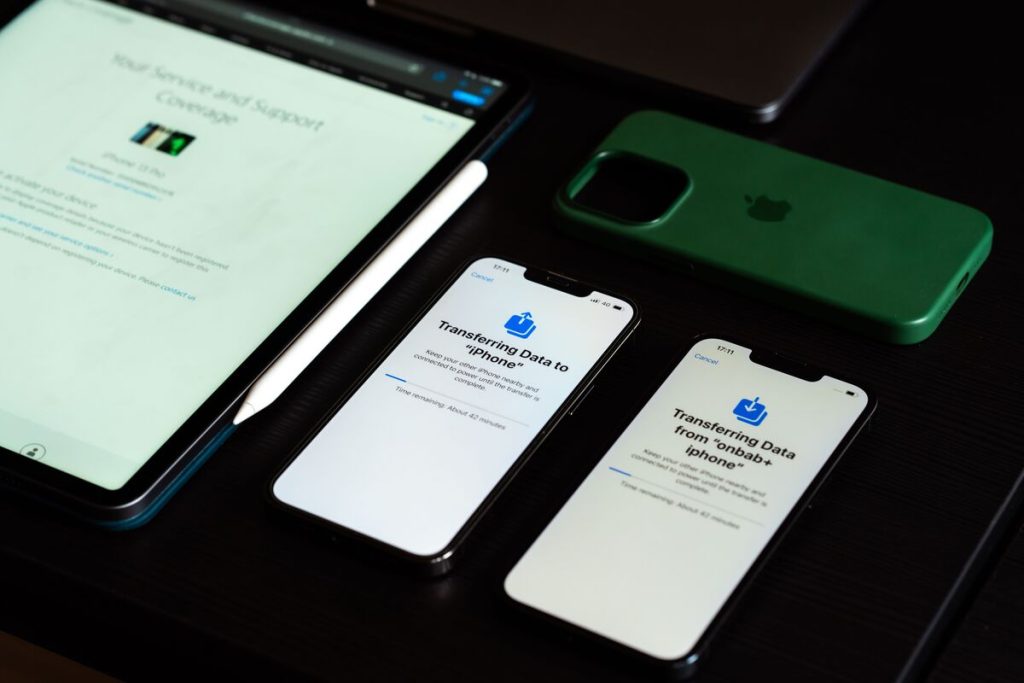
Restoring an iPhone from backup can bring back much of your previous setup, including app data, Home Screen organization, device settings, and other information that was stored in iCloud or in the backup itself.
The key to how to restore iPhone from backup is knowing which backup you have and whether the iPhone is still on the Hello/setup screen or has already been set up. If the phone is already in normal use, Apple requires you to erase it before restoring an iCloud backup.
1. What to Check Before You Restore an iPhone From a Backup
Before starting, confirm what kind of backup exists and whether it contains the information you expect.


Which Backup You Actually Have
There are two main backup locations:
- iCloud backup: stored in your Apple Account and restored over Wi-Fi.
- Computer backup: stored on a Mac or Windows PC and restored through Finder, Apple Devices, or iTunes, depending on the computer.
Before following how to restore iPhone from backup, check the backup date and confirm whether it is stored in iCloud or on a computer.
iCloud Backup stores information that is not already syncing separately to iCloud. This can include device settings, Home Screen layout, app organization, app data, messages when Messages in iCloud is not enabled, and photos when iCloud Photos is not enabled.
Content already syncing through iCloud, such as iCloud Photos or Notes, generally returns through synchronization rather than being copied from the backup itself.
What Restoring Will Replace on Your iPhone
A restore does more than copy a few files.
Backup restoration is bringing back content, settings, and apps to a new or newly erased iPhone.
That means an iCloud restore is not designed to merge an old backup selectively into an already configured phone. If you have new local data on the current device that is not backed up or synced elsewhere, erasing the phone before restoration can remove it.
Create a fresh backup of anything important before following how to restore iPhone from backup after setup.
>>> Read more: How to Restore eSIM After Factory Reset iPhone?
2. How to Restore iPhone From Backup Using iCloud
The iCloud procedure depends on whether the iPhone is new or freshly erased, or has already completed setup.
On a New or Freshly Erased iPhone
For how to restore iPhone from iCloud backup, start from the Hello screen:
- Turn on the iPhone.
- Follow the setup prompts.
- When you reach Transfer Your Apps & Data, choose From iCloud Backup.
- Sign in to your Apple Account.
- Select the backup you want, using its date and size to identify the correct one.
- Follow any prompts to update iOS if the backup requires a newer software version.
- Stay connected to Wi-Fi while the initial restore completes.
- Finish setup and allow apps, photos, music, and other content to continue restoring in the background.
When Your iPhone Is Already Set Up
Restoring an iPhone from a backup after setup is different because you cannot simply open Settings and overlay an iCloud backup onto the current installation.
Apple requires the phone to return to the setup screen first.
Before erasing, confirm that any current data you want to keep is backed up or synchronized. Then go to:
Settings > General > Transfer or Reset iPhone > Erase All Content and Settings
After the phone restarts and shows the Hello screen, proceed through setup and select From iCloud Backup when you reach Transfer Your Apps & Data.
If you use eSIM, iPhone may give you the option to keep or erase it during the reset. Erasing an eSIM may require contacting your carrier to reactivate cellular service.
This erase-first requirement is one of the most important parts of how to restore iPhone from backup because skipping it prevents the iCloud restore option from appearing in the normal setup flow.
3. What Happens While Your iPhone Is Restoring
An iCloud restore happens in stages rather than completing all content at once.
After you choose a backup, a progress bar appears. Apple says this initial stage can take from a few minutes to around an hour, depending on the backup size and network speed. If Wi-Fi disconnects, the restore pauses until the connection returns.
Once that progress bar finishes, you can complete setup and begin using the phone, but restoration may still be continuing.
Apps, photos, music, and other information can keep downloading in the background for several hours or even days. Keep the phone connected to Wi-Fi and power until the process finishes.
Data already stored through services such as iCloud Photos, Messages in iCloud, or iCloud Drive may also reappear gradually through synchronization rather than directly from the backup.
One important part of how to restore iPhone from backup is knowing that reaching the Home Screen does not mean every app, photo, or synced item has finished returning.
4. What to Do When the Restore Stalls or Shows an Error
A slow restore is not always a failed restore. Network speed, backup size, software compatibility, and Apple Account access can all affect the process.
When the Progress Bar Barely Moves
First, keep the iPhone connected to reliable Wi-Fi and power.
The initial iCloud restore progress bar may need up to an hour, while background restoration can continue much longer. Disconnecting Wi-Fi pauses the process.
When the iPhone Says No Backup Is Available or Compatible
A missing backup can have several causes.
First, confirm that you signed in with the same Apple Account used to create the backup and that a usable backup actually exists.
Compatibility can also be the issue. A backup created on a device running a newer version of iOS may require the receiving iPhone to update before the restore can continue. Both iCloud and computer backups can require a newer version of iOS.
If no automatic update prompt appears, Apple’s workaround is to temporarily set up the device without transferring data, update iOS, erase it again, then return to the setup process and restore the backup.
>>> Read more: How to Restart iPhone: 4 Safe Methods for Every Model
5. FAQs
Can I restore an iPhone from a backup that was made on a different iPhone model?
Yes, in many cases. Apple specifically supports transferring data and purchased content from a previous iPhone backup to a new iPhone.
Will restoring from backup bring back my apps and their data?
Usually, yes, but the process is split between restoration and redownloading.
iCloud Backup includes app data for apps that do not already store that information separately in iCloud. Purchased apps are then downloaded again from the App Store during restoration.
How long does it take to restore an iPhone from iCloud backup?
The initial progress bar may take a few minutes to about an hour, depending on backup size and Wi-Fi speed.
Apps, photos, music, and other content can continue restoring in the background for several hours or days.
Can I choose which data to restore instead of the whole backup?
Not during a standard full iCloud restore.
Apple’s restore flow is designed to restore the selected backup as a whole rather than letting you choose individual categories during setup. However, some information is already managed separately through iCloud syncing, such as iCloud Photos, iCloud Drive, or Notes.
6. Final Thoughts
The most important part of how to restore iPhone from backup is choosing the right restoration path before you begin.
A new or erased iPhone can restore directly from iCloud during setup. An iPhone that is already configured must first be backed up as needed, erased, and returned to the Hello screen before the same restore option becomes available.
Do not expect every app and photo to return immediately after the progress bar finishes. Restoration continues in the background, sometimes for hours or days.