


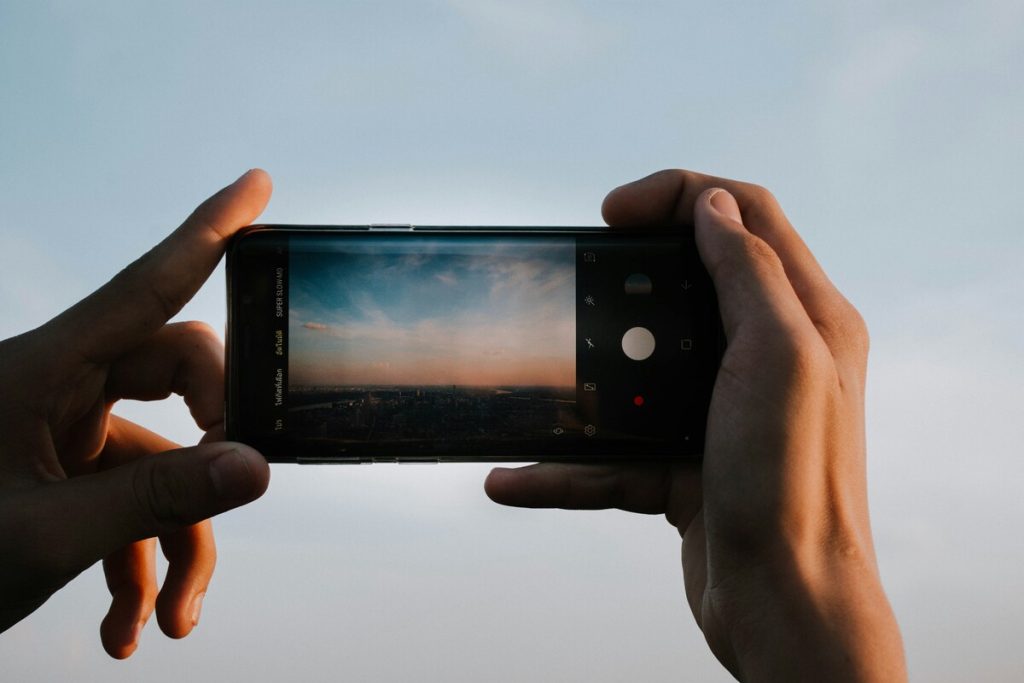
A sideways photo is a small problem that gets in the way fast, especially when you want to send it, print it, or post it. How to rotate a picture on iPhone takes less than a minute once you know where the tool is.
This guide covers the two built-in ways, Photos and Preview, then shows how to undo a rotation and what to check when a picture will not turn.
1. How to Rotate a Picture on iPhone in Photos
“Photos” is the easiest place to rotate or straighten an image on your iPhone. Since your pictures are already stored there, you can access both tools directly from the Crop menu without downloading another app.
The process is the same on iPhone 16 and older models, so you don’t need a separate tutorial for newer devices. Choose the instructions below based on whether you want to rotate or straighten your picture.

Rotate a Picture 90 Degrees
Use this when the whole picture lies on its side. Each tap turns it a quarter turn, so you can fix a sideways or upside-down shot in one to three taps.
- Open the picture in Photos and tap Edit.
- Tap the Crop tool at the bottom of the screen.
- Tap the rotate button in the top menu. Each tap turns the picture 90 degrees to the left, and three taps match one turn to the right.
- Tap Done to save the change.
- Tap the Share button to send the corrected picture, or leave it in your library.
That last step covers how to rotate a picture on an iPhone and share it in one go.
The saved version also appears in the other places that picture is stored, so it looks the same everywhere you view it. The flip tool in the upper left mirrors the image instead of turning it, which is useful for a selfie that looks reversed.
Slightly Rotate or Straighten a Picture
When the picture is facing the right way but tilted, such as a horizon that slopes, you can also use the built-in feature to adjust it.
Then, how to slightly rotate a picture on iPhone? It basically uses the same Crop screen.
- Open the picture, tap Edit, and tap Crop.
- Make sure the Straighten tool is selected, which is the first tool in the lower row.
- Drag the dial left or right until the lines look level.
- Tap Done to save, then use Share to send it.
The picture enlarges slightly as you tilt it, so the corners stay inside the frame. That means a larger adjustment crops more of the edges.
If you want to turn a photo without losing any of it, stick to the 90-degree rotation and keep straightening small.
>>> Read more: How to Make a Sticker on iPhone From Any Photo You’ve Got?
2. How to Rotate a Picture on an iPhone in the Preview App
Preview is the second answer to how to rotate a picture on iPhone, and it suits files that are not in your photo library, such as a screenshot or an image saved in the Files app. Preview is included with iOS 26 and opens images and PDFs from Files. It is also where you can rotate a picture and send it out in a different format.
- Open the image in the Files app. It opens in Preview.
- Tap the three-dots button.
- Choose Rotate Left or Rotate Right, or flip the image horizontally or vertically.
- Tap the control at the top of the screen and choose Export, then pick a format such as JPEG or PNG.
- Use the Share button to send it.
How to rotate a picture on iPhone with Preview is also a better choice when the image must stay a certain file type. If your phone does not have Preview, update to iOS 26 or use Photos instead. A file in Files can also be saved to Photos with Share, then Save Image, and rotated with the Photos steps above.
3. How to Undo or Restore a Rotated Picture
Photos edits are non-destructive, so a mistake in how to rotate a picture on iPhone is easy to reverse. You can return to the original at any time.
If you rotated the wrong way or cropped too much, open the picture, tap Edit, and tap Revert. Confirm the choice to bring back the original.
Revert works because Photos keeps the original alongside your edit. A rotation made in Preview is different. If you exported a new copy, the original file is still in Files, so you can simply delete the rotated copy.
If you want to be safe before you rotate, duplicate the picture first and edit the copy.
4. Why Don’t Photos Rotate on iPhone?
When how to rotate a picture on iPhone does not work as expected, one of a few causes is usually responsible. Check them in this order:
- Orientation Lock is on: This stops the screen from turning, not the picture. Turn it off in Control Center if the phone itself will not rotate.
- The photo has a wrong orientation tag: Open it in Photos, tap Edit, rotate it with the Crop tool, and save.
- A Live Photo has a sideways key frame: Choose a different key photo, then rotate and save.
- The file came from another device or app: Duplicate it in Photos, rotate the copy, and share that.
- Display Zoom is set to Zoomed: Switch the view to Standard in Display & Brightness.
If nothing rotates in any app with Orientation Lock off, the motion sensors may need repair. Back up the phone and contact Apple.
>>> Read more: How to Invert a Picture on iPhone (Flip a Photo or Reverse Its Colors)
5. FAQs
Can I rotate a picture without editing it permanently?
Yes. Photos keeps the original with your edit, so tap Edit and then Revert whenever you want it back. For extra protection, duplicate the picture first and rotate the copy.
Does rotating change the picture on iCloud?
Yes, when iCloud Photos is on. A rotation made in Photos updates the picture on your other connected devices, and Revert restores it there too. iCloud.com cannot rotate photos for you.
Why did my picture stay sideways in a message?
Photos carry an orientation tag that tells apps how to display them. A message app or email program that ignores or loses the tag shows the picture sideways. Rotate the picture in Photos, save it, and send it again. If it still looks wrong, export a fresh JPEG copy before sharing.
How to rotate Photos on iPhone without cropping?
For how to rotate a picture on iPhone without cropping, use the 90-degree rotate button and skip the Straighten dial. A quarter turn does not cut away part of the picture, but straightening enlarges the image to hide the corners. Keep straightening small if you only need to level a horizon.
6. Final Thoughts
For most pictures, open Photos, tap Edit, tap Crop, and rotate. Use the Straighten dial for a tilt, Preview for files outside your library, and Revert if you change your mind.
With those options, how to rotate a picture on iPhone is a quick fix for any orientation problem.