


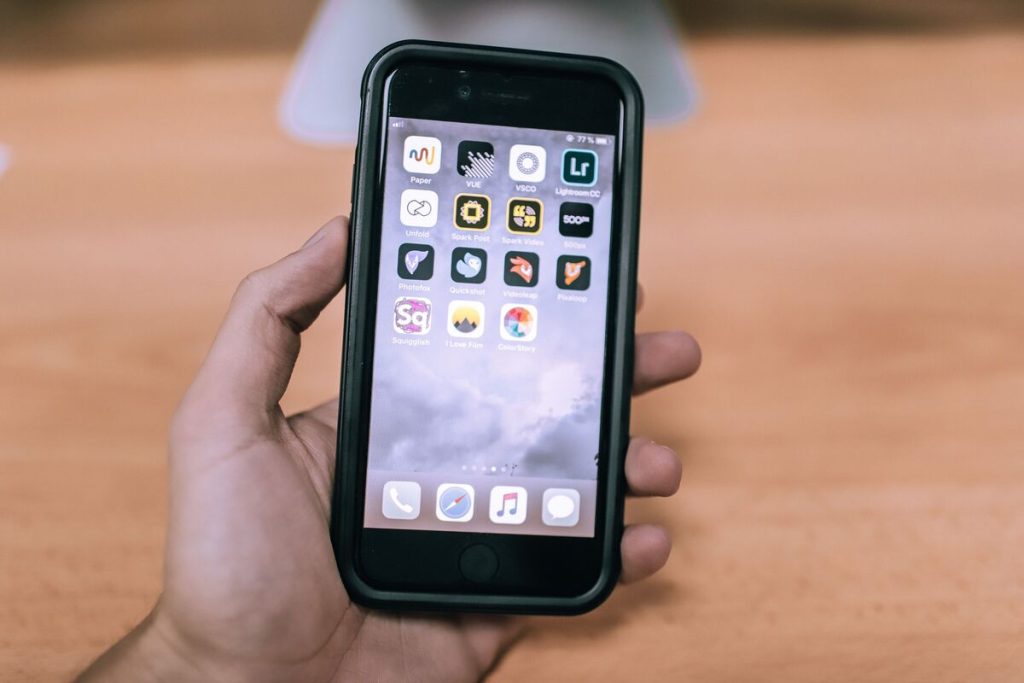
A confirmation page or message you need can vanish the moment you scroll. How to screenshot on iPhone SE depends first on which SE you hold, because the button combination changes between generations.
Let’s start with identifying your model, move through the button method and two backup methods, and the entire process below.
1. Check Which iPhone SE You Have First
All three SE models have a Home button, but the lock button sits in a different place, and that decides your combination. Before you try how to screenshot on iPhone SE, find the lock button:
- iPhone SE (2nd and 3rd generation): The lock button is on the right side of the phone.
- iPhone SE (1st generation): The lock button is on the top edge.
If you are unsure which model you own, open Settings, tap General, tap About, and read Model Name.
2. How to Screenshot on iPhone SE With the Buttons?
The button method needs no setup and works on every SE. How to screenshot on iPhone SE this way takes one quick press of two buttons, and the only difference is which lock button you use.

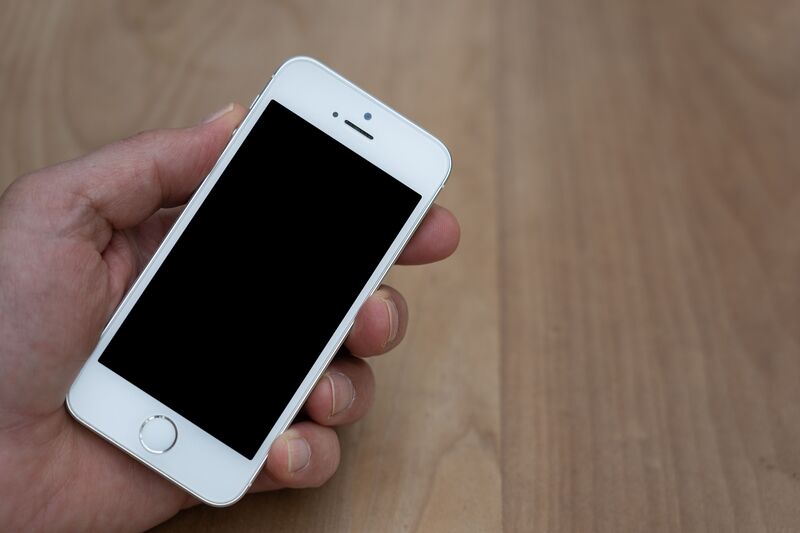
Take a Screenshot on iPhone SE (2nd and 3rd Generation)
Press the side button on the right edge and the Home button at the same time, then release both quickly.
This is how to take a screenshot on iPhone SE models from 2020 onward, and the screen flashes to confirm the capture. If you hold the buttons too long, the phone may start another action instead, so treat it as a tap rather than a press and hold.
Take Screenshot on iPhone SE (1st Generation)
On the original SE, press the top button and the Home button at the same time, then release both quickly.
For anyone learning how to take screenshot on iPhone SE from the first generation, the top button is the only change from newer models. Hold the phone with one hand, press the top edge with your index finger and the Home button with your thumb, and tap them together.
What Happens Right After the Flash
On iOS 18 or earlier, a small thumbnail appears in the lower-left corner. Tap it to open the screenshot, or swipe left to dismiss it, and the image is saved either way.
On iOS 26, the screenshot appears with quick tools such as Markup. To find it later, open Photos, go to Collections, tap Media Types, and tap Screenshots.
Knowing this step is part of how to screenshot on iPhone SE without losing the image.
>>> Read more: How To Screenshot On iPhone 8: 3 Ways For The iPhone 8 Lineup
3. How to Screenshot on an iPhone SE When the Buttons Won’t Cooperate?
A worn Home button or a stiff top button can make the combination unreliable.
How to screenshot on an iPhone SE without pressing buttons uses an Accessibility feature, and the two options below suit different models.
Double-Tap the Back With Back Tap
- Open Settings, tap Accessibility, tap Touch, scroll down, and tap Back Tap.
- Choose Double Tap, then select Screenshot.
After that, double-tap the back of the phone to capture the screen.
Do note that Back Tap needs an iPhone 8 or later, running iOS 14 or later, so the 2nd and 3rd generation SE can use it. The 1st generation cannot. This is the easiest answer to how to screenshot on iPhone SE one-handed.


Tap a Floating Button With AssistiveTouch
AssistiveTouch works on every SE, including the 1st generation.
- Open Settings, tap Accessibility, tap Touch, tap AssistiveTouch, and switch it on.
- A floating button appears that you can drag to any edge.
- Tap it, choose Device, tap More, and tap Screenshot.
You can reassign a single tap, double tap, or long press under Custom Actions, which turns the button into a one-tap shortcut. For how to screenshot on SE iPhone models without Back Tap, this is the dependable backup.
4. Tips to Make the Most of Your Screenshots: Full Page, Markup, and Sharing
A screenshot is more useful when it captures everything you need and shows exactly what matters. These two tips cover long pages and clear sharing, and both extend how to screenshot on iPhone SE beyond a single screen.
You Can Capture a Full Webpage or Document
- Open the page in Safari, take a normal screenshot, and tap the thumbnail.
- Choose the Full Page tab.
- Scroll the preview to check it, tap Done.
- Then tap Save PDF to Files.
The capture is saved as a PDF in Files, not in Photos. The feature also works in Pages and Notes, though not perfectly, and it does not work in Chrome. It needs iOS 13 or later.
Mark Up and Share Your Screenshot
- Tap the thumbnail to open the editor.
- Drag the white borders to crop.
- Use the Markup tools to circle or underline the important part with your finger.
- Tap Done when finished.
The share button then lets you send the image through Messages, Mail, or another app. Cropping out unrelated content before you send keeps the message clear and keeps private details out of view.
>>> Read more: Does iPhone SE Have eSIM? A Complete Guide by Model Generation
5. FAQs
Where do iPhone SE screenshots go?
They are saved in Photos. Open Photos, go to Collections, tap Media Types, and tap Screenshots. Full-page captures from Safari are saved as PDFs in the Files app instead, so they will not appear in Photos.
Can I screenshot on iPhone SE without the Home button?
Yes, if you mean without pressing it. The 2nd and 3rd generation can use Back Tap to take a screenshot with a double tap on the back. Every SE, including the 1st generation, can use the AssistiveTouch floating button, which captures the screen with taps instead of buttons.
Can I take a long screenshot on iPhone SE?
Yes. Take a screenshot in Safari, Pages, or Notes, tap the thumbnail, and choose Full Page. Tap Done, then Save PDF to Files. The result is a single scrollable PDF, and it is limited to apps that support the feature.
Does the iPhone SE 1st generation have Back Tap?
No. Back Tap is available for iPhone 8 or later, and the 1st generation SE is older than that. Use the top button and Home button, or switch on AssistiveTouch and use its Screenshot option.
Is it safe to screenshot my application confirmation?
Yes, if you keep it private. A confirmation often shows your name, address, or a reference number, and the image is saved in Photos. Keep it for your records, crop out sensitive details before sharing, avoid posting it publicly, and delete it once you no longer need it.
Final Thoughts
Identify your SE first. On the 2nd and 3rd generation, press the side and Home buttons together, and on the 1st generation, press the top and Home buttons. If the buttons fail, set up Back Tap or AssistiveTouch once, and use Full Page and Markup for longer or clearer captures.
You are finished when the image appears in the Screenshots album. If it does not, check which lock button you pressed and try a backup method. With that routine, how to screenshot on iPhone SE becomes a two-second habit.