


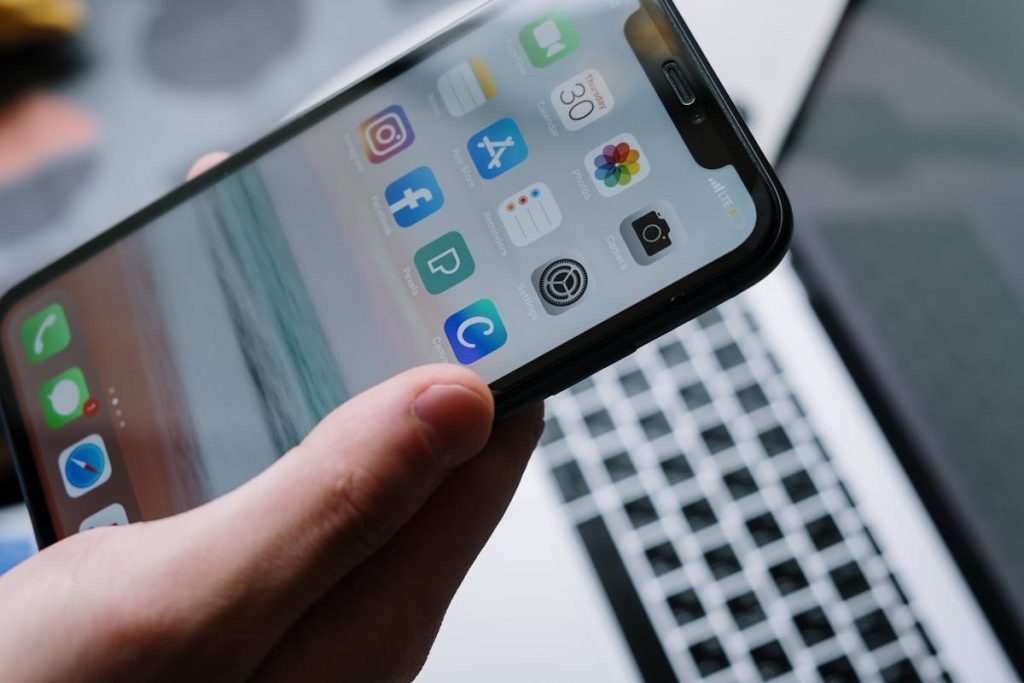
If you’ve just unboxed your device, learning how to set up cellular on new iPhone is one of the first things you’ll need to do. Whether you’re inserting a SIM card or activating an eSIM, the process is simple once you know the steps.
This guide covers everything you need, from preparing your carrier plan to completing activation. We’ll also show you how to transfer your number from an old iPhone and troubleshoot common issues so you can get connected quickly.
1. Things You Need Before Setting Up Cellular
Before you begin the process of activating your new device, it’s important to make sure you have everything ready. Preparing these essentials will make the setup much faster and smoother.
Active Carrier Plan
First, you need an active mobile plan from a supported carrier such as Verizon. If you’re transferring service from an old phone, ensure your account is active and eligible for transfer. New users may need to sign up for a plan before starting. Without an active plan, your iPhone won’t be able to connect to a cellular network.
Wi-Fi Connection Requirement
A stable Wi-Fi connection is highly recommended during setup, especially for eSIM activation. Your iPhone needs internet access to communicate with your carrier and download the necessary configuration. While some physical SIM setups may work without Wi-Fi, most modern activation methods rely on it.
QR Code or SIM Card Ready
Depending on your setup method, you’ll need either a physical SIM card or an eSIM QR code provided by your carrier.
For eSIM users, keep the QR code accessible (printed or on another device) for scanning. If you’re using a physical SIM, make sure it’s properly sized (Nano-SIM) and ready to insert into your iPhone.


>>> Read more: How to Find eSIM Number on iPhone: A Simple Guide for Any Model
2. How to Set Up Cellular on New iPhone
If you’re wondering how to set up cellular on new iPhone, the process is easier than you might think. Whether you’re using a physical SIM card or activating an eSIM, Apple has made the setup quick and user-friendly.
Follow the steps below to get your new iPhone connected in minutes.
Step 1: Turn on your iPhone and start setting up
Turn on your new iPhone and follow the setup steps displayed on the screen. During the initial setup, you’ll be prompted to connect to a Wi-Fi network and sign in with your Apple ID. This step prepares your device for cellular activation.
Step 2: Insert your SIM card (If using a physical SIM)
If you’re using a physical SIM card:
- Insert the Nano-SIM into the SIM tray using a SIM ejector tool
- Place the tray back into your iPhone
- Wait a few seconds for your carrier signal to appear
Your iPhone should automatically detect the network and activate the service.
Step 3: Set up eSIM (If using a digital SIM)
For eSIM activation:
- Go to Settings > Cellular > Add eSIM
- Choose Use QR Code or Transfer from Nearby iPhone
- Scan the QR code provided by your carrier or follow the on-screen instructions
You can follow the detailed steps in this Apple eSIM setup guide.
Step 4: Complete Carrier Activation
Once your SIM or eSIM is installed:
- Follow any prompts from your carrier
- Wait for activation (usually a few minutes)
- Restart your device if required
In some cases, carriers may take longer to fully activate your service.
Step 5: Confirm Cellular Connection
After setup, make sure everything is working properly:
- Check for signal bars at the top of your screen
- Try making a call or sending a text
- Turn on mobile data and test internet access

>>> Read more: Should I Delete eSIM from Old Phone?
3. Common Cellular Setup Problems and Fixes
While setting up your device is usually smooth, you may run into a few issues along the way. Understanding these common problems can help you quickly fix them.
- No service or “SOS Only”: Restart your iPhone, check if your SIM is inserted correctly, or ensure your eSIM is activated. You may also need to reset network settings.
- eSIM not activating: Make sure you’re connected to Wi-Fi and scan the correct QR code. If it still fails, contact your carrier for reactivation.
- SIM not supported error: This usually means your iPhone is carrier-locked. Contact your provider to unlock your device.
- Activation taking too long: Some carriers may take longer to activate. Wait a few minutes or restart your phone to refresh the connection.
- Issues when you transfer cellular plan from old iPhone: Ensure both devices are updated and nearby. If the transfer fails, try manual activation using your carrier’s app or QR code.
4. Get a Free eSIM with AirTalk Wireless
As a participating provider in the government Lifeline program, a federal benefit that helps eligible low-income individuals access essential communication services, AirTalk Wireless offers qualified users free or discounted monthly service plans that include talk, text, and data.


Even better, AirTalk provides a free SIM card or eSIM activation on compatible devices, so you can get connected quickly.
How to apply for AirTalk Wireless’s Lifeline services:
- Check if you qualify for Lifeline
- Enter your ZIP code on the AirTalk Wireless website
- Choose a plan and device that fits your needs
- Upload the required documents for eligibility verification
- Submit your application and wait for approval
Note: Eligibility varies by state and program. Offers depend on availability and qualifications. AirTalk Wireless operates under the federal Lifeline Program as an Eligible Telecommunications Carrier (ETC). Service is non-transferable and limited to one service per household.
*Offers may vary and are subject to future updates.
5. FAQs
How do I activate cellular on my new iPhone?
You can activate cellular during setup or in Settings > Cellular by adding your plan via SIM card or eSIM. Follow your carrier’s instructions, such as scanning a QR code or transferring your plan from another iPhone.
Why won’t my cellular data work on my new iPhone?
This may be due to an inactive plan, incorrect SIM installation, or network settings issues. Try restarting your iPhone, checking that Cellular Data is turned on, or resetting network settings.
Can I set up cellular without Wi-Fi?
Yes, you can set up cellular with a physical SIM without Wi-Fi, but eSIM activation usually requires an internet connection, so Wi-Fi is recommended.


Conclusion
Now you know how to set up cellular on new iPhone, ensuring you can start using your device without delays. If you’re looking to save on your mobile bills, AirTalk Wireless’s Lifeline plan is a great option. Learn more about the Lifeline program and enjoy a simple, cost-effective way to stay connected.