


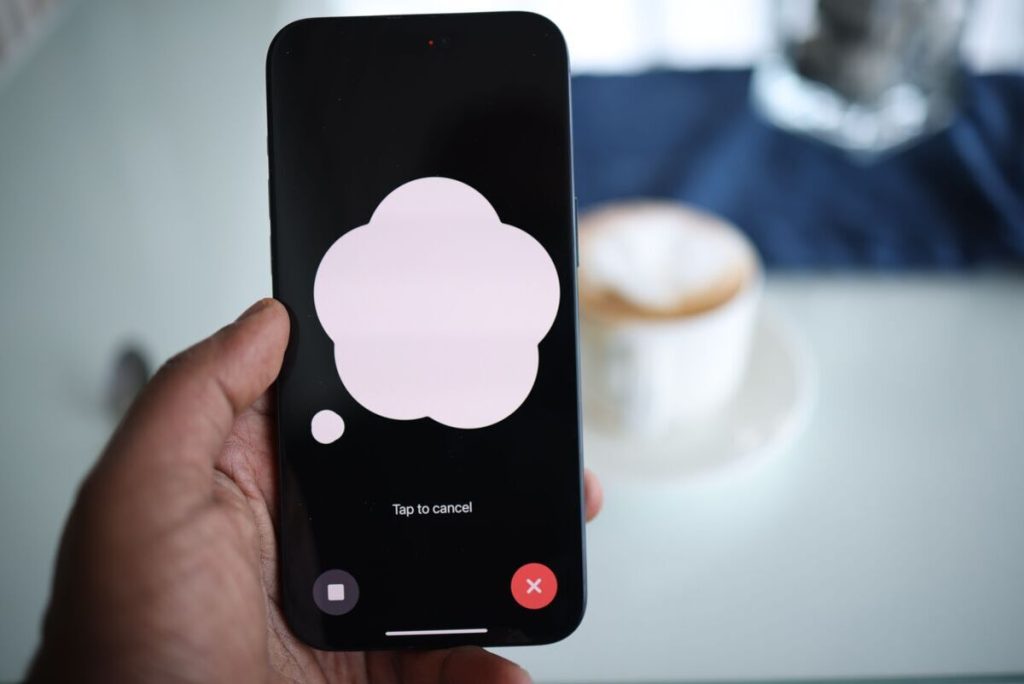
Few iPhone features feel as hit-or-miss as “Hey Siri”. It answers from across the room one minute and ignores you at arm’s length the next. Knowing how to set up hey Siri properly is the first step, and the rest is understanding what quietly gets in its way.
1. How to Set Up Hey Siri on iPhone with Just 2 Steps
Apple introduced “Hey Siri” with iOS 8. The feature allows users to activate Siri hands-free without pressing the Home button. The feature was initially available on the iPhone 6 and later expanded to other compatible devices.
The whole process of setting up lives in Settings and is quite short. The labels shift slightly between iOS versions, so the steps below name both versions of each menu.


Step 1: Turning It On From Settings
Open Settings and tap Siri, or Apple Intelligence & Siri on newer versions. Then tap Requests, or Talk & Type to Siri, and make sure “Hey Siri” is selected.
Apple lets you choose “Siri”, “Hey Siri”, or both.
Note that turning it off and back on starts the setup screen again.
Step 2: Training Your Voice Through the Setup Prompts
When the setup screen appears, tap Continue and say each phrase shown on screen, then tap Done.
Those phrases build a voice profile stored on the phone, which is why the order of the prompts matters less than saying them naturally. Anyone following how to set up Hey Siri on iPhone 17 or any other model goes through the same basic voice-training prompts.
2. Why Hey Siri Doesn’t Always Respond After You’ve Set It Up
Finishing how to set up Hey Siri is only the first half. When Siri still misses, one of five causes is usually behind it.
Your voice and the training profile don’t match
Apple designed Hey Siri so a device wakes, for the most part, only for its primary user. That profile starts from the setup phrases, which Apple says are usually recorded in clean speech, while real life rarely sounds that tidy.
A cold, a raised voice, or a groggy morning voice can all drift away from that first sample.
Background noise interferes with listening
Hey Siri may have more difficulty recognizing your voice in noisy environments, such as a moving car, busy sidewalk, or large echoey room.
If Siri works normally in quiet surroundings but frequently misses commands in these situations, background noise may be the main issue rather than the setup itself.
Microphone isn’t working properly
A case, screen protector, or film covering the microphone, or debris in its openings, can stop Siri from hearing you. Apple suggests testing the microphones with Voice Memos and the front and rear cameras.
If Siri still can’t hear requests after those checks, Apple recommends contacting Apple Support.
Hey Siri is disabled in certain contexts
Several settings can switch listening off without you noticing. The Allow Siri When Locked setting controls access from the lock screen, and some VPN profiles may not allow Siri at all.
An older Apple guide also describes an Accessibility setting, Always Listen for “Hey Siri”, that decides whether the phone listens when it is face down or covered.
Regional or language settings don’t match
Siri’s language is its own setting, found under Siri, then Language. If it doesn’t match how you actually speak, recognition suffers. Some Siri features are available only in select languages and regions.
>>> Read more: How to Change Home Address on iPhone, in Contacts and in Google Maps
3. How to Manage Hey Siri: Disable, Retrain, or Customize
Once how to set up Hey Siri is behind you, everything else sits in the same Siri settings, so changes take only a few taps:
- Disable: tap Talk to Siri (or Talk & Type to Siri), then tap Off.
- Retrain: turn it off, then turn “Siri” or “Hey Siri” back on and follow the onscreen prompts.
- Customize: change the Siri voice, the language, and when Siri gives spoken responses, or turn off Allow Siri When Locked.
Retraining is a good first fix for most recognition problems, because it rebuilds the profile from scratch.
4. Troubleshoot 4 Most Common Recognition Problem
Each of these has a different fix, so it helps to match the symptom first before repeating how to set up Hey Siri from scratch.
Siri responds to other people, not you
Apple says personalization works “for the most part”, so a similar voice can still trigger the phone. Apple’s research also warns that if false accepts creep into the profile early, it can start rejecting its owner.
Retrain in a quiet room, speaking at your normal volume, so the profile starts clean.
Siri stops responding after iOS update
Updates can reset or change settings. Open Siri settings, confirm “Hey Siri” is still selected, and turn it off and on again if it is. Apple also advises checking for VPN profiles and installing the latest software.
Siri only works sometimes, inconsistently
Inconsistent results usually mean one of the earlier causes is intermittent: noise, a covered microphone, or a phone left face down. Apple’s research also explains that stricter thresholds reduce wrong activations at the cost of more misses, so some misses are the price of avoiding false ones.
“Hey Siri” activates accidentally or too easily
Apple’s research lists three triggers: the owner saying a similar phrase, another person saying “Hey Siri”, or another person saying a similar phrase. Retraining helps, and so does switching listening off when the phone is covered.
If it still happens, turning off “Hey Siri” entirely and using the side button is the surest fix.
>>> Read more: How To Turn Off Do Not Disturb On iPhone: 5+ Quick Ways To Manage Focus
5. FAQs
Does Hey Siri work when my iPhone is locked?
Yes, as long as Allow Siri When Locked is on. Turning that setting off prevents Siri access while the iPhone is locked.
Can more than one person’s voice be set up for Hey Siri on the same iPhone?
Not as designed. The feature personalizes each device for its primary user, so other voices may sometimes trigger it but are not meant to.
Why does Hey Siri stop working after I update iOS?
A setting may have changed since you finished how to set up Hey Siri. Check that “Hey Siri” is still selected, turn it off and on, and see whether a VPN profile is blocking Siri.
Does using Hey Siri drain the battery faster?
Apple says iPhones from the 6S onward use a low-power, always-on processor for listening, so the effect should be small, though Apple’s research does not put a number on it.
6. Final Thoughts
Most “Hey Siri” problems come back to three things: a clean voice profile, a clear path to the microphone, and settings that match how you use the phone. Once how to set up Hey Siri is done, a quick retrain is usually faster than chasing a deeper fault.