


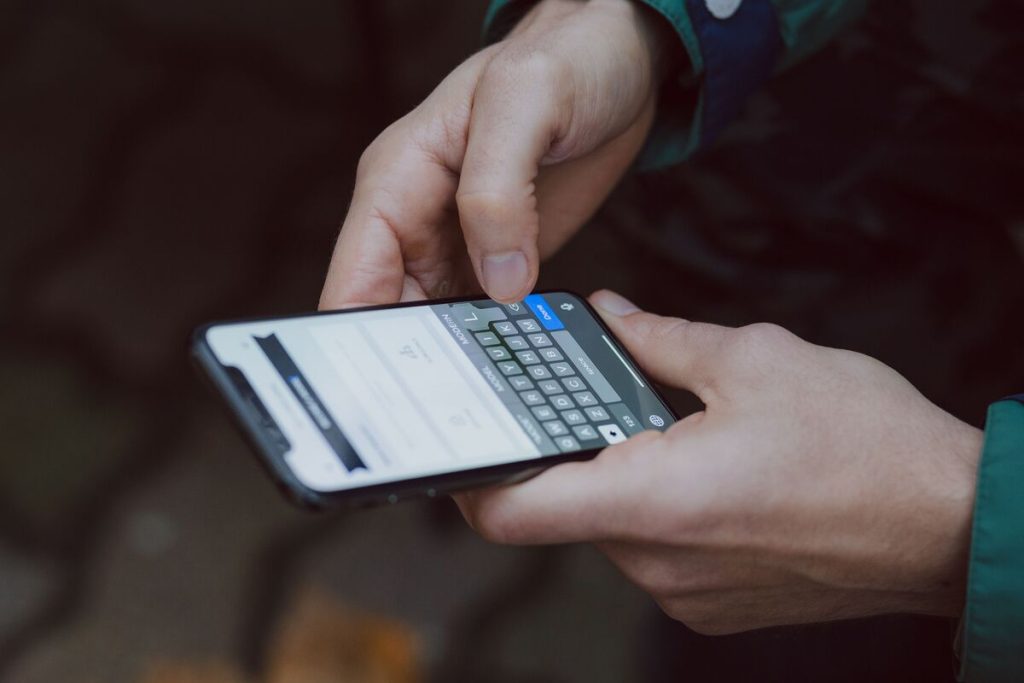
Typing a long Wi-Fi password into another device is unnecessary when both people are using compatible Apple devices. Apple lets an iPhone securely send the password to a nearby iPhone, iPad, or Mac without displaying or manually entering it.
Learning how to share WiFi password on iPhone takes only three steps once the required settings are in place. Both devices need Wi-Fi and Bluetooth enabled, the people should be correctly saved in each other’s Contacts, and the sharing iPhone must already be connected to the network.
1. 3 Requirements Before Sharing WiFi Password
Before trying how to share WiFi password on iPhone, check the setup on both devices. Most failed attempts happen because one of these basic requirements has not been met.


Wi-Fi and Bluetooth Must Be Enabled
Wi-Fi and Bluetooth must be switched on for both devices.
On iPhone or iPad, open Settings and confirm:
- Wi-Fi is turned on.
- Bluetooth is turned on.
- Personal Hotspot is turned off.
The iPhone sharing the password must already be connected to the Wi-Fi network you want the other person to join.
Keep both devices close together as well. Apple’s sharing process depends on nearby wireless communication, so moving one device across the room or into another area can prevent the sharing prompt from appearing.
Apple Account and Contacts Should Be Set Up Correctly
Each person should be signed in to their own Apple Account.
Apple also requires the users to have each other’s Apple Account contact information saved in Contacts. This may be the email address or phone number associated with the person’s Apple Account.
This contact requirement is easy to overlook when learning how to share a WiFi password on iPhone, especially if the person is already saved under a different phone number or email address.
Their iOS/iPadOS Versions Should Be Compatible
Apple recommends that both devices run the latest version of iOS or iPadOS available to them. Macs should likewise be running a current compatible version of macOS.
You do not necessarily need identical device models, but keeping the software updated reduces compatibility problems.
As of September 2026, Apple has released iOS 27 and iPadOS 27 for supported devices, while some older hardware continues receiving iOS or iPadOS 26.7 instead. The important point is to install the newest version your particular device supports rather than assuming both devices must show the same major version number.
>>> Read more: How to Turn Off Wi-Fi Calling: Step-by-Step Guide for iPhone and Android
2. How to Share WiFi Password on iPhone Without Typing It Manually?
Once the requirements above are satisfied, how to share WiFi password on iPhone is a simple three-step process.
Step 1: Unlock and Position Devices Near Each Other
Unlock the iPhone that already has access to the Wi-Fi network and leave it connected.
Place the receiving iPhone, iPad, or Mac nearby.
Do not lock the sharing iPhone while setting up the connection. Apple specifically requires the sharing device to be unlocked when the password-sharing request appears.
Step 2: Select Network and Open Password Prompt
On the device that needs Wi-Fi access, open the Wi-Fi settings.
On an iPhone or iPad: Settings > Wi-Fi.
Then tap the name of the network that the first iPhone is already using.
The receiving device should reach the password-entry screen. You do not need to type the password.
This is the point where how to share my WiFi password on iPhone moves from setup to actual sharing.
Step 3: Other Device Sends Password Automatically
A prompt should now appear on the already-connected iPhone asking whether you want to share the Wi-Fi password.
- Tap: Share Password.
- Once the receiving device connects, tap: Done.
The password is sent automatically. The other person does not need to see or manually type the actual password.
That is the complete process for how to share WiFi password on iPhone with another compatible Apple device.
>>> Read more: How to Turn On Wifi Calling on Android: Easy Setup Guide and Troubleshooting Tips
3. WiFi Password Sharing Not Working? 4 Fixes
If the Share Password prompt does not appear, work through these fixes before entering the network password manually.
Verify Wi-Fi and Bluetooth Are On
Start with the simplest check.
On both devices, open Settings and confirm that Wi-Fi and Bluetooth are enabled. Also verify that Personal Hotspot is turned off on both devices.
The sharing iPhone must already be connected to the correct network. If it is using cellular data instead, there is no saved Wi-Fi connection to pass to the other device.
Confirm Contact Setup and Proximity
Make sure both people are saved correctly in Contacts using the Apple Account email address or phone number each person actually uses.
Then move the devices closer together.
If how to share WiFi password on iPhone worked previously but suddenly stops, incorrect or outdated contact information can sometimes be the reason. For example, someone may have changed the email associated with their Apple Account while the old one remains saved in Contacts.
Restart Both Devices
If the sharing animation or prompt still does not appear, restart both devices and try again.
Apple specifically recommends restarting both devices when Wi-Fi password sharing fails.
A normal restart is usually sufficient. A force restart is better reserved for a device that is frozen or not responding normally.
Update to the Latest iOS or iPadOS
Outdated system software can create compatibility problems between devices.
On iPhone or iPad, check: Settings > General > Software Update
Install the newest version offered for that device.
Not every older iPhone or iPad supports the newest major release, so the goal is to run the latest compatible update available for your hardware.
If updating and restarting still do not make how to share WiFi password on iPhone work, the receiving user can manually enter the password as a fallback.
Final Thoughts
Knowing how to share WiFi password on iPhone can save time whenever another Apple user needs access to a network you already use.
Before sharing, turn on Wi-Fi and Bluetooth on both devices, turn off Personal Hotspot, confirm both people are signed in to their Apple Accounts, and make sure the correct Apple Account details are saved in Contacts.
Then the process takes only three steps: keep the sharing iPhone unlocked and nearby, have the other device select the Wi-Fi network, and tap Share Password when the prompt appears.