


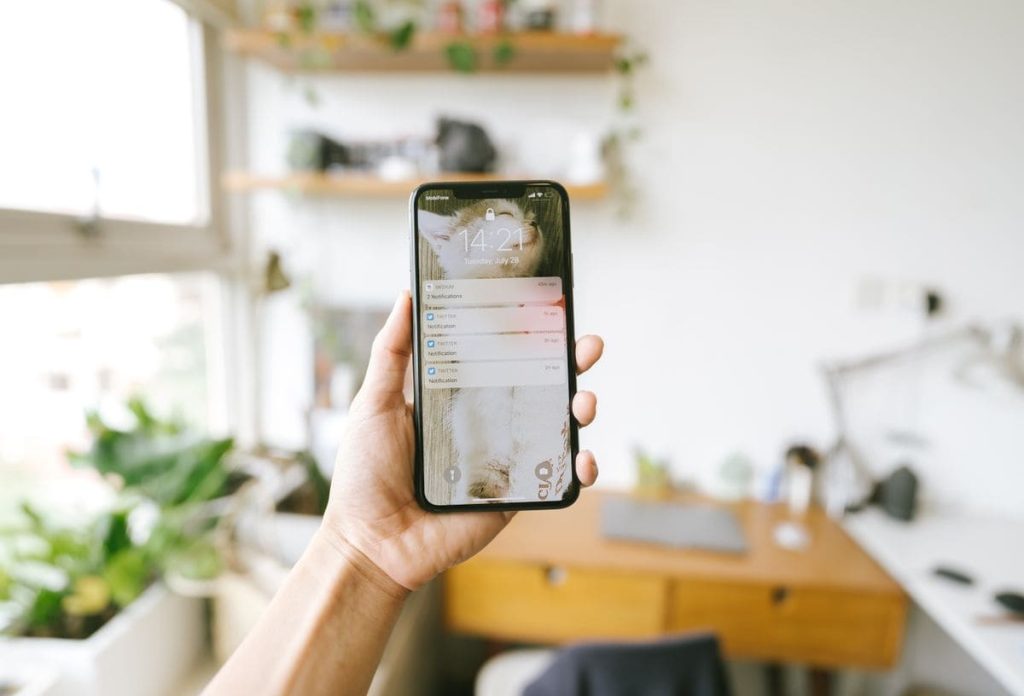
If you’ve searched for ways to get some peace from your iPhone, you were probably given some familiar nuggets of advice: turn on Silent Mode or use Do Not Disturb when you need uninterrupted time.
This complete guide on how to silence notifications on iPhone helps you choose the right settings for when you’re sleeping, working, or studying.
1. How to Silence All Notifications on iPhone
If you want to stop your iPhone from making sounds or interrupting you, you can use Silent mode, Do Not Disturb, or automated Focus settings.
Turn On Silent Mode
Silent mode quickly stops notification and ringtone sounds without turning off notifications. How to silence notifications on iPhone using Silent Mode:
- On most iPhones, move the Ring/Silent switch on the side of the device to silent. On newer models, you can use the Action button if it is configured for Silent mode.
- Silent mode does not have to block every critical alert. You can set Emergency Alerts to Always Play Sound when available, so important safety notifications can still make a sound.
- You can also use Emergency Bypass for selected contacts to let their calls or alerts through even when your iPhone is silenced.
Use Do Not Disturb to Stop Interruptions
For stronger notification control, turn on Do Not Disturb under Settings > Focus > Do Not Disturb. It silences calls and alerts by default, but you can customize exceptions.
Under People, choose contacts who can still reach you and optionally allow repeated calls when someone calls twice within three minutes. Under Apps, select apps that can send notifications during Do Not Disturb.
You can also turn on Share Focus Status to let others know your notifications are silenced.
Schedule Quiet Hours Automatically
You can automate quiet periods using Focus. A Sleep Schedule in the Health app can automatically activate Sleep Focus during your scheduled sleeping hours. It’s how to silence notifications on iPhone at night.
For less urgent notifications, Scheduled Summary under Settings > Notifications > Scheduled Summary groups them and delivers them at selected times. You can also schedule Focus to activate automatically based on a time, location, or app.


2. How to Silence Notifications on iPhone From One App
If one app sends too many alerts, you can either block its notifications completely or reduce how often they interrupt you while keeping important alerts available.
How to silence notifications on iPhone for a specific app:
- Open Settings and tap Notifications.
- Select the app you want to silence.
- Turn off Allow Notifications.
If you still want to receive alerts but do not want their content visible, open Settings > Notifications > [App Name] > Show Previews and choose Never. Notifications can then remain available without displaying their details on the Lock Screen.
To reduce interruptions without turning notifications off, you can:
- Group less urgent alerts and receive them at specific times instead of immediately. Go to Scheduled Summary, turn it on, choose your preferred delivery times, and tap A to Z to select which apps are included.
- Besides, Focus lets you restrict notifications to apps you consider important. Go to Settings > Focus, select a Focus profile, tap Apps, and use Allow Notifications From to create your list. You can also enable Time Sensitive Notifications to let urgent alerts through.
>>> Read more: How to Turn Off Read Receipts iPhone (2026 Update)
3. How to Silence Notifications From One Person on iPhone
You can mute notifications from a specific person without blocking their calls or messages by using a Focus profile. This works with profiles such as Do Not Disturb, Personal, or a custom Focus.
To silence one person while keeping them in your contacts:
- Open Settings and tap Focus.
- Choose the Focus profile you want to use, such as Do Not Disturb or Personal.
- Tap People or Choose People, then select Silence Notifications From.
- Tap the Add (+) button and choose the contact you want to mute.
- If you still want their phone calls to come through, enable Allow Calls From Silenced People.
When this Focus is active, notifications from the selected person will be silenced based on your settings. You can also enable Share Focus Status, which may let the person know that your notifications are currently silenced when they try to message you.
For important communication, Focus provides several exceptions.
- Allow Repeated Calls lets a second call from the same person through if it occurs within three minutes.
- Time Sensitive Notifications can also deliver urgent app alerts immediately.
- If your iPhone supports Apple Intelligence, Intelligent Breakthrough & Silencing can identify important notifications and allow them through while filtering out less important ones.
>>> Read more: Why Doesn’t My Phone Ring When I Call Someone?
4. Use Focus Features Effectively to Reduce Notification Fatigue
Focus helps reduce notification fatigue by letting you control which people and apps can interrupt you during different activities. You can create settings that match what you are doing.
Create Focus Modes for Different Activities:
Set up separate profiles for Work, Sleep, and Personal needs.
- A Work Focus can allow messages from colleagues and essential work apps while filtering out social notifications.
- A Sleep Focus can connect to your Health app sleep schedule and automatically silence alerts during rest.
- Personal Focus can mute work-related notifications while keeping calls and messages from family or friends available.
Improve Filtering With Apple Intelligence:
On supported devices, Apple Intelligence offers Intelligent Breakthrough & Silencing to make notification filtering more responsive.
- It uses on-device intelligence to identify potentially important alerts and allow them through while automatically silencing less essential notifications.
- This can work alongside Time Sensitive Notifications, which allows urgent alerts from apps to arrive immediately, even while a Focus is active.


5. Most Useful Notification Settings for Everyday Situations
Adjust your iPhone based on whether you are resting, working, or studying.
Sleeping Without Missing Emergencies:
- Use Sleep Focus to block routine alerts while keeping essential people and safety notifications available. Go to Settings > Focus > Sleep > People, choose Allow Notifications From, and add trusted family members or friends.
- You can also enable Allow Repeated Calls, so a second call from the same person within three minutes can bypass the silence.
- For critical contacts, open their card in Contacts, tap Edit > Ringtone or Text Tone, and turn on Emergency Bypass. Their calls can then make sounds and vibrations even when your iPhone is silenced.
- For government safety messages, check Settings > Notifications > Government Alerts > Emergency Alerts and enable Always Play Sound if available.
Working or Studying With Fewer Distractions:
- Create a Work Focus and use Apps > Allow Notifications From to keep essential tools such as Slack or Mail available while silencing social media and games.
- Scheduled Summary can bundle less urgent alerts for later. You can also enable Time Sensitive Notifications so urgent app alerts arrive immediately.
6. FAQs
What’s the difference between Silent Mode and Do Not Disturb?
Silent Mode turns off sounds and alerts, while Do Not Disturb uses Focus settings to control which people and apps can interrupt you.
Why do some notifications still make sound in Silent Mode?
Certain alerts can bypass Silent Mode, including Emergency Alerts set to Always Play Sound and contacts with Emergency Bypass enabled.
What are Time-Sensitive notifications, and can I disable them?
Time-Sensitive notifications are urgent alerts that can break through Focus. You can turn off Time Sensitive Notifications within your Focus settings.
What is Emergency Bypass, and why does it ignore Silent Mode?
Emergency Bypass lets selected contacts’ calls or alerts make sounds and vibrations even when your iPhone is silenced, helping ensure critical communication gets through.
Can you still text someone if they have notifications silenced?
Yes. You can still send messages normally. Their message will arrive, but they may not receive an immediate notification or sound while their notifications are silenced.
In case you want to learn how to silence text notifications on iPhone, you have several options:
- Turn off Messages notifications completely
- Mute texts from specific people using Focus
- Silence Messages during certain times with a Work or Sleep Focus
- You can also use Scheduled Summary to receive texts in batches instead of constant alerts.
- For added privacy, set Show Previews to Never so message content stays hidden from your Lock Screen.
How to turn off silence notifications on iPhone?
To turn notification sounds back on, check these settings:
- Disable Silent Mode using the Ring/Silent switch or Action button.
- Turn off Focus/Do Not Disturb in Control Center or Settings.
- Re-enable Allow Notifications and Sounds for affected apps.
- Turn off Scheduled Summary.
- Enable Emergency Bypass for specific contacts.
- Turn on Always Play Sound for Emergency Alerts.
Conclusion
These notification settings can include things as basic as Silent Mode, Do Not Disturb, and individual app controls, but you can expand to Focus schedules, allowed contacts, Time-Sensitive Notifications, and Scheduled Summary depending on your needs.
Assess your daily routine, note down when interruptions are most distracting, and work from there.
Follow the AirTalk Wireless blog for more practical smartphone tips and guides.