


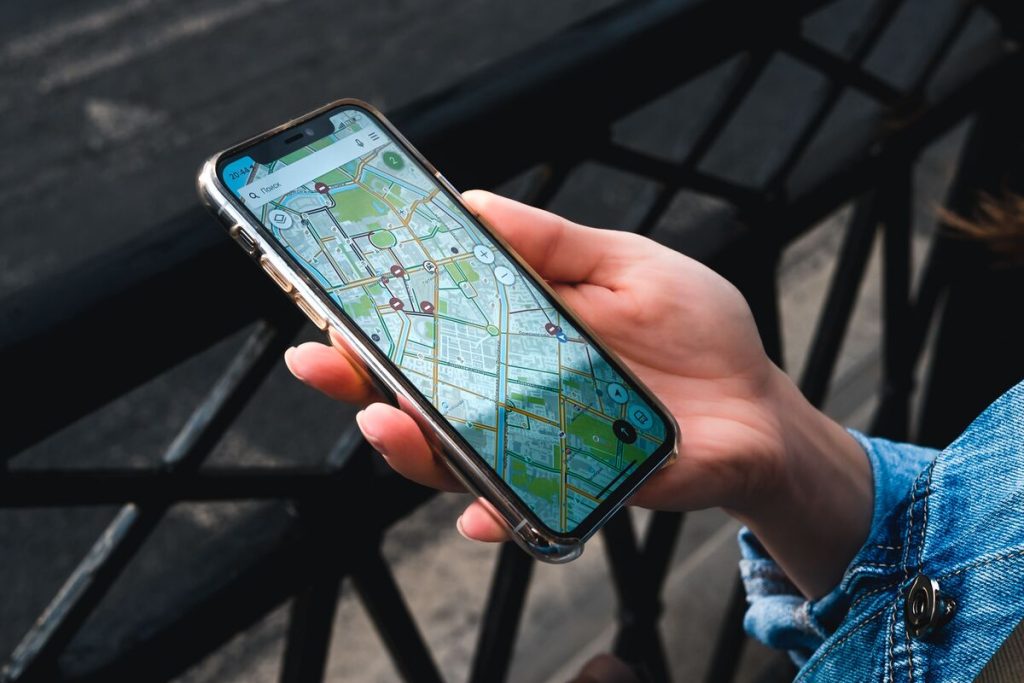
Location sharing can be useful for family members, friends, travel partners, and safety check-ins, but there may be times when you no longer want another person to see where you are.
The key point in how to stop sharing location without them knowing is that stopping location sharing does not always create a direct notification on newer Apple software, but it also does not guarantee that the other person will never notice.
1. Can You Stop Sharing Location Without Notifying Someone?
In many current iPhone situations, you can stop sharing your location without sending a new message directly to the person. However, Apple does not promise that the change will be invisible.
When location sharing stops through Find My, your location disappears from the other person’s Find My, Maps, Contacts, and Messages views. The person may notice that your location is no longer available. On earlier operating systems, they may also receive a Messages notification saying that you stopped sharing.
Therefore, how to stop sharing location without them knowing should be understood as “stop sharing without deliberately sending them a message,” not as a guaranteed way to prevent them from discovering the change.
The same principle applies when considering how to stop sharing location with someone without them knowing on other platforms. If someone regularly checks your live location, the missing location itself can reveal that sharing has ended even if no separate alert appears.


>>> Read more: How to Change Hotspot Name on iPhone: 3 Simple Steps
2. How to Stop Sharing Location Without Them Knowing on iPhone & Android Phones
The correct process depends on the operating system and the service being used to share your location.
On iPhone
Apple’s Find My system powers location sharing across several apps. If you share your location through Find My, the same location can also appear in Messages, Maps, and Contacts.
Stop Sharing With One Person in Find My
For how to stop sharing location with one person without them knowing, Find My gives you direct control over individual contacts.
- Open Find My, tap People, then select the person you no longer want to share with.
- Scroll down and tap Stop Sharing My Location, then confirm Stop Sharing Location.
After you do this, your location disappears from that person’s Find My and other connected Apple apps.
This method stops sharing with that person while leaving your location sharing active for other contacts.
It is one of the most targeted ways to stop sharing your location without them knowing, because you are not disabling location services for the entire phone.
Stop Sharing Through Messages
If you originally shared your location in Messages, you can also stop it from that conversation.
Open Messages, choose the conversation, tap the contact’s name or icon at the top, then tap Stop Sharing My Location. Once sharing stops, the previous location display in Messages no longer shows your live map.
This method is particularly useful for stopping location sharing on iPhone without them knowing when you only want to end one specific Messages-based share rather than turning off Find My entirely.
Messages uses Find My for live location sharing, which is why changes made in one place can affect how your location appears elsewhere.
On Android Devices
Android users can manage live location sharing through Google Location Sharing.
Open Settings > Location > Location services > Google Location Sharing. You will see the people with whom your Google account currently shares real-time location. Select the person you want to remove and tap Stop. This ends location sharing with that specific person.
Google Location Sharing is account- and device-specific. If the same Google account is signed in on multiple devices, you may need to review sharing settings separately on each device.
This makes how to stop sharing location without them knowing slightly different on Android because location may be shared through several Google services, including Maps, Messages, Find Hub, Family Link, and Personal Safety.
3. What the Other Person May See After You Stop Sharing
Stopping location sharing does not necessarily produce a prominent alert, but the other person may still notice several changes.
On iPhone, your location disappears from the other person’s Find My, Maps, Contacts, and Messages apps after you stop sharing. On older operating systems, they may receive a notification in Messages.
On Android, the person will no longer receive your real-time location through Google Location Sharing after you stop the share. Google does not describe this as a guaranteed invisible action, so the absence of your location may still be noticeable if they check.
This is why how to stop sharing location without them knowing cannot guarantee complete secrecy. The goal is simply to end access without intentionally sending a new notification or message.
>>> Read more: How To Unhide Apps On iPhone: 5 Effortless Ways To Find Hidden Apps
4. Methods That Do Not Fully Stop Location Sharing
Some commonly suggested methods only interrupt updates temporarily.
Turning off Location Sharing on Android pauses real-time updates from that device, but this does not remove the existing shares. Those shares remain configured and may resume updating if the setting is turned back on.
Similarly, disabling mobile data, turning on Airplane Mode, or powering off a phone does not necessarily remove the underlying sharing permission. Once the device reconnects, location sharing can resume if the share itself is still active.
On iPhone, turning off Location Services is broader than stopping a specific person’s access and may affect Maps, navigation, weather, and other apps.
Apple recommends using the individual Find My controls when your goal is simply to stop sharing with one person.
For how to stop sharing location with one person without them knowing, removing that individual from the sharing list is more complete than temporarily disconnecting your phone.
5. How to Check Who Can Currently See Your Location
On iPhone, open Find My > People to review the people connected to your location sharing. You can check Notifications About You, which shows whether another person has configured location-change notifications involving you.
You can select individual people and decide whether to continue or stop sharing.
On Android, go to Settings > Location > Location services > Google Location Sharing. Google shows the people who currently receive your location through that account.
Reviewing this list periodically is useful even if you are not actively trying to stop a share. Old location permissions can remain active longer than expected.
6. Final Thoughts
The most reliable approach to how to stop sharing location without them knowing is to remove the individual share directly instead of using temporary workarounds such as Airplane Mode or disabling data.
On iPhone, use Find My or the contact controls inside Messages. On Android, remove the person through Google Location Sharing. These methods end the actual sharing relationship rather than merely pausing updates.
However, there is no guaranteed way to ensure the other person will never notice.