


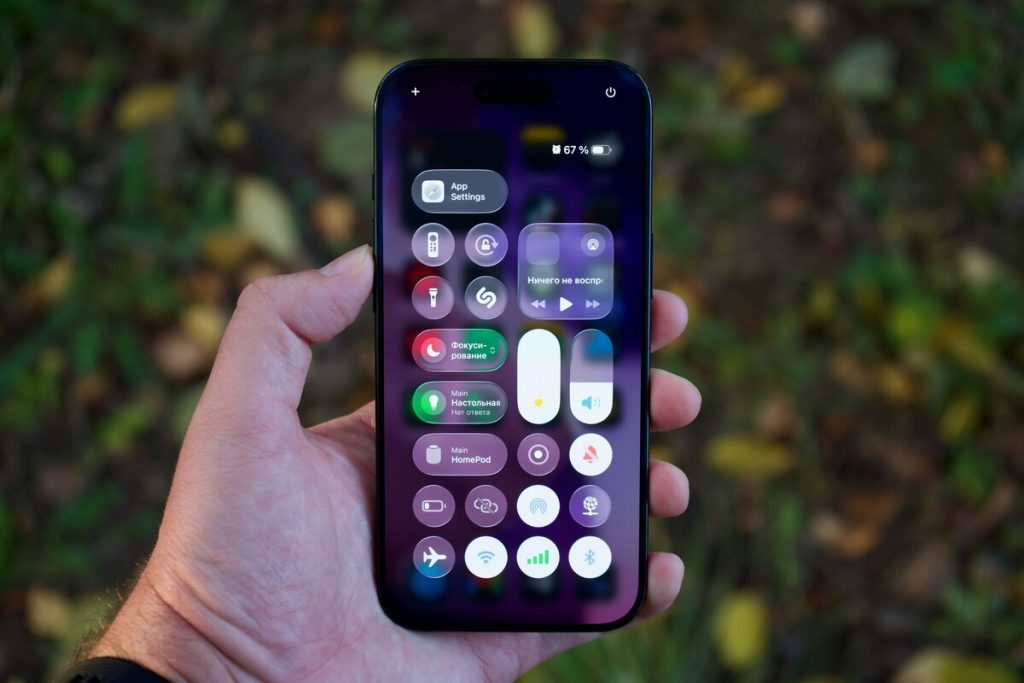
Your iPhone brightens in sunlight and dims in a dark room because an ambient light sensor adjusts the screen for you. Apple turns this on by default so the display stays readable and the battery lasts longer, but the shifts can feel jumpy when you read in bed or edit photos.
How to turn off auto brightness iPhone takes two steps, but the switch sits in Accessibility instead of Display & Brightness. This guide shows where to find it, how to set brightness yourself, which other features can still change the screen, why it may dim anyway, and whether turning it off is worth it.
1. How to Turn Off Auto-Brightness on iPhone?
Two steps cover how to turn off auto brightness on iPhone: find the toggle, then switch it off. Setting the level by hand comes last.
Find Auto-Brightness in Accessibility Settings
- Open Settings, tap Accessibility, and tap Display & Text Size.
- Scroll to the bottom of the list and look for Auto-Brightness.
Apple places the setting under Accessibility rather than Display & Brightness, where you might expect to find it. If you’re looking for how to turn off brightness auto adjust on iPhone, Accessibility is where you’ll find the relevant control.
Turn Off Auto-Brightness
Tap the Auto-Brightness switch so the button turns gray.
That is how to turn auto brightness off on iPhone in its simplest form. Your phone keeps the current brightness until you change it, so it no longer brightens in sunlight or dims in a dark room.
Adjust the Screen Brightness Manually
Open Control Center and adjust the brightness slider, marked with a sun icon, by dragging it up or down to increase or decrease the screen brightness.
You can also go to Settings, tap Display & Brightness, and use the slider there. Set it lower at night and higher outdoors.
Because the phone no longer corrects itself, check the level when your lighting changes.
>>> Read more: How To Turn Off HDR On iPhone: Get More Control Over Your Photos And Video
2. What Else Can Change Your iPhone’s Screen Brightness?
Turning off Auto-Brightness does not freeze how the screen looks. Four other features can still change the display after how to turn off auto brightness iPhone is done.

True Tone
True Tone uses sensors to match the color and intensity of the display to the light around you, and it is on by default. It is separate from Auto-Brightness, so the screen can still shift in tone after you switch Auto-Brightness off.
Open Settings, tap Display & Brightness, and turn True Tone off to keep color and intensity constant.
Night Shift
Night Shift moves the screen colors toward the warm end of the spectrum to ease eye strain.
Go to Settings, tap Display & Brightness, tap Night Shift, and use the slider or turn the schedule off. A warm tint can make the screen look dimmer even when the brightness slider has not moved.
Dark Mode
Dark Mode applies a dark color scheme across the system, including many apps.
Choose it or turn it off under Display & Brightness. It changes how bright the interface looks rather than the brightness slider itself, so a dark screen can feel dim even at a high setting.
Attention-Aware Features
On iPhones with Face ID, the screen may dim when the phone decides you are not looking, which also saves battery.
To change it, go to Settings, tap Accessibility, tap Face ID & Attention, and turn off Attention-Aware Features. Sunglasses can trigger this dimming.
3. Why Your iPhone Screen May Still Dim After Turning Off Auto-Brightness?
If the display still fades after how to turn off auto brightness iPhone steps, the cause is usually one of two things, and neither involves the ambient light sensor.
Check Auto-Lock and Low Power Mode
The screen dims a few seconds before the phone locks. To delay it, open Settings, tap Display & Brightness, tap Auto-Lock, and pick a longer time or Never.
If Auto-Lock looks grayed out, Low Power Mode may be on. It sets Auto-Lock to 30 seconds, so open Settings, tap Battery, and turn Low Power Mode off before changing Auto-Lock.
Check Whether the iPhone Is Getting Too Warm
Apple says the display dims or goes black when an iPhone gets too hot, and charging, cellular signal, and app speed can slow down as well.
A temperature warning may also appear. According to Apple, 0 to 35 degrees C (32 to 95 degrees F) is the normal operating range.
Turn the phone off, move it out of the sun to a cooler spot, and let it cool. Limit GPS navigation, graphics-heavy games, and long camera use in hot weather.
4. Should You Turn Off Auto-Brightness?
There is no single right answer. It comes down to whether steady brightness matters more to you than convenience.
How It Can Affect Battery Life
Apple recommends dimming the screen or turning on Auto-Brightness to extend battery life.
The display is a major power drain, so a high slider all day can shorten a charge. With a low slider, the difference may be small. Anyone weighing how to turn off auto brightness iPhone for battery reasons should keep the level modest.
When Manual Brightness Makes More Sense
Manual control works well when you want a steady screen for reading in a dim room, editing photos or video, or checking colors. For everyday use, leaving the feature on and turning it off only for those tasks is often enough.
>>> Read more: How to Turn Off Liquid Glass on iPhone Now That Apple Finally Added the Option
5. FAQs
Why can’t I turn off auto-brightness on my iPhone?
The most common reason is looking in the wrong menu. Auto-Brightness is under Settings, Accessibility, Display & Text Size, at the bottom of the list, and not under Display & Brightness. If the switch is missing, update iOS and restart the phone.
If it is already off and the screen still dims, check Auto-Lock, Low Power Mode, Attention-Aware Features, and heat.
Is it good to turn off auto brightness on iPhone?
It is fine to turn it off, but it is not always better. Apple points to Auto-Brightness as a way to save battery, so switching it off can cost battery life if you leave the screen bright. It suits reading, editing, or color work.
How do I make my iPhone screen stay at one brightness?
Follow how to turn off auto adjust brightness iPhone first, then set the slider where you want it. Also turn off True Tone, Night Shift, and Attention-Aware Features, extend Auto-Lock, and turn off Low Power Mode. Keep the phone out of direct sun so heat does not force a dim.
Final Thoughts
Open Settings, tap Accessibility, tap Display & Text Size, and switch off Auto-Brightness, then set the level in Control Center.
You are finished when the screen holds the same brightness as the room changes. If it still dims, work through True Tone, Night Shift, Attention-Aware Features, Auto-Lock, Low Power Mode, and heat in that order.
With those checks, how to turn off auto brightness iPhone gives you steady brightness without guessing what changed it.