


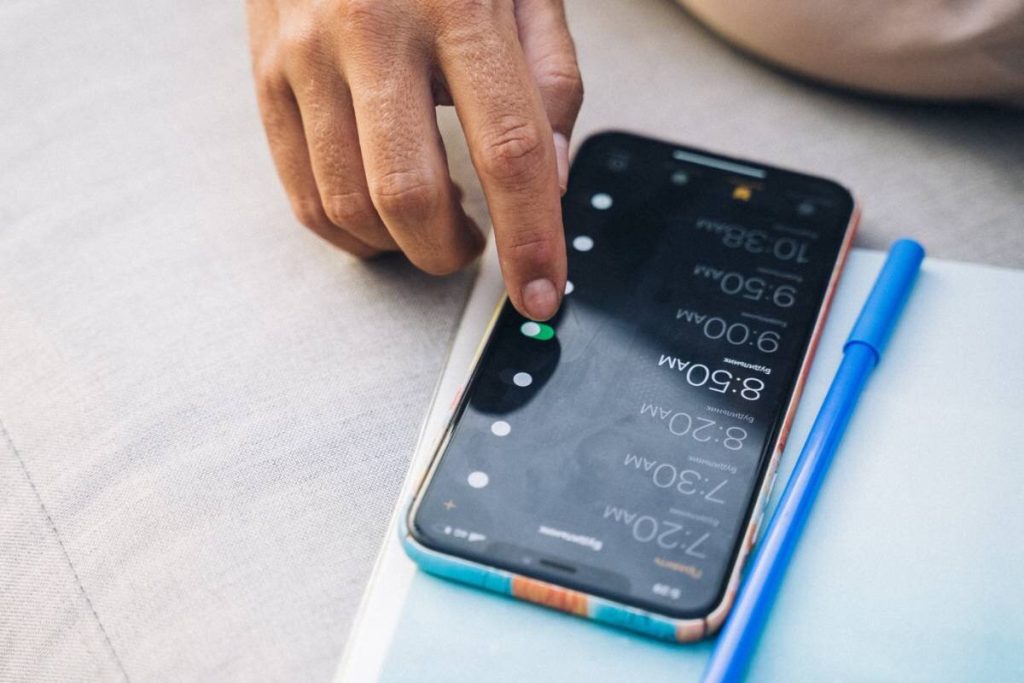
A quiet alarm can be easy to miss, even when the iPhone’s music and videos sound perfectly loud. If you need to know how to turn up alarm volume on iPhone, the correct adjustment depends on the type of alarm and the iOS version installed.
The settings for standard Clock alarms and Sleep Schedule wake-up alarms do not always work in the same way. The methods below help you identify the relevant volume control, raise it safely, and test the result before relying on the alarm overnight.
1. Which Setting Controls Your iPhone Alarm Volume?
The relevant control depends on the iOS version and the type of alarm.
On current iOS versions that support separate sound controls, standard Clock alarms use the Alarms & Timers slider under Settings > Sounds & Haptics.
If Match Ringtone Volume is enabled, the alarm instead follows the ringtone level.
On earlier iOS versions, standard alarm volume is controlled by the Ringtone and Alerts slider. Media volume in Control Center does not determine how loudly a Clock alarm rings.
Sleep Schedule wake-up alarms are different because their volume can be adjusted inside the Clock or Health sleep settings.
Therefore, how to turn alarm volume up on iPhone starts with identifying whether the alarm is a regular Clock alarm or part of a Sleep Schedule.
2. How to Turn Up Alarm Volume on iPhone in 5 Ways
Several settings can make an alarm louder, but they do not all control the same type of sound. Begin with the option available on your iOS version, then check the Sleep Schedule separately if that is the alarm you use.

Adjust the Alarms and Timers Volume in Settings
Newer iOS versions provide a dedicated control for standard alarms and timers.
- Open Settings.
- Select Sounds & Haptics.
- Find the Alarms & Timers section.
- Turn off Match Ringtone Volume if it is active.
- Drag the alarm volume slider to the right.
This keeps Clock alarms loud even when the ringtone is set to a lower level. Sleep Schedule wake-up alarms may still use their own volume setting.
Match the Alarm Volume to the Ringtone Volume
If you prefer one volume level for calls and standard alarms, leave Match Ringtone Volume enabled.
Increase the ringtone slider under Sounds & Haptics, and the Clock alarm will rise to the same level.
On iOS versions without a separate Alarms & Timers section, use the Ringtone and Alerts slider instead. Raising media volume through Control Center will not produce the same result.
Enable Change With Buttons
The side buttons can provide quicker control when the alarm is linked to the ringtone.
- Go to Settings > Sounds & Haptics.
- Turn on Change with Buttons.
- Return to the Home Screen.
- Press the Volume Up button and watch for the ringtone indicator.
For anyone asking “how to turn my alarm volume up on iPhone?”, this method is convenient but easier to change accidentally. Check the level again before sleeping if you regularly use the buttons for calls or alerts.
Increase the Sleep Schedule Wake Up Volume
A Sleep Schedule alarm has a separate Sounds & Haptics or alarm-volume slider.
- Open the Clock app.
- Select Alarms.
- Tap Change beside the Sleep or Wake Up schedule.
You can also edit the schedule through the Health app.
Choose the wake-up alarm, move its volume slider to the right, and preview the sound. Changing the standard alarm slider will not necessarily raise this wake-up volume.
Choose a Louder Alarm Sound
Two sounds played at the same volume can feel noticeably different. In the Clock app, open the alarm, tap Sound, and compare several built-in tones.
Choose a sharp, sustained tone instead of a soft song or gradual sound. Confirm that None is not selected and that any chosen song remains downloaded and playable.
>>> Read more: How to Change to Military Time on iPhone: 1 Setting, Multiple Effects
3. How to Test the Alarm Before Relying on It
A short test confirms more than the slider alone because it checks the selected sound, vibration, speaker, and scheduled time together. Complete the test while the iPhone is configured as it will be overnight.
- Set an alarm a few minutes ahead. Open Clock, create a standard alarm two or three minutes from the current time, and choose the sound you intend to use.
- Lock the iPhone and wait for the alarm. Avoid playing music or leaving another audio app active during this first test.
- Check the sound and vibration. Confirm that the alarm is clearly audible from where the phone normally rests. Also check whether vibration provides enough additional notice.
- Repeat the test after adjusting the volume. Increase the appropriate slider, lock the phone again, and compare the result.
This practical check shows how to turn up the iPhone alarm volume more reliably than judging the setting from its on-screen position alone. Delete the temporary alarm once the final level is comfortable.
4. What to Do When the Alarm Is Too Quiet or Has No Sound
If raising the correct slider does not help, the problem may come from the alarm configuration rather than the volume level.
Review each likely cause before deleting and recreating the alarm.
- Open the alarm and confirm that Sound is not set to None.
- Replace a downloaded song with a built-in tone in case the music file is unavailable.
- Check the separate wake-up volume if the alarm belongs to a Sleep Schedule.
- Remove Bluetooth headphones or speakers to rule out an audio-routing problem.
- Restart the iPhone, install the latest stable iOS update, and test a new alarm.
- Remove any case or debris covering the bottom speaker.
These checks complete the process of how to turn up alarm volume on iPhone when the slider appears correct, but the result remains weak. If calls, videos, and alerts also sound unusually quiet, test the speaker without Bluetooth and consider having the device inspected.
Avoid placing the speaker extremely close to your ears, as repeated exposure to loud sound can damage hearing.
5. FAQs
Does Silent Mode or Do Not Disturb Affect iPhone Alarms?
No. Standard Clock alarms normally ring during Silent Mode, Focus, or Do Not Disturb, provided the alarm has a sound and sufficient volume.
Why Does My Alarm Volume Decrease Automatically?
The alarm may be linked to the ringtone volume, which can be lowered through the side buttons. Turn off Match Ringtone Volume or Change with Buttons, then check the separate Sleep Schedule volume if applicable.
How Do You Turn Off an iPhone Alarm?
Tap Stop when it rings, or switch it off under Clock > Alarms to prevent the next alert. This is separate from how to turn up alarm volume on iPhone, as disabling an alarm does not change its volume setting.
6. Conclusion
A reliable alarm depends on more than pushing the general volume buttons. The first step is to identify whether you use a standard Clock alarm or a Sleep Schedule, then adjust the control assigned to it, select an audible tone, and run a short locked-screen test. If the sound remains weak, check the alarm settings, speaker, Bluetooth connections, and software.
Once those elements work together, how to turn up alarm volume on iPhone becomes a straightforward adjustment rather than a nightly concern.
>>> Read more: How to Schedule a Text on iPhone: 3 Ways to Control Messages Before They Send