


A memory card full of photos is useless until you can open it, and an iPhone has no built-in slot. A reader fills the gap, but the right one depends on your iPhone’s port. How to use SD card reader on iPhone is simple once the hardware matches.
This guide covers which readers work, what they can and cannot do, the steps in Files and Photos, and fixes for a card that does not appear.
1. Which SD Card Reader Works With Your iPhone?
The port on the bottom of your phone determines the reader you need. Both types give you the same result: a card you can browse or import from, so match the connector first. With the right reader, how to use SD card reader on iPhone takes a minute.

Lightning iPhones
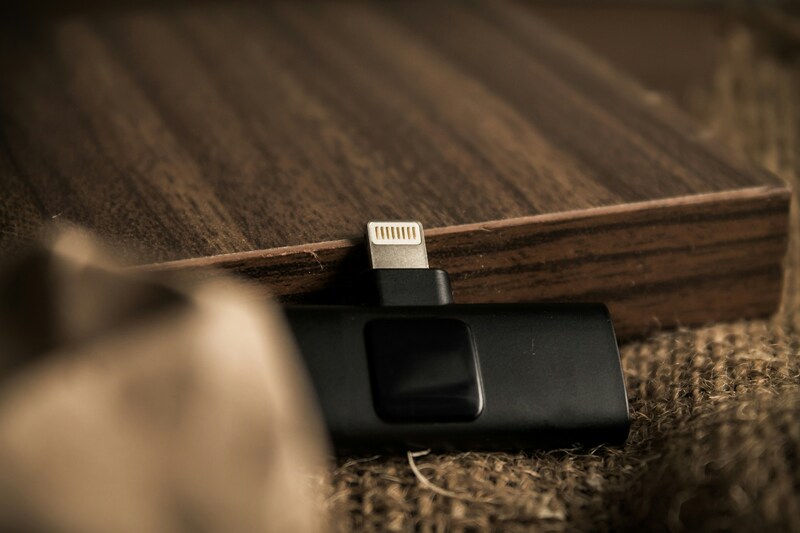
Older iPhones with a Lightning port work with Apple’s Lightning to SD Card Camera Reader, which plugs into the charging port.
Third-party Lightning readers with SD and microSD slots also exist. Apple’s reader takes regular SD cards, so a microSD card needs an adapter unless the reader has its own microSD slot.
USB-C iPhones (iPhone 15 and Later)
On a USB-C iPhone, use Apple’s USB-C to SD Card Reader or a similar third-party USB-C reader. The Apple reader supports SD, SDHC, and SDXC cards up to UHS-II speeds.
If you wonder how to use a SD card reader on iPhone with a USB-C hub, the same rules apply, though the iPhone’s USB-C port supplies limited power, so a card reader is a safer choice than a power-hungry drive.
2. Capabilities and Limits of an SD Card Reader
A reader gives your iPhone access to the card, but not unlimited access. Knowing the limits explains most problems before how to use an SD card reader on iPhone goes wrong.
Supported File Types and Card Sizes
Supported cards include SD, SDHC, SDXC, miniSD, microSD (with an adapter), and MMC. The card must have a single data partition formatted as APFS, macOS Extended, exFAT, FAT32, or FAT.
Photos and videos from the card can be imported, but a format iOS cannot display will not preview on the phone, though you can still import it and view it on a computer. Content that was renamed, edited, or copied onto the card may not import.
Speed and Compatibility Limits
In how to use SD card reader on iPhone, speed depends on the iPhone more than the reader. Most iPhones transfer at USB 2 speeds, while iPhone 15 Pro, 15 Pro Max, 16 Pro, and 16 Pro Max support USB 3 speeds.
A fast UHS-II card will not run faster than the port allows. Large imports take longer on the base models, so keep the phone charged and leave the reader connected until the transfer ends.
>>> Read more: How Many GB Do You Need SIM Card? A Simple Guide Based on Your Usage
3. How to Use SD Card Reader on iPhone
Both apps below read the same card, so pick the one that matches your goal. Photos suits camera images and videos, and Files suits everything else. This is how to use SD card reader on iPhone in each.
In the Files App
For how to use SD card reader on iPhone with any file type, use Files to browse the card and copy specific items.
Step 1: Connect the Reader and Card
Plug the reader into the charging port, then insert the card.
Do not force it, because the card fits only one way.
Step 2: Open the Card
Open Files, tap Browse, and tap the card’s name under Locations. If you do not see Locations, tap Browse again. Camera cards usually keep images in a folder called DCIM.
Step 3: Copy or Move the Files
Touch and hold a file or folder and tap Copy, or tap Select and choose several items. Go to On My iPhone, touch and hold an empty area, and tap Paste.
Using Move instead removes the originals from the card.
In the Photos App
Use Photos to bring camera images and videos into your library. This is the quickest answer to how to use SD card reader on iPhone for photos.
Step 1: Connect and Insert
Connect the SD card reader to your iPhone using the Lightning or USB-C port, depending on your iPhone model. Insert the SD card into the reader, making sure it is properly seated. Your iPhone should recognize the card automatically, and the Photos app may open on its own. If it doesn’t, you can open Photos manually.
Step 2: Open the Import Screen
Open Photos and tap the Imports tab. On iOS 18 and later, tap Collections, then open your card under Devices.
Step 3: Choose What to Import
Tap Import All, or tap specific items and tap Import, then Import Selected.
Step 4: Keep or Delete the Originals
When the import finishes, a prompt asks whether to keep or delete the media on the card. Keep it until you have checked the photos, then unplug the reader.
4. How to Troubleshoot an SD Card Reader That Isn’t Detected
Check the hardware first, then the card itself.
Connection and Adapter Checks
- Remove the card and reader, wait 30 seconds, and reconnect them.
- Make sure the card is inserted correctly, and the reader is fully seated.
- Unplug other devices if you use a hub.
- Force quit Files, reopen it, and check Locations.
- Restart the iPhone and update iOS in Settings, General, Software Update.
- Try the card in another device to see whether the card or the reader is at fault.
Card Format Requirements
A card that fails these checks often has the wrong format, such as NTFS, or more than one partition.
Reformat it on a Mac or PC, or on iOS 18 and later in Files by touching and holding the card, tapping Erase, and choosing a format. Choose exFAT for use across Windows, Mac, and Android. FAT is limited to cards of 32 GB or less and files under 4 GB. Erasing deletes everything, so copy photos first.
>>> Read more: Does a SIM Card Store Photos? What Your SIM Actually Keeps
5. FAQs
Can you copy files from an iPhone to an SD card?
Yes. In Photos, tap Select, choose the items, tap Share, tap Export Unmodified Originals, then choose the card under Locations and tap Save. For other files, use Files, touch and hold the item, and move it to the card.
How do you safely remove an SD card from an iPhone?
Wait until the copy or import has finished, then unplug the reader. Files on iPhone has no eject button, and removing a card mid-transfer can corrupt data, so confirm that nothing is still copying first.
How to use Micro SD card reader on iPhone?
Use a reader with its own microSD slot, or put the microSD card in an SD adapter and use a standard reader. Then follow the Files or Photos steps above.
6. Final Thoughts
Match the reader to your port, insert the card, and open it in Files or Photos. If it does not show up, reseat the connection, restart, and check the card format. Wait for transfers to finish before unplugging. Once you have done it once, using an SD card reader on an iPhone takes only a minute.