


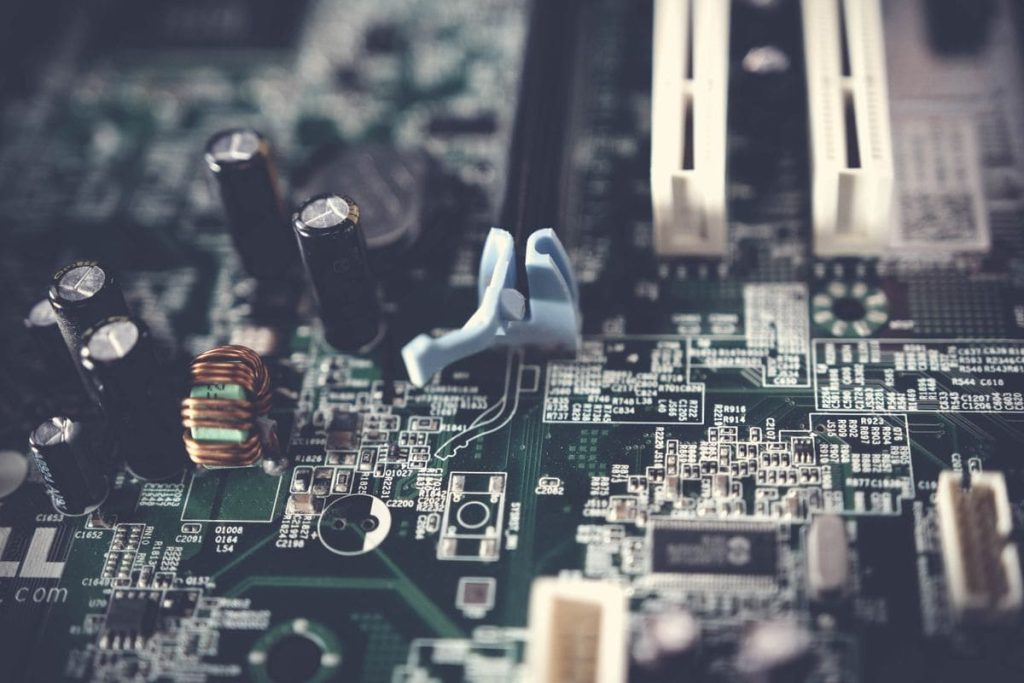
The motherboard is the backbone of every computer. So, what is a motherboard? How does a motherboard work? It’s simpler than you might think.
In this beginner’s guide, we’ll explain what a motherboard is and why it’s one of the most important parts of any computer.
1. What Is a Motherboard in a Computer? What Does a Motherboard Do?
A motherboard is the main circuit board inside a computer that connects and coordinates every essential hardware component. It provides the physical platform where the processor, memory, storage devices, graphics card, and other expansion hardware are installed.
Without a motherboard, these parts cannot communicate or work together as a complete system.
Think of the motherboard as the computer’s communication hub. It creates the pathways that allow data to travel between the CPU, RAM, storage drives, graphics card, and connected peripherals. Whether you’re opening an application, transferring files, or gaming, the motherboard ensures information moves efficiently between components.
Besides data transfer, the motherboard also manages power distribution. It receives electricity from the power supply and delivers stable voltage to each component through its power delivery system, including Voltage Regulator Modules (VRMs).
Consistent power is especially important for the CPU, helping maintain stability during demanding workloads.
Another key part of the motherboard is the chipset. So, what is a motherboard chipset? The chipset is a controller that manages communication between the processor and many of the system’s secondary components, such as USB ports, SATA drives, PCIe devices, networking, and audio. It also determines which features, expansion options, and connectivity standards a motherboard supports.


2. The Main Parts of a Motherboard
Every motherboard is made up of several key components that work together to keep a computer running smoothly. Each section has a specific job.
CPU Socket and Memory (RAM) Slots
The CPU socket is the dedicated location where the processor is installed. It provides the electrical connections that allow the CPU to communicate with the rest of the system.
Since different processors use different socket designs, choosing a motherboard with the correct socket is essential for compatibility.
Located close to the CPU socket are the RAM slots. These slots hold the system’s memory modules, which temporarily store data that the processor needs to access quickly.
PCIe Slots and Expansion Options
PCI Express (PCIe) slots allow you to add extra hardware beyond the motherboard’s built-in features.
The largest PCIe slot is typically used for a graphics card, while smaller slots can accommodate devices such as Wi-Fi adapters, sound cards, capture cards, or additional storage controllers.
Chipset, VRMs, and Power Management
The chipset acts as the motherboard’s controller, coordinating communication between the processor and connected devices such as storage drives, USB ports, networking hardware, and expansion cards. It also determines many of the motherboard’s supported features and connectivity options.
Power delivery is handled by the VRMs (Voltage Regulator Modules), which convert power from the power supply into stable voltage for the CPU and memory. Heatsinks placed over the VRMs and chipset help control temperatures for reliable long-term performance.
Rear I/O Ports and Internal Connectors
The rear I/O panel provides external connections for everyday peripherals, including USB ports, Ethernet, audio jacks, and display outputs on supported systems.
Inside the motherboard, additional headers connect front-panel USB ports, case buttons, RGB lighting, cooling fans, and other accessories.
>>> Read more: How To Fix Slow Laptop: Troubleshooting Tips & Tech Upgrades
3. How a Motherboard Works During Computer Startup
When you press the power button, the motherboard starts a rapid sequence to prepare your computer for use.
First, it receives power from the power supply and distributes the correct voltage to the CPU, RAM, storage, and other components. The BIOS or UEFI firmware then launches and begins the startup process.
Next, the motherboard performs a Power-On Self-Test (POST) to check that essential hardware, such as the CPU, memory, graphics card, and storage, is working properly. If an issue is detected, it may display a debug LED, beep code, or error message.
Once the hardware passes POST, the firmware initializes connected devices, follows the configured boot order, and locates a bootable drive. It then hands control to the operating system, which loads drivers and system services.
In short, the motherboard powers, checks, and coordinates every major component before your computer is ready to use.
4. Motherboard Form Factors
Motherboard form factors define the physical size, mounting layout, and overall design of a motherboard. They determine whether a board will fit inside a computer case and how much room is available for expansion slots, storage devices, and cooling.
| Form Factor | Best For | Advantages | Limitations |
|---|---|---|---|
| ATX | Gaming PCs, workstations, and high-performance desktops | Plenty of PCIe slots, storage connectors, RAM slots, and cooling options | Requires a mid-tower or full-tower case |
| Micro-ATX | Budget and mainstream builds | Lower cost, compact size, supports most everyday hardware | Fewer expansion slots and connectors than ATX |
| Mini-ITX | Small-form-factor (SFF) PCs | Very compact, ideal for portable or space-saving builds | Limited expansion, fewer storage options, typically only two RAM slots |
| E-ATX | Enthusiast and professional systems | Maximum expansion, extra room for high-end components and advanced cooling | Larger, more expensive, and requires a compatible full-tower case |
How to Choose the Right Size for Your PC Case:
Before buying a motherboard, check which form factors your computer case supports. A motherboard that’s too large simply won’t fit inside the case, while a smaller board can often be installed in a larger case if the mounting points are supported.
- ATX is the most versatile choice for users who want room for future upgrades. It provides the widest selection of expansion slots, storage connections, and onboard features. Micro-ATX offers a great balance between affordability and functionality, making it a popular option for everyday desktops and entry-level gaming systems.
- If saving space is your priority, Mini-ITX is designed for compact PCs without sacrificing modern performance. However, its smaller footprint means fewer upgrade options. At the opposite end, E-ATX motherboards are built for demanding workloads, supporting additional expansion cards, memory, and advanced cooling configurations.
5. Does a Motherboard Affect Performance?
A motherboard does affect performance, but not in the same way as a CPU or graphics card. It won’t directly increase gaming FPS, render videos faster, or improve processing power on its own. Instead, it provides the platform that allows your hardware to operate efficiently and without unnecessary limitations.
A quality motherboard supports faster memory speeds, newer PCIe standards, and high-speed storage, helping components communicate with minimal delays.
Its chipset manages connections between the processor and peripherals, while the VRMs (Voltage Regulator Modules) deliver stable power to the CPU during heavy workloads. Better power delivery and cooling can also improve system stability, especially when using high-end processors or overclocking.
However, replacing your motherboard alone won’t make an older processor perform like a newer one. The CPU, GPU, RAM, and storage remain the primary factors that determine overall system speed. A motherboard’s role is to ensure those components can reach their intended performance without bottlenecks caused by limited features or poor power management.
>>> Read more: What Is Secure Boot? Everything PC Users Need To Know In 2026
6. Signs of a Motherboard Problem and Basic Troubleshooting
A failing motherboard can cause a wide range of issues, many of which resemble problems with the power supply, RAM, or storage.
- One of the most obvious signs is a computer that won’t power on or repeatedly fails to boot. You may also experience random system crashes, frequent Blue Screen errors, unexpected restarts, or the computer freezing during startup. Problems with USB ports, onboard audio, or network connections can also point to motherboard-related issues if multiple devices stop working without explanation.
- Physical inspection may reveal additional warning signs. Look for swollen or leaking capacitors, burn marks, damaged connectors, or signs of overheating around the CPU socket and VRMs.
- If your PC is having trouble starting, begin with basic troubleshooting. Check that the 24-pin motherboard cable and CPU power connector are securely attached, then confirm the power supply is functioning properly. Reseat the RAM, graphics card, and storage drives to eliminate loose connections. If your motherboard includes diagnostic LEDs or a POST code display, use these indicators to identify which component is preventing the system from booting.
- You should also enter the BIOS or UEFI, if possible, to verify CPU temperatures, fan operation, memory detection, and voltage readings. Finally, make sure your processor is compatible with the motherboard’s socket and chipset, and update the BIOS if required for newer CPUs.
If these steps don’t resolve the issue, testing with known working components is often the fastest way to determine whether the motherboard is actually at fault.
7. FAQs
Can a PC run without a motherboard?
No. A PC cannot run without a motherboard. The motherboard connects the CPU, RAM, storage, graphics card, and power supply, allowing them to communicate. Without it, the computer cannot initialize hardware or start the operating system.
What happens if your motherboard is broken?
A broken motherboard can prevent your computer from booting, cause random crashes, freeze during startup, or stop connected devices from working. Depending on the damage, the PC may become unstable or fail to power on altogether.
Will a PC turn on with a dead motherboard?
Usually, no. A dead motherboard cannot initialize the system or distribute power correctly. While some fans or LEDs may briefly turn on if power is present, the computer will not complete the startup process or display anything on-screen.
What Is a Good Motherboard for Gaming?
A good gaming motherboard offers reliable power delivery, PCIe 4.0 or PCIe 5.0 support, fast DDR4 or DDR5 memory compatibility, multiple M.2 SSD slots, and efficient cooling around the VRMs. It should also include the connectivity you need, such as high-speed USB ports, 2.5G Ethernet, or built-in Wi-Fi.
Conclusion
Now that you understand “what is a computer motherboard?”, you’ll have a much better foundation for building, upgrading, or troubleshooting a computer.
For more beginner-friendly tech guides, explore AirTalk Wireless blog and stay up to date with the latest technology insights.