



Seeing SOS or SOS Only at the top of your phone can be alarming, especially when you suddenly cannot make a normal call or use mobile data. It may leave you wondering whether the problem is with your phone, SIM, or network.
So, why is my phone on SOS? There are several possible reasons, and understanding what is happening can help you find the right fix.
In this guide, we will walk through the most common causes and what you can do to restore your connection.
1. Why Is My Phone on SOS Mode? The 4 Most Common Reasons
When your phone displays SOS, SOS Only, or a similar message, it generally means the device cannot connect to your carrier’s cellular network. Your phone may still be able to make emergency calls through an available network, but normal calls, texts, and cellular data may not work.
If you are wondering why is my phone on SOS only, start by looking at the most common causes below. In many cases, the problem is temporary and can be resolved without replacing your phone.
No Cellular Signal
The simplest explanation is that your phone cannot find a usable cellular signal. This can happen when you are inside a building with poor reception, in a rural area, underground, or somewhere surrounded by structures that interfere with the signal.
You may also see SOS when traveling through an area where your carrier has limited coverage. If your phone worked normally a few minutes ago and suddenly switched to SOS, try moving outdoors or to a higher, more open location.
If the signal returns after you move, the phone itself is probably fine. The problem was simply that your device could not establish a connection with the carrier network from your current location.
SIM or Network Issue
Your SIM or eSIM is what helps your phone connect your cellular service to the carrier. If the SIM is damaged, incorrectly installed, inactive, or not being recognized properly, your phone may lose access to the network.
On a physical-SIM phone, removing and carefully reinserting the SIM can sometimes restore the connection. If you use an eSIM, the issue may require checking your cellular settings or contacting your carrier.
A recently changed SIM, transferred phone number, or activated line can also cause temporary connection problems while the carrier updates your account.


Carrier Outage
Sometimes there is nothing wrong with your phone at all. Your carrier may be experiencing an outage or temporary network disruption.
A local outage can affect customers in a particular area, while a larger technical problem can affect many users at once. If other people using the same carrier are also seeing SOS, that is a strong indication that the network itself may be responsible.
Software Glitch
Your phone’s software controls many of the settings involved in connecting to a cellular network. A temporary software error can occasionally prevent the device from reconnecting properly.
This can happen after a software update, network configuration change, or simply after the phone has been running for a long period. Restarting the device is often enough to clear a temporary connection problem.
If you are asking why is my phone stuck on SOS, especially when you normally have reliable coverage, a quick restart and network reset are worth trying before assuming there is a hardware problem.
>>> Also read: How to Check Hotspot Usage iPhone: 3 Easy Ways to Track Your Data
2. How to Get Your Phone Out of SOS Mode: iPhone & Android Fixes
Once you understand what SOS means, the next step is getting your regular cellular connection back. Start with the simplest solutions first. If those do not work, move on to your SIM, network settings, and carrier account.
Basic Fixes: Try These First
These steps are quick and do not normally change your phone’s important data or settings.
1. Toggle Airplane Mode
Turn Airplane Mode on and leave it enabled for about 10-15 seconds. Then turn it off.
This forces your phone to stop communicating with cellular networks and then search for available networks again. A temporary connection problem can sometimes disappear after this simple refresh.

2. Restart Your Phone
Turn the phone completely off, wait a few seconds, and turn it back on. Restarting can clear temporary software and network connection errors.
After the phone starts again, give it a moment to search for your carrier. If the network name and signal bars return, the SOS message should disappear.
3. Move to a Better Signal Area
If you are indoors, move closer to a window or go outside. If you are in a low-coverage area, try moving to a more open location.
This is particularly useful when the SOS message appears in one location but your phone normally works elsewhere.
Advanced Fixes
If basic troubleshooting does not work, the problem may involve your network configuration or SIM.
Reset network settings
A network settings reset can resolve problems caused by incorrect or corrupted cellular configurations. Keep in mind that this can also remove saved Wi-Fi networks, passwords, VPN settings, or other network-related information, so you may need to reconnect afterward.
On both iPhone and Android, the exact menu names can vary depending on the device and software version. Look for a reset option under your phone’s general management or system settings.
Check or reinsert the SIM
If your phone uses a physical SIM, turn the device off before removing it. Check that the SIM is positioned correctly and does not appear damaged, then reinstall it and restart the phone.
For eSIM users, check whether the cellular plan still appears in your phone’s settings. Do not delete an eSIM profile simply as a troubleshooting step unless your carrier tells you to, because you may need the carrier to reactivate it.


Carrier Fix: When to Contact Your Provider
If you have tried the steps above and your phone remains in SOS mode, your carrier can check issues that you cannot resolve from the device itself.
Ask the provider to:
- Check for a network outage: They can confirm whether service problems are affecting your area.
- Verify your SIM or eSIM status: The carrier can determine whether your line is properly active.
- Check your account: An account or service issue can sometimes prevent normal network access.
- Confirm your coverage: The provider can help determine whether your location is within the carrier’s coverage area.
For example, searches such as why is my phone on SOS Verizon are common when Verizon customers suddenly lose cellular service. The same troubleshooting principle applies: first determine whether the problem is local to your phone or related to the carrier’s network or account.
3. When SOS Mode Means Something Serious
An occasional SOS message does not necessarily indicate a major problem. However, persistent SOS status deserves more attention, particularly when basic troubleshooting has failed.
Watch for these signs:
- Your SIM is not detected: If the phone repeatedly says there is no SIM or cannot identify your cellular plan, the SIM or eSIM may need attention from your carrier.
- There is no service anywhere: If your phone remains in SOS mode even after you move to an area where your carrier normally has strong coverage, the issue may be more than a weak signal.
- SOS continues after a network reset: If restarting the phone, checking the SIM, and resetting network settings do not restore service, contacting your carrier is the next logical step.
At that point, avoid repeatedly changing settings without knowing what they do. Your carrier can check the line and network from its side and determine whether the issue requires a SIM replacement, account correction, or further technical support.
4. Need a Reliable Phone Signal? You May Qualify for a Free Phone!
If you have tried the usual fixes but your phone still struggles to maintain a reliable signal, the device itself may be part of the problem. Replacing a phone can be expensive, though.
The Lifeline program may help eligible households lower the cost of staying connected by providing a monthly discount on one qualifying phone or internet service. Eligibility can be based on household income or participation in certain qualifying programs, such as Medicaid.
Lifeline provides the monthly discount, while Eligible Telecommunications Carriers (ETCs) provide the actual phone or internet service. Depending on the provider and current offer, eligible customers may also receive a free or discounted device.
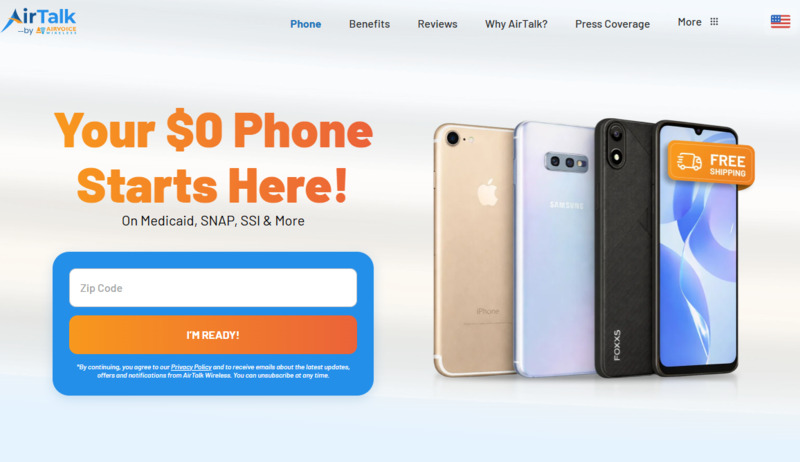
AirTalk Wireless is one Lifeline provider worth checking, particularly if you want more choice when it comes to devices. In addition to service features such as talk, text, data, and a free SIM card, AirTalk also offers a variety of device options for eligible customers.


Depending on your ZIP code, eligibility, and current availability, you may find free or discounted smartphones and tablets, including models such as:
- iPhone SE (2nd generation)
- iPhone 11
- Samsung Galaxy A42 5G
- Samsung Galaxy A13
- TCL 20 SE
- Google Pixel 6
- AirVoice C67
- AirVoice A67L Gen2
Available devices and promotions may change based on your location, eligibility, and current offers. Don’t hesitate to enter your ZIP code to check your current AirTalk offers and see whether you qualify for a Lifeline-supported phone and service.

Note: AirTalk Wireless operates under the federal Lifeline Program as an Eligible Telecommunications Carrier (ETC). Eligibility varies by state and program. Offers depend on availability and qualifications. Service is non-transferable and limited to one service per household.
Final Thoughts
Understanding why is my phone on SOS starts with recognizing that SOS usually means your phone cannot connect to its regular carrier network.
A weak signal, SIM problem, carrier outage, or temporary software glitch can all cause it. Start with simple fixes, then check your SIM, network settings, and carrier account if the problem continues.