


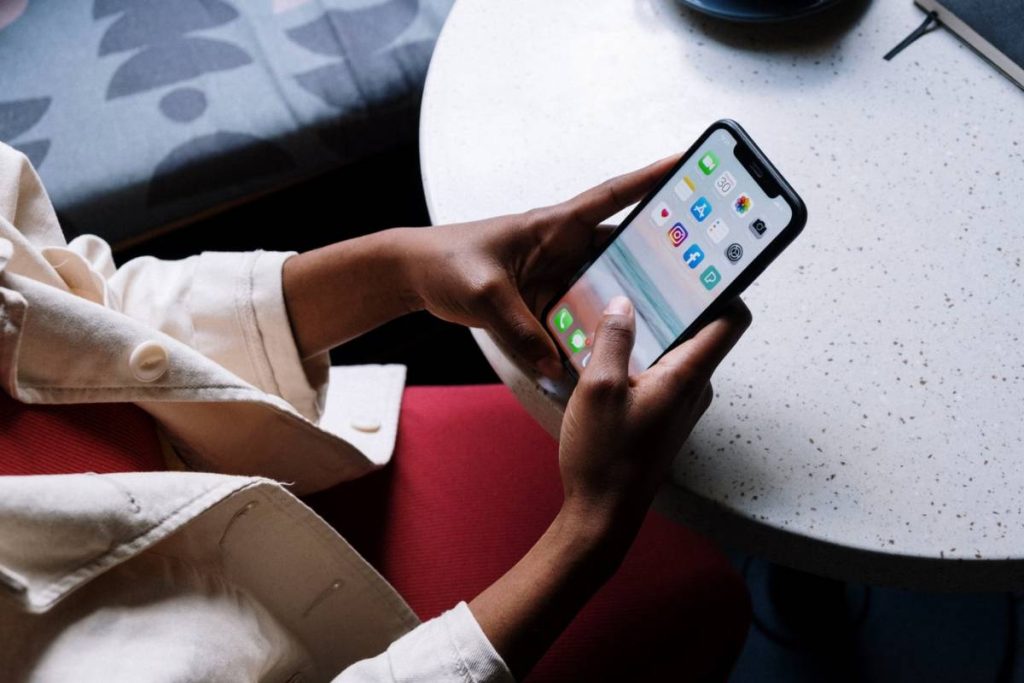
A webpage can seem broken when the window you need never appears. Knowing how to allow pop ups on iPhone can help you continue without guessing which browser setting is causing the problem.
The controls are not identical in Safari, Chrome, Edge, and older iOS versions, which can make a simple change feel confusing. In this guide, you’ll find the right instructions for your browser and practical checks for pop-ups that still refuse to open.
1. How to Allow Pop Ups on iPhone in Safari
Safari uses one general setting for all websites rather than offering a permanent allowlist for individual pages. You can disable the blocker, complete the required task, and turn it back on afterward.


Allowing Safari Pop-Ups on iOS 18 or Later
The steps for how to allow pop ups on Safari iPhone changed when Apple moved app controls into the Apps section of Settings. On iOS 18 and later:
- Open the Settings app.
- Scroll down and tap Apps.
- Select Safari.
- Find Block Pop-ups.
- Turn the switch off.
- Return to Safari and refresh the webpage.
- Tap the link or button that should open the new window again.
This is also the current route for how to allow pop ups on Safari on iPhone when the Safari setting is no longer visible on the main Settings screen. Apple confirms the same path in its Safari pop-up instructions.
Allowing Safari Pop-Ups on Earlier iOS Versions
The process for how to allow pop ups on iPhone Safari is slightly shorter on older software because Safari appears directly in Settings:
- Open Settings.
- Scroll down and tap Safari.
- Find Block Pop-ups.
- Turn the switch off.
- Reopen Safari and refresh the page.
If you searched for how to allow pop-ups on iPhone Safari, remember that turning off this setting applies to every website. Restore the blocker after the required pop-up has opened.
2. How to Allow Pop Ups in Other iPhone Browsers
Chrome and Edge manage their own browser controls, so changing Safari settings will not affect them. Menu names may vary slightly after an app update.
Changing the Pop-Up Setting in Google Chrome
Chrome includes its pop-up control inside Content Settings:
- Open Chrome.
- Tap the three-dot More button.
- Select Settings.
- Tap Content Settings.
- Select Block Pop-ups.
- Turn Block Pop-ups off.
- Return to the webpage and reload it.
If the page was open before the setting changed, close that tab and open the link again. Chrome may place the new content in a separate tab instead of displaying it over the current page.
Changing the Pop-Up Setting in Microsoft Edge
In Edge, the control may appear under Privacy and Security or Site Permissions, depending on the app version:
- Open Microsoft Edge.
- Tap the menu button at the bottom of the screen.
- Open Settings.
- Select Privacy and Security or Site Permissions.
- Tap Block Pop-ups or Pop-ups and Redirects.
- Turn the blocking option off.
- Reload the original webpage.
Update Edge from the App Store if neither setting appears. An older app version may use a different menu arrangement.
>>> Read more: Why Doesn’t My Phone Ring When I Call Someone?
3. Why Are Pop-Ups Still Not Opening on Your iPhone?
Even after following the steps for how to allow pop ups on iPhone, the requested window may remain hidden. Possible reasons include:
- The webpage has not been refreshed since the setting changed.
- The pop-up opened in another browser tab.
- A Safari content-blocking extension is still active.
- JavaScript is disabled.
- The link opened inside another app’s built-in browser.
- Screen Time restrictions are blocking the content.
- A work or school management profile controls the browser settings.
- The website requires you to tap a specific button before opening the window.
- Cookies or cached website data are interfering with the page.
- The browser app needs to be updated or restarted.
- The website’s link or pop-up is broken.
- The pop-up is being blocked by the website’s own security settings.


4. How to Use Pop-Ups Without Exposing Your iPhone to Unnecessary Risk
Some legitimate websites need pop-ups for sign-ins, payment screens, forms, or documents. Still, turning off the blocker may also let unwanted windows appear, so take a few precautions:
- Allow pop-ups only when a trusted website needs them for a specific task.
- Check the full website address before entering a password, payment information, or personal details.
- Ignore download prompts you did not expect, especially those claiming that your iPhone needs an update or security tool.
- Do not approve surprise requests to add calendars, send notifications, or install configuration profiles.
- Close tabs that display fake warnings, prizes, countdowns, or urgent payment requests.
- Avoid tapping a suspicious close button because it may open another page. Close the entire tab instead.
- Turn the pop-up blocker back on as soon as you finish the task.
5. How to Turn the Pop-Up Blocker Back On
Once you have completed the sign-in, payment, download, or form that required a separate window, reverse the setting used for how to allow pop ups on iPhone. Restoring the blocker helps prevent unrelated websites from opening advertising tabs, fake alerts, or unwanted redirects later.
- Safari: Open Settings > Apps > Safari, then turn on Block Pop-ups. On older iOS versions, go directly to Settings > Safari.
- Chrome: Open Settings > Content Settings > Block Pop-ups, then turn the option on.
- Microsoft Edge: Open Settings, find Block Pop-ups under Privacy and Security or Site Permissions, and turn it on.
Return to the browser and reload any pages that are still open so the restored setting can take effect. A pop-up tab that opened earlier will not close automatically, so review your open tabs and remove anything you no longer need. If the website stops working after the blocker is restored, confirm that your task was completed before changing the setting again.
>>> Read more: How to Stop Sharing Location Without Them Knowing on iPhone
Conclusion
Now that you know how to allow pop ups on iPhone, you can open a needed browser window without leaving the setting disabled longer than necessary. Use the option only on a website you trust, complete the task, and switch the blocker back on afterward.