



Many businesses, hospitals, and customer service centers use phone extensions to route calls to specific departments or employees. If you’ve ever been asked to enter an extension after dialing a company’s main number, you might wonder how the process works.
Understanding how to call a number with an extension makes it easier to reach the right person without being transferred multiple times. Whether you’re calling from an iPhone, Android phone, or landline, dialing extensions is usually straightforward once you know the correct steps.
1. What Is a Phone Extension and How Does It Work?
A phone extension is a short number assigned to a specific person or department within a larger phone system. Instead of giving every employee a separate phone number, businesses use extensions to connect callers internally.
For example, a company might have a main phone number such as: (555) 123-4567
Once the call connects, you may be asked to enter an extension such as 204 to reach a particular department.
Phone extensions are commonly used in:
- Offices and corporate phone systems
- Hospitals and clinics
- Universities and schools
- Customer service call centers.
2. How to Call a Number With an Extension?


Learning how to call a number with an extension usually involves two steps: dialing the main number and entering the extension when prompted.
Dial the Main Number First
Start by dialing the organization’s main phone number. This connects your call to the company’s phone system.
After the connection is established, the automated system may ask you to enter an extension number.
Enter the Extension When Prompted
Once you hear the prompt, simply enter the extension using your phone’s keypad.
For example:
Main number: (555) 123-4567
Extension: 204
You would dial the main number first and then enter 204 when prompted.
This is the most common method used when learning how to call a number with an extension.
Using Pause or Wait Features
Some smartphones allow you to dial an extension automatically by inserting a pause in the phone number.
Example format: 555-123-4567, 204
The comma represents a short pause before dialing the extension.
3. How to Call an Extension on iPhone?
Many iPhone users want to know how to call an extension on iPhone without waiting for automated prompts.
To dial an extension automatically:
- Open the Phone app
- Enter the main phone number
- Tap the * button until a comma appears
- Enter the extension number
- Save the contact if needed.
For example: 555-123-4567, 204
This method helps automate how to call a number with an extension when dialing from an iPhone.
iPhones also allow you to insert a “wait” command, which pauses the call until you manually confirm before dialing the extension.
4. Calling Extensions From Android Phones
Android devices offer similar features for dialing extensions.
To automatically dial an extension:
- Open the Phone dialer
- Enter the main phone number
- Tap the pause button (,)
- Enter the extension number.
Example: 555-123-4567,204
This process simplifies how to call a number with an extension on Android devices as well.
Most Android phones also allow you to save the number with the extension in your contact list for faster future calls.
5. Common Situations Where You Need to Dial an Extension
You may encounter phone extensions in many everyday situations.
Common examples include:
- calling a company’s customer support department
- contacting a specific employee in an office
- reaching a hospital department or clinic
- dialing a university office or admissions department.
Understanding how to call a number with an extension can help ensure your call reaches the correct person quickly.
>>> Read more: How to Record a Phone Call (Complete Step-by-Step Guide)
6. Using Modern Smartphones for Business and Support Calls
Modern smartphones make it easier than ever to manage different types of phone calls, including calls that require extensions.
Having a reliable smartphone and mobile connection ensures these features work properly when calling offices, support centers, or service providers.
For many people, having a reliable smartphone is essential for everyday communication. Phones are used not only for personal conversations but also for contacting healthcare providers, customer support, employers, and government services.
Programs like Lifeline help make phone access more affordable for eligible households.
The Lifeline program, supported by the Federal Communications Commission (FCC), helps qualifying low-income households access phone and internet services.
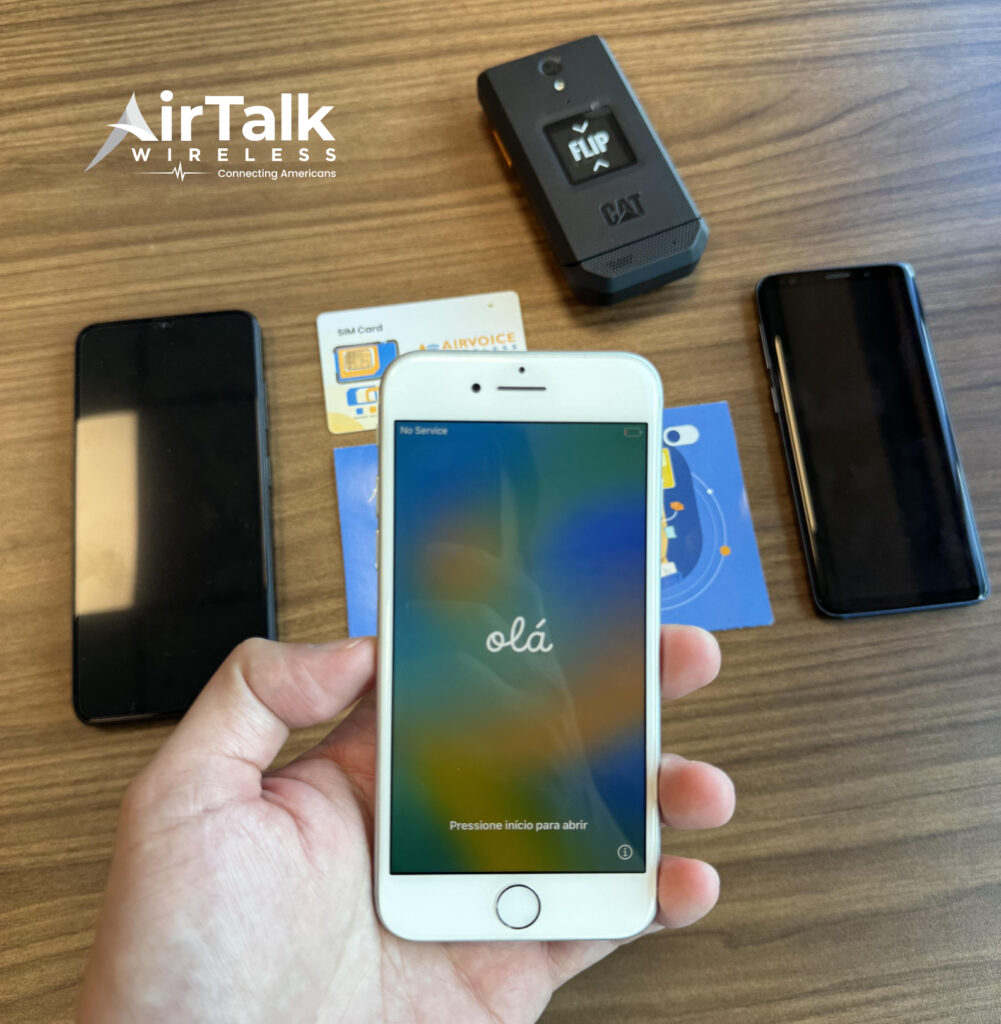
Through participating providers such as AirTalk Wireless, eligible users may receive both a smartphone and monthly wireless service.
Who May Qualify for Lifeline?
Many households qualify if they participate in programs such as:
- Supplemental Security Income (SSI)
- SNAP
- Medicaid
- Federal Public Housing Assistance
- Veterans Pension or Survivors Benefits
Income-based eligibility may also apply depending on federal guidelines.
Once eligibility is verified, applicants can enroll through participating providers.
Smartphone Models Commonly Available
AirTalk Wireless offers a range of smartphone models depending on availability. These often include:
- Samsung Galaxy A-series smartphones
- Motorola Moto G series
- TCL Android smartphones
- Apple iPhone models
These devices support everyday communication tools such as:
- voice calls and extension dialing
- messaging apps
- video calls
- internet access and telehealth services.
With a capable smartphone and reliable wireless plan, tasks like how to call a number with an extension become much easier.
Wireless Service Benefits
Eligible Lifeline users through AirTalk Wireless may also receive wireless service benefits including:
- monthly talk
- text messaging
- mobile data service.
Reliable connectivity helps ensure important calls reach businesses, healthcare providers, and support services without interruption.
How to Apply for Lifeline Through AirTalk?
Applying for Lifeline through AirTalk Wireless is designed to be simple:
- Check eligibility based on qualifying programs or income
- Access the website and enter your ZIP code
- Choose a plan and an available device
- Upload documents verifying eligibility
- Complete the online application
- Receive your smartphone and activate service.
Once approved, users can begin making calls and accessing important services immediately.

Final Thoughts
Learning how to call a number with an extension helps you navigate many business and customer support phone systems more efficiently.
By dialing the main number and entering the extension when prompted, or using pause features on smartphones, you can quickly reach the correct department or contact.
With modern smartphones and reliable mobile service, managing extension calls becomes simple and convenient.