


Did you know your iPhone’s IP address can reveal your approximate location to websites you visit? It’s one of the details behind the scenes whenever you go online. And depending on whether you’re using Wi-Fi or cellular data, that address can change.
So, how to change IP address on iPhone starts with knowing which address websites can see and what you want to change.
1. What IP Address Are You Trying to Change on Your iPhone?
Before learning how to change my IP address on my iPhone, it helps to know that your phone uses two types of IP addresses. Each serves a different purpose, and the method you need depends on which one you want to change.
Private or Local IP Address
A private IP address identifies your iPhone within a local network, such as your home Wi-Fi. Your router assigns this address so your phone can communicate with other devices and access the internet.
For example, your iPhone might use an address such as 192.168.1.15 on your home network. Other devices connected to the same router have their own local addresses, even though they may share one public IP address online.
You can view or manually configure your local IPv4 address in your iPhone’s Wi-Fi settings. Changing it is useful for certain network configurations, but it won’t necessarily change the address websites see.
Public IP Address
A public IP address is the one websites and online services generally see when your iPhone connects to them. It depends on the network you’re using:
- On Wi-Fi: Your iPhone typically uses the public IP address associated with your home internet connection, which other devices on that network may share.
- On cellular data: Your mobile carrier manages the IP address used for your connection. It may also use one public IP address for multiple customers.
If you want websites to see a different IP address, changing your private IP usually won’t help. You’ll need to switch networks or use a VPN or proxy that routes your traffic through another server.
2. How to Change IP Address on iPhone: 4 Possible Methods
There are several ways to change your IP address, but each affects your connection differently. If you’re researching how to change your IP address on iPhone, start by deciding whether you need a different local address or a different public one.
Change Your Private IP Address on Wi-Fi
You can manually set a local IPv4 address for a Wi-Fi network through your iPhone’s settings. This option is mainly useful when configuring a network that requires a particular address.
Follow these steps:
- Open Settings and tap Wi-Fi.
- Tap the information button next to your connected network.
- Find Configure IP under the IPv4 section.
- Select Manual.
- Enter an available IP address, subnet mask, and router address.
- Tap Save.
Choose an address that fits your network’s configuration and isn’t already in use. If the details are incorrect, your iPhone may lose access to the local network or the internet. When you’re unsure which values to enter, using the automatic DHCP setting is usually the safer choice.
Remember that this changes your local address, not necessarily your public IP.

Switch to a Different Wi-Fi Network
Connecting to another Wi-Fi network can give your iPhone a different local IP address and a different public IP address. The public address depends on the new network’s internet connection.
To try this method:
- Open Settings and tap Wi-Fi.
- Select another trusted network.
- Connect to it and wait for the internet connection to become active.
- Check your public IP address using an IP-checking website.
A different network will often provide a different public IP, although this isn’t guaranteed. For example, two Wi-Fi networks may use the same internet provider or share an upstream connection.
Be careful when connecting to unfamiliar public Wi-Fi. Use secure websites and avoid entering sensitive information on networks you don’t trust.
>>> Also read: How to Share WiFi Password on iPhone in 3 Effortless Steps?
Use a VPN to Change the Public IP Websites See
A virtual private network (VPN) routes your internet traffic through a VPN server. Websites generally see the server’s public IP address instead of the public IP associated with your original connection.
To use a VPN:
- Choose a reputable VPN provider and install its iPhone app.
- Open the app and sign in or create an account.
- Select an available server or location if the app offers that option.
- Connect to the VPN.
- Visit an IP-checking website to verify the address shown.
This is a practical option when you want websites to see a different public IP without switching away from your current Wi-Fi or cellular connection. Some VPNs let you select a server location, while others automatically choose a server for you.
A VPN doesn’t make you completely anonymous. The provider may be able to process information about your traffic, so check its privacy policy and logging practices before connecting.
Use a Proxy Server
A proxy server sits between your iPhone and the websites you visit. When your traffic passes through the proxy, those websites may see the proxy’s IP address instead of your original public IP. You can connect through a proxy app or enter the server details manually, depending on the service you use.
If you’re setting up a proxy for a Wi-Fi connection, open Settings > Wi-Fi, tap the information button next to the network, and select Configure Proxy. From there, you can enter the server address, port, and any required authentication details. Keep in mind that this setting applies to that Wi-Fi network and may not route traffic from every app through the proxy.
Before using one, check how the provider handles your data. A proxy doesn’t automatically encrypt your connection, so a different IP address alone doesn’t guarantee that your online activity is private.

3. Can You Change Your IP Address on iPhone With Cellular Data?
You can’t manually enter a new public IP address for cellular data in your iPhone’s Settings.
Your mobile carrier manages the IP address used by its network, and the address may change according to the carrier’s network configuration.
If you want to know how to change IP address on iPhone cellular data without switching to Wi-Fi, there are two options worth understanding:
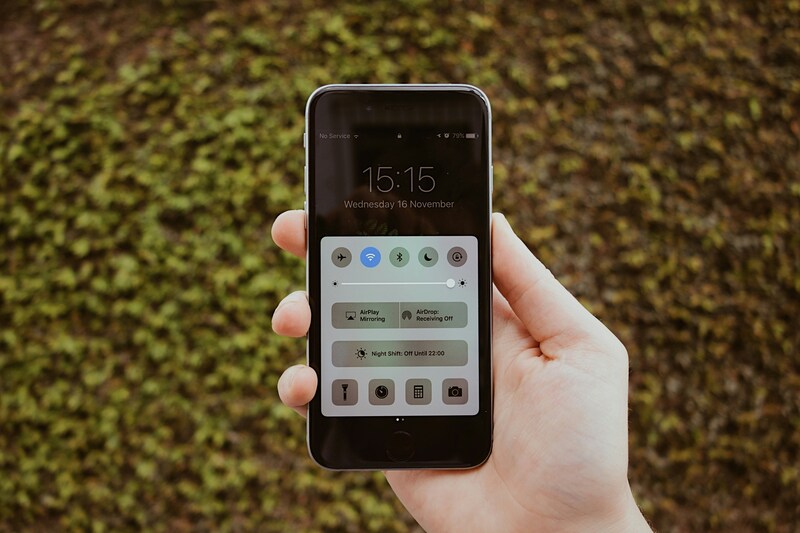
- First, you can turn Airplane Mode on, wait briefly, and turn it off again. Your iPhone will reconnect to the mobile network, and the carrier may assign a different IP address. However, this isn’t guaranteed. The same address may be reused, or the carrier may manage your connection through shared addressing.
- Second, you can use a VPN while remaining on cellular data. Once connected, websites generally see the VPN server’s public IP rather than the address associated with your mobile connection. This is the more predictable option if your goal is to change the IP visible to websites.
Switching from cellular data to Wi-Fi also changes which network provides your internet connection. The public IP you see may change as a result.
4. Why Didn’t My IP Address Change?
Even after trying different methods for how to change IP address on iPhone, you may still see the same IP address. This can happen if the method didn’t affect the address you’re checking or if your network assigned the same address again.
Here are some common reasons:
- You changed the wrong address: Manually changing your local IP won’t necessarily affect your public IP.
- You reconnected to the same network: Your router or carrier may assign the same address again.
- Your carrier uses shared IP addresses: Mobile networks may use carrier-grade NAT, meaning multiple customers share a public IP.
- Your VPN isn’t connected: If the VPN disconnects or fails to establish a connection, websites may still see your regular public IP.
- Your proxy covers only some traffic: A proxy configured for one Wi-Fi network may not affect cellular data or every app.
- You haven’t refreshed the IP-checking page: Reload the page after changing connections to check the current result.
If none of these issues explains what you’re seeing, compare your public IP before and after trying a method, using the same IP-checking service each time.
If you’re testing a VPN, make sure the app confirms a successful connection before checking again. This helps you determine whether your public IP has changed or whether you need to try a different method.
>>> Also read: eSIM Network Not Available: How to Diagnose and Fix the Issue Fast
5. Need a Different Cellular Connection? Check AirTalk Wireless
The methods above can help you change the IP address websites see, but they won’t let you choose the IP address assigned to your cellular connection. If you’re also considering a different mobile service, it’s worth knowing what other carrier options are available.
Switching providers does not guarantee a new IP address, but it may give you access to a different mobile network and plan.
AirTalk Wireless could be worth a look if you’re thinking about switching mobile providers or want a plan that better fits your budget.
As an Eligible Telecommunications Carrier (ETC), we offer Lifeline-supported wireless service to eligible customers in participating areas, along with phone deals that can help make getting a compatible device more affordable.
All our plans come with features designed to make everyday phone use more convenient, including:
- Unlimited talk and text
- Monthly mobile data allowance
- Free SIM card or eSIM
- Wi-Fi Calling
- International calls to 200+ countries and territories
- Handy call tools, including voicemail, caller identification, call waiting, and three-way calling
Eligible customers may also qualify for free or discounted smartphones through available offers. To explore your options, visit AirTalk Wireless and enter your ZIP code to check local plans and device availability.

Note: AirTalk Wireless operates under the federal Lifeline Program as an Eligible Telecommunications Carrier (ETC). Eligibility varies by state and program. Offers depend on availability and qualifications. Service is non-transferable and limited to one service per household.
6. FAQs
Can two cell phones have the same IP address?
Yes. Two phones on the same Wi-Fi network usually share a public IP address, even though each has a different local IP. Mobile carriers may also let multiple phones share a public IP through carrier-grade NAT.
Does my IP address come from my phone or wi-fi?
Your local IP is usually assigned by the router on Wi-Fi. Your public IP comes from the internet provider or mobile network handling your connection. A VPN can make websites see the VPN server’s IP instead.
Is changing my IP address illegal?
Changing your IP address is generally legal, but what you do with it matters. Using a VPN or proxy doesn’t exempt you from applicable laws or the terms of the services you access.
How can I tell if someone is monitoring my IP address?
An IP address alone doesn’t prove that someone is monitoring you. Websites and online services routinely process IP addresses, and your provider may keep connection records. Use trusted privacy tools and review your account security if you suspect unauthorized access.
How many IP addresses should I have on my iPhone?
There isn’t one fixed number. Your iPhone can have a local IP, a public-facing address through its network, and additional IPv4 or IPv6 addresses depending on the connection. A VPN can add another public-facing address.
Final Thoughts
Knowing how to change IP address on iPhone starts with identifying which address you want to change. Whether you adjust your Wi-Fi settings, switch networks, or use a VPN, check your public IP before and after to see if the method worked. Choose the option that best fits your connection and privacy needs.