


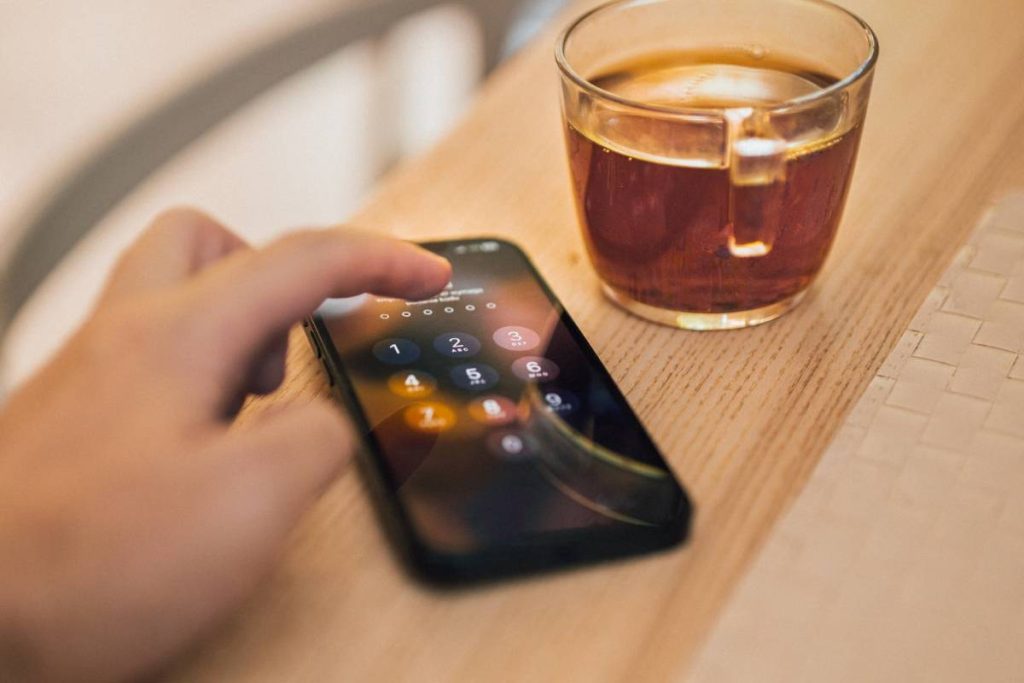
Your iPhone passcode protects messages, photos, payments, and account access. If it has been seen or shared, the immediate question is how to change your passcode on iPhone without replacing one weak code with another.
A secure replacement should still be practical to enter and remember. This guide covers the six-step process, available passcode formats, recovery options if the current code is forgotten, and settings that may prevent the change.
1. What to Check Before Changing Your iPhone Passcode
Changing the passcode affects more than the Lock Screen. Review this checklist first, so you do not interrupt access to the device or mistake another security code for the iPhone passcode.
- Confirm that you know the current passcode: Face ID or Touch ID cannot replace it when opening passcode settings.
- Do not confuse it with the Screen Time passcode: Screen Time can use a separate code for content and privacy restrictions.
- Create a backup of important data: This becomes particularly important if you are already having trouble remembering the current code.
- Choose a code you can remember without making it predictable: Avoid birthdays, addresses, repeated digits, phone-number fragments, or patterns such as 123456.
- Use a different code from other devices and accounts: Reusing a PIN allows one exposed code to affect several places.
- Check whether the iPhone is managed: A work or school profile may require a certain length, complexity, or change schedule.
- Understand the previous-passcode window: On iOS 17 and later, the old passcode may remain available for Passcode Reset for up to 72 hours after a change. You can expire it sooner from the passcode settings if another person may know it.
The Federal Trade Commission (FTC) recommends using at least a six-digit passcode to lock your phone. For stronger protection, Apple also supports longer custom numeric and alphanumeric passcodes.
2. How to Change Your Passcode on iPhone in 6 Steps
The menu name depends on the iPhone model. Devices with Face ID display Face ID & Passcode, while models with a Home button and fingerprint sensor normally display Touch ID & Passcode.

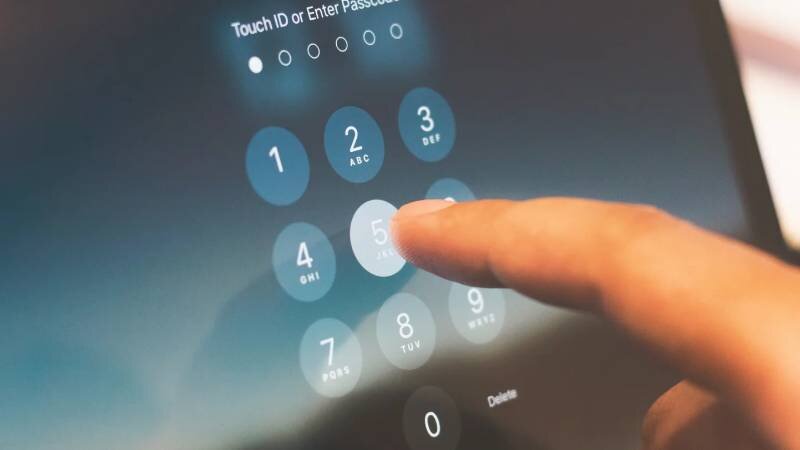
Step 1: Open Settings
Unlock the iPhone and open the Settings app. Complete the process privately so no one nearby can watch you enter the old or new code.
Step 2: Select Face ID & Passcode or Touch ID & Passcode
Scroll down and choose Face ID & Passcode on an iPhone with Face ID. Select Touch ID & Passcode on a compatible model with a Home button.
The basic route for how to change your passcode on iPhone 6 Plus is Settings > Touch ID & Passcode. Because this model runs an older version of iOS, some labels and security features may differ from those on a current iPhone.
Step 3: Enter the Current Passcode
Type the passcode currently used to unlock the device. Face ID or Touch ID may verify your identity during everyday use, but viewing or changing these security settings still requires the existing code.
Stop and reconsider before making repeated guesses. Too many incorrect attempts can trigger longer delays and eventually make the iPhone unavailable.
Step 4: Tap Change Passcode
Scroll through the available settings and select Change Passcode. The iPhone may ask for the current code again before allowing the update.
Do not select Turn Passcode Off by mistake. Removing the code weakens device protection and may also disable features that depend on it.
Step 5: Choose a Passcode Format
The iPhone proposes a six-digit numeric code by default. Tap Passcode Options if you want a custom alphanumeric code, custom numeric code, or four-digit numeric code.
Consider how often you unlock the device manually and what information it stores. A longer code provides stronger protection, but it must still be practical enough that you will not forget it or write it somewhere exposed.
Step 6: Enter and Confirm the New Passcode
Enter the new passcode, then type it again exactly as entered the first time. The change takes effect after the confirmation is accepted.
Lock the screen and test the new code once before putting the phone away. If you are following how to change your passcode on an iPhone because the old code was exposed, return to the passcode settings and choose Expire Previous Passcode Now when that option is available.
3. Which iPhone Passcode Format Should You Choose?
Passcode Options presents formats with different balances between security and convenience. A longer code creates more possible combinations, but the best choice is one you can enter accurately without turning to an obvious pattern.
| Passcode Option | Security Level | Ease of Use | Best For |
| Six-Digit Numeric Code | Good | Easy | Most everyday users |
| Custom Numeric Code | High when sufficiently long | Moderate | Users who prefer numbers but want more combinations |
| Custom Alphanumeric Code | Highest of the available options | Less convenient | Sensitive personal or workplace data |
| Four-Digit Numeric Code | Low | Very easy | Limited accessibility needs where longer codes are difficult |
For most people, a six-digit numeric code offers a practical balance. It is quick to enter, works well as a fallback for Face ID or Touch ID, and provides many more combinations than a four-digit code.
If you want stronger protection without switching to letters and symbols, a custom numeric code is another option. You can create one with more than six digits, making it harder to guess while keeping the familiar number-only format.
For an additional layer of complexity, consider a custom alphanumeric code. It combines letters, numbers, and symbols, so it’s harder to guess when sufficiently long and not based on familiar words, names, or predictable patterns. However, you may find it less convenient to enter regularly.
A four-digit code remains available, but its smaller number of possible combinations makes it the weakest option in the table. When deciding how to change your passcode on your iPhone, choose it only when ease of entry is more important and stronger formats create a genuine accessibility problem.

>>> Read more: How to Turn Off Lock Screen iPhone and Remove the Passcode
4. What If You Forgot the Current iPhone Passcode?
You cannot open the passcode settings and replace an unknown current code through Face ID, Touch ID, or your Apple Account password. However, you may be able to use your previous passcode to regain access if you changed it within the last 72 hours on iOS 17 or later. Otherwise, you will need to erase and reset your iPhone.
If You Changed Your Passcode Within the Last 72 Hours
On iOS 17 or later, you may be able to use your previous passcode to reset the new one:
- Enter an incorrect code until iPhone Unavailable appears.
- Tap Forgot Passcode?
- Choose the option to enter the previous passcode.
- Type the old code.
- Follow the prompts to create another new passcode.
This recovery window is not available if the previous code has been manually expired or more than 72 hours have passed.
If You Cannot Use Your Previous Passcode
Without the 72-hour recovery option, you will need to erase your iPhone to regain access. You can do this in either of two ways:
- From the Lock Screen: On supported iOS versions, a Forgot Passcode? or device-reset option may appear when the iPhone is online, Find My was enabled, and you know your Apple Account password.
- Using a computer: Connect your iPhone to a Mac or Windows PC, put it in recovery mode, and restore it through Finder or the Apple Devices app.
What Happens to Your Data After Erasing Your iPhone?
Erasing removes the data currently stored on your phone. You can restore available information from an iCloud or computer backup during setup. Data already synchronized with iCloud may also become available again after signing in.
However, anything that was not backed up or synchronized may be permanently lost.
Therefore, how to change your passcode on iPhone should not be confused with resetting a forgotten one: changing requires the current code, while resetting may require erasing the device.

5. Why Is the Change Passcode Option Missing or Not Working?
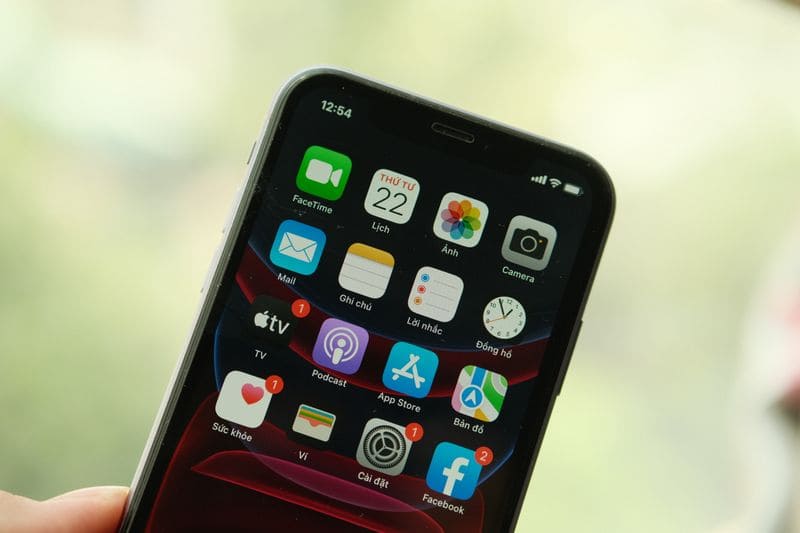
The setting may be hidden, restricted, or temporarily unresponsive. Match the problem with the most likely cause:
- You opened the wrong menu: Device passcodes are managed under Face ID & Passcode, Touch ID & Passcode, or Passcode rather than Screen Time.
- Change Passcode is unavailable: Enter the current device passcode when prompted and scroll farther down the page.
- A work or school profile controls the setting: Check Settings > General > VPN & Device Management or contact the organization’s administrator.
- The new code is rejected: A management profile may require a longer or more complex format or prohibit recently used codes.
- The confirmation does not match: Enter the same characters and capitalization used in the first entry.
- Settings freezes or closes: Restart the iPhone and install the latest iOS version supported by the model.
- The device shows iPhone Unavailable: Wait for the displayed timer or follow the forgotten-passcode recovery process rather than continuing to guess.
- The option looks different on an older iPhone: Earlier iOS versions may use a different menu layout and may not support features such as the 72-hour Passcode Reset window.
>>> Read more: How to Lock Photos on iPhone With Face ID within 3 Steps?
6. FAQs
How Often Should You Change an iPhone Passcode?
Change it immediately if another person sees it, you share it accidentally, or a workplace policy requires an update. Routine changes are less useful when they lead to weaker, predictable variations.
Can Face ID Change the iPhone Passcode?
No, Face ID cannot replace the current passcode when you enter security settings. The existing device code is required before a new one can be created.
Does Changing the Passcode Delete Anything?
No, a normal passcode change does not erase photos, apps, messages, or settings. Data loss becomes a risk only when a forgotten passcode requires the iPhone to be erased and restored.
Can You Change an iPhone Passcode Without Knowing the Old One?
For how to change your passcode on iPhone, the normal Settings method always requires the current code. A recently replaced passcode may be reset with the previous one within 72 hours on supported iOS versions; otherwise, the device must usually be erased.
Is a Six-Digit Passcode Safer Than a Four-Digit Code?
Yes, six digits provide substantially more possible combinations than four digits. A longer custom numeric or alphanumeric code can offer stronger protection when it is not based on predictable personal information.
Conclusion
A secure passcode should be difficult for other people to guess but realistic for you to remember and enter. Six digits suit most users, while a longer numeric or alphanumeric code is a better fit for devices containing especially sensitive information.
The six-step process behind how to change your passcode on iPhone is straightforward when the current code is available. Choose the new format carefully, test it after locking the screen, and expire the previous code early if there is any chance someone else knows it.