


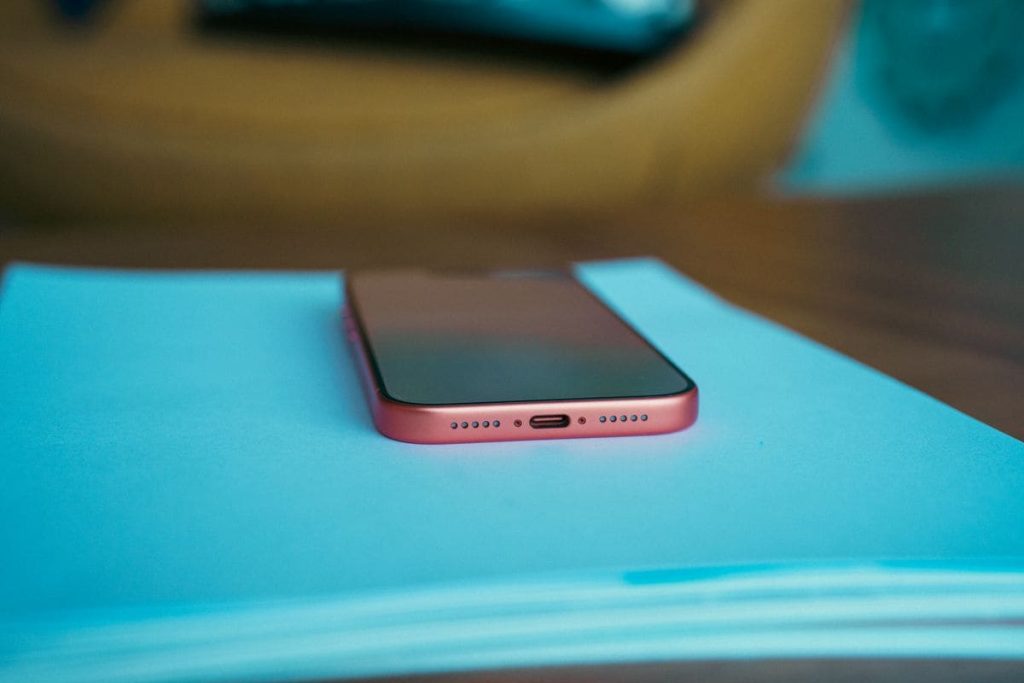
That muffled voice on your last call probably isn’t a broken speaker. More often, it’s weeks of pocket lint and dust packed into the tiny holes along the bottom of your phone.
The fix takes about five minutes and uses tools you likely own already. Let’s go through how to clean iPhone speaker openings safely, following Apple’s own advice.
1. Where Are the Speakers on Your iPhone?
Before you clean anything, it helps to know which openings do the work. Your iPhone has two audio outputs, and each one collects dirt in its own way.
Bottom Speaker Openings
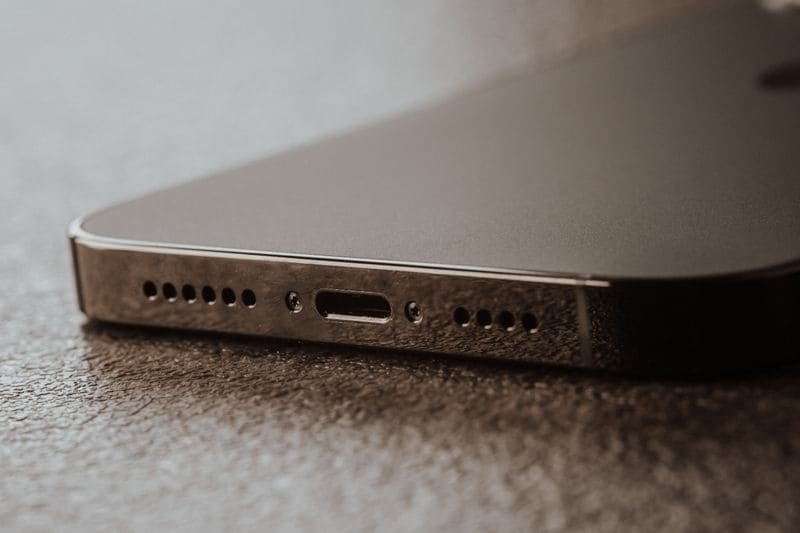
Look along the bottom edge, on either side of the charging port. You may see small grilles made of tiny holes.
One is the loudspeaker that plays music, ringtones, and speakerphone calls, while the other typically hides a microphone (the exact layout varies by model). This edge faces your pocket or bag, so it collects the most lint. When you clean iPhone speaker grilles, treat both sides with equal care.
Top Earpiece or Receiver
The second output is the receiver, a thin slot near the top of the screen. It plays the caller’s voice when you hold the phone to your ear. It sits higher and stays cleaner, but dust and makeup can still settle there.
2. What You Need to Clean Your iPhone Speaker
You probably own everything on this list already, so there’s no shopping trip required for how to clean iPhone speaker grilles:
- Essential:
- A small, clean, dry, soft-bristled brush (an unused soft toothbrush or anti-static brush works)
- Asoft, lint-free microfiber cloth
- A well-lit workspace
- Optional: A flashlight to inspect visible debris
Special speaker-cleaning kits aren’t necessary for routine surface cleaning. Whatever you use, keep every tool dry and avoid stiff or abrasive bristles.
A clean, dry, soft-bristled brush is the tool of choice. That brush and cloth are everything you need to follow our guide for how to clean iPhone speaker at home.

3. How to Clean Your iPhone Speaker Step by Step
Here is how to clean iPhone speaker grilles in four short steps, which take about 5 minutes.
Step 1: Turn Off Your iPhone and Remove the Case
- Unplug all cables, including chargers.
- Power off your iPhone (hold the side button and either volume button, then slide to power off).
- Remove the case, screen protector, or film covering the speaker area.
- Move under bright light and inspect the grilles, using a flashlight if needed.
Powering off first is the safest start to cleaning iPhone speaker openings.
Step 2: Gently Brush Away Dust and Lint
- Hold your iPhone with the speaker facing down so loose debris falls away from the phone.
- Sweep the dry brush across the grille in light, short strokes.
- Wipe the bristles on your cloth every few passes.
- Repeat on the receiver, with the top of the phone facing down.
- Check again under the light, and repeat if lint remains.
Keep in mind: Never press hard or push bristles into the holes. The mesh behind each grille is delicate, and forcing dust inward can make the muffling worse.
Step 3: Wipe the Outside With a Microfiber Cloth
- Use a dry microfiber cloth to wipe the back, frame, and screen edges around the openings.
- For sticky smudges on the body, you can use a soft, slightly water-dampened, lint-free cloth, but keep moisture away from every opening.
- Skip cleaning products here, since they can wear down the oil-repellent coating. This takes a minute and keeps lint from drifting back. Consider it the final stage of how to clean iPhone speaker openings properly.
Step 4: Turn Your iPhone Back On and Test the Sound
Power on, open Settings, tap Sounds & Haptics (labeled Sounds on some models), and drag the Ringtone and Alerts slider back and forth a few times.
Listen for a clear, steady tone. Then play a short video and make a speakerphone call to check both the loudspeaker and the receiver.
Now, you have finished learning how to clean iPhone speaker openings successfully. If not, the next section covers what to check.
>>> Read more: How to Screen Record on iPhone in 5 Easy Steps With or Without Sound
3. Things to Avoid When Cleaning iPhone Speakers
Most speaker damage comes from over-enthusiastic cleaning, not from dirt. Apple’s iPhone cleaning guidelines have also stated this clearly.
Things to avoid when cleaning iPhone speakers include:
- Compressed air: Apple says not to use it on an iPhone, so skip it on the speaker and receiver, however tempting a quick blast may look.
- Liquids and sprays: Keep moisture out of every opening, and avoid bleach, hydrogen peroxide, and aerosol sprays. Apple-approved disinfecting wipes are for exterior surfaces only, never the speaker holes, and even a damp brush can push moisture behind the mesh.
- Pins, needles, and toothpicks: Use only a soft-bristled brush for the speaker; sharp or metal tools can tear the mesh.
- Cotton swabs and paper towels: Don’t push either into the charging connector. The same logic applies here because fibers can snag on the mesh and get stuck.
- Heat and hair dryers: Don’t dry a wet iPhone with an external heat source; keep the hair dryer away from the speaker as well.
- Putty, tape, and sticky tack: Adhesives can leave residue in the holes.
- Abrasive cloths and hard scrubbing: These can scratch the finish and wear away the fingerprint-resistant coating.
4. Why Is Your iPhone Speaker Still Muffled After Cleaning?
A clean grille doesn’t always mean clear sound, so rule out the simple causes first. Even when you’ve mastered how to clean iPhone speaker openings, a setting or liquid exposure can be the real culprit.
Check Your Sound Settings and Audio Output
Work through a quick checklist:
- Turn off Silent mode (no orange showing on the Ring/Silent switch, or Action button set to Silent).
- Make sure Do Not Disturb or your active Focus isn’t muting alerts.
- Raise the volume and drag the Ringtone and Alerts slider again.
- Disconnect Bluetooth headphones or speakers, and check the audio output in Control Center, because sound may be playing somewhere else.
Check for Blockages or Possible Hardware Damage
Remove any case or screen protector again, since a poor fit can cover the openings, then re-inspect with a flashlight. If lint remains, repeat how to clean iPhone speaker grilles once more before assuming the worst.
If your phone recently got wet, water in the speaker can muffle sound until it evaporates. Place the phone speaker-side down on a lint-free cloth and see if water drips out.
If the speaker icon on the slider is dimmed or you hear nothing, the speaker may need service. Static during speakerphone calls can also be a network issue, so try again from another location.
When to Contact Apple Support
If the problem survives every check above, stop cleaning and book service. Be upfront about drops or liquid exposure.
Before you book, confirm you’ve followed every step for how to clean iPhone speaker openings, since dirt is the cheapest fix. Don’t open the phone yourself.
>>> Read more: Constant Buzzing? Here’s How to Silence Notifications on iPhone for Good
5. How to Keep Your iPhone Speakers Clean
Speaker grime builds slowly, so a light routine beats a deep clean.
- Wipe weekly. Run a dry microfiber cloth over the bottom edge and the receiver area.
- Brush monthly. Repeat the quick brushing from Step 2 every few weeks, which is how to clean iPhone speaker mesh before lint compacts.
- Pick a snug case. Choose one with clean cutouts, and wipe its inside regularly. Use a soft, slightly damp, lint-free cloth for silicone and clear cases.
- Clean up fast. Clean your iPhone right away after contact with dirt, sand, makeup, soap, or lotion.
- Use a dedicated pocket. Keeping the phone apart from keys, coins, and crumbs helps stop debris from reaching the openings.
- Avoid lint-heavy pockets. That same lint also clogs the charging port. The guide on how to clean iPhone charging port is worth bookmarking.
6. FAQs
Can I use rubbing alcohol to clean my iPhone speaker?
Not on the speaker openings. Apple allows 70 percent isopropyl or 75 percent ethyl alcohol wipes only on exterior surfaces, and it says to keep moisture out of every opening. To clean iPhone speaker holes, use a dry brush, because liquid can seep behind the mesh.
Is it safe to use compressed air on iPhone speakers?
It’s not recommended by Apple. A dry, soft-bristled brush is the safer way to clean iPhone speaker grilles. Some online guides suggest short bursts, but there’s little upside in ignoring the manufacturer.
How do I clean the top speaker on my iPhone?
The top opening is the receiver. Power off, remove the case, hold the phone with its top edge facing down, and sweep the slot with a dry, soft-bristled brush. That’s the same technique for cleaning iPhone speaker openings at the bottom.
Can I wash my iPhone speakers?
No. iPhones are splash-, water-, and dust-resistant, not waterproof. Even iPhone 12 and later carry an IP68 rating of up to 6 meters for 30 minutes, but only under controlled lab conditions, and resistance isn’t permanent. Liquid damage isn’t covered under warranty, so rinsing is no way to learn how to clean iPhone speaker grilles.
How to tell whether my iPhone speaker needs cleaning or repair?
Think about how it started. Gradual muffling, visible lint, or a phone that has spent weeks in a pocket or beach bag points to dirt, and a brush often helps. Sudden silence, a dimmed speaker icon, or trouble after a drop or spill points to repair. Either way, try cleaning the iPhone speaker openings first.
How do I know if my iPhone speaker is damaged?
Run Apple’s test. Open Settings, tap Sounds & Haptics, and drag the Ringtone and Alerts slider. No sound, or a dimmed speaker button, suggests the speaker needs service. Then try a speakerphone call. If you hear static only on calls, the cause may be reception rather than damage.
If a clean grille changes nothing, the speaker likely needs service rather than another round of how to clean iPhone speaker steps.
How to clean iPhone charging port?
Power off your iPhone, shine a flashlight into the port, and gently dislodge lint with a dry soft-bristled brush.
If debris stays packed in, a wooden or plastic toothpick can help along the walls, while avoiding the center tongue of a USB-C port (iPhone 15 and later). Skip metal tools and liquids. Remove debris, plug the cable in firmly, restart, and get service if charging still fails.
7. Conclusion
You now have a safe routine you can repeat in minutes. Remember the golden rule for cleaning iPhone speaker openings: use dry tools, apply light pressure, and avoid liquids.
Bookmark this guide because knowing how to clean iPhone speaker grilles makes repeats quick, and keep updated on our blog for more practical phone care guides and honest tech reviews.
>>> Read more: How to Hide Caller ID on iPhone