


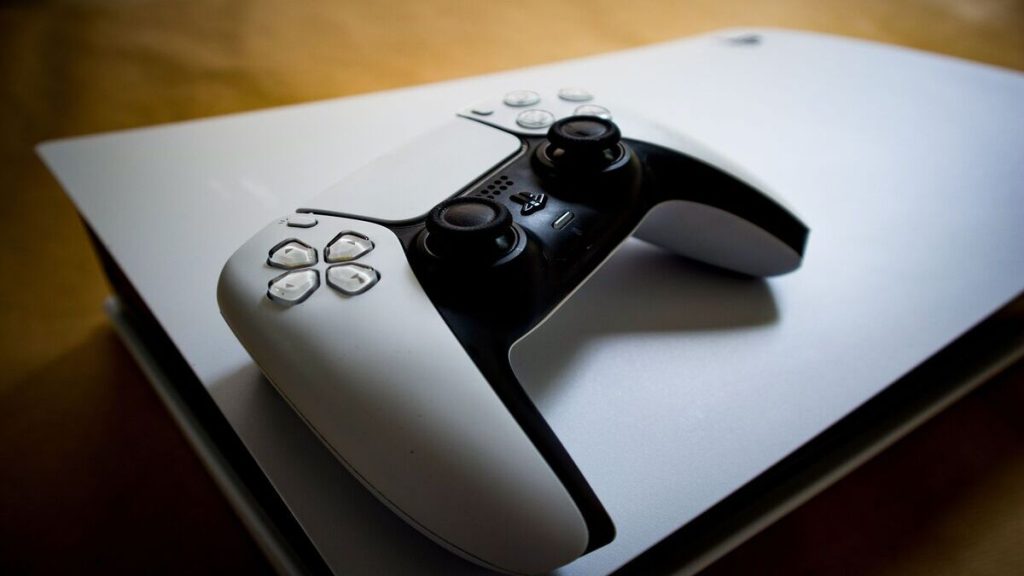
Knowing how to connect PS5 controller to PC can make your gaming setup feel smoother, more flexible, and more comfortable. The DualSense controller works with Windows in several ways, but the best option depends on the game, launcher, and connection type you use.
Some PC games recognize it right away, while others need Steam Input or DS4Windows. This guide walks you through the easiest wired and wireless methods, plus quick fixes for common connection problems.
1. How to Connect PS5 Controller to PC?
Windows supports the DualSense controller through USB, Bluetooth, Steam Input, and third-party tools. Some games work immediately, especially newer titles with built-in controller support. Others may need extra setup because many PC games are designed around Xbox-style input.
The good news is that learning how to connect PS5 controller to PC is simple once you choose the right method. If you want the most stable experience, use a USB cable. If you prefer a clean wireless setup, Bluetooth is more convenient.
Method 1: Connect Your PS5 Controller to PC Using a USB Cable
The easiest way to set up the controller is with a USB-C cable.
- Plug the USB-C end into your DualSense controller and the other end into your PC. Windows should detect it automatically within a few seconds.
- After that, open a game that supports controllers and test the buttons.
- If the game does not respond, open Steam and enable controller support through Steam Input.
This wired method is ideal for low latency, stable gameplay, and long sessions without worrying about battery life.
Method 2: Connect PS5 Controller to PC Bluetooth
If you want fewer cables on your desk, Bluetooth is the better choice.
- To start, hold the PS button and Create button on the controller until the light bar begins flashing.
- On Windows, go to Settings > Bluetooth & devices > Add device > Bluetooth, then choose Wireless Controller.
This is also the simplest answer to how to connect PS5 controller to PC with Bluetooth when your PC already has Bluetooth built in. Microsoft recommends checking that Bluetooth is turned on and your device is in range before pairing.
If someone searches how to connect PS5 controller to PC with Bluetooth, the key point is this: pairing connects the controller to Windows, but Steam or DS4Windows may still be needed for better game compatibility.
Method 3: Connect Through Steam for the Best Compatibility
With the growing use of controllers on Steam, many would look for the way to use a DualSense controller on PC through Steam. So here’s how to connect it:
Open Steam, go to Settings > Controller, and enable PlayStation controller support. Then launch your game from Steam, even if it was originally added as a non-Steam game.
Steam Input helps translate controller signals so more games can recognize your button presses correctly.
Method 4: Use DS4Windows for Non-Steam Games
For games outside Steam, DS4Windows can help your PC recognize the DualSense as an Xbox-style controller. This is useful for older games, certain launchers, or titles that do not support PlayStation button layouts.
- Download DS4Windows from its official project page
- Install the required drivers
- Connect your controller
- And create a profile.
This method is helpful if you have ever wondered how to connect my PS5 controller to my PC for games that ignore the controller by default.
Method 5: Check That Your Controller Is Working Properly
After setup, test the controller before starting a long gaming session.
On Windows, you can search for Game Controllers, select the device, and check whether buttons and sticks respond.
You can also open Steam’s controller test screen. If everything reacts correctly there, the issue is likely with a specific game’s settings, not the controller itself.
>>> Learn more: How to Connect AirPods to Laptop in 2026?
2. Common Problems When Connecting a PS5 Controller to PC
Even after a successful setup, small issues can happen. Most are easy to fix once you know whether the problem comes from Windows, Bluetooth, the game, or controller mapping.
PC Doesn’t Detect the Controller
Try a different USB cable first, because some cables only charge and do not transfer data. Then switch USB ports and restart your PC. If the controller still does not appear, update Windows and check Device Manager for driver issues.
For Bluetooth, remove the controller from saved devices and pair it again from the beginning.
Bluetooth Won’t Pair
Make sure the controller is not still connected to your PS5 or another device. Turn Bluetooth off and back on, then hold the PS + Create buttons until the light flashes.
If pairing still fails, update your Bluetooth driver. Microsoft recommends using Device Manager to update Bluetooth adapters and restarting the PC after installation.
Buttons Aren’t Working Correctly
Incorrect button mapping usually means the game does not fully support DualSense input. Open Steam Input and select a PlayStation or standard gamepad layout. For non-Steam games, create a DS4Windows profile and test the layout before launching the game.
Also check in-game controller settings because some titles require you to manually switch from keyboard to controller.
Controller Keeps Disconnecting
For wireless play, charge the controller fully and stay close to your PC. Weak Bluetooth adapters can also cause random disconnects, especially if there are many wireless devices nearby.
For the most stable fix, use a USB cable. If disconnects continue, update the DualSense firmware through Sony’s PlayStation Accessories app for Windows, which supports firmware updates on PC.


3. Tips for Getting the Best Gaming Experience with a PS5 Controller on PC
Once you know how to connect a PS5 controller to PC, a few small adjustments can make gameplay feel much better.
Keep Your DualSense Firmware Updated
Firmware updates can improve stability and performance. Sony provides the PlayStation Accessories app for Windows to update DualSense controller firmware directly from a PC.
Use USB for Competitive Gaming
Bluetooth is convenient, but USB is usually better for competitive games where every input matters. A wired connection reduces connection drops and avoids battery concerns during long matches.
Enable Adaptive Features in Supported Games
Some PC games support DualSense features such as haptic feedback or adaptive triggers. These features often work best through a USB connection and only in games that specifically support them.
Customize Controls Through Steam
Steam lets you remap buttons, adjust stick behavior, and create game-specific profiles. This is useful if a game feels uncomfortable with the default layout.
4. Learn More PC Gaming Tips
Mastering one device often leads to solving the next everyday tech challenge. Whether you’re setting up wireless accessories, troubleshooting Bluetooth issues, or connecting gaming peripherals, having the right guide can save you time and frustration.
Looking for more practical tutorials like this? Visit the Tech Tips section on AirTalk Wireless, where you’ll find easy-to-follow guides for smartphones, Windows PCs, gaming accessories, wireless devices, and everyday connectivity solutions that help you get the most out of your technology.


Conclusion
Learning how to connect PS5 controller to PC is easier than many people expect. Whether you choose a wired USB connection for maximum stability, Bluetooth for wireless convenience, Steam Input for broad compatibility, or DS4Windows for older games, each method only takes a few minutes to set up. Once everything is configured correctly, you’ll enjoy a smoother gaming experience with your DualSense controller across a wide range of PC titles.