


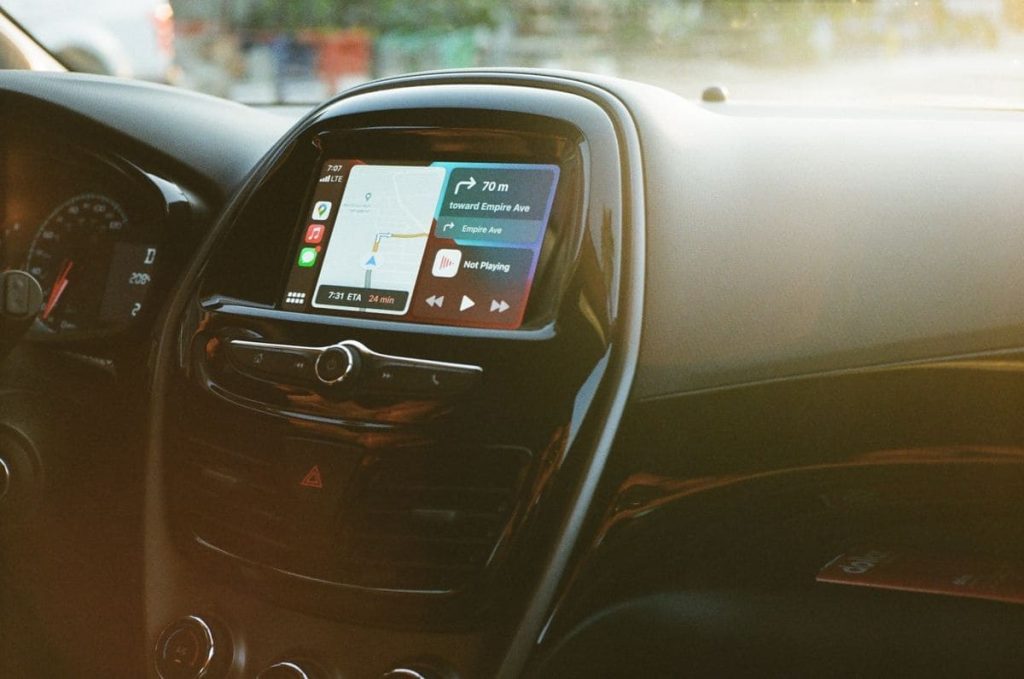
CarPlay can be useful for maps, music, and calls, but it does not need to take over your dashboard every time you start the car.
Sometimes you just want the factory display, a quiet drive, or a charging cable that doesn’t open your iPhone apps. How to disconnect CarPlay? Here are the practical options, from a quick disconnect to a longer-lasting change.
1. How to Disconnect CarPlay Temporarily: Wired and Wireless
The fastest way to disconnect CarPlay is to identify whether your iPhone connects via cable or wirelessly.
That makes how to disconnect CarPlay different from forgetting the vehicle. A temporary disconnect leaves your saved setup available for another trip.
Disconnect Wired CarPlay by Unplugging Your iPhone
How to do it:
- Park safely before handling your phone or cable.
- Unplug the USB cable from your iPhone or the car’s data port.
- Wait for the vehicle’s normal infotainment screen to return.
That is commonly all you need for how to disconnect CarPlay from iPhone when using a wired connection.
However, cars that also support wireless CarPlay may reconnect automatically after you unplug the cable. In that case, disable wireless connectivity through the car’s settings as well.

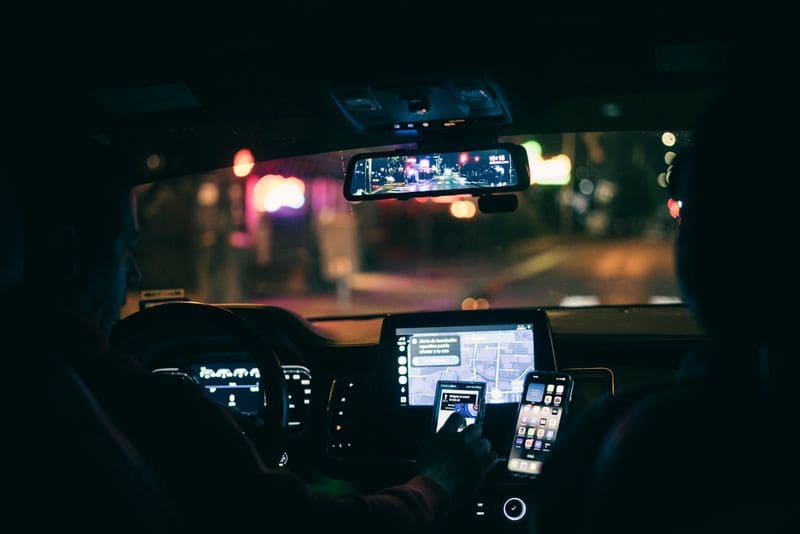
Disconnect Wireless CarPlay Using Wi-Fi or Bluetooth
How to disconnect Apple CarPlay wirelessly:
- Open Settings > Wi-Fi on your iPhone and turn Wi-Fi off temporarily.
- You can also turn Bluetooth off under Settings > Bluetooth. Wireless CarPlay uses both technologies, although disabling one may not immediately behave the same way in every car.
Avoid relying on Control Center alone. Its Wi-Fi and Bluetooth buttons temporarily disconnect accessories rather than fully switching off the radios, and connections may return later.
Switch Back to Your Car’s Original Display
Press your vehicle’s Home, Menu, or manufacturer-logo control to show its original infotainment screen.
This is useful when you simply want the factory radio or vehicle controls. It does not necessarily disconnect the iPhone: CarPlay may remain active in the background and appear again when selected.
2. Can You Turn Off CarPlay Completely on iPhone?
Screen Time can block CarPlay on your iPhone without changing your car’s settings. Choose this when you want to keep CarPlay off across multiple drives.
How to block CarPlay by Screen Time restrictions:
- Open Settings > Screen Time.
- Select Content & Privacy Restrictions and enable it.
- Tap Allowed Apps (sometimes labeled Allowed Apps & Features).
- Switch CarPlay off.
Apple confirms the CarPlay restriction in its official troubleshooting guidance. It blocks CarPlay for that iPhone through wired and wireless connections, but does not automatically disable your car’s separate Bluetooth calling features.
When you need it, return to the same Screen Time menu and turn CarPlay on. If it does not connect immediately, check the car’s settings and restart the connection.
This is how to disconnect from Apple CarPlay over several trips. This reversible restriction is simpler than changing wireless controls every day.
>>> Read more: How To Make Alarm Louder On iPhone For Every iOS Version
3. How to Prevent CarPlay From Auto-Launching: 3 Settings
Disconnecting once is easy. But disconnecting CarPlay for the next drive takes more care because auto-launch settings vary by vehicle.
Disable Auto-Launch in Your Car’s CarPlay Settings
This is often the cleanest guide on how to disconnect CarPlay while keeping your phone charging normally.
- Open the car’s Settings or Phone/Projection menu.
- Look for Apple CarPlay, Smartphone Integration, or an Auto-Launch option. If your system offers a CarPlay enable/disable switch or startup preference, change it there.
Not every automaker provides the same switch. Check the owner’s manual.
Disable Wireless CarPlay Auto-Join on Your iPhone
- Go to Settings > Wi-Fi.
- Find your vehicle’s CarPlay Wi-Fi network, if it is listed.
- Tap the information (i) button and turn Auto-Join off, if available.
Wireless CarPlay uses an Auto-Join setting. Turning it off may help prevent automatic wireless connections, but some vehicles can initiate pairing again through Bluetooth. For consistent results, check the car’s own settings too.
Prevent CarPlay From Opening When You Plug In
A USB data port may launch wired CarPlay automatically. Disable CarPlay in the vehicle’s infotainment settings if your car supports that choice. Otherwise, use the Screen Time restriction described above or switch to a power-only charging source.
If you want to disconnect CarPlay from iPhone while keeping a cable connected, simply returning to the dashboard Home screen is not a guaranteed fix. Projection may still be running.
4. Can You Charge Your iPhone Without Starting CarPlay?
Charging does not require CarPlay, but USB data ports may launch it. The simplest way to disconnect CarPlay while keeping power is to use a charger that doesn’t communicate with the infotainment system.
Use a Charging-Only USB Port or Car Charger
Look for a dedicated charging-only USB port, possibly near the rear seats or center console. Your owner’s manual can identify it. To disconnect CarPlay while charging, use a USB car charger plugged into the 12-volt power outlet.
Wireless charging pads supply power but may leave wireless CarPlay connected.
Keep Your iPhone Plugged In Without Opening CarPlay
If you need the infotainment USB port, disable smartphone projection in the car’s settings if supported. Otherwise, block CarPlay using Screen Time and confirm that the phone is charging.
Charge-only cables and data-blocking adapters may help, but compatibility varies. Never modify a cable.
Remember that how to disconnect CarPlay over USB may not prevent a separate wireless reconnection. Disable wireless projection too when necessary.
5. What to Do if Apple CarPlay Keeps Reconnecting
A recurring connection usually means the vehicle still has a route to your phone. Here is how to disconnect CarPlay based on what is actually reconnecting. Make changes while parked.
CarPlay Reconnects After You Turn Off Bluetooth
Wireless CarPlay uses Wi-Fi and Bluetooth. Turning off Bluetooth in Control Center only interrupts some connections temporarily.
Try switching off Wi-Fi in Settings, or disable wireless projection through the car.
Wired CarPlay can keep working over USB with Bluetooth off. Unplug the data cable or use Screen Time. How to disconnect Apple CarPlay depends on which connection is active.
CarPlay Reappears After You Select Forget This Car
Go to Settings > General > CarPlay > [your car] > Forget This Car. This clears a saved pairing, but a new USB connection or pairing approval can create another.
Delete the phone from the vehicle’s CarPlay or phone-projection menu too. Some systems keep a separate Bluetooth pairing.
When you disconnect from Apple CarPlay before selling a car, make sure to check both devices.
CarPlay Still Launches After You Disable It
Confirm that Content & Privacy Restrictions are enabled and CarPlay remains blocked. Restart the phone and infotainment system, then check for software updates.
If CarPlay reappears, another passenger’s iPhone or an aftermarket wireless adapter may be connecting.
To disconnect CarPlay, identify that device and remove its pairing. For persistent problems, consult the stereo manufacturer’s manual.
6. Conclusion
CarPlay should fit the way you drive. Once you understand how to disconnect CarPlay, it becomes easier to keep your preferred display, charge your phone, and avoid unwanted reconnections without making changes you cannot reverse.
See more in our related tech guides.