


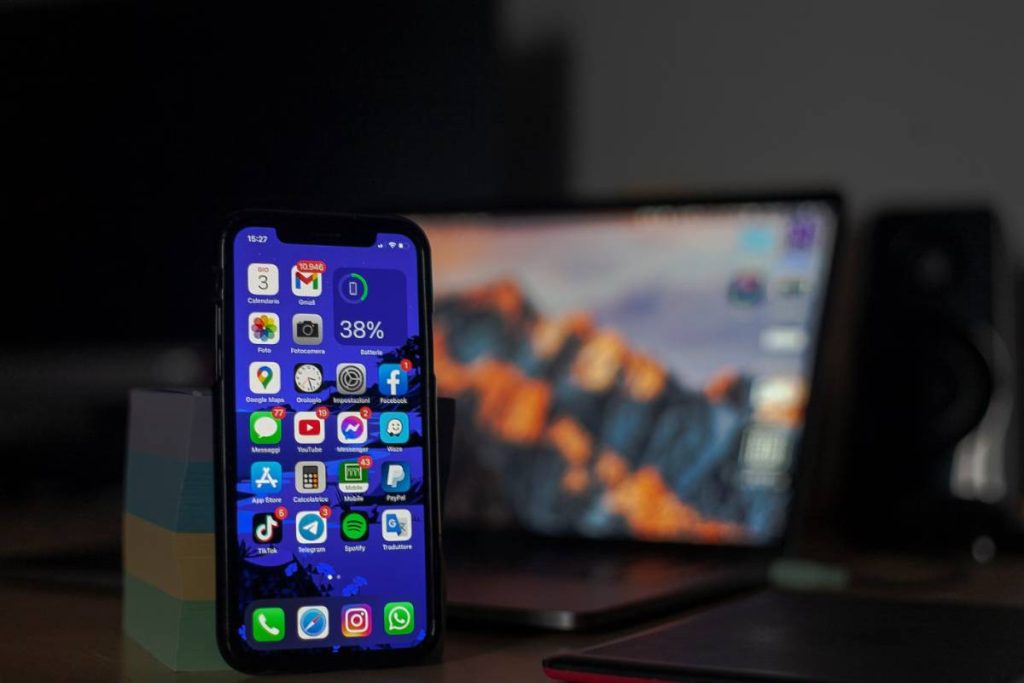
Trading in an iPhone involves more than clearing a few photos and apps. Your device may still contain saved accounts, messages, payment information, and security settings that should not remain accessible after it changes hands.
This guide explains how to erase iPhone for trade in while keeping the information you want to transfer or preserve. It also covers preparation, remote erasing options, final checks, and common mistakes that could delay the trade-in process.
1. What to Do Before Erasing Your iPhone for Trade In
Before deciding how to erase an iPhone for trade in, make sure you have everything needed to complete the reset without losing access to important accounts. This preparation is especially important when the old iPhone still receives verification codes or contains authentication apps.
Use this checklist before continuing:
- Find your iPhone passcode and Apple Account password.
- Keep the iPhone connected to a stable Wi-Fi network and charger.
- Confirm that you can access the email address and trusted phone number linked to your Apple Account.
- Have the new phone nearby if you intend to transfer information directly.
- Move authenticator apps, banking credentials, digital keys, and other access tools that may require separate setup.
- Check whether your carrier requires the eSIM to be transferred before it is removed.
- Review the trade-in provider’s instructions for SIM cards, accessories, and device condition.
- Record the iPhone’s serial number or IMEI in case it is needed for the trade-in receipt.
- Remove payment cards, transit passes, and identification cards from Apple Wallet if they have not transferred automatically.
Once these details are in order, you can erase the device without interrupting access to your accounts or cellular number.
2. How to Erase iPhone for Trade In in 7 Steps
The safest sequence protects your information while making sure the next owner can activate the iPhone. Complete each step in order, and do not hand over the device until the final checks are finished.


Step 1: Back Up Your iPhone
Start by creating an up-to-date backup through iCloud or a computer. For an iCloud backup, open Settings, tap your name, select iCloud > iCloud Backup, and choose Back Up Now.
Keep the iPhone connected until the backup finishes, then check the time shown under the latest successful backup. If you use a Mac or Windows computer instead, choose an encrypted local backup when you also want to preserve saved passwords, Health data, and Wi-Fi settings.
Step 2: Transfer and Check Your Data
After the backup is complete, transfer your information to the new phone through Quick Start, iCloud, or your computer. Do not assume the transfer succeeded simply because the setup process reached the Home Screen.
Open several photos, contacts, messages, notes, and files on the new device. You should also check apps that store information separately, including messaging, banking, and authentication apps. Keep the old iPhone intact until you know the information you need is accessible elsewhere.
Step 3: Unpair Your Apple Watch
If an Apple Watch is paired with the old iPhone, unpair it before erasing the phone. Open the Watch app, select All Watches, tap the information button beside the watch, and choose Unpair Apple Watch.
During this process, the iPhone creates a recent watch backup and removes Activation Lock from the watch. You can then pair it with the new iPhone without leaving it connected to the device being traded in.
Step 4: Sign Out of Your Apple Account
Next, open Settings, tap your name, scroll down, and select Sign Out. Enter your Apple Account password when prompted, then confirm the request.
Signing out disconnects the iPhone from services such as iCloud and Find My. It also helps prevent Activation Lock from remaining attached to the phone after the local data is erased.
Step 5: Select Erase All Content and Settings
Return to Settings > General > Transfer or Reset iPhone, then tap Erase All Content and Settings. Review the summary carefully before selecting Continue.
The iPhone may request its passcode or Apple Account password before starting. Once confirmed, it removes the locally stored information and returns the device to its factory state. Keep it connected to power while the reset is in progress.
Step 6: Remove the SIM or Erase the eSIM
For a physical SIM, switch off the iPhone and remove the card with a SIM-eject tool. Keep it if the number will be used in another compatible phone, or follow the carrier’s disposal instructions.
An eSIM should be transferred or reissued before it is erased. When the reset screen asks whether to keep or delete the eSIM, choose the deletion option only after confirming that the cellular plan works on the replacement device. Removing the eSIM from the phone does not cancel the carrier account or stop billing.
Step 7: Confirm the Hello Screen and Activation Lock Status
When the reset finishes, the multilingual Hello screen should appear. Stop at this screen rather than beginning the setup process again.
Use another trusted device or the Apple Account website to verify that the old iPhone is no longer listed under Find My. If it remains attached, remove it from the account before completing the trade-in. The device is ready only when the new owner can activate it without being asked for your credentials.
3. How to Erase an Old iPhone for Trade In Without Using Settings
A damaged display, forgotten passcode, or unresponsive Settings app may prevent a normal reset. In that situation, the iPhone can be erased with a computer or through Find Devices. Both alternatives remove local content, but you must still make sure the device is detached from your Apple Account.
Erase the iPhone With a Computer
Connect the iPhone to a Mac or Windows computer with a compatible cable. On a Mac, open Finder; on Windows, open the Apple Devices app. Select the iPhone once it appears, then choose Restore iPhone and confirm the request.
If the computer cannot recognize the device normally, place the iPhone in recovery mode and try the restore again. This process reinstalls iOS and erases its local data. However, a computer restore does not automatically resolve Activation Lock when Find My remains enabled, so remove the device from your Apple Account afterward.
Erase the iPhone Through Find Devices
Remote erasing is useful when the phone turns on and connects to the internet but cannot be operated directly. Visit iCloud.com/find from another device, sign in, select the old iPhone, and choose Erase This Device.
If the iPhone is offline, the command remains pending until it reconnects. After the erase has completed, select Remove This Device so it is released from Activation Lock. This method for how to erase old iPhone for trade in should not be considered finished while the erase command is still pending or the phone remains linked to Find My.
>>> Read more: How to Delete Apps on iPhone: Complete Guide to Removing Unused Apps
4. What Does Erasing an iPhone Remove?
A factory erase removes information stored on the iPhone, but it does not delete copies already synced to cloud services or saved in a backup. That distinction is important when following how to erase iPhone for trade in, because erasing the device and deleting your backed-up data are separate actions.
| Data or Feature | Removed From the iPhone? | Still Available Elsewhere? |
| Photos and videos | Yes | Yes, if synced to iCloud Photos, Google Photos, or another backup |
| Messages | Yes | They may remain in iCloud, a backup, or another synced Apple device |
| Contacts and calendars | Yes | Usually, when synced with iCloud, Google, Outlook, or another account |
| Apps and local app data | Yes | Apps can be downloaded again; recoverable data depends on backups and account syncing |
| Apple Pay cards | Yes | Card accounts remain active, but the cards must be added to another device |
| Saved passwords and passkeys | Yes | They may remain in iCloud Passwords or another password manager |
| Apple Account | Signed out and removed locally | The account itself remains active |
| Physical SIM | No | It must be removed manually |
| eSIM | Only if deletion is selected | The carrier plan may remain active and billable |
| iCloud or computer backup | No | It remains available until manually deleted |
| Find My and Activation Lock | Removed after proper sign-out and erase | May remain if the device is not released from the Apple Account |
This final reset is a form of data sanitization rather than an ordinary file deletion. The updated NIST media sanitization guidance defines sanitization as making access to target data infeasible for a given level of effort. For a trade-in, that is why individual deletion is insufficient: the full device must be erased, and the account connection must be removed before ownership changes.
5. How to Confirm Your iPhone Is Ready for Trade In
Finishing the reset is only part of the handoff. Before packing the iPhone, run through one final inspection so that personal access, cellular service, and the trade-in record are all accounted for. If you began this process by asking how to erase my iPhone for trade in, this checklist provides the final confirmation:
- The iPhone starts at the multilingual Hello screen rather than your Lock Screen or Home Screen.
- No passcode, Face ID profile, Apple Pay card, or personal account remains accessible.
- The device does not appear as active in Find My.
- Your Apple Account is not requested when another person begins setup.
- The physical SIM has been removed, if the model uses one.
- Your phone number and cellular plan already work on the replacement device.
- Any paired Apple Watch now connects to the new iPhone.
- The case, screen protector, and personal accessories have been removed unless the trade-in provider requests them.
- The device turns on, charges normally, and has enough power for inspection.
- You have photographed its condition and saved the serial number, IMEI, trade-in estimate, and shipping receipt.
- The package includes only the accessories requested by the trade-in provider.
If the setup screen requests your Apple Account credentials, stop there. The iPhone may still be protected by Activation Lock and should not be shipped until that connection has been removed.
6. Common Mistakes When Erasing an iPhone for Trade In
Most trade-in problems come from erasing too early or assuming that a partial cleanup is enough. Watch for these mistakes before the device leaves your possession:
- Deleting synced photos and contacts manually: Removing them one by one while iCloud synchronization is active can also remove them from other connected devices.
- Resetting before checking the transfer: A completed setup on the new iPhone does not guarantee that every message, file, password, or app record arrived correctly.
- Treating app deletion as a full erase: Uninstalling apps leaves other personal information and account settings on the phone.
- Removing an eSIM before transferring the number: The carrier may need to issue a new activation code, which can delay service on the replacement phone.
- Assuming an eSIM deletion cancels the plan: Billing can continue until the carrier receives a separate cancellation request.
- Forgetting about authentication apps: Losing the old device before transferring these accounts can make email, banking, and workplace logins difficult to recover.
- Sending the phone while a remote erase is pending: An offline device has not been wiped merely because the command was submitted.
- Leaving Activation Lock enabled: The trade-in company cannot prepare the iPhone for another owner while it remains tied to your Apple Account.
- Continuing through the setup screen after resetting: Entering your details again restores personal access and means the phone must be erased a second time.
- Shipping without documenting the condition: Photos, the IMEI, and tracking information can help if the assessed value differs from the original estimate
7. Trading In Your Old iPhone? Explore Other Ways to Get a New Device
If you’re preparing an old iPhone for trade-in because you want to upgrade, you may also want to compare other ways to get a newer device. One option is AirTalk Wireless, which provides free or heavily discounted smartphones and monthly wireless service to eligible customers through Lifeline.
Lifeline is a federal benefit program that helps qualifying low-income households reduce the cost of phone or internet service. The program does not distribute phones directly. Instead, approved providers use the benefit to offer eligible customers discounted communication services.
AirTalk Wireless participates in Lifeline as an Eligible Telecommunications Carrier. Once an applicant qualifies, AirTalk provides the wireless plan and presents the device offers available in that person’s location.
Depending on the state, the plan may include free monthly service, unlimited talk and text, high-speed data, and international calling to selected destinations.


The device catalog can include both free smartphones and premium models that require an upfront payment. Customers seeking an iPhone upgrade may find higher-generation options such as:
These models are not guaranteed to be free. However, selected iPhones may be heavily discounted compared with the retail prices displayed in AirTalk’s catalog, which could make an upgrade more affordable than relying solely on a modest trade-in credit. Available models, prices, and device conditions can change with location and inventory.
To explore the offer, follow these steps:
Step 1: Visit the AirTalk application page
Go to the AirTalk Lifeline application to begin the enrollment process.
Step 2: Enter your ZIP code
Select Apply Now and provide your ZIP code. AirTalk will use the location to display the Lifeline plans and device offers available in your area.
Step 3: Choose a Lifeline plan and device
Review the available plan before selecting a phone. If several iPhones appear, compare their prices, storage capacities, conditions, and availability rather than assuming every listed model is free.
Step 4: Confirm your eligibility
You may qualify through household income or participation in an approved assistance program. Common qualifying programs include Medicaid, SNAP, Supplemental Security Income, and Federal Public Housing Assistance.
Step 5: Upload proof if requested
When automatic verification is unavailable, provide valid documents that confirm your identity, address, income, or participation in a qualifying program.
Step 6: Submit the application
Check the information for accuracy, submit the application, and wait for the approval confirmation. The selected device is not secured until eligibility has been approved, and fulfillment still depends on current inventory.
AirTalk is therefore not a trade-in service or a guaranteed source of a free premium iPhone. It offers a separate upgrade route for Lifeline-eligible customers who want to combine affordable wireless service with a free or heavily discounted device.
Note: AirTalk Wireless operates under the federal Lifeline Program as an Eligible Telecommunications Carrier (ETC). Eligibility varies by state and program. Offers depend on availability and qualifications. Service is non-transferable and limited to one service per household.
Conclusion
The safest approach to how to erase iPhone for trade in is to protect your information first and treat the reset as the final stage, not the starting point. Once your data works on the replacement device, the old iPhone should be cleared, disconnected from your Apple Account, and checked at the Hello screen.
A final record of its condition and shipment then gives you useful evidence if the trade-in assessment changes later.