


Swiping through four pages just to find one app gets frustrating quickly. If you are looking for a way to improve your phone experience, let’s explore how to organize apps on iPhone.
There are several ways to make your Home Screen easier to navigate, from arranging apps manually to letting iOS organize them or replacing some icons with widgets.
1. Hands-On, Automatic, or Widgets: Which Organizing Method Fits You?
The right pick depends on how much effort you want to spend and how you use your phone.
Organizing by hand gives you full control. You decide which apps share a folder and which sit on page one. The cost is time, since every new app needs a home and a busy phone can drift back into clutter.
The automatic route is the low-effort one. The App Library sorts apps into categories without any work from you, and new downloads can skip the Home Screen. The trade-off is that iOS chooses the categories, so an app may land where you would not have put it, and finding things leans on search.
Meanwhile, widgets may shrink the number of icons you need. One widget can show the weather or your calendar, and stacks hold several in a single spot. They take more room than an icon, though, and some need setup.
Many people use all three: folders for daily apps, the App Library for the rest, and a widget or two on page one. For how to organize my apps on iPhone in a way that lasts, that mix is the most practical.

2. How to Organize Apps on iPhone by Hand with Folders and Pages?
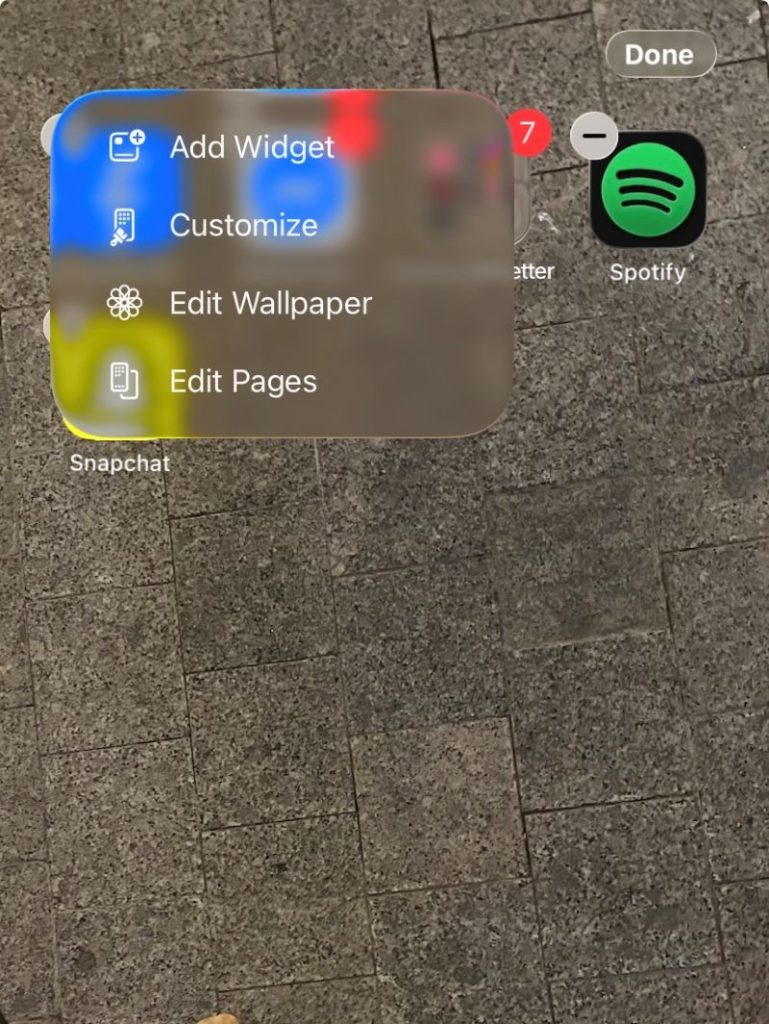
Here is how to organize your apps on iPhone manually, starting with one gesture: touch and hold an empty spot on the Home Screen until the apps jiggle.
Group Apps Into Folders
Drag one app on top of another, and iOS creates a folder for the pair.
Tap the name field to rename it with something short like Work, Travel, or Games, then drag more apps in.
Give each folder a clear purpose, since one folder holding everything is just a smaller mess. Choosing Remove Folder from the touch-and-hold menu keeps its apps in the App Library.
Spread Apps Across Pages
Keep your most-used apps on page one and move the rest back. In jiggle mode, drag an app to the edge of the screen to send it to the next page, or past the last page to start a new one.
To tidy a cluttered page without deleting it, tap the dots near the bottom and uncheck the page to hide it. Its apps remain in the App Library.
3. How to Organize Apps on iPhone Automatically
If hand-sorting sounds like a chore, iOS can do much of it. For those wondering how to organize apps on iPhone automatically, there are three tools that can handle this task: the App Library, a download setting, and a reset.
Let App Library Sort Everything
Swipe left past your last Home Screen page to open the App Library. Apps are sorted into categories such as Social, and the ones you use most move up within each category.
To find an app, tap the search field and type its name. Apps you remove from the Home Screen are not deleted, because they stay here.
It is the closest thing to a self-sorting answer for how to organize apps on iPhone.
Choose Where New Apps Land
- Open Settings and tap Home Screen & App Library.
- Under Newly Downloaded Apps, choose Add to Home Screen or App Library Only.
The second option keeps new downloads from piling up on your pages, since they go straight to the library, where search finds them. Pick it if your Home Screen is already how you like it.
Reset the Layout for an Alphabetical Start
For an alphabetical start, go to Settings > General > Transfer or Reset iPhone > Reset, tap Reset Home Screen Layout, and confirm.
Apple’s own apps return to their default spots, and other apps are arranged alphabetically. Folders, custom pages and added widgets are removed, but no app is uninstalled and no data is lost. It cannot be undone.
>>> Read more: How to Hide Apps on iPhone Without Deleting a Single One: 2 Main Methods
4. Minimize Home Screen Space With Widgets
Widgets cut down on icons by showing information right on the Home Screen, so you open fewer apps. Stacks let several share one spot.
Add a Widget to Replace App Icons
For how to organize apps on iPhone with widget support, touch and hold the Home Screen until the apps jiggle, tap Edit in the upper-left corner, then tap Add Widget.
Pick a widget, choose a size, tap Add Widget, and tap Done.
You can use widgets to make better use of Home Screen space while moving less frequently used apps to another page or the App Library.
Stack Multiple Widgets in One Space
Drag one widget onto another while the apps jiggle to make a stack, then swipe up or down on it to move between widgets.
A Smart Stack is a prebuilt version that changes the widget shown by time or location. A stack holds up to 10 widgets.

5. What You Can Do When Apps Disappear or Won’t Move
Even a careful pass at how to organize apps on iPhone can leave you hunting for an icon.
Apps Disappeared From Home Screen
Swipe to the App Library and search for the app. If it is there, touch and hold its icon and drag it back onto a page.
Also check for hidden pages: touch and hold an empty area, tap the dots, and look for an unchecked page. Hidden apps sit in the Hidden folder in the App Library and do not appear in search.
Apps Won’t Drag Into Folders or Folders Won’t Open
Dragging only works in jiggle mode, so touch and hold an empty area first. Then drag one app until it sits right over another rather than beside it, which is what forms a folder.
If a folder will not open, tap Done to leave jiggle mode and tap it once. If nothing responds, restart the iPhone.
New Apps Aren’t Showing Up on Home Screen
Open Settings and tap Home Screen & App Library. If Newly Downloaded Apps is set to App Library Only, new apps go straight to the library by design. Switch to Add to Home Screen, or find the app in the library and drag it onto a page.
>>> Read more: How to Close Apps On iPhone: An Easy Guide For Every Model
6. FAQs
Can iPhone sort apps alphabetically on the Home Screen?
Not as a setting you can leave on. The only built-in way is Reset Home Screen Layout, which puts Apple’s apps back in their default spots and arranges every other app alphabetically. The catch is that it also deletes your folders and custom pages.
Does using folders change the App Library?
No. Folders exist only on your Home Screen. The App Library sorts apps into its own categories on its own, whether or not an app sits in a folder. If you delete a folder, its apps remain available in the App Library, so nothing is lost.
Will resetting the Home Screen layout delete my apps?
No. The reset does not uninstall any app or erase app data. It clears the layout itself: folders, custom and hidden pages, and widgets you added. Apps that were in folders return to the Home Screen in the default order, ready to be sorted again.
How many widgets can a stack hold?
A stack holds up to 10 widgets. A long stack is slow to flip through, so group widgets by purpose, such as one stack for planning and another for media.
Final Thoughts
Folders, the App Library, and widgets each fix a different kind of clutter. Pick the mix that fits your habits, and how to organize apps on iPhone becomes a small job that pays off every time you unlock the phone.
Looking for more practical tips and mobile guides? Browse the latest articles on the AirTalk Wireless blog for more ways to get the most from your devices and service.