


Switching phones and hoping your address book rides along on the SIM card is an old habit, and a reasonable one.
The catch is that Apple designed the iPhone differently. How do you save iPhone contacts to a SIM? You can follow this guide. By the end, you will know exactly how to save iPhone contacts to SIM, or why you may not need to.
1. Can You Save iPhone Contacts Directly to a SIM Card?
Short answer: No.
The iPhone does not store contacts on the SIM, and the only SIM option inside Contacts settings is importing from one. That is why there is no built-in answer to how to save contacts to SIM on iPhone, no hidden toggle, and no menu on any iOS version.
Your contacts live in iCloud, in another account such as Google, or on the phone itself. That is also why a one-tap way to save iPhone contacts to a SIM doesn’t exist.
It is a design choice, and honestly a sensible one. A SIM holds basic names and numbers, while an account also keeps photos, emails, and addresses.
So how to save iPhone contacts to SIM? There is a workaround: borrow an Android phone as a middleman.
The next section guides you through the details.
2. How to Save iPhone Contacts to a SIM Card (Using an Android Phone)
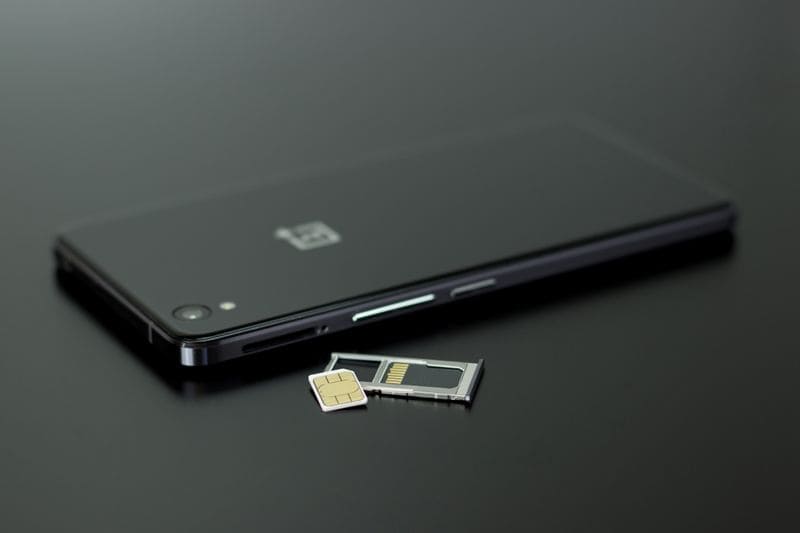
This is the only reliable method you can use to save iPhone contacts to SIM card. You need a physical SIM card and an Android phone that supports SIM export.
Step 1: Export Your iPhone Contacts as a VCF File
- Open Contacts and tap Lists. Touch and hold the list you want, such as All iCloud, then tap Export.
- Choose the fields to include, tap Done, and pick a method like Mail or Messages.
This first step to saving iPhone contacts to a SIM produces a vCard (.vcf) file. Send it to yourself so the Android phone can open it.
Step 2: Import the Contacts to Your Android Phone
Open the file on the Android phone and choose Contacts when asked.
You can also go to contacts.google.com on a computer, click Import, and select the file.
Confirm the names appear in your Android Contacts app before moving on, because Step 3 copies only what is already there.
Step 3: Copy the Contacts to Your SIM Card
Insert the SIM into the Android phone.
On a Samsung Galaxy, open Contacts, tap the menu, then Manage contacts, Import or export contacts, and Export. Pick SIM card, select your contacts, and confirm.
Note: only the name and number are copied, and long entries may be cut off. Menus vary by brand, and the Manage SIM screen documented for Google Pixel phones focuses on importing, so check your model first.
Once the copy finishes, the last stage of how to save iPhone contacts to SIM is done.

3. More Ways to Back Up or Transfer iPhone Contacts
If the SIM route feels like too much work, these options achieve the same goal as saving contacts to SIM on iPhone, with fewer limits.
Method 1: Save iPhone Contacts to iCloud
This method needs no extra hardware.
Open Settings, tap your name, tap iCloud, and make sure Contacts is switched on (tap Show All if you do not see it).
Once it syncs, your contacts follow you to every Apple device signed in to the same Apple Account.
To verify the result, visit iCloud.com/contacts on a computer. Knowing how to save iPhone contacts to SIM matters far less when the cloud already holds a full copy.
Method 2: Export iPhone Contacts as a vCard (.vcf) File
A vCard works like a portable backup. Repeat the Lists and Export steps from Step 1, or sign in at iCloud.com/contacts, choose Select All Contacts, and pick Export vCard.
Save all contacts as a single vCard for backup. Store the file in cloud storage or email it to yourself. It opens on almost any phone or computer, which makes it the most flexible alternative to saving iPhone contacts to SIM.
Method 3: Transfer iPhone Contacts to Android Using Google Contacts
Upload the .vcf file at contacts.google.com with Import, then Select file. Google accepts vCard or CSV files and notes that importing more than 3,000 contacts at once can cause problems, so split big files.
Sign in to the same Google Account on your Android phone and the contacts sync automatically. On a brand-new Android phone, the setup screen can also copy contacts from an iPhone by cable or wirelessly.
>>> Read more: How to Restore iPhone From Backup: 2 Restoration Paths Explained
4. How to Import Contacts From a SIM Card to an iPhone
Think of it as the mirror image of how to save iPhone contacts to SIM: the iPhone can read a SIM, but it never writes to one.
- Put the old SIM card that holds your contacts into the iPhone.
- Open Settings, tap Apps, then tap Contacts.
- Tap Import SIM Contacts.
- If asked, choose where to save them, such as iCloud.
- Wait for the import, then open Contacts to confirm.
SIM must support it, and what arrives depends on how your previous phone stored data. Imported entries land in the account you choose, so check for duplicates afterward. When you are done, put your regular SIM back.
5. What Happens to Your Contacts When You Change SIM Cards?
Will you lose contacts when you remove your iPhone SIM card? No, in most cases. Because the iPhone doesn’t store contacts on the SIM, removing or swapping the card leaves your address book untouched. The real risk is contacts saved only on the device, since no other copy exists. If you erase or lose that phone, those names go with it.
How to check your contacts before switching phones: Confirm where your names actually live. Open Contacts and tap Lists. If you see a list for the iPhone itself but nothing for iCloud, turn iCloud Contacts on first. Next, visit iCloud.com/contacts on a computer and confirm your names are there. Finally, export a vCard as a spare. Five minutes now saves a lot of stress later.
6. FAQs
Why doesn’t my iPhone have an option to copy contacts to SIM?
Apple built the iPhone to keep contacts in accounts like iCloud, not on the SIM, and it doesn’t store them there. It can only import from a SIM. So any guide on how to save contacts to SIM iPhone has to rely on a workaround.
Can I save iPhone contacts without using iCloud?
Yes. Export a vCard from the Contacts app with Lists and Export, then keep the file in Files, email, or another storage service. You can also import that file into Google Contacts.
How can I transfer iPhone contacts to an Android phone?
The simplest path is the setup screen on a new Android phone, which can copy contacts from an iPhone by cable or wirelessly. Alternatively, export a vCard and import it at contacts.google.com. Either way, you can skip how to save iPhone contacts to SIM unless the new phone truly needs a SIM copy.
Will I lose my iPhone contacts if I change SIM cards?
No. The iPhone does not keep contacts on the SIM, so swapping cards does not delete them, and knowing how to save iPhone contacts to SIM is not required for a safe switch. Just make sure they are backed up to iCloud or another account first.
>>> Read more: How to Delete Multiple Contacts on iPhone
7. Final Takeaway
Here is the honest summary of how to save iPhone contacts to SIM: the iPhone cannot do it alone, but exporting a vCard, importing it to an Android phone, and copying it to the SIM works for basic names and numbers. For everything else, iCloud plus a spare vCard is the better long-term plan.
Take 10 minutes this week to check where your contacts really live. If this guide helped, follow the AirTalk Wireless blog for more phone tips, and come back before your next upgrade.