


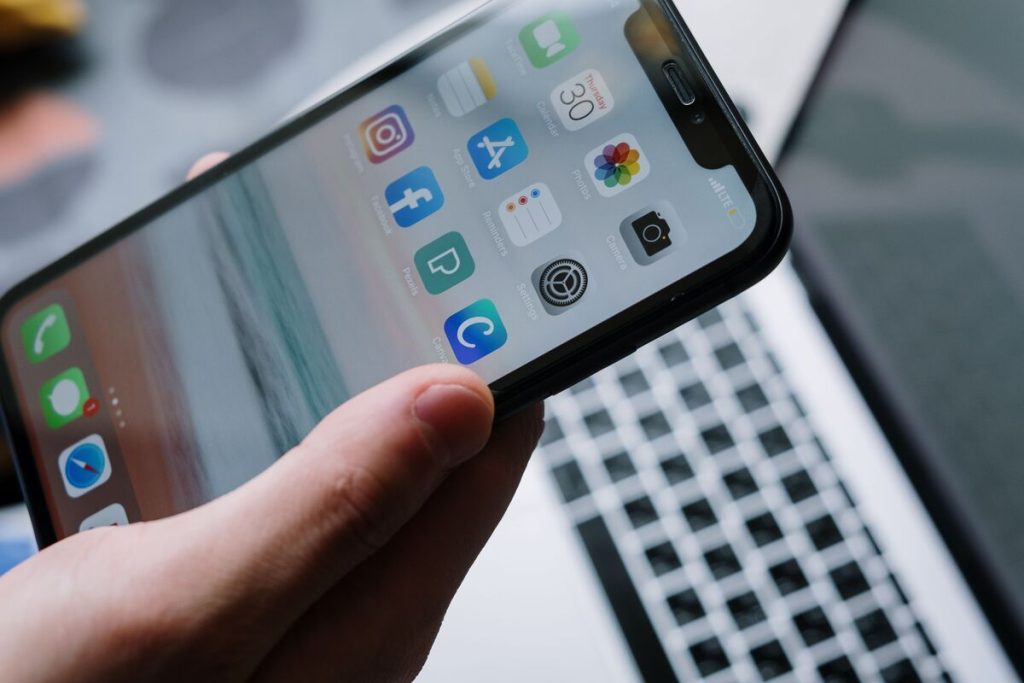
A long web page, a recipe, or an email thread rarely fits on one screen, and a normal screenshot cuts off the part you needed. How to take a long screenshot on iPhone has two answers: the built-in Full Page option, and a workaround for apps that do not offer it.
This guide explains what a long screenshot is, walks through Full Page step by step, covers stitching and screen recording, explains why the Full Page tab can go missing, and answers common questions.
1. What Is a Long Screenshot on iPhone?
A long screenshot captures an entire scrolling page in one image, not only the part you can see. Instead of five screenshots of the same article, you get a single file from top to bottom. On an iPhone, that file is a PDF, which you can scroll, share, and save.
The feature works on content that scrolls, such as a Safari page or a long note. That is why how to take a long screenshot on iPhone starts with the page you are on: web pages and notes support it, while many other screens do not.
2. How to Take a Long Screenshot on iPhone With Full Page?
Full Page is the quickest way for how to take a long screenshot on iPhone, and it needs no extra apps. Follow the three parts below in order, starting with a page open in Safari.


Take the Screenshot and Open It
The first step is an ordinary screenshot, and the thumbnail it creates is what opens the Full Page editor. Start with the page you want loaded in Safari, then follow these steps.
- Open the page in Safari.
- Press the side button and the volume up button together. On iPhones with a Home button, press the side button and the Home button instead.
- Tap the thumbnail that appears in the bottom-left corner.
Tap it quickly, because if the thumbnail disappears the screenshot goes straight to Photos and the Full Page option is gone.
Choose Full Page and Save
At the top of the editor, switch from Screen to Full Page. The whole page now appears, and you can scroll through it with the bar on the side. Use the crop handles to trim parts you do not need, or the markup tools to draw on it.
Tap Done, then choose Save PDF to Files. A full-page capture can only be saved as a PDF, so pick a folder in Files, such as iCloud Drive, and save it there.
Find the PDF Later
Open the Files app, go to the folder you chose, and tap the file to view it. You can share it from the same screen by tapping the share button. If you forgot where you saved it, search the Files app for the file name. This is the full routine for how to take a long screenshot on iPhone when the page supports Full Page.
>>> Read more: How To Screenshot On iPhone 8: 3 Ways For The iPhone 8 Lineup
3. How to Take Long Screenshot on iPhone in Apps Without Full Page?
Some apps do not show the Full Page option, but there are still two reliable ways to capture a long screen. Choose based on how much you need to capture.
Stitch Screenshots Together
Take a normal screenshot, scroll down by about one screen, and take another, repeating until you reach the end. Keep a little overlap between screenshots so nothing is missed. Then join them into one tall image with a stitching app or a Shortcuts workflow. This works in almost any app, including chat apps, and gives you an image instead of a PDF. It takes more effort than Full Page, but it is the answer to how to take long screenshot iPhone when the tab is not offered.
Record the Screen Instead
Screen recording is another route for how to take a long screenshot on iPhone when stitching feels like too much work, because it captures everything you scroll through as a video. Swipe down from the top-right corner to open Control Center, tap the gray Record button, and wait for the three-second countdown.
Exit Control Center, scroll through the content slowly, then tap the Screen Recording button at the top and tap Stop. Open Photos to find the recording in your library. If the Record button is missing, add it to Control Center in Settings. Some apps may block recording of audio or video, so check the result afterward.
4. Why the Full Page Tab Is Missing?
If you tap the thumbnail and see only the Screen tab, one of a few things is usually responsible. Check them in this order.
The most common cause is the app.
Full Page appears for scrolling content such as Safari pages and notes, so a chat, a photo, or a game screen will not offer it. Another cause is timing: if you let the thumbnail fade, the screenshot goes to Photos and the editor never opens with Full Page, so take the screenshot again and tap the thumbnail quickly.
A page that fits on a single screen has nothing to extend, so the tab may also not appear. If none of these applies, update iOS and try again in Safari. When how to take a long screenshot on iPhone still fails, stitching or recording is the dependable backup.
5. FAQs
Where do long screenshots go on iPhone?
A Full Page screenshot is saved as a PDF in the Files folder you choose. Regular screenshots go to Photos as your most recent picture, unless you choose Save to Files in the editor.
Can I save a long screenshot as a photo?
Full Page captures can only be saved as a PDF. If you need an image, the stitching method produces one, and you can also open the PDF and screenshot the parts you need.
Does Full Page work in Messages or WhatsApp?
Full Page is offered for scrolling content like web pages and notes, and chat apps do not usually show it. For a long conversation, use the stitching method or a screen recording.
Can I crop a long screenshot?
Yes. Before you save, use the handles on the edges of the crop tool to keep only the part you want, then tap Done.
Why does my screenshot only show part of the page?
You probably captured the Screen tab, not Full Page, or the app does not offer Full Page. Tap the thumbnail quickly, choose Full Page, and save, which is the core of how to take a long screenshot on iPhone. If the tab does not appear, switch to stitching or screen recording.
>>> Read more: How to Screenshot on iPhone SE in 2 Seconds?
Final Thoughts
For web pages and notes, take a screenshot, tap the thumbnail, choose Full Page, and save the PDF to Files. For other apps, stitch several screenshots together or record the screen as you scroll. You are finished when the whole page appears in one file or video. If the Full Page tab is missing, check the app and tap the thumbnail faster. With those steps, how to take a long screenshot on iPhone takes about a minute.
Browse the AirTalk Wireless blog for more practical mobile guides and useful everyday tips.