


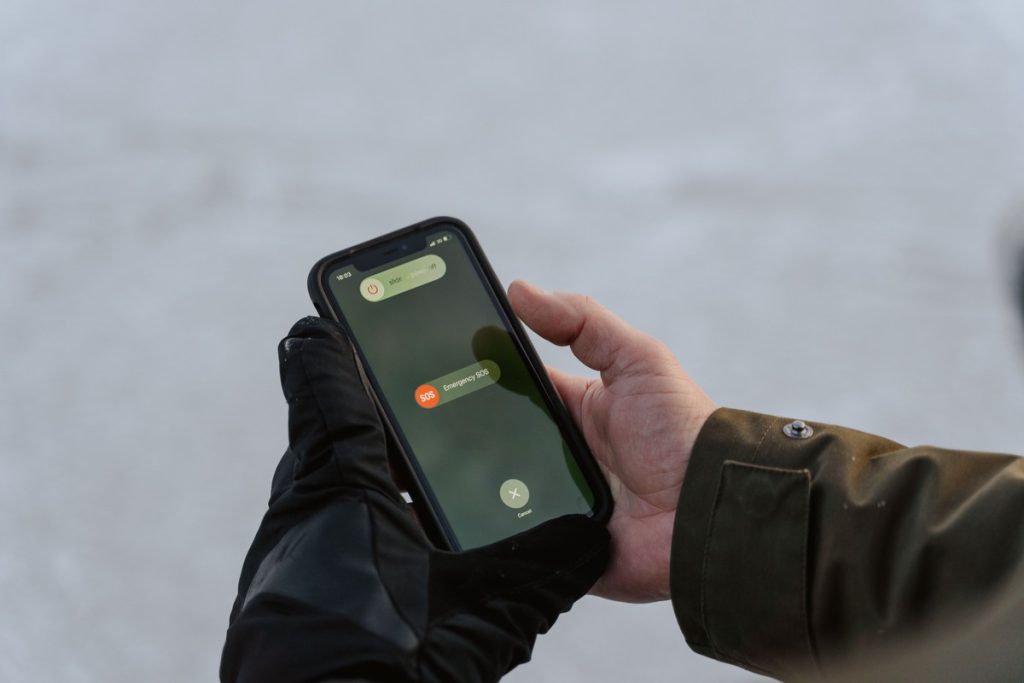
Seeing SOS appear on your iPhone can be confusing, especially when you are not trying to make an emergency call. If you are wondering how to turn off SOS on iPhone, the right solution depends on what the SOS message means in your situation.
There are two common types of SOS messages you may encounter, and each requires a different approach. This guide explains what they mean and what you can do to get your iPhone back to normal.
1. How to Turn Off SOS on iPhone
If you want to disable automatic Emergency SOS calls on your iPhone, you can adjust the related settings directly from the Settings app. Apple lets you turn off the automatic calling options without disabling Emergency SOS entirely.
To learn how to turn SOS off on iPhone, follow the steps below to review and change these settings.
Step 1: Open Emergency SOS Settings
Open the Settings app and scroll down to Emergency SOS. Tap it to see the emergency calling options available on your iPhone.
The exact options can vary by iPhone model, iOS version, and region. Current iPhone settings include controls for starting an emergency call by holding the side and volume buttons or by pressing the side button five times.


Step 2: Review the Available Calling Options
Before turning anything off, review the options shown on this screen. The settings available to you may vary by iPhone model and iOS version.
- Call with Hold and Release: Starts an Emergency SOS countdown when you press and hold the side button and either volume button, then release them. This is the option to review if you often trigger a call while gripping or handling your iPhone.
- Call with 5 Presses: Starts a countdown when you rapidly press the side button five times. This may be the setting to change if repeated button presses in a pocket, bag, or case are causing unwanted calls.
- Call Quietly: If this option appears on your iPhone, it controls whether a warning sound and flashing LED are used during the countdown. Turning it on or off does not change which button action starts the call.
- Call After Severe Crash: On supported iPhone models, Crash Detection can automatically contact emergency services after a severe car crash if you do not respond to the alert. This setting controls automatic calling rather than a button shortcut.
You do not necessarily need to turn off every option. If you only want to stop one type of accidental activation, changing the setting responsible for that trigger may be enough.
Step 3: Turn Off the Specific Options You Do Not Want
After reviewing the available settings, turn off the options you do not want to use.
For example, if holding the side and volume buttons causes accidental calls, turn off Call with Hold and Release. If repeated presses of the side button are the problem, turn off Call with 5 Presses instead.
You can change either setting independently, so there is no need to disable both unless you prefer to remove both shortcuts.
You can still make an emergency call manually from the iPhone Lock Screen by tapping Emergency and dialing the appropriate emergency number. Keeping at least one way to quickly reach emergency services may be useful if you ever need help.
2. How to Turn Off SOS Only on iPhone’s Status Bar
If you see SOS or SOS Only at the top of the screen, changing the Emergency SOS settings will not remove it. In this situation, how to turn off SOS only on iPhone is really a question of restoring your cellular connection.
“SOS Only” means your iPhone is not connected to your regular carrier network.
Depending on your location and available networks, the phone may still be able to make emergency calls through another network. It does not mean that Emergency SOS has been switched on.


Try these fixes in order:
- Restart your iPhone. A restart can clear a temporary cellular connection problem and allow the phone to reconnect to your carrier.
- Turn Airplane Mode on temporarily. Open Control Center or go to Settings, turn on Airplane Mode, wait at least 15 seconds, then turn it off. This forces the iPhone to search for available cellular service again.
- Check Cellular Data. Make sure Cellular Data is enabled. If you have Dual SIM or Dual eSIM, also check that the correct cellular line is turned on.
- Check Data Roaming when traveling. If you are outside your carrier’s usual service area, go to Settings > Cellular > Cellular Data Options > Data Roaming and check whether roaming needs to be enabled.
- Check your physical SIM. If your iPhone uses a physical SIM and the device suddenly shows SOS Only, remove the SIM and check for visible damage before reinserting it. A damaged or improperly fitted SIM can prevent the phone from connecting to the network.
If the problem is caused by a carrier outage or poor coverage, these steps may not immediately remove SOS Only. In that case, you may need to wait until service is restored or contact your carrier.
3. Why Does My iPhone Say SOS or SOS Only?
If you are trying to figure out how to turn off SOS on iPhone, first identify why the message appeared. Several problems can prevent your iPhone from connecting to its normal cellular network.
No Cellular Coverage
The simplest explanation is that you are somewhere your carrier does not have usable coverage. This can happen in rural areas, inside buildings, underground locations, or places where physical obstacles interfere with the signal.
Move to an area with better reception and give the iPhone some time to reconnect. If the SOS message disappears after you change locations, the problem was likely related to coverage rather than your device.
Carrier Outage
Your phone may be working normally while your carrier’s network is temporarily unavailable. A local outage can affect your ability to connect even when you are normally in a strong coverage area.
Check your carrier’s outage information or contact customer support if other people using the same carrier are experiencing similar problems.
SIM or eSIM Issue
A physical SIM can become damaged, improperly seated, or otherwise unable to connect to the network. eSIM problems can also prevent a cellular line from connecting correctly.
For Dual SIM iPhones, open Settings > Cellular and make sure the line you want to use is turned on. If the cellular line does not appear at all, your carrier may need to help set up or replace the SIM or eSIM.


Cellular Line Is Inactive
An accidentally disabled cellular line can produce a similar result. This is particularly worth checking if you recently changed SIM cards, added an eSIM, switched carriers, or changed your cellular plan.
Open Settings > Cellular, select the affected line, and check whether Turn On This Line is available.
Account or Carrier Problem
Your account can also affect cellular service. For example, an inactive account, an account issue, a blocked device, or an incorrect plan configuration may prevent normal network access.
If the SOS message continues despite having good coverage, contact your carrier and ask them to verify that your account and device are properly configured.
Network or Software Issue
A temporary software or network configuration problem can also interfere with cellular connectivity. Restarting the iPhone, toggling Airplane Mode, installing available iOS updates, and checking for carrier settings updates can help rule out these issues.
So, if you are asking how to turn off SOS mode on iPhone, do not immediately assume the Emergency SOS feature itself is causing the problem. The status-bar message usually points to a connectivity issue instead.
>>> Read more: Why Is My Phone On SOS Mode? Here’s The Real Reason
4. What to Do If Your iPhone Still Shows SOS?
If SOS remains on the screen after the basic troubleshooting steps, work through the problem from the network side before assuming your iPhone needs repair.
- Check your carrier. Look for a local outage or coverage problem. If other devices on the same carrier are also affected, the network may be the source of the problem.
- Check your account. Make sure your cellular plan is active and that there are no account restrictions preventing service. Your carrier can also confirm whether your device is blocked or whether your plan is correctly configured.
- Update iOS and carrier settings. Install any available iOS update. You can also check for a carrier settings update by connecting to Wi-Fi and going to Settings > General > About. If an update is available, iPhone should prompt you to install it.
- Contact your carrier. If the problem continues, your carrier can check your SIM or eSIM, account, network coverage, and service status.
- Contact Apple if necessary. If your carrier confirms that the account and network are working normally, but your iPhone continues to show SOS Only, a hardware or device-specific problem may need further diagnosis. Apple recommends seeking service when a hardware issue is suspected.
FAQs
How long will SOS stay on an iPhone?
There is no fixed duration. If your iPhone shows SOS or SOS Only because it cannot connect to your carrier’s network, the message may remain until the connection returns.
Network coverage, carrier availability, your SIM or eSIM, and temporary outages can all affect how long it lasts.
How do you fix a stuck iPhone screen on SOS?
If an Emergency SOS countdown starts accidentally, follow the on-screen instructions to cancel it if available.
If the entire iPhone is frozen, force-restart a Face ID model by pressing and releasing Volume Up, pressing and releasing Volume Down, then holding the Side button until the Apple logo appears.
How to turn off SOS on iPhone 16?
On iPhone 16, go to Settings > Emergency SOS and turn off Call with Hold and Release or Call with 5 Presses to prevent accidental calls.
If SOS Only appears in the status bar, check your cellular connection instead, as these settings do not affect network service.
Final Thoughts
Seeing SOS on your iPhone does not always mean there is an emergency or a serious problem with the device. If you searched for how to turn off SOS on iPhone, a quick look at what is happening on your screen can point you in the right direction.
Once you know what you are dealing with, there is usually no need to change more settings than necessary.