


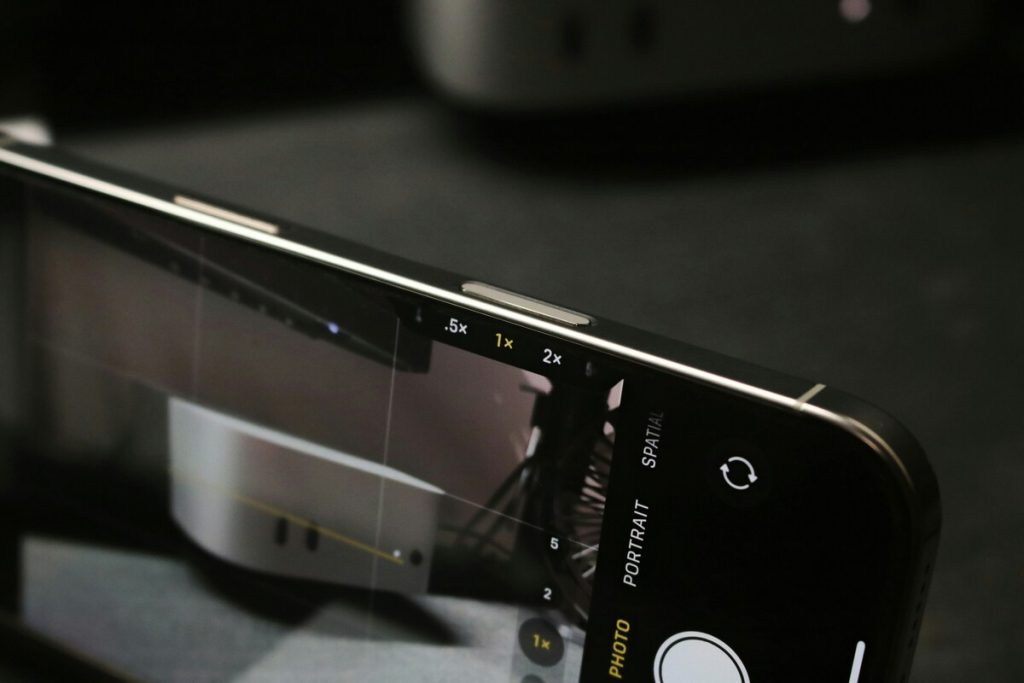
One moment your screen looks normal, and the next, icons are huge, and half the display is off-screen. Pinching does nothing, and the usual buttons are out of reach. How to unzoom iPhone depends on which zoom is active, because there are several, each with its own switch.
1. Which Kind of Zoom Is Your iPhone Stuck On?
Four things can look like “zoomed in,” and they need different fixes. Identify yours first, and “how to unzoom iPhone” gets much quicker.
- Screen magnified and panning with three fingers: this is Zoom, an Accessibility feature.
- Everything looks bigger, but the layout still fits: this is Display Zoom, which enlarges icons and text.
- Only one website looks large: this is a Safari page zoom.
- Lock Screen wallpaper or the passcode screen looks magnified: the cause is Zoom or a wallpaper effect.
2. How to Unzoom iPhone: The Fastest Fixes
Start here when the whole screen is magnified. These three fixes cover Zoom and Display Zoom, in the order most people need them.

Double-Tap With Three Fingers
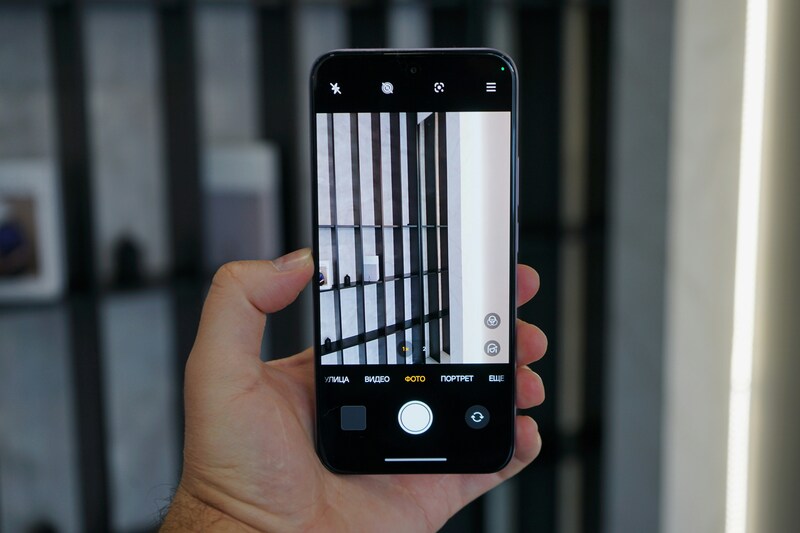
Double-tap the screen with three fingers, and the screen returns to normal. It works anywhere, even on a screen that looks frozen, because the gesture is part of Zoom itself. Tap quickly and keep all three fingers on the glass.
If the screen is zoomed too far to see the controls, drag with three fingers to move around, then tap again.
Turn Off Zoom in Settings
For a lasting answer to “how to unzoom iPhone”, open Settings once you can see the app, tap Accessibility, tap Zoom, and turn Zoom off. That stops the gesture from magnifying the screen again.
You can instead keep Zoom on and add it to the Accessibility Shortcut, which gives you a switch for it. To find the setting while zoomed in, drag with three fingers to pan across the screen.
Fix Display Zoom
If icons look oversized but the screen is not magnified, open Settings, tap Display & Brightness, and tap View under Display Zoom. Choose Standard, tap Set, then tap Use Standard. The iPhone restarts in the new view.
On iPhone Plus models, Zoomed mode can also lock apps to portrait orientation. For “how to unzoom iPhone screen size” in this case, a setting change works, not a gesture.
>>> Read more: How to Take Better Pictures With iPhone Using Simple Camera Tricks
3. How to Unzoom Safari on iPhone
Safari remembers zoom separately for each website, so a page can stay large even when the rest of the phone is fine. Here is how to unzoom Safari on iPhone for one page or all of them.
Reset Page Zoom for One Website
Open the page, tap the aA button on the left side of the address bar, and tap the percentage in the middle to return to 100%.
You can also tap the A and a buttons to step the size down; the range runs from 50% to 300%. Safari remembers the size for that site, so the change sticks.
If the button is missing, tap the menu, tap Website Settings, and change Page Zoom there.
Reset Page Zoom for All Websites
Open Settings, tap Apps, tap Safari, and scroll to Settings for Websites. Tap Page Zoom and set the default to 100%.
On older versions, Safari is directly under Settings. This changes the default, but websites you adjusted earlier may keep their own level.
If one site still looks large, clear its saved preferences by tapping Clear History and Website Data in Safari settings. That also clears your history, so use it only if the other steps fail.
4. How to Unzoom iPhone Lock Screen
When the Lock Screen is magnified, Zoom is usually the cause, and how to unzoom iPhone lock screen problems start with a wake.
Press the side button once, then tap the screen with three fingers at the same time. The Lock Screen returns to its normal size, and you can enter your passcode. After you unlock, open Settings, tap Accessibility, tap Zoom, and turn it off.
If the wallpaper itself shifts or looks enlarged as you tilt the phone, the cause may be Perspective Zoom, a Lock Screen effect introduced in iOS 16.
Touch and hold the Lock Screen, tap Customize, tap the three-dot menu, and clear Perspective Zoom. Menu layouts differ in newer versions.
5. What to Do If the Screen Still Won’t Unzoom
Work through these in order:
- Force restart the iPhone. Press and release Volume Up, then Volume Down, then hold the side button until the Apple logo appears.
- Check Safari for a page zoom of 300% if only the browser looks wrong.
- Update iOS in Settings, General, Software Update.
- Reset the settings. Open Settings, tap General, tap Transfer or Reset iPhone, tap Reset, and tap Reset All Settings.
- Contact Apple Support if the zoom returns after a reset.
>>> Read more: How to Blur Faces on iPhone: 3 Easy Methods for Photos and Videos
6. FAQs
Why doesn’t pinching work?
Pinch gestures only zoom content inside certain apps, such as Photos or a web page, and they cannot undo a system-wide magnifier. Accessibility Zoom responds to three fingers instead, and Display Zoom is a setting with no gesture at all. When Zoom is active, a pinch also fails because the screen is already magnified.
Is Zoom the same as Display Zoom?
No. Zoom magnifies a region of the screen and is controlled by three-finger gestures. Display Zoom changes how large icons and text appear across the interface and requires a restart. Turning one off will not change the other, so check both if the screen still looks large.
How do I zoom out on one web page?
Pinching in the page changes the view temporarily, and the page returns to its saved size when you reload it. For a lasting change, use the aA menu and reset the percentage. Safari then remembers it for that site, which is why one page can stay oversized.
Will Reset All Settings delete my data?
No. Photos, videos, messages, apps, contacts, and documents stay. The reset clears Wi-Fi passwords, Bluetooth pairings, accessibility settings, Home Screen layout, wallpaper, and VPN configurations, so you will set those up again. If you plan to sell the phone, use Erase All Content and Settings instead.
7. Final Thoughts
Match the fix to the zoom: three-finger double-tap for a magnified screen, Standard view for Display Zoom, aA for a single page, and a three-finger tap on the Lock Screen. If the screen is still stuck, restart, update, and reset the settings, which keeps your data.
From simple how-to tips to everyday technology questions, having the right information can make routine tasks feel a little easier. Explore more helpful guides and mobile tips on the AirTalk Wireless blog.