


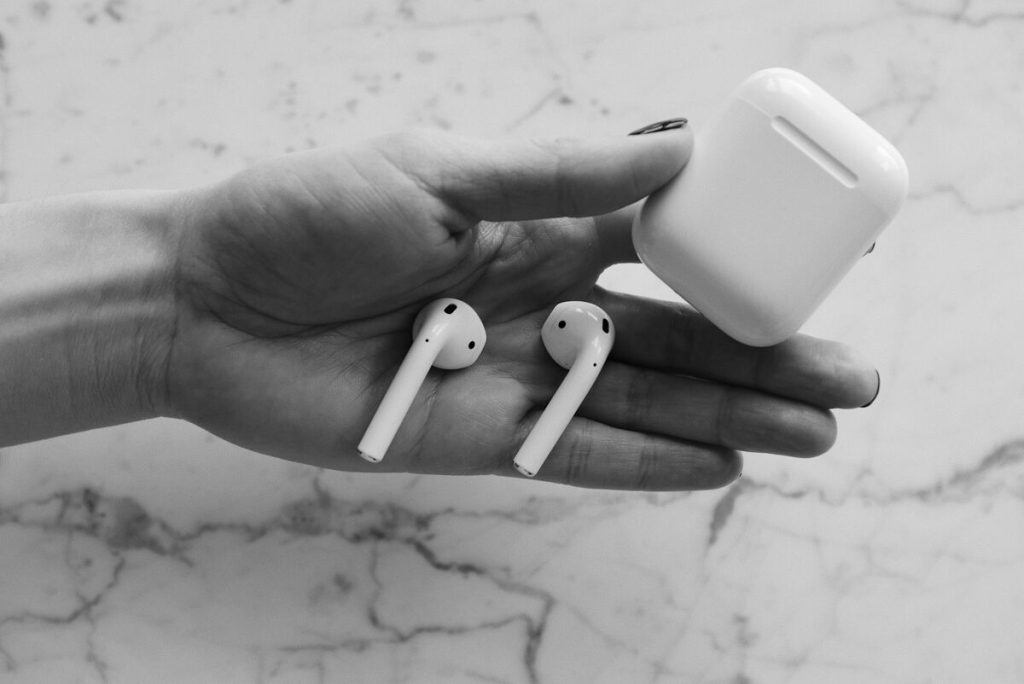
AirPods normally reconnect quickly once they have been paired, but Bluetooth, battery, software, or saved pairing information can sometimes prevent the connection. The correct fix depends partly on whether the problem occurs with every device or only with one phone, laptop, or Chromebook.
If you are asking why won’t my AirPods connect, start with simple checks before resetting anything.
1. Why Won’t My AirPods Connect? 4 Main Reasons
When AirPods fail to connect, the issue usually comes down to a few common causes. Understanding these will help you quickly identify and fix the problem.
The AirPods or Charging Case Need Power
AirPods may fail to pair when one or both earbuds have insufficient charge. Apple specifically tells users troubleshooting a connection problem to place both AirPods in the charging case and confirm that both are charging.
This can also explain why won’t one of my AirPods connect while the other works normally. Before assuming that one earbud is defective, let the AirPods and case charge and then retry the connection.
Bluetooth or Saved Pairing Information Is Stuck
A device can remember an old AirPods pairing but fail to complete a fresh connection. Turning Bluetooth off and back on may refresh the wireless connection. If that does not work, removing or forgetting the AirPods and pairing them again can rebuild the Bluetooth relationship.
The AirPods Are Connected to Another Device
AirPods can work with multiple devices, and Apple devices signed in to the same Apple Account can automatically recognize paired AirPods.
If another nearby phone, tablet, or Mac reconnects first, the device you are currently using may not immediately receive the audio connection. This is especially relevant to why won’t my AirPods connect to my phone when they were recently used with another device.
Software or Bluetooth Hardware Has a Problem
Outdated operating systems or Bluetooth drivers can interfere with pairing. Apple recommends updating iPhone, iPad, and Mac software during AirPods troubleshooting, while Microsoft recommends current Bluetooth drivers and Windows updates. Google similarly recommends installing available ChromeOS updates when Chromebook Bluetooth devices fail to connect.
2. Quick Fixes for All Devices to Try First
Before moving into device-specific troubleshooting, work through these four basic steps.


Charge AirPods and Case
Place both AirPods in the case and connect the case to power. Give a very low battery time to charge before trying again.
Apple specifically includes this check in its official guide for AirPods that will not connect.
Turn Bluetooth Off and Back On
Disable Bluetooth on the phone or computer, wait several seconds, and turn it back on.
Microsoft and Google both recommend toggling Bluetooth off and on when troubleshooting pairing problems.
Put AirPods in Pairing Mode
Pairing mode differs by AirPods generation.
For AirPods 1, 2, or 3 and AirPods Pro 1 or 2, open the charging case and hold the setup button until the status light flashes white.
For AirPods 4 and AirPods Pro 3, Apple instructs users to open the case and double-tap the front so the status light flashes white.
Forget and Reconnect AirPods
If the AirPods appear in Bluetooth settings but refuse to connect, remove or forget them and pair them again.
This is one of the most useful general steps in connecting your AirPods because it removes stale Bluetooth pairing information without immediately factory-resetting the earbuds.
3. Fix AirPods Connection on iPhone/iPad
If why won’t my AirPods connect to my phone specifically means an iPhone or iPad, Apple provides a clear troubleshooting sequence.
Update iOS to Latest Version
Open Settings > General > Software Update and install any available update. Apple recommends using the latest compatible iOS or iPadOS when AirPods fail to connect.
Disable and Re-enable Bluetooth
Go to Settings > Bluetooth, turn Bluetooth off briefly, then turn it back on. Confirm that AirPods appear under your available or saved devices.
Check if Another Device Is Connected
If AirPods appear in Control Center or the AirPlay device list, select them manually and play audio. Apple specifically recommends checking this list when troubleshooting AirPods that appear available but are not producing audio.
Reset Network Settings
Reset Network Settings is a broader troubleshooting step rather than an AirPods-specific first-line fix.
It removes saved network configurations, so use it only after Bluetooth toggling, forgetting the AirPods, updating iOS, and re-pairing have failed.
Do not jump directly to this step when investigating the reason your AirPods cannot connect.
4. Fix AirPods Connection on Mac/Windows Laptop
If you’re experiencing connection issues, start with a few foundational checks before moving into deeper troubleshooting steps.
Update OS and Drivers
On Mac, install the latest compatible macOS version. Apple recommends updating macOS before re-pairing AirPods.
On Windows, check Settings > Windows Update and update the Bluetooth driver. Microsoft says an updated Bluetooth driver can resolve connection, pairing, and detection problems.
Remove AirPods From Bluetooth Settings and Re-pair
For Windows, open Settings > Bluetooth & devices, locate AirPods, choose Remove device, then add them again after putting the AirPods into pairing mode. Microsoft recommends this remove-and-re-add sequence for Bluetooth devices that will not connect.
This is often the best starting point for why won’t my AirPods connect to my laptop.
Check Bluetooth Hardware/Drivers
If Bluetooth itself disappears or other Bluetooth devices also fail, the problem may be the PC’s Bluetooth adapter rather than the AirPods.
Microsoft recommends checking Bluetooth hardware, updating the driver, and if necessary uninstalling the Bluetooth adapter in Device Manager so Windows can reinstall it after restart.
Restart Bluetooth Service
Restarting Windows Bluetooth-related services is sometimes suggested in advanced troubleshooting, but Microsoft’s current consumer Bluetooth guide prioritizes its automated troubleshooter, Bluetooth toggling, re-pairing, updates, drivers, and adapter reinstalling first.
>>> Read more: How to Connect AirPods to Laptop in 2026? Easy Fixes for Frustrating Pairing Issues
5. Fix AirPods Connection on Chromebook
AirPods can sometimes fail to pair or maintain a stable connection on Chromebooks due to Bluetooth compatibility or cached device settings. Before updating ChromeOS, it’s important to ensure the connection is properly reset.
Update ChromeOS
Google recommends checking for system updates when a Chromebook Bluetooth device will not connect. Install available updates and restart the Chromebook.
Forget and Re-pair AirPods
Open Chromebook Bluetooth settings. Under previously connected devices, select the AirPods and choose Forget. Put the AirPods back into pairing mode, choose Pair new device, and select them again.
This is one of the most useful fixes if you are research “why won’t my AirPods connect to my Chromebook”.
Clear Bluetooth Cache
ChromeOS does not currently provide a normal user-facing “Clear Bluetooth Cache” button in Google’s standard Chromebook Bluetooth instructions.
Instead, Google recommends turning Bluetooth off and on, restarting the Chromebook, forgetting and re-pairing the device, installing updates, and, if needed, performing a Chromebook hard reset.
Check if AirPods Are Compatible With Chromebook
Google states that Bluetooth-capable Chromebooks can connect to headphones and headsets. AirPods use Bluetooth, so they can operate as Bluetooth audio devices on a compatible Chromebook, although Apple-specific features may not all be available.
6. How to Reset AirPods When They Still Will Not Connect?
If restarting, forgetting, and re-pairing do not solve the issue, Apple recommends resetting them.
For AirPods 1, 2, or 3 and AirPods Pro 1 or 2, put them in the case, close the lid for 30 seconds, forget them from the paired device if listed, then open the case and hold the rear setup button for about 15 seconds. The status light should flash amber and then white.
AirPods 4 and AirPods Pro 3 use a different reset procedure. After waiting 30 seconds with the lid closed, open it and perform Apple’s three-stage double-tap sequence on the front of the case until the light eventually flashes amber and then white.
Because reset procedures vary by generation, confirm your AirPods model before following instructions.
>>> Read more: How to Turn Off Windows Notifications on Different Versions
7. FAQs
Why Won’t One of My AirPods Connect?
Confirm that both AirPods are charging in the case first. Apple specifically recommends checking both earbuds during connection troubleshooting. If one still fails, forget and reconnect the pair, then reset them if necessary.
Why Do My AirPods Connect to My Phone but Not My Laptop?
The laptop may have stale pairing information, an outdated Bluetooth driver, or a Bluetooth adapter problem. Remove the AirPods from the laptop, update Bluetooth drivers, and pair them again.
Can AirPods Work With a Chromebook?
Yes. Bluetooth-enabled Chromebooks support headphones and headsets, so AirPods can connect as Bluetooth audio devices.
Do I Need to Reset AirPods Every Time They Stop Connecting?
No. Resetting should come after simpler steps such as charging, toggling Bluetooth, forgetting the device, and re-pairing. Apple recommends reset when connection troubleshooting still does not resolve the problem.
Final Thoughts
Why won’t my AirPods connect? If you want to fix this, start with power, Bluetooth, pairing mode, and saved pairing information before moving to deeper fixes.
For iPhone and iPad, update iOS and re-pair the AirPods. For Windows laptops, check Bluetooth drivers as well. For even more tech tips as well as useful guides that help elevate your daily life, update the latest from AirTalk Wireless blog!