


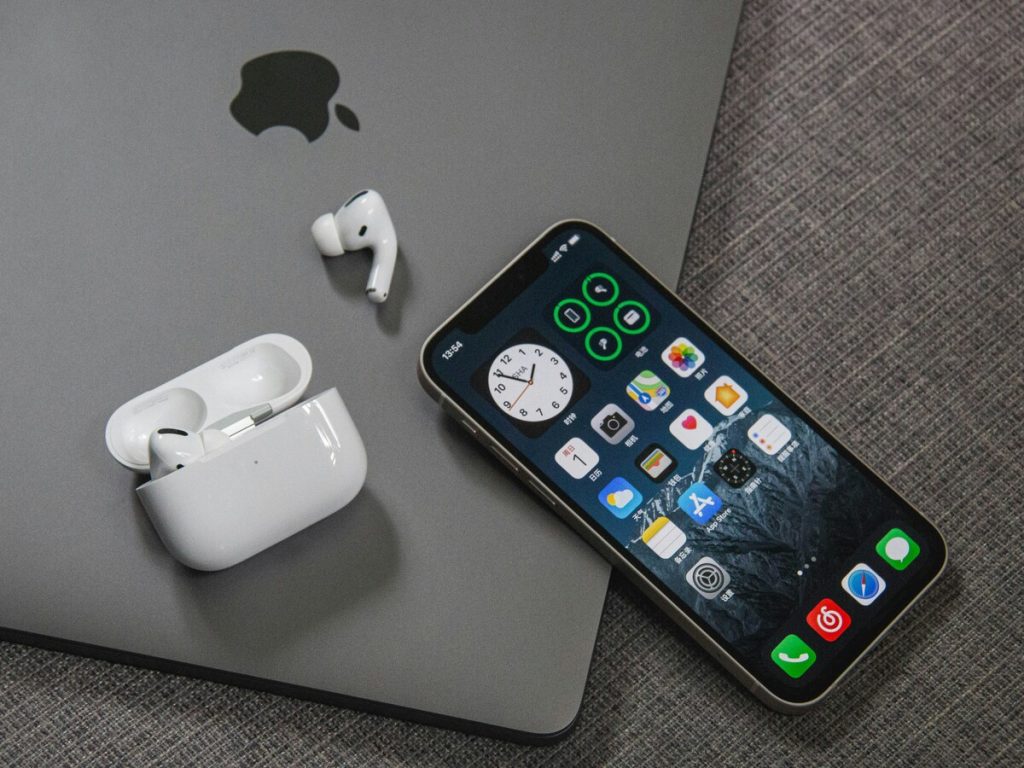
AirPods are small, easy to drop, and easy to leave behind on a table or a train seat. Once they appear in the Find My app, losing one stops being a disaster.
This guide covers how to add AirPods to find my iPhone, how the setup differs between models, and what the app can do for you afterward.
1. How to Add AirPods to Find My iPhone
The setup comes down to two checks, and both take less than a minute.
AirPods have to be paired and connected to your iPhone first, so start there. Anyone asking “how do I add my airpods to find my iPhone” will find the answer in these two steps.
Making Sure They’re Paired and Signed In With the Same Apple ID
Find My only lists devices that belong to your account, so the pairing step matters more than it looks.
To confirm how to add AirPods to find my iPhone is working, check the basics first:
- Open the AirPods case near your iPhone, or wear at least one AirPod, so the phone connects to them.
- Open Settings and tap your name at the top to confirm you are signed in with your Apple Account.
- Tap Find My, then Find My iPhone, and make sure it is turned on.
If the AirPods were paired on a different iPhone, pair them again with the phone you want to use. The Apple Account on that phone is the one that will list them.
Turning On the Find My Network Toggle
The second step is the Find My network setting, which lets your AirPods be located even when they are away from your iPhone.
- Open Settings and tap Bluetooth.
- Tap the info button next to your AirPods.
- Scroll to Find My network and make sure it is turned on.
The Apple network is encrypted and anonymous, and it relies on nearby Apple devices to report an approximate location.
With this toggle on, you have reached the last step of how to add AirPods to find my iPhone, and the AirPods should appear in the Find My app under Devices.
>>> Read more: How to Connect AirPods to Laptop in 2026? Easy Fixes for Frustrating Pairing Issues
2. AirPods 4 vs. AirPods Pro: Find My Works the Same Way
Newer models share the same setup, so how to add AirPods to find my iPhone works the same whichever pair you own, and the steps above apply without changes. Differences show up in the features available, and they are small.


No difference in Find My setup or features
Whether you’re searching for how to add AirPods 4 to Find My iPhone or how to add AirPods Pro, the basic setup is similar. Both can be linked through the AirPods Bluetooth settings and the Find My network option.
However, the features available depend on the AirPods model. AirPods 4 with Active Noise Cancellation and all AirPods Pro models support View Location, Find Nearby, Play Sound, Notify When Found, and Notify When Left Behind.
AirPods 4 without Active Noise Cancellation offer fewer Find My features, including View Location and Play Sound.
Make sure to check which version you have.
Older AirPods (2nd gen, 1st gen) limitations
AirPods 1st and 2nd generation can still appear in Find My, but they support fewer tracking features.
Apple lists View Location and Play Sound for these models, without Find Nearby or Notify When Found. Apple’s instructions for enabling the Find My network apply to AirPods 3rd generation and later, as well as AirPods Max.
If your older pair does not show that setting, that is expected. They still appear in the app, and last known location and Play Sound remain available.
Owners of older pairs can follow how to add AirPods to find my iPhone the same way, then simply expect a shorter list of tools in return.
>>> Read more: Why Do My AirPods Keep Disconnecting? Causes and Fixes That Actually Help
3. 3 Capabilities Once AirPods Are in Find My
Once the setup is done, the Find My app does more than show a dot on a map. Three tools matter most when something goes missing.
You can locate them on a map
Seeing your AirPods listed here is the first sign that how to add AirPods to find my iPhone worked.
Open Find My, tap Devices, and tap your AirPods to see where they are on the map, whether that is at home, at the office, or in a spot you passed earlier.
If they are out of range, the app may show their last known location, or the status Offline or No location found. You can get directions to the last known spot, although you cannot play a sound at that point.
If they are close by, supported models offer Find Nearby. Tap it, wait for the AirPods to connect to your iPhone, and follow the prompts to narrow the search in your current area.
You can play a sound to help you find them
When the AirPods are within range, tap Play Sound in the Find My app. They play a series of beeps that get your attention in a couch cushion, a coat pocket, or a bag. Take both earbuds out of your ears first, since the sound is loud.
Each earbud and the case can be tracked on their own for supported newer models, so it helps to check which piece is missing before you start searching.
You can get notifications about their location
Notify When Left Behind alerts you when you walk away from supported AirPods in an unknown place. Notify When Found can tell you when a missing pair is located by the network.
Both are listed for AirPods 4 with Active Noise Cancellation and AirPods Pro, not for the older generations.
4. Final Thoughts
Pair the AirPods, check that you are signed in with the same Apple Account, and switch on Find My network.
Those are the only steps behind how to add AirPods to find my iPhone, and they work the same on AirPods 4 and AirPods Pro, while older models have a shorter feature list.
For more practical tips on using technology in everyday life, explore the latest guides on the AirTalk Wireless blog.