


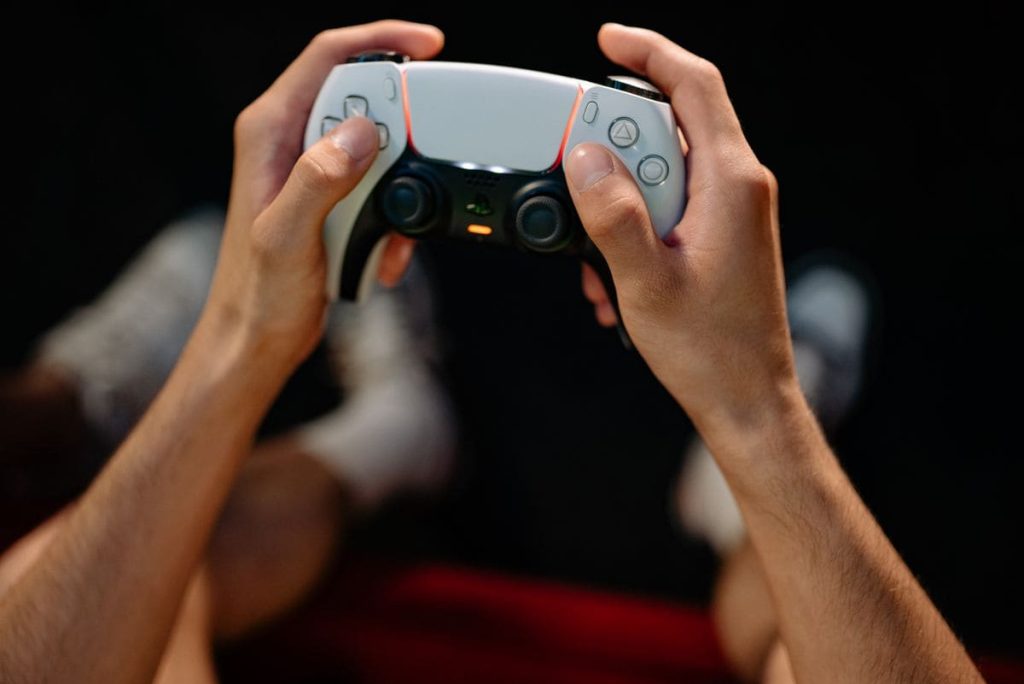
If you’re wondering how to connect PS5 controller to iPhone, the good news is that the process itself is simple once you know the steps. This guide walks through pairing and the settings worth adjusting afterward.
1. Can You Connect a PS5 Controller to an iPhone?
Yes. Apple added native support for Sony’s DualSense controller in iOS 14.5, so a compatible iPhone can recognize it through Bluetooth without a separate pairing app.
So, can you connect PS5 controller to iPhone? In most cases, yes. But the phone model matters less than its iOS version and current Bluetooth condition. If those two things check out, pairing itself is usually straightforward.
That said, if you’re asking “can I connect PS5 controller to iPhone and use it in any game I want?” – not quite. A successful pairing doesn’t guarantee every mobile game will accept controller input. The game itself still needs to include built-in controller support.
2. What You Need Before Pairing a PS5 Controller With an iPhone
A short check beforehand can prevent the controller from disappearing during setup or reconnecting to another device instead. Prepare the following:
- An iPhone running iOS 14.5 or a later version
- Bluetooth enabled on the iPhone
- A charged DualSense wireless controller
- The USB cable disconnected from the controller
- The PS5 turned off or far enough away that it will not reclaim the controller
- No active connection between the DualSense and another phone, tablet, or computer
- A game or app known to accept external controllers
- A stable internet connection if you plan to use Remote Play or a cloud service
Check the controller battery if it has been stored for a long time. A DualSense with very little charge may enter pairing mode briefly and then switch off before the iPhone finds it.
3. How to Connect PS5 Controller to iPhone in 5 Steps
The full process for connecting a PS5 controller to an iPhone takes place in the Bluetooth menu. Keep the controller close to the phone until its name appears.
Step 1: Open the iPhone’s Bluetooth menu
Go to Settings > Bluetooth and turn Bluetooth on. Leave this screen open while you prepare the controller.
Step 2: Place the DualSense in pairing mode
Make sure the controller is off. Hold the Create button and the PS button together until the light around the touchpad begins flashing blue.
Step 3: Wait for the controller to appear
Return your attention to the iPhone and look under Other Devices. The scan may take a few moments.
Step 4: Select the controller
Tap DualSense Wireless Controller when it appears. The controller light should stop flashing once the Bluetooth connection is accepted.
Step 5: Test the connection inside a supported game
Open a controller-compatible title and press several buttons or move the sticks. A controller can show as connected in iOS but remain inactive inside a game that only accepts touchscreen input.
That completes how to connect your PS5 controller to your iPhone. If the DualSense name never appears, turn the controller off and repeat the Create-plus-PS-button action from the Bluetooth screen.
4. How to Use a PS5 Controller With Games on iPhone
After pairing, iOS treats the DualSense as an external game controller. What happens next depends on the game, streaming service, and controller functions supported by the developer.


Find iPhone Games With Controller Support
Read the App Store description before installing a game and look for controller compatibility in its information. You can also open the game’s settings to see whether it offers controller layouts, sensitivity controls, or button assignments.
Do not assume that every console-style game supports DualSense input. Some titles accept a controller for gameplay but still require screen taps for menus, purchases, or account setup.
Use the Controller With Remote Play and Cloud Gaming
Sony’s PS Remote Play app lets an iPhone stream games from a linked PlayStation console. After pairing the DualSense with the phone, open the app, sign in, and connect to the console associated with your account.
A DualSense may also work with browser-based or app-based cloud gaming services that accept Bluetooth controllers. Support differs between services and individual games, so confirm the provider’s iPhone requirements before starting a subscription.
Check Which DualSense Features the Game Supports
Basic controls such as buttons, triggers, sticks, and the directional pad are commonly available in supported games. More specialized DualSense functions may behave differently on an iPhone.
Adaptive triggers, advanced haptics, the touchpad, motion controls, the built-in speaker, and the microphone may be unavailable or only partly supported. The game developer decides which inputs and effects the iPhone version can use.
>>> Read more: How to Connect PS5 Controller to PC?
5. How to Customize PS5 Controller Settings on iPhone
After you connect the PS5 controller to the iPhone, iOS may offer additional controls under Settings > General > Game Controller. Available choices depend on your iOS version and the game you plan to play.
- Review the connected controller: Open the Game Controller menu and select the DualSense to see the options currently available.
- Change button assignments: Create a custom profile if you want one button to perform the action normally assigned to another.
- Adjust stick behavior: Supported versions may let you reverse an axis or change how a thumbstick responds.
- Modify feedback settings: Turn controller haptics or other feedback functions on or off when those controls appear.
- Create profiles for different games: A racing game and an action game may feel better with separate button layouts.
- Return to the standard layout: Remove or disable the custom profile if the new controls become confusing.
- Check settings inside the game: Some titles manage sensitivity, button mapping, and vibration through their own menus rather than iOS.
A change made at the system level may affect more than one game. Test each profile after saving it and keep the standard mapping available in case a title behaves differently.
6. Why a PS5 Controller Will Not Connect to an iPhone
A failed connection can begin before pairing or appear only after a game opens. Identify the stage where the problem occurs before resetting settings or removing the controller.


The Controller Does Not Appear in Bluetooth Settings
First, watch the light around the touchpad. If it is not flashing blue, hold the Create and PS buttons again until the controller returns to pairing mode.
The DualSense may also be reconnecting to a PS5, computer, or another mobile device nearby. Disconnect it from that device, charge the battery, and repeat the search while the iPhone remains on its Bluetooth screen. If necessary, use the small reset opening on the back of the controller, then attempt pairing again.
The Controller Connects but Does Not Work in a Game
A Bluetooth connection confirms that the iPhone recognizes the DualSense, but the game may still rely entirely on touch input. Check the game’s App Store information and its control settings for controller support.
Close and reopen the game after connecting the controller because some titles detect external input only during startup. If several compatible games ignore it, remove the DualSense from Bluetooth and create a fresh connection.
The Controller Keeps Disconnecting
Frequent dropouts may point to a low battery, wireless interference, or excessive distance between the controller and phone. Charge the DualSense and test it beside the iPhone with fewer active Bluetooth accessories nearby.
Restarting the phone may clear a temporary Bluetooth fault. An iOS update can also help when the disconnections began after a software or game change.
7. How to Disconnect or Reconnect a PS5 Controller
You do not need to repeat how to connect PS5 controller to iPhone every time you finish a game. Choose the action below according to whether you want a short break, a future reconnection, or a return to the PS5.
| Action | Steps | When to Use It |
| Temporarily disconnect | Open Settings > Bluetooth, tap the information icon beside DualSense Wireless Controller, and choose Disconnect | You want to stop using the controller without deleting the saved pairing |
| Reconnect later | Turn on Bluetooth, then press the PS button on the controller and select it from the saved devices if required | The iPhone still remembers the DualSense |
| Forget the controller | Open its Bluetooth information page and select Forget This Device | Pairing has become unreliable or you no longer want the phone to remember it |
| Pair with the PS5 again | Connect the DualSense to the console with a compatible USB cable, turn on the PS5, and press the PS button | You want to return the controller to normal console use |
Forgetting the controller removes its saved relationship with the iPhone. The next mobile connection will require pairing mode rather than a simple press of the PS button.
>>> Learn more: How to Connect AirPods to Laptop in 2026?
8. Conclusion
After learning how to connect PS5 controller to iPhone, check each game’s controller support, adjust the layout only when needed, and use the correct disconnect option so the DualSense remains easy to reconnect later.
For more practical tips on staying connected and getting more from your mobile device, explore the latest guides on the AirTalk Wireless blog.