



How to Get Cellular Data on iPad Without SIM Card?
- Share This:
-


-

-

-

-

-

-

-


Do you want to know how to get cellular data on iPad without SIM card, especially as newer iPads now support eSIM technology? A cellular iPad can connect to mobile networks without relying on Wi-Fi, making it ideal for travel, work, and streaming on the go.
In this guide, you’ll explore what cellular means on an iPad, how iPad cellular works without a physical SIM, and the easiest ways to activate mobile data using eSIM or carrier services.
1. What Does Cellular Mean on a iPad and How Does It Work?
A cellular iPad allows internet access anywhere via mobile data, independent of Wi-Fi.
It works through a SIM slot or, most commonly now, an eSIM, which explains how to get cellular data on iPad without SIM card by activating a data plan directly in the Settings app via eSIM carrier activation, scanning a QR code, or using a carrier app.
What does cellular mean on an iPad?
Cellular on an iPad means the device has built-in hardware (radio transceiver) that connects to mobile networks (5G/LTE) similar to a smartphone.
Unlike Wi-Fi-only models, cellular iPads offer true mobility by allowing you to browse the internet, use apps, and stream content when you are away from Wi-Fi networks. These models also include a built-in GPS antenna which makes them better for navigation.
How does iPad cellular work without a physical SIM?
Modern iPads use eSIM (embedded SIM) technology, which allows you to activate a cellular data plan directly from a carrier without inserting a plastic card.
You can activate this service by visiting the Settings > Cellular Data menu to select a carrier, scanning a carrier-provided QR code, or using a carrier’s app, allowing for immediate connection.

>>> Read more: eSIM for iPad: Which Models Support It
2. How to Get Cellular Data on iPad Without SIM Card
How to get cellular data on iPad without SIM card? You can easily get cellular data on your iPad without a physical SIM card by activating an eSIM, allowing for flexible, on-device data plan management.
Simply navigate to your cellular settings to find new plans, scan carrier codes, or use apps to connect instantly to cellular networks.
Find a new plan directly on iPad
You can set up a cellular plan directly through the Settings app, which allows you to purchase a data plan on supported iPads without a physical SIM card.
Go to Settings > Cellular Data, and if you are in a supported region, you will see an option to “Find a new plan” or “Add a New Plan”. Follow the on-screen instructions to select a carrier, pick a plan, and activate it instantly using eSIM technology.
Use a QR Code
This method involves using a QR code supplied by your wireless provider, allowing for quick activation of a digital SIM.
Open the Camera app and scan the QR code provided, then tap the “Cellular Plan Detected” notification when it appears.
If you are using iPadOS 17.4 or later, you can also long-press an emailed QR code, then choose the “Add eSIM” option to begin the setup.
Use carrier app
Many mobile providers allow you to set up cellular data for your iPad directly through their official apps. Simply go to the App Store, download your carrier’s app, and follow the instructions within the app to buy a new data plan or activate an existing one.
After completing the purchase or activation within the app, your eSIM will be installed, and you will have mobile internet access.

3. How to Get Cellular Data on iPad Without SIM Card for Free
The good news is that you can consider applying for government assistance programs like Lifeline, providing, in 2026, a practical way to stay connected.
Leverage Lifeline Program
Lifeline is a government assistance program designed to reduce the cost of phone or internet service for low-income consumers in the U.S.
The program provides the following monthly discounts:
- Standard benefit: $9.25 off phone, internet, or bundled services.
- Enhanced Tribal benefit: $34.25 for eligible households living on qualifying Tribal lands, which includes an additional $25 on top of the standard benefit.
When you apply through a participating service provider in your area, this Lifeline discount is applied to your monthly bill, helping lower or even eliminate your service costs. For example, a data plan from AirTalk Wireless may include 5–30GB* of free data per month, depending on your location and each plan’s offers.
You can then use that free cellular data service on your iPad, whether you use a physical SIM card or eSIM, as long as the device is unlocked and compatible with the AirTalk Wireless network.
This program is specifically designed to help users bridge the digital divide without the high cost of traditional data plans.
*Offers may vary and are subject to future updates.
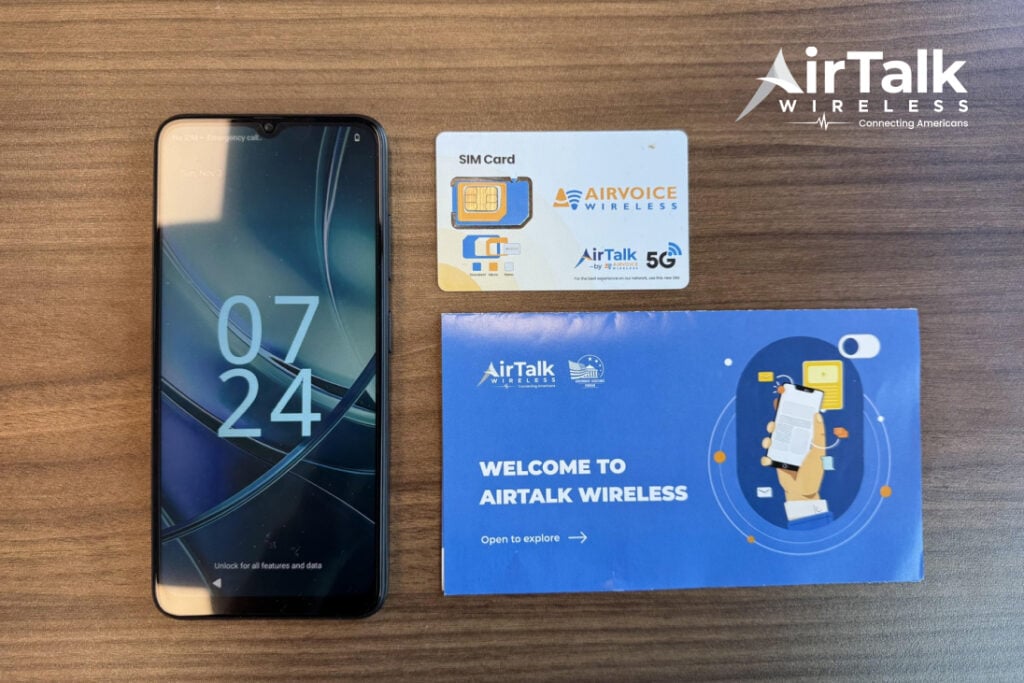
Benefits of an AirTalk Wireless tablet
In addition to free services, AirTalk Wireless offers discounted and free devices. This means qualified customers can receive iPads and Android tablets along with free monthly data.

4. Step-by-Step: How to Apply for a Free iPad
Follow these steps to complete your application and secure your device.
Step 1: Check your eligibility
Before applying, you must verify that you qualify based on federal guidelines.
You are eligible if your household income is at or below 135% of the Federal Poverty Guidelines. Alternatively, you qualify automatically if you participate in government aid programs like SNAP, Medicaid, Supplemental Security Income (SSI), Federal Public Housing Assistance, or Veterans Pension.
Step 2: Choose an eligible provider
Once you confirm your eligibility, you’ll need to find a participating provider that serves your state.
More specifically, look for providers similar to AirTalk Wireless that are currently offering free or discounted iPads or Samsung Galaxy tablets through the Lifeline program.
Step 3: Complete the online application
You can apply with assistance from your chosen provider, or submit your application directly through their website if they offer online enrollment.
For instance, if you apply with AirTalk Wireless, go to https://airtalkwireless.com and submit your application directly through their online signup page.
You may need to upload digital copies of your official documents, such as tax returns, pay stubs, or a program benefit letter, to prove your eligibility.

Step 4: Receive and activate your device
After your application is processed, the provider will ship your device directly to your home address. Once the package arrives, unbox the device and turn it on to begin the setup process. Follow the included instruction guide to activate your free monthly cellular data plan and connect your new tablet to the network.
Note: Eligibility varies by state and program. Offers depend on availability and qualifications. AirTalk Wireless operates under the federal Lifeline Program as an Eligible Telecommunications Carrier (ETC). Service is non-transferable and limited to one service per household.
>>> Read more: How to Apply for a Free Government Tablet from AirTalk Wireless
5. Frequently Asked Questions About iPad Cellular Data
Can I get cellular data on my iPad without a SIM card?
Yes. You can activate cellular data on compatible iPads using eSIM. Simply go to Settings > Cellular Data and choose a carrier plan, scan a provider QR code, or use your carrier’s app to install a digital data plan.
How do I add a cellular plan directly on iPad?
Open Settings > Cellular Data and tap Add a New Plan or Find a New Plan. Follow the setup instructions to choose a carrier and activate an eSIM-based data plan instantly.
Should cellular data be on or off on iPad?
It depends on how you use your iPad. If you rely on it away from WiFi for navigation, streaming, or communication on the go, cellular data is worth having on. If you mostly use it at home or in WiFi-covered areas, keeping it off saves battery and avoids unnecessary data charges.
>>> Read more: Free Tablet Data Plan: $0 Monthly Plan with Free Device
Final Words
Modern iPads offer flexible ways to stay connected without relying on Wi-Fi. For eligible users, government assistance programs may also provide affordable access to tablets and mobile data. Choosing the right setup ensures reliable internet access wherever you go. Apart from the guide for how to get cellular data on iPad without SIM card, make sure you catch up with more useful news from AirTalk Wireless!
- Share This:
-
-
-
-
-
-
-
-
New on AirTalk Wireless


